- Local time
- 11:17 AM
- Posts
- 17
- OS
- Windows 11 Pro
So there are currently two ways to restore the compact Windows 7 command bar for Windows 11: ExplorerPatcher or StartAllBack.
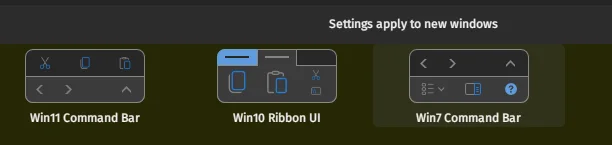
I have been using StartAllBack (and StartIsBack + OldNewExplorer back in Windows 10) and usually I can access the menu in the command bar (example image attached, the File -> Help row) by clicking "Alt". However, I have now found myself unable to do that, leaving me unable to access settings such as "Folder Options" unless I switch back to Windows 10 or 11 command bars. Have anyone ran into a similar behaviour? I jumped over to ExplorerPatcher to see if it is specifically a StartAllBack problem but could not access the menu with "Alt" either.
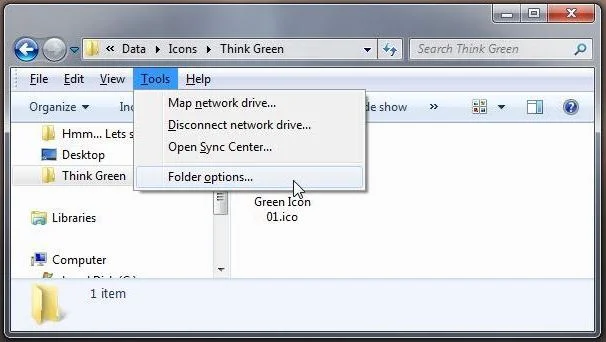
I have been using StartAllBack (and StartIsBack + OldNewExplorer back in Windows 10) and usually I can access the menu in the command bar (example image attached, the File -> Help row) by clicking "Alt". However, I have now found myself unable to do that, leaving me unable to access settings such as "Folder Options" unless I switch back to Windows 10 or 11 command bars. Have anyone ran into a similar behaviour? I jumped over to ExplorerPatcher to see if it is specifically a StartAllBack problem but could not access the menu with "Alt" either.
My Computer
At a glance
Windows 11 ProIntel Core Ultra 7 255H32GB DDR5 SDRAMIntel Arc 140T Arrow Lake 8XE
- OS
- Windows 11 Pro
- Computer type
- Laptop
- Manufacturer/Model
- Lenovo/Thinkpad P14s Intel g6
- CPU
- Intel Core Ultra 7 255H
- Motherboard
- LENOVO 21QTCTO1WW
- Memory
- 32GB DDR5 SDRAM
- Graphics Card(s)
- Intel Arc 140T Arrow Lake 8XE
- Sound Card
- Intel Arrow Lake-U/H PCH
- Browser
- Firefox - Nightly channel