Issue with restoring Windows 7 command bar for Windows 11


Titanonectes

Member
Local time
1:23 PM
Posts
8
OS
Windows 11
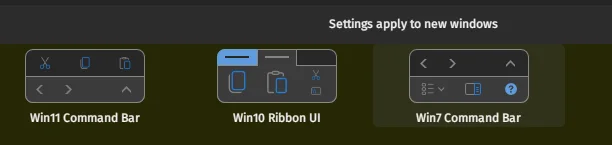
So there are currently two ways to restore the compact Windows 7 command bar for Windows 11: ExplorerPatcher or StartAllBack.
1783315764963.webp

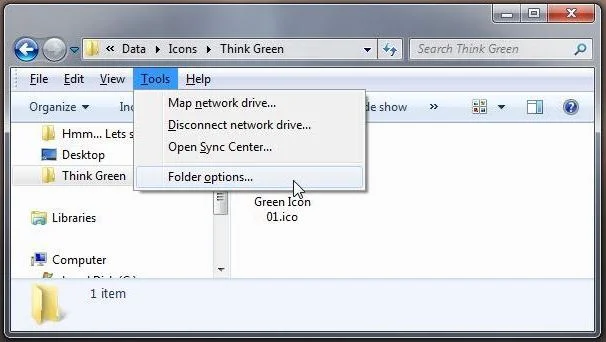
I have been using StartAllBack (and StartIsBack + OldNewExplorer back in Windows 10) and usually I can access the menu in the command bar (example image attached, the File -> Help row) by clicking "Alt". However, I have now found myself unable to do that, leaving me unable to access settings such as "Folder Options" unless I switch back to Windows 10 or 11 command bars. Have anyone ran into a similar behaviour? I jumped over to ExplorerPatcher to see if it is specifically a StartAllBack problem but could not access the menu with "Alt" either.
1783315821931.webp
 

My Computer My Computer

At a glance

Windows 11Intel Core Ultra 7 255H32GB DDR5 SDRAMIntel Arc 140T Arrow Lake 8XE
OS
Windows 11
Computer type
Laptop
Manufacturer/Model
Lenovo/Thinkpad P14s Intel g6
CPU
Intel Core Ultra 7 255H
Motherboard
LENOVO 21QTCTO1WW
Memory
32GB DDR5 SDRAM
Graphics Card(s)
Intel Arc 140T Arrow Lake 8XE
Sound Card
Intel Arrow Lake-U/H PCH
Hopefully a user who uses such tools can give you an answer. I do not.
When 11 first came out, we saw so many issues caused by 3rd party tools that altered the GUI, I chose to never use such a tool. The options are still there so it was just a slight learning curve to adjust to using them the new way. About the only thing I never could adjust to was is the new right click context menu, so I used Brink's tutorial to convert back to the old right click menu natively using the registry..
 

My Computers My Computers

  • At a glance

    Windows 11 Pro 25H2 26200.8655i9-10900 10 core 20 threads32 gbnone-Intel UHD Graphics 630
    OS
    Windows 11 Pro 25H2 26200.8655
    Computer type
    PC/Desktop
    Manufacturer/Model
    Dell Optiplex 7080
    CPU
    i9-10900 10 core 20 threads
    Motherboard
    DELL 0J37VM
    Memory
    32 gb
    Graphics Card(s)
    none-Intel UHD Graphics 630
    Sound Card
    Integrated Realtek
    Monitor(s) Displays
    Benq 27
    Screen Resolution
    2560x1440
    Hard Drives
    2x1tb Solidigm m.2 nvme /External drives 512gb Samsung m.2 sata+2tb Kingston m2.nvme
    PSU
    500w
    Case
    MT
    Cooling
    Dell Premium
    Keyboard
    Logitech wired
    Mouse
    Logitech wireless
    Internet Speed
    so slow I'm too embarrassed to tell
    Browser
    #1 Edge #2 Firefox
    Antivirus
    Defender+MWB Premium
  • At a glance

    Windows 11 Pro 24H2 26200.8457AMD Ryzen 7 6800U32 gbintegrated
    Operating System
    Windows 11 Pro 24H2 26200.8457
    Computer type
    PC/Desktop
    Manufacturer/Model
    Beelink Mini PC SER5
    CPU
    AMD Ryzen 7 6800U
    Memory
    32 gb
    Graphics card(s)
    integrated
    Sound Card
    integrated
    Monitor(s) Displays
    Benq 27
    Screen Resolution
    2560x1440
    Hard Drives
    1TB Crucial nvme
    Keyboard
    Logitech wired
    Mouse
    Logitech wireless
    Internet Speed
    still too embarrassed to tell
    Browser
    Firefox
    Antivirus
    Defender
    Other Info
    System 3 is non compliant Dell 9020 i7-4770/24gb ram Win11 PRO 26200.8457
... unable to access settings such as "Folder Options"
You can access Folder Options from the Organize▼ drop down menu...,
most other options are accessible through their respective right click context menus...

13069.webp

To get the full menu back, I've had to use a combination of StartAllBack and QTTabBar..., it's hit-n-miss though depending on the Windows version, software versions, etc...
 
Last edited:

My Computers My Computers

  • At a glance

    Windows 11 Pro
    OS
    Windows 11 Pro
    Computer type
    PC/Desktop
    Manufacturer/Model
    ASUS ROG Strix
  • At a glance

    Windows 11 Pro
    Operating System
    Windows 11 Pro
    Computer type
    Laptop
    Manufacturer/Model
    ASUS VivoBook
  • ASUS VivoBook 'Lite' ~ Windows 11 Home
If you prefer the Classic Explorer Bar (see below) of Open Shell, install Open Shell instead. Since build 8117 the usual Vive Tool commands cannot make it work again. So you have to modify the Registry fix, see link below, which I confirm it works in all recent build including 8737.

1783341922320.webp


PS: In the screenshot you see the Aero Lite theme (red close button), Windows 10 style File Explorer (Explorer Patcher) and Windows 7 system icons (Customizer God, see relevant threads). The default Windows 11 system icons are flatter and not that nice.
 

My Computers My Computers

  • At a glance

    Windows 11 Pro 23H2 (5699), 25H2 (8737)Mobile DualCore Intel Core 2 Duo T7250, 2000 MHz4GBMobile Intel(R) GMA 4500M (Mobile 4 series)
    OS
    Windows 11 Pro 23H2 (5699), 25H2 (8737)
    Computer type
    Laptop
    Manufacturer/Model
    Acer Extensa 5630EZ
    CPU
    Mobile DualCore Intel Core 2 Duo T7250, 2000 MHz
    Motherboard
    Acer Extensa 5630
    Memory
    4GB
    Graphics Card(s)
    Mobile Intel(R) GMA 4500M (Mobile 4 series)
    Sound Card
    Realtek ALC268 @ Intel 82801IB ICH9 - High Definition Audio Controller
    Monitor(s) Displays
    1
    Screen Resolution
    1280x800
    Hard Drives
    Samsung SSD 850 EVO 250GB SATA Device (250 GB, SATA-III)
    Internet Speed
    VDSL 50 Mbps
    Browser
    MICROSOFT EDGE
    Antivirus
    WINDOWS DEFENDER
    Other Info
    Legacy MBR installation, no TPM, no Secure Boot, no WDDM 2.0 graphics drivers, no SSE4.2, cannot get more unsupported ;) This is only my test laptop. I had installed Windows 11 here before upgrading my main PC. For my main PC I use everyday see my 2nd system specs.
  • At a glance

    Windows 11 Pro v25H2 (build 26200.8737)Intel Core-i7 3770 3.40GHz s1155 (3rd generat...2x Kingston Hyper-X Blu 8GB DDR3-1600GIGABYTE GeForce RTX 3050 WINDFORCE OC V2 6GB...
    Operating System
    Windows 11 Pro v25H2 (build 26200.8737)
    Computer type
    PC/Desktop
    Manufacturer/Model
    Custom-built PC
    CPU
    Intel Core-i7 3770 3.40GHz s1155 (3rd generation)
    Motherboard
    Asus P8H61 s1155 ATX
    Memory
    2x Kingston Hyper-X Blu 8GB DDR3-1600
    Graphics card(s)
    GIGABYTE GeForce RTX 3050 WINDFORCE OC V2 6GB (GV-N3050WF2OCV2-6GD)
    Sound Card
    Realtek HD audio (ALC887)
    Monitor(s) Displays
    Sony Bravia KDL-19L4000 19" LCD TV via VGA
    Screen Resolution
    1440x900 32-bit 60Hz
    Hard Drives
    WD Blue SA510 2.5 1000GB SSD as system disk, Western Digital Caviar Purple 4TB SATA III (WD40PURZ) as second
    PSU
    Thermaltake Litepower RGB 550W Full Wired
    Case
    SUPERCASE MIDI-TOWER
    Cooling
    Deepcool Gamma Archer CPU cooler, 1x 8cm fan at the back
    Keyboard
    Mitsumi 101-key PS/2
    Mouse
    Sunnyline OptiEye PS/2
    Internet Speed
    100Mbps
    Browser
    Microsoft Edge, Mozilla Firefox
    Antivirus
    Microsoft Windows Defender
    Other Info
    Legacy BIOS (MBR) installation, no TPM, no Secure Boot, WDDM 3.0 graphics drivers, WEI score 7.4
Hopefully a user who uses such tools can give you an answer. I do not.
When 11 first came out, we saw so many issues caused by 3rd party tools that altered the GUI, I chose to never use such a tool. The options are still there so it was just a slight learning curve to adjust to using them the new way. About the only thing I never could adjust to was is the new right click context menu, so I used Brink's tutorial to convert back to the old right click menu natively using the registry..
No worries. I saw in some other threads that there seems to be a healthy number of people using the tool in this forum, hence why I posted my question here. This endeavor is just purely for taste - I can adapt to any GUI just fine, but I preferred Win7 style since they can be completely out of my way when I don't need them.

You can access Folder Options from the Organize▼ drop down menu...,
most other options are accessible through their respective right click context menus...

View attachment 176066

To get the full menu back, I've had to use a combination of StartAllBack and QTTabBar..., it's hit-n-miss though depending on the Windows version, software versions, etc...
Interesting. I have used QTTabBar on one device that lacks other tools. How does it mesh with SAB and what was your desired result when you decided to attempt such a thing?

If you prefer the Classic Explorer Bar (see below) of Open Shell, install Open Shell instead. Since build 8117 the usual Vive Tool commands cannot make it work again. So you have to modify the Registry fix, see link below, which I confirm it works in all recent build including 8737.

View attachment 176073


PS: In the screenshot you see the Aero Lite theme (red close button), Windows 10 style File Explorer (Explorer Patcher) and Windows 7 system icons (Customizer God, see relevant threads). The default Windows 11 system icons are flatter and not that nice.
I have heard of OpenShell but never used it - is the command bar collapsible?

I have tried Explorer Patcher to similar results to SAB - the "Alt" toggle key for the command bar does not work in either implementation.

Does CustomizerGod still work in Windows 11? I have tried it for other purposes but it keeps returning a lot of error messages. I chalked these up to the fact that the program seems old and might not have been maintained enough for modern use.
 

My Computer My Computer

At a glance

Windows 11Intel Core Ultra 7 255H32GB DDR5 SDRAMIntel Arc 140T Arrow Lake 8XE
OS
Windows 11
Computer type
Laptop
Manufacturer/Model
Lenovo/Thinkpad P14s Intel g6
CPU
Intel Core Ultra 7 255H
Motherboard
LENOVO 21QTCTO1WW
Memory
32GB DDR5 SDRAM
Graphics Card(s)
Intel Arc 140T Arrow Lake 8XE
Sound Card
Intel Arrow Lake-U/H PCH

My Computers My Computers

  • At a glance

    Windows 11 Pro
    OS
    Windows 11 Pro
    Computer type
    PC/Desktop
    Manufacturer/Model
    ASUS ROG Strix
  • At a glance

    Windows 11 Pro
    Operating System
    Windows 11 Pro
    Computer type
    Laptop
    Manufacturer/Model
    ASUS VivoBook
  • ASUS VivoBook 'Lite' ~ Windows 11 Home
They play nicely together.

Exactly what you see in Post #3.
Do I need to mind any specific settings? Or this is very much a simple plug-and-play thing?
 

My Computer My Computer

At a glance

Windows 11Intel Core Ultra 7 255H32GB DDR5 SDRAMIntel Arc 140T Arrow Lake 8XE
OS
Windows 11
Computer type
Laptop
Manufacturer/Model
Lenovo/Thinkpad P14s Intel g6
CPU
Intel Core Ultra 7 255H
Motherboard
LENOVO 21QTCTO1WW
Memory
32GB DDR5 SDRAM
Graphics Card(s)
Intel Arc 140T Arrow Lake 8XE
Sound Card
Intel Arrow Lake-U/H PCH
No worries. I saw in some other threads that there seems to be a healthy number of people using the tool in this forum, hence why I posted my question here. This endeavor is just purely for taste - I can adapt to any GUI just fine, but I preferred Win7 style since they can be completely out of my way when I don't need them.


Interesting. I have used QTTabBar on one device that lacks other tools. How does it mesh with SAB and what was your desired result when you decided to attempt such a thing?


I have heard of OpenShell but never used it - is the command bar collapsible?

I have tried Explorer Patcher to similar results to SAB - the "Alt" toggle key for the command bar does not work in either implementation.

Does CustomizerGod still work in Windows 11? I have tried it for other purposes but it keeps returning a lot of error messages. I chalked these up to the fact that the program seems old and might not have been maintained enough for modern use.
Latest version of Customizer God tries to open certain system files automatically and because they have changed since Windows 10 v1903 it throws an error. I use an older version where I manually open each file using CTRL+O. No, Open Shell Classic Explorer Bar is not collapsible, it's always on.

PS: Like I write on the relevant threads, you cannot modify the files C:\Windows\SystemResources\*.dll.mun directly. You must copy to another folder, modify it and then take ownership of the folder C:\Windows\SystemResources and all its files. Then change access rights from read-only to Full for the Administrators group for the folder and the specific file you want to modify. Since these files are in use by File Explorer, you must terminate the explorer.exe task from Task Manager, details section and use a third-party file manager or Command Prompt to replace the original file with the modified one.

For your reference: These system files are:

C:\Windows\SystemResources\batmeter.mun.dll for the power and battery icons
C:\Windows\SystemResources\imageres.mun.dll for most system icons icons (folders, devices etc)
C:\Windows\SystemResources\SndVolSSO.mun.dll for the sound icons
C:\Windows\SystemResources\Stobject.mun.dll for the USB safe removal icon
C:\Program Files\ExplorerPatcher\pnidui.dll for the network icons, assuming you have installed Explorer Patcher and have set Windows 10 style taskbar.
 

Attachments

Last edited:

My Computers My Computers

  • At a glance

    Windows 11 Pro 23H2 (5699), 25H2 (8737)Mobile DualCore Intel Core 2 Duo T7250, 2000 MHz4GBMobile Intel(R) GMA 4500M (Mobile 4 series)
    OS
    Windows 11 Pro 23H2 (5699), 25H2 (8737)
    Computer type
    Laptop
    Manufacturer/Model
    Acer Extensa 5630EZ
    CPU
    Mobile DualCore Intel Core 2 Duo T7250, 2000 MHz
    Motherboard
    Acer Extensa 5630
    Memory
    4GB
    Graphics Card(s)
    Mobile Intel(R) GMA 4500M (Mobile 4 series)
    Sound Card
    Realtek ALC268 @ Intel 82801IB ICH9 - High Definition Audio Controller
    Monitor(s) Displays
    1
    Screen Resolution
    1280x800
    Hard Drives
    Samsung SSD 850 EVO 250GB SATA Device (250 GB, SATA-III)
    Internet Speed
    VDSL 50 Mbps
    Browser
    MICROSOFT EDGE
    Antivirus
    WINDOWS DEFENDER
    Other Info
    Legacy MBR installation, no TPM, no Secure Boot, no WDDM 2.0 graphics drivers, no SSE4.2, cannot get more unsupported ;) This is only my test laptop. I had installed Windows 11 here before upgrading my main PC. For my main PC I use everyday see my 2nd system specs.
  • At a glance

    Windows 11 Pro v25H2 (build 26200.8737)Intel Core-i7 3770 3.40GHz s1155 (3rd generat...2x Kingston Hyper-X Blu 8GB DDR3-1600GIGABYTE GeForce RTX 3050 WINDFORCE OC V2 6GB...
    Operating System
    Windows 11 Pro v25H2 (build 26200.8737)
    Computer type
    PC/Desktop
    Manufacturer/Model
    Custom-built PC
    CPU
    Intel Core-i7 3770 3.40GHz s1155 (3rd generation)
    Motherboard
    Asus P8H61 s1155 ATX
    Memory
    2x Kingston Hyper-X Blu 8GB DDR3-1600
    Graphics card(s)
    GIGABYTE GeForce RTX 3050 WINDFORCE OC V2 6GB (GV-N3050WF2OCV2-6GD)
    Sound Card
    Realtek HD audio (ALC887)
    Monitor(s) Displays
    Sony Bravia KDL-19L4000 19" LCD TV via VGA
    Screen Resolution
    1440x900 32-bit 60Hz
    Hard Drives
    WD Blue SA510 2.5 1000GB SSD as system disk, Western Digital Caviar Purple 4TB SATA III (WD40PURZ) as second
    PSU
    Thermaltake Litepower RGB 550W Full Wired
    Case
    SUPERCASE MIDI-TOWER
    Cooling
    Deepcool Gamma Archer CPU cooler, 1x 8cm fan at the back
    Keyboard
    Mitsumi 101-key PS/2
    Mouse
    Sunnyline OptiEye PS/2
    Internet Speed
    100Mbps
    Browser
    Microsoft Edge, Mozilla Firefox
    Antivirus
    Microsoft Windows Defender
    Other Info
    Legacy BIOS (MBR) installation, no TPM, no Secure Boot, WDDM 3.0 graphics drivers, WEI score 7.4
Do I need to mind any specific settings? Or this is very much a simple plug-and-play thing?
Lots of settings!
Between SAB and QT, I probably have over 100 customizations going on!
You need patience.
 

My Computers My Computers

  • At a glance

    Windows 11 Pro
    OS
    Windows 11 Pro
    Computer type
    PC/Desktop
    Manufacturer/Model
    ASUS ROG Strix
  • At a glance

    Windows 11 Pro
    Operating System
    Windows 11 Pro
    Computer type
    Laptop
    Manufacturer/Model
    ASUS VivoBook
  • ASUS VivoBook 'Lite' ~ Windows 11 Home
Back
Top Bottom