Both computers (2 laptops):
Windows 11 Pro 26200.8524
Microsoft Edge 148.0.3967.96
Microsoft Edge signed in to the same outlook.com account.
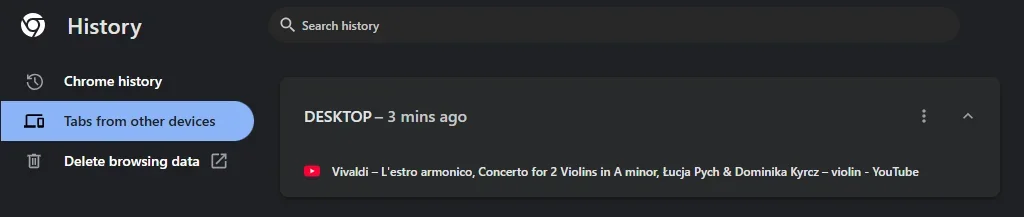
I have been trying to get Open tabs sync to work between two Microsoft Edge instances and I cannot get Open tabs to sync and open on the other browser. Is this another broken feature or am I missing something in the setup in getting the Open tabs to actually open on the other instance of Microsoft Edge?

Microsoft Edge has been open and used on one of the laptops for a while with many tabs opens. Move to the other laptops, open Microsoft Edge, no opens tabs. Go in to Settings to Sync data/settings, still no Open tabs appear. Wait a while, still no open tabs. Tested this both directions between the two laptops and Open Tabs seems broken.
Microsoft states "... maintain a seamless browsing experience ..." with this setup, but so far in my setups and testing, it does NOT work.
Instructions from Microsoft:
Windows 11 Pro 26200.8524
Microsoft Edge 148.0.3967.96
Microsoft Edge signed in to the same outlook.com account.
I have been trying to get Open tabs sync to work between two Microsoft Edge instances and I cannot get Open tabs to sync and open on the other browser. Is this another broken feature or am I missing something in the setup in getting the Open tabs to actually open on the other instance of Microsoft Edge?
Microsoft Edge has been open and used on one of the laptops for a while with many tabs opens. Move to the other laptops, open Microsoft Edge, no opens tabs. Go in to Settings to Sync data/settings, still no Open tabs appear. Wait a while, still no open tabs. Tested this both directions between the two laptops and Open Tabs seems broken.
Microsoft states "... maintain a seamless browsing experience ..." with this setup, but so far in my setups and testing, it does NOT work.
Instructions from Microsoft:
Syncing Open Tabs in Microsoft Edge
To successfully sync open tabs between devices using Microsoft Edge, follow these essential steps:Sign In to Your Microsoft Account
- Ensure you are signed into the same Microsoft account on all devices where you want to sync your data.
Enable Sync Feature
- On Desktop:
- Open Microsoft Edge.
- Click on your profile icon in the upper-right corner.
- Select "Turn on sync" if it is not already enabled.
- Go to "Manage profile settings" and select "Sync."
- Ensure that the toggle for "Open tabs" is turned on.
- On Mobile:
- Open the Microsoft Edge app.
- Tap on your profile image and select "Accounts."
- Sign in to your Microsoft account if you haven't already.
- Tap on "Sync" and ensure "Open tabs" is enabled.
Manage Sync Settings
You can customize which types of data are synced by accessing the sync settings on both your desktop and mobile devices. This includes options for syncing:- Favorites
- Browsing history
- Saved passwords
- Open tabs
Troubleshooting Sync Issues
If you encounter problems with syncing open tabs, consider the following:- Ensure you are connected to a stable internet connection.
- Log out and log back into your Microsoft account on both devices.
- Check for any browser extensions that may interfere with the sync process.
- Windows Build/Version
- Windows 11 Pro 26200.8524
My Computers
-
At a glance
Windows 11 ProAMD Ryzen AI 7 350 w/ Radeon 860M 50 TOPS32GB LPDDR5X 7500 MT/sAMD Radeon 860M integrated (shared memory)- OS
- Windows 11 Pro
- Computer type
- Laptop
- Manufacturer/Model
- Dell 16 Plus DB16255
- CPU
- AMD Ryzen AI 7 350 w/ Radeon 860M 50 TOPS
- Motherboard
- Dell 0PKMHG
- Memory
- 32GB LPDDR5X 7500 MT/s
- Graphics Card(s)
- AMD Radeon 860M integrated (shared memory)
- Sound Card
- Stereo speakers (2.5 W x 2 = 5 W total peak)/Realtek SounzReal/Dolby Atmos
- Monitor(s) Displays
- Displays: 16" 1920 x 1200 (Full HD+/WUXGA) 300 nits 60Hz *** Samsung - 27” Odyssey FHD IPS 240Hz G-Sync Gaming Monitor
- Screen Resolution
- 1920x1080 @ 60Hz
- Hard Drives
- EG6 KIOXIA 1TB NVME
- Case
- Ice Blue
- Cooling
- "dual-fan" or "enhanced" air-cooling system
- Mouse
- Logitech M650 Wireless/Bluetooth
- Internet Speed
- 800/600 Fiber
-
- Computer type
- Laptop

 What actually syncs between your laptops
 How the sync process works behind the scenes
 Where to check your sync status
 Quick check for your situation
 The short answer
 Quick diagnostic question for you