Solved No Pictures folder in Users - but OneDrive, despite uninstalled


Sualk

Member
Member
Local time
11:41 AM
Posts
31
OS
Windows 11 Pro
Hello All,
again something I cannot solve or find anything on line about.

Got a new laptop just for travel and left everything as is, except immediately uninstalled/deactivated/blocked with registry hack Onedrive ... don't want it / don't need it.
Now I noticed that all saved pictures go by default to a Pictures folder in User/myname > Onedrive ... instead into User/my name > Pictures.
The Pictures folder is only present in Users > Onedrive ... There is NO Pictures folder under my name outside of Onedrive.
The Pictures icon in explorer opens to the Pictures folder in Onedrive.

I read some suggestions how to stop saving to Onedrive by opening it ... also how to re-assign the pictures folder back to default.
Nothing works because: - I don't even have Onedrive installed
- re-directing / restore default, but denied: "there is no folder in the new location - would you like to create it?" -
"can't redirect child into parent" and other weird stuff

So, how, once and for all, get rid of all Onedrive folders and get the Pictures folder as default location out of Onedrive and back under User/my name.

Documents and Desktop are under my name in Users but dont get anything because all goes to Onedrive folders.
The icons in explorer of all three show in properties pointing to Onedrive.

Please help.

Thanks
 
Windows Build/Version
Win11- 23H2 - build 22631.6060 - refurbished

My Computer

System One

  • OS
    Windows 11 Pro
    Computer type
    PC/Desktop
    Manufacturer/Model
    Custom Built
    CPU
    Intel(R) Core(TM) i9-10900K CPU @ 3.70GHz 3.70 GHz
    Motherboard
    Asus TUF GAMING Z590-PLUS (LGA1200)
    Memory
    16.0GB Dual-Channel DDR4 @ 1066MHz (15-15-15-36
    Graphics Card(s)
    2047MB NVIDIA GeForce RTX 2060
    Sound Card
    NVIDIA High Definition Audio - Realtek High Definition Audio
    Monitor(s) Displays
    Asus Pro Art PA 246 / Asus VB 195
    Screen Resolution
    1280 x 1024
    Hard Drives
    1863GB Seagate ST2000DM001-9YN164 (SATA )
    238GB Samsung SSD 850 PRO 256GB (SATA (SSD)
    232GB Samsung SSD 970 EVO Plus 250GB (Unknown (SSD))
    Case
    Corsair
    Internet Speed
    10 / 1
    Browser
    Edge
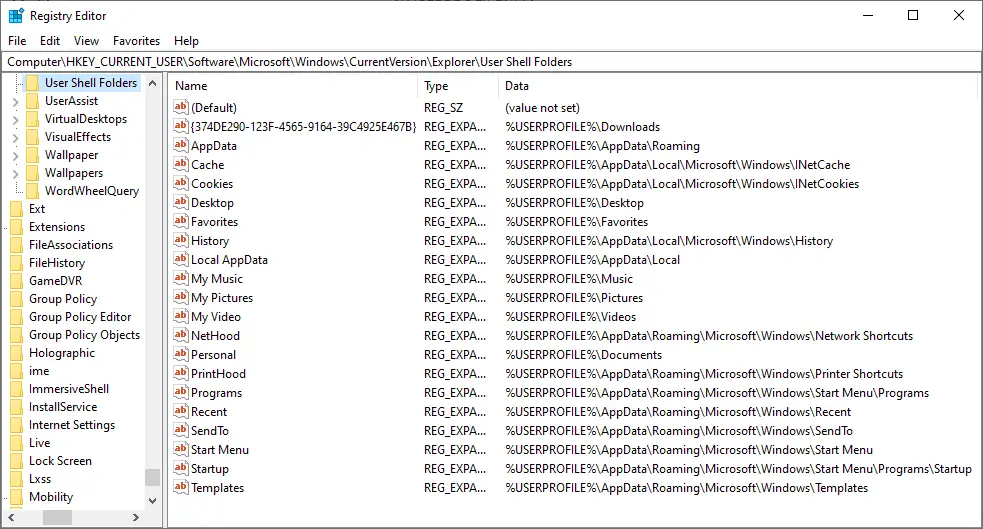
Go to search or Run type Regedit.
in the Registry Editor browse to
HKEY_CURRENT_USER\SOFTWARE\Microsoft\Windows\CurrentVersion\Explorer\User Shell Folders
Right click the C:\Users\UserName\OneDrive\Pictures key and choose Modify
Delete the OneDrive part in the path and click OK
Restart the computer


My Computer

System One

  • OS
    Windows 11 Pro Insider 64 bit 25H2 26200.5742
    Computer type
    PC/Desktop
    Manufacturer/Model
    Gigabyte Z390 UD
    CPU
    Intel Core i7 9700K 3.60
    Motherboard
    Gigabyte Z390 UD
    Memory
    16 GB
    Graphics Card(s)
    nVidia GEForce RTX 2060 Super
    Sound Card
    onboard
    Monitor(s) Displays
    Two 27" Dell 4K monitors
    Screen Resolution
    3840 x 2160
    Hard Drives
    M.2 NVME SSD, 500 GB; Two 2TB Mechanical HDD's
    PSU
    850w PSU
    Case
    Cyberpower PC
    Cooling
    Water cooled
    Keyboard
    Backlit Cyberpower gaming keyboard
    Mouse
    Backlit Cyberpower gaming mouse
    Internet Speed
    1 GB mbps
    Browser
    Brave
    Antivirus
    Windows Security
You’re asking for future problems if OneDrive isn’t removed correctly, there is a process and it’s a pain in the butt. But it’s an imporatant pain in the butt. Hacking the registry without going through the motions, is not the correct way to remove OneDrive.

I would suggest undoing whatever it is you have done, reinstalling OneDrive then following this process, kindly supplied by @glasskuter


:
How to Properly Remove OneDrive from Windows 11

When you sign in with a Microsoft account, Windows automatically sets Documents, Desktop, Pictures, and Videos folders to use OneDrive as their default storage location. If you don’t want to use OneDrive, you’ll need to carefully follow the steps below. Skipping or rearranging them can cause issues with your files and folders.

Important:
These instructions assume that OneDrive is still installed on your PC.
If you’ve already uninstalled it, for this procedure to work, you will need to first reinstall OneDrive by downloading it from Microsoft’s official site.
  • Restart your PC, sign in to OneDrive, and then continue with the tutorial.
Step 1: Turn Off OneDrive Folder Backup Syncing
First, you need to stop OneDrive from automatically syncing your Desktop, Documents, Pictures, and Videos folders. This guide will also help you get your files back on to your local drive.
Turn On or Off OneDrive Folder Backup Syncing in Windows 11

Only If the folders don’t automatically return to their default local location under C:\Users|YourUserName in step 1:

Use the tutorials below (Option Three) to manually restore the default location of each folder and move your files from Onedrive into it.
Move or Restore Default Location of Desktop Folder in Windows 11
Move or Restore Default Location of Documents Folder in Windows 11
Move or Restore Default Location of Pictures Folder in Windows 11
Move or Restore Default Location of Videos Folder in Windows 11 |
-----------------------------------------------------------------
Step 2: Unlink Account & PC from OneDrive

After syncing is turned off, disconnect your account and computer from OneDrive:
Unlink account & PC from Onedrive.

Once you do this the files you have in onedrive will remain there until you login to Onedrive on the Web and delete them.
Microsoft OneDrive
----------------------------------------------------------------------

Step 3: Prevent OneDrive from Starting Automatically or Uninstall Onedrive

At this point, you can either disable OneDrive from autostart or uninstall it.

NOTE: Office 365 and Ofc 2019-2024 DEFAULT save location is Onedrive. You will have to go into each Office app and change its default save location to a folder on your computer.
ALSO NOTE: : Autosave will no longer works unless files are saved to Onedrive by default.

To disable Onedrive from auto-starting(recommended):

Open Task Manager (Ctrl+Shift+Esc).

Go to the Startup Apps tab.

Find OneDrive, right-click it, and select Disable.

This prevents OneDrive from launching at startup and survives Windows and Office updates.

To Uninstall OneDrive (Optional)
Note: An Office update may reinstall Onedrive at some point.
If you prefer to completely remove OneDrive, use one of these methods:

Method 1 – Using Revo Uninstaller (recommended):
Download Revo Uninstaller Freeware Portable.
  • Open Revo and look under Windows Apps to find OneDrive.
  • Uninstall it using Revo, then run its scan feature. Check all the leftover files and registry entries Revo finds and remove.
Method 2 – Built-in Windows option:
You can also uninstall OneDrive through Windows settings, but this may leave some registry entries behind. Uninstall and Reinstall OneDrive in Windows 11
--------------------------------------------------------------
Following this sequence ensures your files are safe and your folders return to their proper locations, while OneDrive is disabled or completely removed from your system. Note: Whether this will work as written for you depends on what steps were taken in your prior attempts to get rid of Onedrive. Sometimes a user’s incorrect actions can have unwanted results. Nevertheless, your files should still be in Onedrive so they are not lost.
 

My Computers

System One System Two

  • OS
    Windows 11 Pro 25H2 Build 26200.8524
    Computer type
    PC/Desktop
    Manufacturer/Model
    Sin-built 2013
    CPU
    Intel(R) Core(TM) i7-4770K CPU @ 3.50GHz
    Motherboard
    ASUS ROG Maximus VI Formula
    Memory
    32.0 GB of I forget and the box is in storage.
    Graphics Card(s)
    Gigabyte nVidia GeForce GTX 1660 Super OC 6GB
    Sound Card
    Onboard thingy
    Monitor(s) Displays
    5 x LG 25MS500-B - 1 x 24MK430H-B - 1 x Wacom Pro 22" Touch Screen Tablet
    Screen Resolution
    All over the place
    Hard Drives
    Too many to list.
    OS on Samsung 1TB 870 QVO SATA
    PSU
    Silverstone 1500
    Case
    NZXT Phantom 820 Full-Tower Case
    Cooling
    Noctua NH-D15 Elite Class Dual Tower CPU Cooler / 6 x EziDIY 120mm / 2 x Corsair 140mm somethings / 1 x 140mm Thermaltake something / 2 x 200mm Corsair.
    Keyboard
    Corsair K95 / Logitech diNovo Edge Wireless
    Mouse
    Logitech: G402 / G502 / Mx Masters / Mx Air Cordless
    Internet Speed
    2000/500Mbps
    Browser
    All sorts
    Antivirus
    Kaspersky Premium
    Other Info
    ㅤㅤㅤㅤㅤㅤㅤㅤㅤㅤㅤㅤㅤㅤㅤㅤㅤㅤㅤㅤㅤㅤㅤㅤㅤㅤㅤㅤㅤㅤㅤㅤㅤㅤㅤㅤㅤㅤㅤㅤ⠀⠀⠀⠀⠀⠀⠀⠀⠀⠀
    TP-Link BE9300 WiFi 7 Bluetooth 5.4 (Archer TBE550E)
    TP-Link TX201 V1 2.5GB Lan

    Grandstream HT812 - VoIP
    ASUS DSL-AX82U - Mesh
    ASUS RT-AC68U - Mesh
    ASUS RT-BE88U Router

    Brother MFC-L2880DW Printer

    I’m on a horse.
  • Operating System
    Windows 11 Pro 25H2 Build 26200.8524
    Computer type
    Laptop
    Manufacturer/Model
    LENOVO Yoga 7 14IRL8 - 7i EVO OLED 14" Touchscreen i5 12 Core 16GB/512GB
    CPU
    Intel Core 12th Gen i5-1240P Processor (1.7 - 4.4GHz)
    Memory
    16GB LPDDR5 RAM
    Graphics card(s)
    Intel Iris Xe Graphics Processor
    Sound Card
    Optimized with Dolby Atmos®
    Screen Resolution
    QHD 2880 x 1800 OLED
    Hard Drives
    M.2 512GB
    Antivirus
    Defender / Malwarebytes
    Other Info
    …still on a horse.
Thank You All,
the step by step article by glasskuter worked like a charm - re Onedrive - unsync - uninstalled properly.
Proper default folders are back (with the use of the bat files though)
All good!
However - one problem:
the icons above the navigation pane / left / with the little thumb pick symbols ... only the ones that were NOT
involved with OneDrive are there (Video, Downloads, Music), but the reestablished ones (Pictures, Documents, Desktop) are missing
and there is no option for pinning them back there.
Any suggestions?

Thanks
 

My Computer

System One

  • OS
    Windows 11 Pro
    Computer type
    PC/Desktop
    Manufacturer/Model
    Custom Built
    CPU
    Intel(R) Core(TM) i9-10900K CPU @ 3.70GHz 3.70 GHz
    Motherboard
    Asus TUF GAMING Z590-PLUS (LGA1200)
    Memory
    16.0GB Dual-Channel DDR4 @ 1066MHz (15-15-15-36
    Graphics Card(s)
    2047MB NVIDIA GeForce RTX 2060
    Sound Card
    NVIDIA High Definition Audio - Realtek High Definition Audio
    Monitor(s) Displays
    Asus Pro Art PA 246 / Asus VB 195
    Screen Resolution
    1280 x 1024
    Hard Drives
    1863GB Seagate ST2000DM001-9YN164 (SATA )
    238GB Samsung SSD 850 PRO 256GB (SATA (SSD)
    232GB Samsung SSD 970 EVO Plus 250GB (Unknown (SSD))
    Case
    Corsair
    Internet Speed
    10 / 1
    Browser
    Edge
PS: just discovered that, despite there is no option for "pin to quick access" - as some suggested ... I could simply drag
the folders into the quick access space and it created the missing link / icon.

If there is anything I'm missing or a better solution, please let me know. (just out of curiosity)

Thanks
 

My Computer

System One

  • OS
    Windows 11 Pro
    Computer type
    PC/Desktop
    Manufacturer/Model
    Custom Built
    CPU
    Intel(R) Core(TM) i9-10900K CPU @ 3.70GHz 3.70 GHz
    Motherboard
    Asus TUF GAMING Z590-PLUS (LGA1200)
    Memory
    16.0GB Dual-Channel DDR4 @ 1066MHz (15-15-15-36
    Graphics Card(s)
    2047MB NVIDIA GeForce RTX 2060
    Sound Card
    NVIDIA High Definition Audio - Realtek High Definition Audio
    Monitor(s) Displays
    Asus Pro Art PA 246 / Asus VB 195
    Screen Resolution
    1280 x 1024
    Hard Drives
    1863GB Seagate ST2000DM001-9YN164 (SATA )
    238GB Samsung SSD 850 PRO 256GB (SATA (SSD)
    232GB Samsung SSD 970 EVO Plus 250GB (Unknown (SSD))
    Case
    Corsair
    Internet Speed
    10 / 1
    Browser
    Edge
You can confirm or edit the default path for the Users files in the
Registry as shown in Post #2
 

My Computer

System One

  • OS
    Windows 11 Pro Insider 64 bit 25H2 26200.5742
    Computer type
    PC/Desktop
    Manufacturer/Model
    Gigabyte Z390 UD
    CPU
    Intel Core i7 9700K 3.60
    Motherboard
    Gigabyte Z390 UD
    Memory
    16 GB
    Graphics Card(s)
    nVidia GEForce RTX 2060 Super
    Sound Card
    onboard
    Monitor(s) Displays
    Two 27" Dell 4K monitors
    Screen Resolution
    3840 x 2160
    Hard Drives
    M.2 NVME SSD, 500 GB; Two 2TB Mechanical HDD's
    PSU
    850w PSU
    Case
    Cyberpower PC
    Cooling
    Water cooled
    Keyboard
    Backlit Cyberpower gaming keyboard
    Mouse
    Backlit Cyberpower gaming mouse
    Internet Speed
    1 GB mbps
    Browser
    Brave
    Antivirus
    Windows Security

Latest Support Threads

Back
Top Bottom