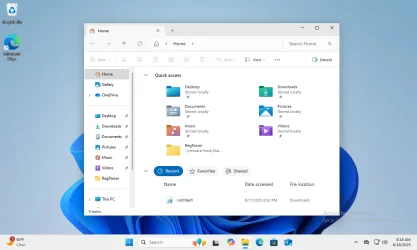
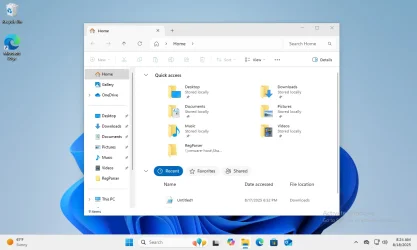
Replace all Windows 11 folder icon with Windows 10 Folder icons


My Computer

System One

  • OS
    Windows 11
    Computer type
    Laptop
    Manufacturer/Model
    Acer
    CPU
    Ryzen 5 6600H
    Motherboard
    Don't know
    Memory
    DDR5 16GB
    Graphics Card(s)
    RTX 3050
    Screen Resolution
    1920x1080
This is awesome, I have fresh new install on windows 11, what can I do so that it looks the same as yours on the last build of W11 ?
Following the given advice would be a good start.
 

My Computers

System One System Two

  • OS
    Windows 11 Enterprise 25H2 26200 7462
    Computer type
    PC/Desktop
    Manufacturer/Model
    Custom Build
    CPU
    Intel XEON E5-2699 v3
    Motherboard
    ASUS X99-A
    Memory
    64GB Teamgroup UD4-3600
    Graphics Card(s)
    NVIDIA GeForce GTX 1080 Ti
    Sound Card
    Integrated
    Monitor(s) Displays
    ACER X34 Predator
    Screen Resolution
    3440 x 1440
    Hard Drives
    Crucial CT1000P 3P SSD8 1TB
    Crucial CT1000 BX500 SSD 1TB
    PSU
    GameMax Pro
    Case
    Fractal Design
    Cooling
    Corsair H110iGT + 6 140mm Fans
    Keyboard
    Corsair K4
    Mouse
    G-Skill G502
    Internet Speed
    300MBs
    Browser
    Chrome
    Antivirus
    OEM
    Other Info
    ASUS RT-AC87U Router
  • Operating System
    25H2 26200.5074
    Computer type
    Laptop
    Manufacturer/Model
    ASUS X555LA
    Memory
    8GB
    Browser
    Chrome
    Antivirus
    OEM
This is awesome, I have fresh new install on windows 11, what can I do so that it looks the same as yours on the last build of W11 ?
Works on a clean install of 24H2. If you don't have permissions to rename the original DLL, download PowerRun.
 

Attachments

  • Windows 11 x64-2025-08-18-08-18-45.webp
    Windows 11 x64-2025-08-18-08-18-45.webp
    44.7 KB · Views: 5
  • Windows 11 x64-2025-08-18-08-24-39.webp
    Windows 11 x64-2025-08-18-08-24-39.webp
    44.2 KB · Views: 5

My Computer

System One

  • OS
    Windows 7
I did everything, both ways, with the batch file, blue icon, and also with the steps from here How to use Windows 10 Icons in Windows 11. Deleted the cache (deleted only the icon cache files, I have also some thumbscache files, should I delete those as well ? ) and restarted, but no result, the folders are still the same. What about renaming the dll you talking about ? Since I only replaced it.

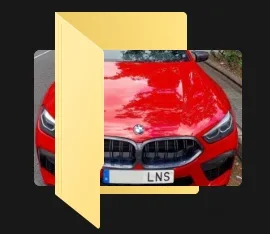
Some of the folder are like the first one I uploaded, some of them are blue like the second one, and some that have images are like the third one. However the bunch of them are standart Win 11 folders. Also to note, I am using the extra large images everywhere in the folders.
 

Attachments

  • Screenshot 2025-08-25 214139.webp
    Screenshot 2025-08-25 214139.webp
    1.6 KB · Views: 2
  • Screenshot 2025-08-25 214221.webp
    Screenshot 2025-08-25 214221.webp
    1.6 KB · Views: 2
  • Screenshot 2025-08-25 214326.webp
    Screenshot 2025-08-25 214326.webp
    7.6 KB · Views: 2
Last edited:

My Computer

System One

  • OS
    Windows 11
    Computer type
    Laptop
    Manufacturer/Model
    Acer
    CPU
    Ryzen 5 6600H
    Motherboard
    Don't know
    Memory
    DDR5 16GB
    Graphics Card(s)
    RTX 3050
    Screen Resolution
    1920x1080
1. Ignore the batch script. It's not relevant to what you want to do.

2. You should use PowerRun to safely grant yourself TrustedInstaller rights (Administrator is not enough).

3. Rename the existing imageres.dll.mun to a different name. While Explorer is running, it's got the file opened so don't copy over or delete it. Rename it.

4. Copy the downloaded W10 imageres.dll.mun into the same folder.

5. Restart Explorer ("taskkill /im /if explorer.exe && start explorer") or log out.

6. Clear out the icon cache so Explorer can start over again.
 

My Computer

System One

  • OS
    Windows 7
I did it again, although renaming the win 10 dll file that I put from the first time there. (the original is backed up just in case). Did everything and it still the same mess. How can I uninstall the bluefolder thing I did earlier ? I run it again in order to choose option 2 and restore the folders, and deleted all the files of blue folder. I think it's removed. Again cleared the cache and restarted the explorer. The blue folders are gone however only some of the folders are back WIN 10 style, not everything. most of them are still win 11's and those that are win 10 are buggy mess like the two screenshots I uploaded in my previous post.
 

My Computer

System One

  • OS
    Windows 11
    Computer type
    Laptop
    Manufacturer/Model
    Acer
    CPU
    Ryzen 5 6600H
    Motherboard
    Don't know
    Memory
    DDR5 16GB
    Graphics Card(s)
    RTX 3050
    Screen Resolution
    1920x1080
To undo the blue icon:
Code:
reg.exe delete "HKLM\SOFTWARE\Microsoft\Windows\CurrentVersion\Explorer\Shell Icons" /v 3 /f

The problem with restoring W10 folder icons is W11 creates thumbnail images in landscape mode, and W10 used portrait mode. There doesn't appear to be a simple setting to switch thumbnail style, rather it might be hard-coded into Explorer. You can replace all the folder resources you want, and it won't matter.

To get it perfect requires something like an Explorer Patcher to bring back the older code libraries.
 

My Computer

System One

  • OS
    Windows 7
Okay, I have explorer patcher installed and running. What now ?
 

My Computer

System One

  • OS
    Windows 11
    Computer type
    Laptop
    Manufacturer/Model
    Acer
    CPU
    Ryzen 5 6600H
    Motherboard
    Don't know
    Memory
    DDR5 16GB
    Graphics Card(s)
    RTX 3050
    Screen Resolution
    1920x1080
Sorry I meant something like an Explorer Patcher has to do the work, not that the current version supports this feature.
 

My Computer

System One

  • OS
    Windows 7
I though this thread was created, and solutions were given about the final result, 1:1 with windows 10 folders, even when there are files and pictures inside, and they will be properly displayed .. I wouldn't go through all of this work just for ugly images in landscape .. I want either the full package or nothing, not anything in between. Anyways thank you for your effort.

How can I get back to windows 11 default folders ? changing back that dll file to it's original ?
 
Last edited:

My Computer

System One

  • OS
    Windows 11
    Computer type
    Laptop
    Manufacturer/Model
    Acer
    CPU
    Ryzen 5 6600H
    Motherboard
    Don't know
    Memory
    DDR5 16GB
    Graphics Card(s)
    RTX 3050
    Screen Resolution
    1920x1080
Move the old imageres.dll.mun back into the folder, and restart Explorer.
 

My Computer

System One

  • OS
    Windows 7

Attachments

My Computers

System One System Two

  • OS
    Windows 10 & 11 LTSC 3xBoot 1809 21H2 24H2
    Computer type
    PC/Desktop
    Manufacturer/Model
    Self-made 2013
    CPU
    Intel Core i5-2550K
    Motherboard
    Intel DH67CL
    Memory
    8 GB
    Graphics Card(s)
    NVIDIA GeForce GTS 450
    Sound Card
    EmuPMX
    Monitor(s) Displays
    16/9 Samsung + 4/3 iiyama
    Screen Resolution
    1360 x 768 + 1024 x 768
    Hard Drives
    Main SSD: Samsung 250 Gb
    Secondary HDDs: Western Digital
    (Purple 4 Tb + Blue 2 Tb) x2
    + Green 0.5 Tb
    Case
    Antec
    Keyboard
    Dell
    Mouse
    Advance
    Browser
    Brave
    Antivirus
    Windows Security
    Other Info
    + Portable Cleanup Utilities :

    AdwCleaner
    ZHP Cleaner (+Diag)
    Kaspersky Virus Removal Tool
    CCleaner
  • Operating System
    Windows 11 Home
    Computer type
    Laptop
    Manufacturer/Model
    HP
    Other Info
    Using W11 OS on customers' computers more and more often, and sometimes on my mum's new laptop.
So there is no way nowadays to do it where it works and looks right? I too far prefer the windows 7/10 folders.
 

My Computer

System One

  • OS
    Windows 11
    Computer type
    Laptop

Latest Support Threads

Back
Top Bottom