Replaced 1TB NVMe M.2 with a 2TB NVMe M.2, doesn't show


Ztruker

Well-known member
Member
VIP
Local time
11:46 AM
Posts
254
Location
Space Coast of Florida
OS
Windows 11 Pro X64 25H2 Build 26200.7019
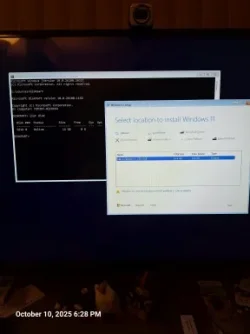
Replaced 1TB NVMe M.2 with a 2TB NVMe M.2, doesn't show in disk management or diskpart or during Windows 11 install.

20251010_182851.webp

I created a Macrium backup of the 1TB drive and planned to restore it to the 2TB drive, then shrink the restored drive to 1TB and make a 2nd 1TB drive out of the unused space, format it NTFS and make it my D: drive. Now that plan is out the window since I don't even see it. I bought a

SAMSUNG 990 PRO w/ Heatsink SSD 2TB, PCIe Gen4 M.2 2280 Internal Solid State Hard Drive

Any idea why the system doesn't see the drive? (Windows 11 Pro, current with latest updates)
 

My Computer

System One

  • OS
    Windows 11 Pro X64 25H2 Build 26200.7019
    Computer type
    PC/Desktop
    Manufacturer/Model
    Dell Vostro 3910
    CPU
    12th Gen Intel Core i7-12700, 2.1Ghz
    Memory
    32.0GB PC3-12800 DDR3 SDRAM
    Graphics Card(s)
    EVGA GeForce GTX 780
    Sound Card
    Realtek HD Audio
    Monitor(s) Displays
    Visio 32" TV
    Screen Resolution
    1920x1080
    Hard Drives
    2TB Samsung NVME SSD 990 PRO with Heatsink
    4TB Fanxiang 2.5" SATA III SSD S101Q
    PSU
    ?
    Keyboard
    Dell USB SK-8115
    Mouse
    Microsoft Sculpt Mobile Mouse 1569
    Internet Speed
    374.10MB Down, 11.75MB Up
    Browser
    Edge - eM Client Pro for E-Mail
    Antivirus
    Windows Security
    Other Info
    Purchased December 2013, many upgrades since then
I put brand new SSDs in a USB enclosure and then use Disk Management to initialise, right click leftmost box. Or obviously you could use an internal spare SSD secondary drive bay. Then you should see the black bar for unallocated space.

Then of course you can Partition and Format, or install Windows or whatever.

From Micron/Crucial:
 

My Computer

System One

  • OS
    Windows 11
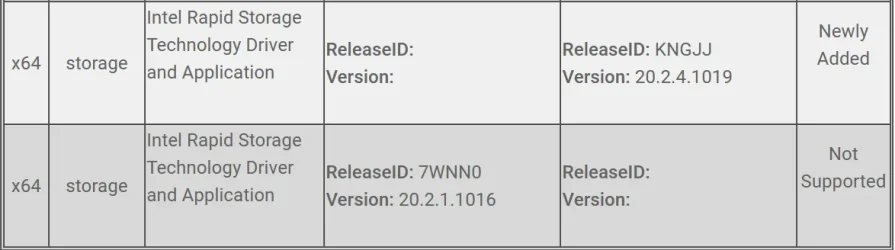
You're missing disk controller drivers. Dell PCs have disk mode set as RAID which require Intel Rapid Storage Controller drivers to be installed before the disk will be seen by the Macrium recovery media.

To install disk controller drivers during a Macrium Restore, you can load them into the rescue environment either before the restore by creating new rescue media that includes the drivers, or during the restore process by using the ReDeploy feature or the "View Unsupported Devices" option. For a new rescue media, use the Create bootable rescue media wizard to scan for and add drivers. During a restore, select "View Unsupported Devices" from the "Restore" menu to see a list of unsupported devices and click "Locate Driver" or "Scan" to add the necessary drivers.
The easiest way is to use Option 2.
To get the needed driver go to Dell Support, enter your PC service tag. In the list of drivers for your device find Intel Rapid Storage Controller and download it.
Unzip the driver package. Inside you should see a folder named "f6". Copy the f6 folder a flash drive. Then use Option 2. Point to that folder so Macrium can pre-load the IRST drivers.


Method 1: Add drivers to rescue media before restoring
  1. Create new rescue media using the Create bootable Rescue Media wizard.

  2. When the wizard runs, it will automatically detect which devices are not supported by default in the Windows PE environment.

  3. The wizard will also check if there are compatible drivers in your host operating system and add them to the rescue media.

  4. If the wizard doesn't automatically add a driver you need, you can add it manually by creating the rescue media and then adding the driver using the "View Unsupported Devices" option in the "Restore" menu after booting from it.
Method 2: Load drivers during the restore process
  1. Boot your computer from the Macrium Rescue Media.

  2. From the Macrium Reflect menu, click "Restore" > "View Unsupported Devices".

  3. The wizard will display a list of unsupported devices.

  4. To load a driver, either select a device from the list and click "Locate Driver" to browse for a specific INF file, or select a base folder and click "Scan" to have Macrium search the folder for all applicable drivers.

  5. Macrium will then attempt to load the driver and confirm which devices have been made compatible.
 

My Computers

System One System Two

  • OS
    Windows 11 Pro 25H2 26200.8655
    Computer type
    PC/Desktop
    Manufacturer/Model
    Dell Optiplex 7080
    CPU
    i9-10900 10 core 20 threads
    Motherboard
    DELL 0J37VM
    Memory
    32 gb
    Graphics Card(s)
    none-Intel UHD Graphics 630
    Sound Card
    Integrated Realtek
    Monitor(s) Displays
    Benq 27
    Screen Resolution
    2560x1440
    Hard Drives
    2x1tb Solidigm m.2 nvme /External drives 512gb Samsung m.2 sata+2tb Kingston m2.nvme
    PSU
    500w
    Case
    MT
    Cooling
    Dell Premium
    Keyboard
    Logitech wired
    Mouse
    Logitech wireless
    Internet Speed
    so slow I'm too embarrassed to tell
    Browser
    #1 Edge #2 Firefox
    Antivirus
    Defender+MWB Premium
  • Operating System
    Windows 11 Pro 24H2 26200.8457
    Computer type
    PC/Desktop
    Manufacturer/Model
    Beelink Mini PC SER5
    CPU
    AMD Ryzen 7 6800U
    Memory
    32 gb
    Graphics card(s)
    integrated
    Sound Card
    integrated
    Monitor(s) Displays
    Benq 27
    Screen Resolution
    2560x1440
    Hard Drives
    1TB Crucial nvme
    Keyboard
    Logitech wired
    Mouse
    Logitech wireless
    Internet Speed
    still too embarrassed to tell
    Browser
    Firefox
    Antivirus
    Defender
    Other Info
    System 3 is non compliant Dell 9020 i7-4770/24gb ram Win11 PRO 26200.8457
Did you have to remove the original SSD to install the new one? Is there a second M.2 slot in the system to add this drive, along with the original?

Is the drive listed in the BIOS/UEFI? I would check there next before doing anything else. If it isn't listed by the UEFI, then something else is wrong, likely a bad drive. Try spamming the F12 key on boot to get into the UEFI. Dell usually uses the F12 key for the boot menu.

If its listed by the UEFI and if you can install the new SSD along with the original SSD, boot with both drives installed and check if your current Windows install lists it in Disk Management. If it does, then you have a driver issue with it not being listed in the recovery environment.

Same case if you have to remove the original SSD to use the new one and it is listed by the UEFI.

If this is the case, then follow the steps laid out by glasskuter, which should get you running again. Though I am surprised that the Windows 11 install environment wouldn't have drivers that would work with the storage controller.
 

My Computer

System One

  • OS
    Windows 11 Pro For Workstations 25H2
    Computer type
    Laptop
    Manufacturer/Model
    Dell Precision 7550
    CPU
    Intel Xeon W-10855M @ 4.9Ghz
    Memory
    32GB OWC ECC DDR4-2666 RAM
    Graphics Card(s)
    iGPU: Intel UHD Graphics P630 | Discrete GPU: NVIDIA Quadro RTX 3000 6GB
    Sound Card
    Realtek Audio
    Monitor(s) Displays
    Integrated Ultrasharp
    Screen Resolution
    1920*1080
    Hard Drives
    OS: Samsung 980 PRO 500GB NVMe
    Data: Western Digital Black SN750 1TB
    PSU
    Dell 180W
    Internet Speed
    1Gbps
    Browser
    Edge Chromium
    Antivirus
    Microsoft Defender
    Other Info
    OpenSUSE Leap 16 VM
    Zorin OS 18 VM

My Computers

System One System Two

  • OS
    Win7,Win11
    Computer type
    PC/Desktop
    CPU
    i7-9700
    Motherboard
    gigabyte b365m ds3h
    Memory
    2x16gb 3600mhz
    Monitor(s) Displays
    benq gw2480
    PSU
    bequiet pure power 11 400CM
    Cooling
    cryorig m9i
  • Operating System
    win7,win11
    Computer type
    PC/Desktop
    CPU
    i5-8400
    Motherboard
    gigabyte b365m ds3h
    Memory
    2x8gb 3200
    PSU
    xfx pro 450
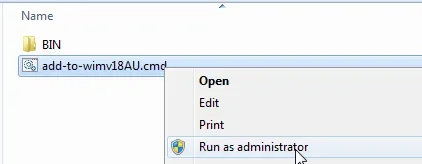
Or you can try this and browse to sources\boot.wim on the installation media usb stick

add-to-wimv18AUD.zip

RUN the .cmd file

run-as admin.webp


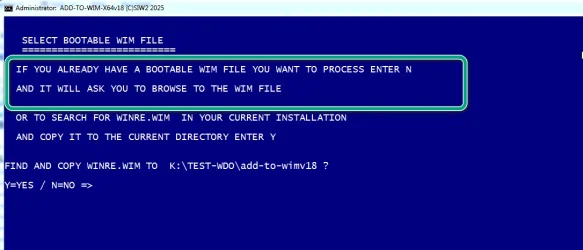
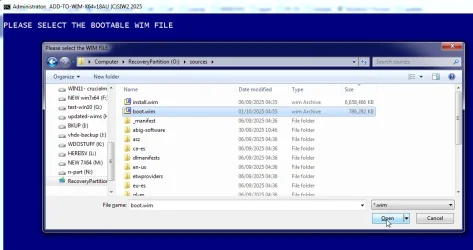
Answer N because you do not want to use winre.wim you want to browse to boot.wim on the usb stick


addd-to-wim1.webp

select-boot-wim.webp


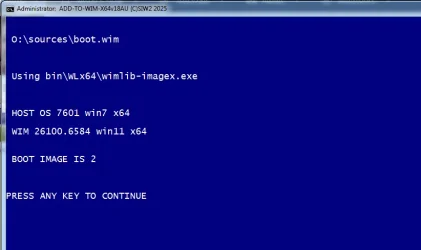
It tells you which wim you have selected. If it is the correct one press enter

sellected-wim.webp


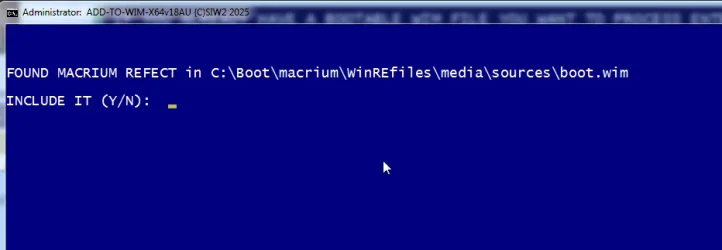
It has found macrium in the current installation, do you want to add it to boot.wim

found-macrium.webp

It takes about 2 seconds to add the required files

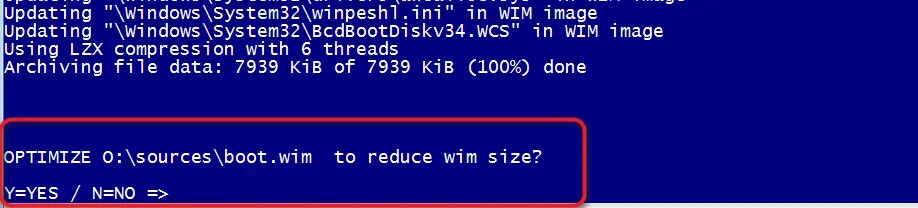
then optionally optimze to reduce size of boot.wim

optimize.webp


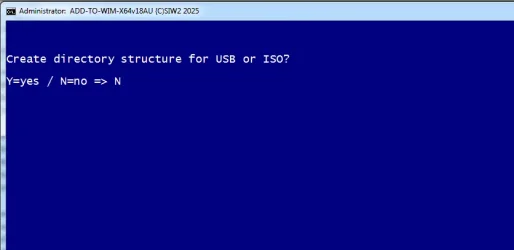
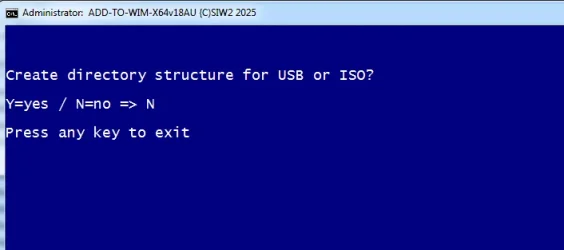
Create directory structure for usb. No because you already have the installation media usb stick

create-sir-no.webp

Finished

create-sir-no-EXIT.webp

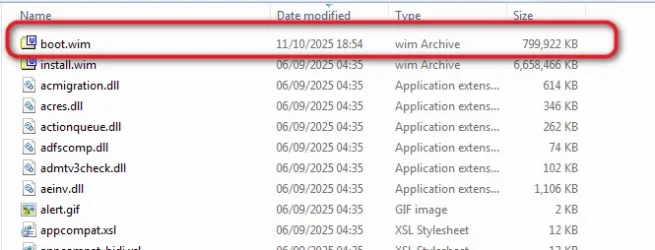
boot.wim on the usb stick is now bigger

boot-wim-done-unopt.webp


boot from the usb stick as usual and it will contain whatever you added ( e.g. macrium ) and the vmd drivers.

Pnputil should load the vmd drivers for you if I got the command right
 
Last edited:

My Computers

System One System Two

  • OS
    Win7,Win11
    Computer type
    PC/Desktop
    CPU
    i7-9700
    Motherboard
    gigabyte b365m ds3h
    Memory
    2x16gb 3600mhz
    Monitor(s) Displays
    benq gw2480
    PSU
    bequiet pure power 11 400CM
    Cooling
    cryorig m9i
  • Operating System
    win7,win11
    Computer type
    PC/Desktop
    CPU
    i5-8400
    Motherboard
    gigabyte b365m ds3h
    Memory
    2x8gb 3200
    PSU
    xfx pro 450
Or you can try this and browse to sources\boot.wim
Rather than a clean install he's trying to restore a Macrium backup which can be done in a way similar to the install drivers step of a clean install.
 

My Computers

System One System Two

  • OS
    Windows 11 Pro 25H2 26200.8655
    Computer type
    PC/Desktop
    Manufacturer/Model
    Dell Optiplex 7080
    CPU
    i9-10900 10 core 20 threads
    Motherboard
    DELL 0J37VM
    Memory
    32 gb
    Graphics Card(s)
    none-Intel UHD Graphics 630
    Sound Card
    Integrated Realtek
    Monitor(s) Displays
    Benq 27
    Screen Resolution
    2560x1440
    Hard Drives
    2x1tb Solidigm m.2 nvme /External drives 512gb Samsung m.2 sata+2tb Kingston m2.nvme
    PSU
    500w
    Case
    MT
    Cooling
    Dell Premium
    Keyboard
    Logitech wired
    Mouse
    Logitech wireless
    Internet Speed
    so slow I'm too embarrassed to tell
    Browser
    #1 Edge #2 Firefox
    Antivirus
    Defender+MWB Premium
  • Operating System
    Windows 11 Pro 24H2 26200.8457
    Computer type
    PC/Desktop
    Manufacturer/Model
    Beelink Mini PC SER5
    CPU
    AMD Ryzen 7 6800U
    Memory
    32 gb
    Graphics card(s)
    integrated
    Sound Card
    integrated
    Monitor(s) Displays
    Benq 27
    Screen Resolution
    2560x1440
    Hard Drives
    1TB Crucial nvme
    Keyboard
    Logitech wired
    Mouse
    Logitech wireless
    Internet Speed
    still too embarrassed to tell
    Browser
    Firefox
    Antivirus
    Defender
    Other Info
    System 3 is non compliant Dell 9020 i7-4770/24gb ram Win11 PRO 26200.8457
Rather than a clean install he's trying to restore a Macrium backup which can be done in a way similar to the install drivers step of a clean install.

Macrium can be included in the boot.wim on the usb stick. ( or any other bootable wim you browse to ) See my previous post

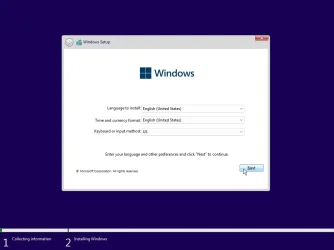
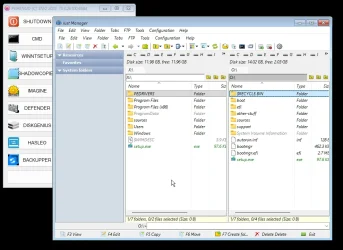
When the installtion media is booted from the usb stick can choose either windows setup or macrium ( or whatever else is included ) from the menu

do not need two separate bootable wim files

Alternatively if you don't have installation media, it can copy winre.wim from your recovery partition and use that instead.
 
Last edited:

My Computers

System One System Two

  • OS
    Win7,Win11
    Computer type
    PC/Desktop
    CPU
    i7-9700
    Motherboard
    gigabyte b365m ds3h
    Memory
    2x16gb 3600mhz
    Monitor(s) Displays
    benq gw2480
    PSU
    bequiet pure power 11 400CM
    Cooling
    cryorig m9i
  • Operating System
    win7,win11
    Computer type
    PC/Desktop
    CPU
    i5-8400
    Motherboard
    gigabyte b365m ds3h
    Memory
    2x8gb 3200
    PSU
    xfx pro 450
Like this


menu-macrium.webp


menu-setup-exe.webp

menu-setup-2.webp
 

My Computers

System One System Two

  • OS
    Win7,Win11
    Computer type
    PC/Desktop
    CPU
    i7-9700
    Motherboard
    gigabyte b365m ds3h
    Memory
    2x16gb 3600mhz
    Monitor(s) Displays
    benq gw2480
    PSU
    bequiet pure power 11 400CM
    Cooling
    cryorig m9i
  • Operating System
    win7,win11
    Computer type
    PC/Desktop
    CPU
    i5-8400
    Motherboard
    gigabyte b365m ds3h
    Memory
    2x8gb 3200
    PSU
    xfx pro 450
It includes this command before the shell (the shell is the menu you can see in the pics) .

If I got it right it should load the vmd drivers if they are needed

IFEX %systemdrive%\pedrivers,
{
EXEC !PNPUTIL /add-driver "%systemdrive%\pedrivers\*.inf" /subdirs /install
}

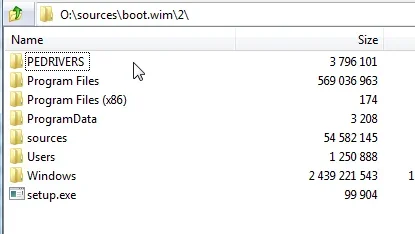
because there is a folder called pedrivers here which contains the vmd drivers

pedrivers-in-boot-wim.webp


according to the above ms learn article:

PNPUTIL /add-driver <filename.inf | *.inf> [/subdirs] [/install] [/reboot]


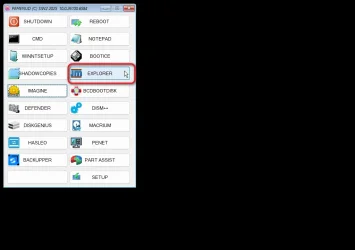
If you take a look with the included explorer you can see %systemdrive% is the pe ramdisk. By default it is allocated letter X
 
Last edited:

My Computers

System One System Two

  • OS
    Win7,Win11
    Computer type
    PC/Desktop
    CPU
    i7-9700
    Motherboard
    gigabyte b365m ds3h
    Memory
    2x16gb 3600mhz
    Monitor(s) Displays
    benq gw2480
    PSU
    bequiet pure power 11 400CM
    Cooling
    cryorig m9i
  • Operating System
    win7,win11
    Computer type
    PC/Desktop
    CPU
    i5-8400
    Motherboard
    gigabyte b365m ds3h
    Memory
    2x8gb 3200
    PSU
    xfx pro 450
menu-explorer.webp


peramdisk-pedrivers.webp
 

My Computers

System One System Two

  • OS
    Win7,Win11
    Computer type
    PC/Desktop
    CPU
    i7-9700
    Motherboard
    gigabyte b365m ds3h
    Memory
    2x16gb 3600mhz
    Monitor(s) Displays
    benq gw2480
    PSU
    bequiet pure power 11 400CM
    Cooling
    cryorig m9i
  • Operating System
    win7,win11
    Computer type
    PC/Desktop
    CPU
    i5-8400
    Motherboard
    gigabyte b365m ds3h
    Memory
    2x8gb 3200
    PSU
    xfx pro 450

My Computer

System One

  • OS
    Home26H2Can
    Computer type
    PC/Desktop
    CPU
    AMD Ryzen 5 8600G (07/24)
    Motherboard
    ASROCK B650M-HDV/M.2 (07/24) BIOS 4.21 AGESA ComboAM5 1.3.0.1 (04/26)
    Memory
    2x32GB Kingston FURY DDR5 5600 MHz CL36 @5200 CL36 (07/24)
    Graphics Card(s)
    ASROCK Radeon RX 6600 Challenger D 8G @48FPS (08/24)
    Sound Card
    Creative Sound BlasterX AE-5 Plus (05/24)
    Monitor(s) Displays
    24" Philips 24M1N3200ZS/00 (05/24)
    Screen Resolution
    1920×1080@165Hz via DP1.4
    Hard Drives
    Kingston KC3000 NVMe 2TB (05/24)
    ADATA XPG GAMMIX S11 Pro 512GB (07/19)
    PSU
    Seasonic Core GM 550 Gold (04/24)
    Case
    Fractal Design Define 7 Mini with 3x Noctua NF-P14s/12@555rpm (04/24)
    Cooling
    Noctua NH-U12S with Noctua NF-P12 (04/24)
    Keyboard
    HP Pavilion Wired Keyboard 300 (07/24) + Rabalux 76017 Parker (01/24)
    Mouse
    Logitech M330 Silent Plus (01/26)
    Internet Speed
    500/100 Mbps via RouterOS (05/21) & TCP Optimizer
    Browser
    Edge, Brave for YouTube, LibreWolf for FB
    Antivirus
    NextDNS blocking 1/3 Traffic
    Other Info
    Phone: Motorola Moto G86 (02/26)
    Backup: Hasleo Backup Suite (PreOS)
    Headphones: Sennheiser RS170 (09/10)
    Chair: Huzaro Force 4.4 Grey Mesh (05/24)
    Notifier: Xiaomi Mi Band 9 Milanese (10/24)
    FlexCore USB-C 3.2 Gen 1 (M) to LAN (F) (08/25)
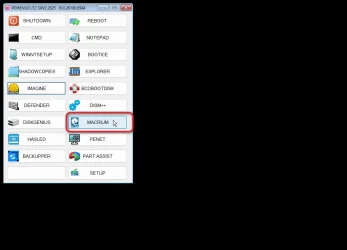
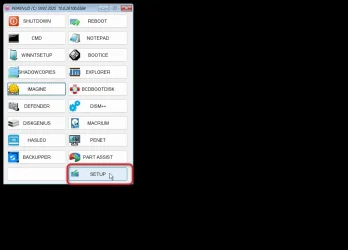
The bottom right menu button links to %systemdrive%\sources\setup.exe

If you prefer to use the new fangled setup, %systemdrive%\setup.exe you can add it to the bottom left button

to get to recovery environment press ctrl+alt+r

to return to menu press ctrl+alt+m
 
Last edited:

My Computers

System One System Two

  • OS
    Win7,Win11
    Computer type
    PC/Desktop
    CPU
    i7-9700
    Motherboard
    gigabyte b365m ds3h
    Memory
    2x16gb 3600mhz
    Monitor(s) Displays
    benq gw2480
    PSU
    bequiet pure power 11 400CM
    Cooling
    cryorig m9i
  • Operating System
    win7,win11
    Computer type
    PC/Desktop
    CPU
    i5-8400
    Motherboard
    gigabyte b365m ds3h
    Memory
    2x8gb 3200
    PSU
    xfx pro 450
Maybe get an updated ISO. :think:
As far as I know that doesnt have the vmd drivers. Not included in any ms iso file to my knowledge. Have to add them yourself.

My little batch file makes it quick and easy.

Added bonus:

If you want to add any other drivers e.g. io and touchscreen, put them in the BIN\PEdrivers folder before running the .cmd file
 

My Computers

System One System Two

  • OS
    Win7,Win11
    Computer type
    PC/Desktop
    CPU
    i7-9700
    Motherboard
    gigabyte b365m ds3h
    Memory
    2x16gb 3600mhz
    Monitor(s) Displays
    benq gw2480
    PSU
    bequiet pure power 11 400CM
    Cooling
    cryorig m9i
  • Operating System
    win7,win11
    Computer type
    PC/Desktop
    CPU
    i5-8400
    Motherboard
    gigabyte b365m ds3h
    Memory
    2x8gb 3200
    PSU
    xfx pro 450
Sorry, I've been in PC hell since I made this post. I put the original 1TB M.2 back in and system was dead, no output (only have HDMI since my display doesn't have DVI, VGA or DisplayPort). After fiddling with it for a couple hours I hooked up my old Lenovo. It too got no image on the display so I connected a different display via VGA and that worked. I did not look here then as I should have , I would have found @glasskuter post, loaded the Intel Rapid Storage Controller drivers and been on my way.

Instead, it dawned on me I had added a good video card to the Lenovo but had plugged the HDMI cable into the original HDMI port that came with the Lenovo. Plugged the HDMI cable into the HDMI port on the add-in card and it worked fine. I moved all the cables back to my newer Dell and tried to boot again but it still would not boot. This was with the original 1TB M.2 installed. I powered down, pulled the CMOS battery and unplugged the power cord, held the power button in for 15 seconds, put the CMOS battery back, connected the power cord, pressed the power button and it booted up okay, so I was back to where I started.

It was late so I quit, watched some TV and went to bed.

Today I put the 2TB M.2 in and when I booted into BIOS setup, the new2TB M.2 was visible. I repeated the power reset then booted IN10XPE to rum Macrium. Macrium did not see the M.2 drive nor did it see a 2TB Seagate drive that was also installed. Booted to BIOS Setup, changed from RAID to AHCI, booted Macrium and the M.2 and the 2TB Seagate were visible. I was able initialize the 2TB M.2 into two 1B partitions, then restores my C: backup to the new M.2, ran the Macrium Fix boot problems tool then restarted. It didn't boot. Went back into BIOS Setup, changed AHCI back to RAID, rebooted and the system finally came up correctly, looking and feeling exactly it did with the 1TB drive.

If i had come back here sooner and seen @glasskuter post I would have saved myself a lot of grief.

Initialize the SSD (as GPT, of course) in Disk management.
The drive did not show in Disk Management or diskpart as I stated and showed in my post.

I put brand new SSDs in a USB enclosure and then use Disk Management to initialise, right click leftmost box. Or obviously you could use an internal spare SSD secondary drive bay. Then you should see the black bar for unallocated space.

Then of course you can Partition and Format, or install Windows or whatever.

From Micron/Crucial:
It was a NVME M.2. not a standard SSD so I did not have and way to mount it externally.

Did you have to remove the original SSD to install the new one? Is there a second M.2 slot in the system to add this drive, along with the original?

Is the drive listed in the BIOS/UEFI? I would check there next before doing anything else. If it isn't listed by the UEFI, then something else is wrong, likely a bad drive. Try spamming the F12 key on boot to get into the UEFI. Dell usually uses the F12 key for the boot menu.

If its listed by the UEFI and if you can install the new SSD along with the original SSD, boot with both drives installed and check if your current Windows install lists it in Disk Management. If it does, then you have a driver issue with it not being listed in the recovery environment.

Same case if you have to remove the original SSD to use the new one and it is listed by the UEFI.

If this is the case, then follow the steps laid out by glasskuter, which should get you running again. Though I am surprised that the Windows 11 install environment wouldn't have drivers that would work with the storage controller.
I only have only M.2 port. Diver was listed in UEFI so I believe glasskuter's method would have fixed this.

@SIW2, a lot of information to digest. I want to come back to this in a week or two once I get my new 4TB drive installed.
My original setup was internal 1TB M.2, 2TB SATA, 2TB External SATA - always on.
New setup will be internal 2TB M.2, 4TB SATA. 2TB external SATA will be used as needed, no longer always on.

Reason for the change is due to problems with Macrium backup failing. The backup was going to a partition on the external drive. Now it will go to a partition on the internal 4TB drive.

 

My Computer

System One

  • OS
    Windows 11 Pro X64 25H2 Build 26200.7019
    Computer type
    PC/Desktop
    Manufacturer/Model
    Dell Vostro 3910
    CPU
    12th Gen Intel Core i7-12700, 2.1Ghz
    Memory
    32.0GB PC3-12800 DDR3 SDRAM
    Graphics Card(s)
    EVGA GeForce GTX 780
    Sound Card
    Realtek HD Audio
    Monitor(s) Displays
    Visio 32" TV
    Screen Resolution
    1920x1080
    Hard Drives
    2TB Samsung NVME SSD 990 PRO with Heatsink
    4TB Fanxiang 2.5" SATA III SSD S101Q
    PSU
    ?
    Keyboard
    Dell USB SK-8115
    Mouse
    Microsoft Sculpt Mobile Mouse 1569
    Internet Speed
    374.10MB Down, 11.75MB Up
    Browser
    Edge - eM Client Pro for E-Mail
    Antivirus
    Windows Security
    Other Info
    Purchased December 2013, many upgrades since then
@Ztruker Glad it's finally resolved. There's nothing more frustrating than chasing your tail around and round. We've all been there. When it comes to drives in this new UEFI world folks make it more difficult than it is. I've moved my OS 3 times to different new m.2 and never had to initialize once. Macrium did it all for me. I especially like that I can repartition a larger drive very easily during a restore without any fuss.

Every machine I've got is Dell and were originally using different IRST drivers. I got tired of the sorting the whole RAID thing and finally changed them all to AHCI. I knew it was easy to do when clean installing but doubted it could be done on a working system without a lot of grief. But after tons of reading, I did it. If you ever want to do it, let me know and I'll send you the procedure I found.
 

My Computers

System One System Two

  • OS
    Windows 11 Pro 25H2 26200.8655
    Computer type
    PC/Desktop
    Manufacturer/Model
    Dell Optiplex 7080
    CPU
    i9-10900 10 core 20 threads
    Motherboard
    DELL 0J37VM
    Memory
    32 gb
    Graphics Card(s)
    none-Intel UHD Graphics 630
    Sound Card
    Integrated Realtek
    Monitor(s) Displays
    Benq 27
    Screen Resolution
    2560x1440
    Hard Drives
    2x1tb Solidigm m.2 nvme /External drives 512gb Samsung m.2 sata+2tb Kingston m2.nvme
    PSU
    500w
    Case
    MT
    Cooling
    Dell Premium
    Keyboard
    Logitech wired
    Mouse
    Logitech wireless
    Internet Speed
    so slow I'm too embarrassed to tell
    Browser
    #1 Edge #2 Firefox
    Antivirus
    Defender+MWB Premium
  • Operating System
    Windows 11 Pro 24H2 26200.8457
    Computer type
    PC/Desktop
    Manufacturer/Model
    Beelink Mini PC SER5
    CPU
    AMD Ryzen 7 6800U
    Memory
    32 gb
    Graphics card(s)
    integrated
    Sound Card
    integrated
    Monitor(s) Displays
    Benq 27
    Screen Resolution
    2560x1440
    Hard Drives
    1TB Crucial nvme
    Keyboard
    Logitech wired
    Mouse
    Logitech wireless
    Internet Speed
    still too embarrassed to tell
    Browser
    Firefox
    Antivirus
    Defender
    Other Info
    System 3 is non compliant Dell 9020 i7-4770/24gb ram Win11 PRO 26200.8457
How complicated is it? I dislike having RAID, causes too many problems, especially when I have never setup or used a RAID array. I run into this at work a lot too. I work at my churches Thrift Store where we get donated computers that I repair, cleanup and always Clean Install.

I would like to be able to switch from RAID to AHCI without having to do a clean install some times.
 

My Computer

System One

  • OS
    Windows 11 Pro X64 25H2 Build 26200.7019
    Computer type
    PC/Desktop
    Manufacturer/Model
    Dell Vostro 3910
    CPU
    12th Gen Intel Core i7-12700, 2.1Ghz
    Memory
    32.0GB PC3-12800 DDR3 SDRAM
    Graphics Card(s)
    EVGA GeForce GTX 780
    Sound Card
    Realtek HD Audio
    Monitor(s) Displays
    Visio 32" TV
    Screen Resolution
    1920x1080
    Hard Drives
    2TB Samsung NVME SSD 990 PRO with Heatsink
    4TB Fanxiang 2.5" SATA III SSD S101Q
    PSU
    ?
    Keyboard
    Dell USB SK-8115
    Mouse
    Microsoft Sculpt Mobile Mouse 1569
    Internet Speed
    374.10MB Down, 11.75MB Up
    Browser
    Edge - eM Client Pro for E-Mail
    Antivirus
    Windows Security
    Other Info
    Purchased December 2013, many upgrades since then
Forgot to mention, I'm using the Copy Partition feature of Minitool Partition Wizard Pro v13. Similar to Macrium partition copy but works with external drives. I'm copying two 1TB partitions from an external 2TB drive to my new 4TB internal drive. Once this is done I'll have 6TB of internally mounted drive space. No more Macrium backup failures due to external drive not being ready.


 

My Computer

System One

  • OS
    Windows 11 Pro X64 25H2 Build 26200.7019
    Computer type
    PC/Desktop
    Manufacturer/Model
    Dell Vostro 3910
    CPU
    12th Gen Intel Core i7-12700, 2.1Ghz
    Memory
    32.0GB PC3-12800 DDR3 SDRAM
    Graphics Card(s)
    EVGA GeForce GTX 780
    Sound Card
    Realtek HD Audio
    Monitor(s) Displays
    Visio 32" TV
    Screen Resolution
    1920x1080
    Hard Drives
    2TB Samsung NVME SSD 990 PRO with Heatsink
    4TB Fanxiang 2.5" SATA III SSD S101Q
    PSU
    ?
    Keyboard
    Dell USB SK-8115
    Mouse
    Microsoft Sculpt Mobile Mouse 1569
    Internet Speed
    374.10MB Down, 11.75MB Up
    Browser
    Edge - eM Client Pro for E-Mail
    Antivirus
    Windows Security
    Other Info
    Purchased December 2013, many upgrades since then
How complicated is it?
These are the instructions I used.
NOTE: If your device is equipped with an optane drive you must use IRST drivers. All of mine were RAID but in some bios its VMD rather than RAID, That be the case the process involves the registry so the process is different in that case.)

1. Turn off bitlocker or device encryption

2. You must be using an administrator account with a password, not a pin.
I also read in several places one should be using a local account rather than a MS account. (This, I can not verify is necessary. I wass scared to death to do this so just to be safe than sorry I created a local account with a password and made it an administrator. I logged into this account to enter my commands. When complete I deleted the account)

3. Click the Start Button and type cmd
Right-click the result and select Run as administrator
Type this command and press ENTER:
bcdedit /set {current} safeboot minimal

4. Restart the computer and enter BIOS Setup
Change the SATA Disk Operation mode from RAID to AHCI (In my bios its named "disk mode".)
Save changes and exit Setup and Windows will automatically boot to Safe Mode.

5. Right-click the Windows Start Menu once more. Choose Command Prompt (Admin).
Type this command and press ENTER:
bcdedit /deletevalue {current} safeboot

6. Reboot once more and Windows will automatically start with AHCI drivers enabled.

7. Re-enable Bitlocker or Device Encryption if applicable

This is just stuff I found on my own.
It was not in any of the instructions I found, but in device manager under Disk Drives my disks were still using an Intel driver without issues, but I changed each of them to use the Microsoft driver. To do this right click on each disk>properties>driver tab>update drivers>Browse my computer for drivers>Let me pick from a list of available drivers on my computer>Show compatible drivers>select Microsoft driver. On restart the driver changed to Microsoft.

I found out later using Driver Store Explorer that the old IRST drivers were left in the driver store. The applicable IRST registry entries were also left behind. I guess one could manually remove them but I did not since they caused no issues. Having them there would make it easy to reverse the procedure at any time as well as be able to use the Intel driver for the disks if you choose to.

Hope it works for you. Make an image before you do it.
 

My Computers

System One System Two

  • OS
    Windows 11 Pro 25H2 26200.8655
    Computer type
    PC/Desktop
    Manufacturer/Model
    Dell Optiplex 7080
    CPU
    i9-10900 10 core 20 threads
    Motherboard
    DELL 0J37VM
    Memory
    32 gb
    Graphics Card(s)
    none-Intel UHD Graphics 630
    Sound Card
    Integrated Realtek
    Monitor(s) Displays
    Benq 27
    Screen Resolution
    2560x1440
    Hard Drives
    2x1tb Solidigm m.2 nvme /External drives 512gb Samsung m.2 sata+2tb Kingston m2.nvme
    PSU
    500w
    Case
    MT
    Cooling
    Dell Premium
    Keyboard
    Logitech wired
    Mouse
    Logitech wireless
    Internet Speed
    so slow I'm too embarrassed to tell
    Browser
    #1 Edge #2 Firefox
    Antivirus
    Defender+MWB Premium
  • Operating System
    Windows 11 Pro 24H2 26200.8457
    Computer type
    PC/Desktop
    Manufacturer/Model
    Beelink Mini PC SER5
    CPU
    AMD Ryzen 7 6800U
    Memory
    32 gb
    Graphics card(s)
    integrated
    Sound Card
    integrated
    Monitor(s) Displays
    Benq 27
    Screen Resolution
    2560x1440
    Hard Drives
    1TB Crucial nvme
    Keyboard
    Logitech wired
    Mouse
    Logitech wireless
    Internet Speed
    still too embarrassed to tell
    Browser
    Firefox
    Antivirus
    Defender
    Other Info
    System 3 is non compliant Dell 9020 i7-4770/24gb ram Win11 PRO 26200.8457
Back
Top Bottom