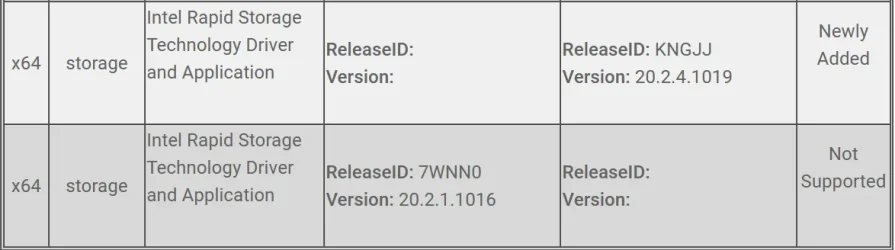
Sorry, I've been in PC hell since I made this post. I put the original 1TB M.2 back in and system was dead, no output (only have HDMI since my display doesn't have DVI, VGA or DisplayPort). After fiddling with it for a couple hours I hooked up my old Lenovo. It too got no image on the display so I connected a different display via VGA and that worked. I did not look here then as I should have , I would have found
@glasskuter post, loaded the Intel Rapid Storage Controller drivers and been on my way.
Instead, it dawned on me I had added a good video card to the Lenovo but had plugged the HDMI cable into the original HDMI port that came with the Lenovo. Plugged the HDMI cable into the HDMI port on the add-in card and it worked fine. I moved all the cables back to my newer Dell and tried to boot again but it still would not boot. This was with the original 1TB M.2 installed. I powered down, pulled the CMOS battery and unplugged the power cord, held the power button in for 15 seconds, put the CMOS battery back, connected the power cord, pressed the power button and it booted up okay, so I was back to where I started.
It was late so I quit, watched some TV and went to bed.
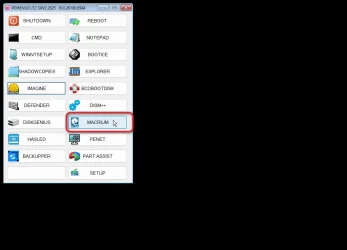
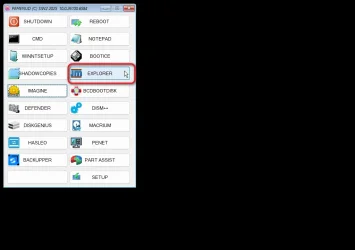
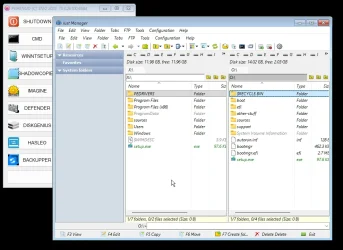
Today I put the 2TB M.2 in and when I booted into BIOS setup, the new2TB M.2 was visible. I repeated the power reset then booted IN10XPE to rum Macrium. Macrium did not see the M.2 drive nor did it see a 2TB Seagate drive that was also installed. Booted to BIOS Setup, changed from RAID to AHCI, booted Macrium and the M.2 and the 2TB Seagate were visible. I was able initialize the 2TB M.2 into two 1B partitions, then restores my C: backup to the new M.2, ran the Macrium Fix boot problems tool then restarted. It didn't boot. Went back into BIOS Setup, changed AHCI back to RAID, rebooted and the system finally came up correctly, looking and feeling exactly it did with the 1TB drive.
If i had come back here sooner and seen
@glasskuter post I would have saved myself a lot of grief.
Initialize the SSD (as GPT, of course) in Disk management.
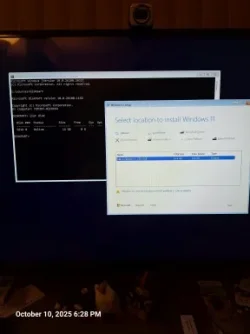
The drive did not show in Disk Management or diskpart as I stated and showed in my post.
I put brand new SSDs in a USB enclosure and then use Disk Management to initialise, right click leftmost box. Or obviously you could use an internal spare SSD secondary drive bay. Then you should see the black bar for unallocated space.
Then of course you can Partition and Format, or install Windows or whatever.
From Micron/Crucial:
Before you can use a new SSD, you must initialize and partition it. Learn exactly how to set up a new ssd by reading Crucial's step-by-step guide.

uk.crucial.com
It was a NVME M.2. not a standard SSD so I did not have and way to mount it externally.
Did you have to remove the original SSD to install the new one? Is there a second M.2 slot in the system to add this drive, along with the original?
Is the drive listed in the BIOS/UEFI? I would check there next before doing anything else. If it isn't listed by the UEFI, then something else is wrong, likely a bad drive. Try spamming the F12 key on boot to get into the UEFI. Dell usually uses the F12 key for the boot menu.
If its listed by the UEFI and if you can install the new SSD along with the original SSD, boot with both drives installed and check if your current Windows install lists it in Disk Management. If it does, then you have a driver issue with it not being listed in the recovery environment.
Same case if you have to remove the original SSD to use the new one and it is listed by the UEFI.
If this is the case, then follow the steps laid out by glasskuter, which should get you running again. Though I am surprised that the Windows 11 install environment wouldn't have drivers that would work with the storage controller.
I only have only M.2 port. Diver was listed in UEFI so I believe glasskuter's method would have fixed this.
@SIW2, a lot of information to digest. I want to come back to this in a week or two once I get my new 4TB drive installed.
My original setup was internal 1TB M.2, 2TB SATA, 2TB External SATA - always on.
New setup will be internal 2TB M.2, 4TB SATA. 2TB external SATA will be used as needed, no longer always on.
Reason for the change is due to problems with Macrium backup failing. The backup was going to a partition on the external drive. Now it will go to a partition on the internal 4TB drive.