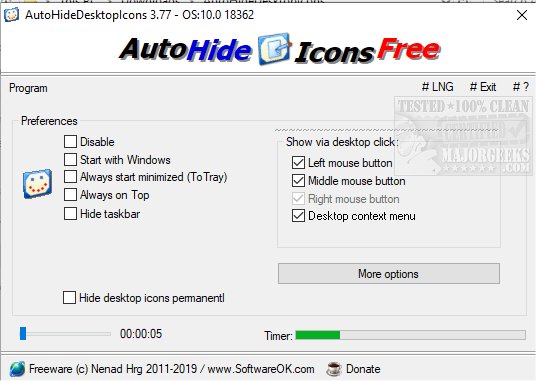
Reason for the question is that my ASUS Zenbook has an OLED screen and, to prevent burn-in I would like to be able to hide the icons and get them to reappear at the click of a shortcut icon on the taskbar.
I know I can press Win+D keys to close all open windows to see the desktop icons but this is not what I mean.
I know I can right-click on any blank area on the desktop and then select View then tick or untick Show desktop icons but this is three clicks.
What I would like is to make this quicker by placing a shortcut on the taskbar that would toggle the icons on or off by one click.
Is this possible?
Thanks.
I know I can press Win+D keys to close all open windows to see the desktop icons but this is not what I mean.
I know I can right-click on any blank area on the desktop and then select View then tick or untick Show desktop icons but this is three clicks.
What I would like is to make this quicker by placing a shortcut on the taskbar that would toggle the icons on or off by one click.
Is this possible?
Thanks.
My Computers
-
At a glance
Windows 11 ProAMD Ryzen 9 8945HS32GB DDR5 SO-DIMMIntegrated AMD Radeon 780M (4.00 GHz)- OS
- Windows 11 Pro
- Computer type
- PC/Desktop
- Manufacturer/Model
- GMKtec K11
- CPU
- AMD Ryzen 9 8945HS
- Memory
- 32GB DDR5 SO-DIMM
- Graphics Card(s)
- Integrated AMD Radeon 780M (4.00 GHz)
- Monitor(s) Displays
- Benq 2250HM
- Screen Resolution
- 1920 x 1080
- Hard Drives
- 1 TB PCIe 4.0 NVMe M.2 SSD
- Antivirus
- Bit Defender Total Security
-
At a glance
Windows 11 HomeIntel® Core™ Ultra 7 - 255H processor16 GB LPDDR5 SDRAMIntel Arc 140T onboard graphics- Operating System
- Windows 11 Home
- Computer type
- Laptop
- Manufacturer/Model
- ASUS Zenbook 14 OLED 14" Laptop - UX3405CA-QL192W
- CPU
- Intel® Core™ Ultra 7 - 255H processor
- Memory
- 16 GB LPDDR5 SDRAM
- Graphics card(s)
- Intel Arc 140T onboard graphics
- Screen Resolution
- 1920 x 1200 (16:10 WUXGA resolution) OLED Touchscreen
- Hard Drives
- 1TB SSD
- Antivirus
- Bit Defender Total Security