Updating Microsoft Secure Boot keys before expiration in June 2026


UPDATE 4/02:

UPDATE 2/10:


 Windows IT Pro Blog:

Secure Boot playbook for certificates expiring in 2026

The first set of tools and steps are now available to help you proactively update your Secure Boot certificates before they expire in June of 2026.

Secure Boot is more mature and robust today than it was some years ago. Coupled with the Unified Extensible Firmware Interface (UEFI) firmware signing process, Secure Boot uses cryptographic keys, known as certificate authorities (CAs), to validate that firmware modules come from a trusted source. This helps prevent malware from running early in the startup sequence of a Windows device.

Secure Boot certificates have always had expiration dates. New certificates help ensure that your devices stay up to date with the latest security protections. That is why your organization will need to install the 2023 CAs before the 2011 CAs start expiring in June of 2026.

Note: Need a refresher on why updating Secure Boot certificates is so important?
Many Windows PCs manufactured since 2024 already have the updated 2023 certificates. For the remaining devices, Microsoft is delivering new Secure Boot certificates through Windows monthly updates, with partner original equipment manufacturers (OEMs) making firmware updates available to help ensure compatibility.

If you wish to proactively update your Secure Boot certificates, this post contains initial steps you can take and tools you can use, with more scalable approaches coming soon. At a minimum, we encourage you to monitor the progress of your device fleet from the start.

Let’s get started. Here’s a summary of what you can do today to prepare:
  • Step 1: Inventory and prepare your environment
  • Step 2: Monitor and check your devices for Secure Boot status
  • Step 3: Apply OEM firmware updates before Microsoft updates
  • Step 4: Plan and pilot Secure Boot certificate deployments
  • Step 5: Troubleshoot and remediate common issues

Step 1: Inventory and prepare your environment​

For most devices in your organization, Microsoft will automatically update high-confidence devices via Windows Update. However, you can validate and actively roll out these updates, in which case, you would start by conducting an inventory.

Inventory

Most devices manufactured since 2012 have Secure Boot enabled, but you should always verify that. You should also check the status of the Secure Boot certificates with sample inventory PowerShell commands or by checking the value of the UEFICA2023Status registry key (it should ultimately be “updated”). Out of the devices that show up as not updated, build a small, representative sample. We recommend that you focus on the less common devices, for which high confidence determination isn’t automatic. Then follow the rest of the steps outlined in this post to pilot the certificate updates and help ensure that deployment is successful

Prepare select devices

To prepare devices for Secure Boot certificate deployment, consider how you’ll manage it. There are several approaches to managing Secure Boot certificate updates. Today, you can use registry keys or Group Policy. A Configuration Service Provider (CSP) for mobile device management (MDM), such as Microsoft Intune, is coming soon. Bookmark Windows Secure Boot certificate expiration and CA updates - Microsoft Support for the latest updates.
  1. The primary method is to deploy the certificates to devices that have been validated as ready for the update. See Step 4 when you’re ready to deploy these updates!
  2. For the more common device configurations in your environment, you can utilize two “assists” to manage your deployment:
    • Get new certificates through monthly Windows updates for high-confidence devices. This option is enabled by default for devices that are ready for new certificates. Microsoft will update these devices for you unless you opt out. To opt out, set the HighConfidenceOptOut registry key<a href="Secure Boot playbook for certificates expiring in 2026 - Windows IT Pro Blog" target="_self" rel="nofollow noopener noreferrer">ii</a> value to 1 or set the Automatic Certificate Deployment via Updates Group Policy to Disabled.
    • Opt devices in to Microsoft-managed controlled feature rollout. With registry keys, set the value of MicrosoftUpdateManagedOptIn to 1 to opt in to Microsoft-managed controlled feature rollout. The value of 0 or non-existent key means that you’re opted out. With Group Policy, configure the Certificate Deployment via Controlled Feature Rollout policy to Enabled. Note: To opt in, please configure devices to share required diagnostic data with Microsoft.
Important: All Secure Boot registry keys are under these two paths:

HKEY_LOCAL_MACHINE\SYSTEM\CurrentControlSet\Control\SecureBoot
HKEY_LOCAL_MACHINE\SYSTEM\CurrentControlSet\Control\SecureBoot\Servicing


See Registry key updates for Secure Boot: Windows devices with IT-managed updates for more details.

Group Policy settings are available to you under the following path: Computer Configuration > Administrative Templates > Windows Components > Secure Boot. To get the updates that include the Group Policy for deploying Secure Boot certificate updates, download the latest Administrative Templates (.admx) for Windows 11 and Windows Server.

Step 2: Monitor and check your devices for Secure Boot status​

Check the Secure Boot status of your devices before and after deployment. Soon, you will be able to use your preferred management and reporting tools. For now, you can use registry keys or Windows Event Log events to identify which devices already have new certificates and which ones need attention.

Deployment progress

The text value of the UEFICA2023Status registry key will indicate if your certificate deployment status is not started, in progress, or updated. The value will change progressively until all new certificates and the new boot manager have been deployed successfully.

Successful deployment
  • Audit the Windows System Event Log events for Event ID 1808. This informational event indicates that the device has the required new Secure Boot certificates applied to the device’s firmware.
  • Audit the UEFICA2023Error registry key for issues. This key should not exist unless an error is pending.
  • Check that the text value of the UEFICA2023Status registry key reads as “Updated.”
Errors during deployment
  • Audit the Windows System Event Log for Event ID 1801.This error event indicates that the updated certificates have not been applied to the device. Analyze details specific to the device, including device attributes, that will help you in correlating which devices still need updating.
  • Check if the UEFICA2023Error registry key exists. If so, it indicates an error in certificate deployment. The error itself won’t appear in the Event Log. Trace related issues through Secure Boot DB and DBX variable update events.

Step 3: Apply OEM firmware updates before Microsoft updates​

Updated firmware can help prevent compatibility problems and ensure new Secure Boot certificates are accepted. If your organization has identified Secure Boot update issues or your OEM recommends a firmware update, apply the latest BIOS/UEFI update before installing Secure Boot–related Windows updates.

Some OEMs provide firmware updates that include important fixes and updated certificate stores. These updates help Secure Boot function correctly with new Windows certificates. Microsoft works closely with OEM partners to ensure these updates integrate smoothly with Windows.

Step 4: Plan and pilot Secure Boot certificate deployments​

As you’ve seen in Step 1, Microsoft can assist with your Secure Boot updates if you enable diagnostic data.

You can also deploy new Secure Boot certificates yourself for devices that don’t already have them. Choose a way to do this with registry keys, via Windows Configuration System (WinCS) command-line interface (CLI), or using Group Policy today. Pilot your desired method first on a representative set of devices to gain confidence.

In a typical enterprise deployment, whatever option you choose, allow approximately 48 hours and one or more restarts after changing configuration for updates to fully apply. See How updates are deployed for more details. For testing scenarios, you can accelerate the experience by following the steps outlined in Device Testing Using Registry Keys.

Important: Avoid mixing deployment methods on the same device. For additional technical recommendations to help you plan and deploy your Secure Boot updates, see Deployment strategies.

Option 1: Deploy certificates with registry keys​

Find the AvailableUpdates registry key located under this registry path:

HKEY_LOCAL_MACHINE\SYSTEM\CurrentControlSet\Control\SecureBoot

Set its value to 0x5944 to deploy all needed certificates and update to the Windows UEFI CA 2023 signed boot manager. This key corresponds to the Group Policy setting Enable Secure Boot certificate deployment. For details, see Registry key updates for Secure Boot: Windows devices with IT-managed updates.

Option 2: Deploy certificates via Windows Configuration System (WinCS)​

New command-line tools are now available for domain-joined clients on Windows 11, versions 25H2, 24H2, and 23H2.

These include both a traditional executable and a PowerShell module to query and apply Secure Boot configurations locally to a device. For step-by-step guidance, see Windows Configuration System (WinCS) APIs for Secure Boot.

Deploy the Secure Boot updates via WinCS:
  • Feature name: Feature_AllKeysAndBootMgrByWinCS
  • WinCS key value: F33E0C8E002
  • Secure Boot configuration state: Enabled

Option 3: Deploy certificates using Group Policy​

Group Policy settings are available by navigating to Computer Configuration > Administrative Templates > Windows Components > Secure Boot.

To apply Secure Boot updates to devices using Group Policy, set the Enable Secure Boot certificate deployment policy to Enabled. This lets Windows automatically begin the certificate deployment process. This setting corresponds to the registry key AvailableUpdates.

Be sure to get the latest version of the .admx for Windows 11 and Windows Server. For more details, see Group Policy Objects (GPO) method of Secure Boot for Windows devices with IT-managed updates.

Option 4: Deploy certificates using mobile device management (coming soon)​

Soon, you’ll be able to manage Secure Boot updates using MDM solutions, such as Microsoft Intune. When this method is available, we will post updated guidance at Windows Secure Boot certificate expiration and CA updates - Microsoft Support.

Step 5. Troubleshoot and remediate common issues​

You can also use registry keys and Windows Event Log events to identify and resolve common issues:
  • The UEFICA2023Error registry key doesn’t exist if there are no errors. If it exists with a value other than 0, check your remediation recommendations in Secure Boot DB and DBX variable update events.
  • The AvailableUpdates registry key on a device is set to 0x4104. If it doesn’t clear the 0x0004 bit even after multiple restarts, the device doesn’t progress past deploying the new Key Exchange Key (KEK) certificate. If you encounter this error, check with your OEM to confirm they have followed the steps outlined in Windows Secure Boot Key Creation and Management Guidance.
  • If Event Viewer Windows Logs for System registers an Event ID 1795, it means that there was an error when Windows attempted to hand off the certificates to firmware. Check with the OEM to see if there is a firmware update available for the device to resolve this issue.

Your update strategy begins today​

Today, you can start preparing, monitoring, deploying, and troubleshooting Secure Boot certificates in advance of the June 2026 expiration date. The new registry keys, WinCS, Group Policy, and Windows Log tools are here to support you and are just the beginning. More tools for additional scenarios are in development.

For the latest information, bookmark Windows Secure Boot certificate expiration and CA updates. Looking for a specific topic?

 Source:


 Windows IT Pro Blog:

Updating Microsoft Secure Boot keys​

Microsoft, in collaboration with our ecosystem partners, is preparing to roll out replacement certificates that’ll set new Unified Extensible Firmware Interface (UEFI) Certificate Authorities (CAs) trust anchors in Secure Boot for the future. Look out for Secure Boot database updates rolling out in phases to add trust for the new database (DB) and Key Exchange Key (KEK) certificates. This new DB update is available as an optional servicing update for all Secure Boot enabled devices from February 13, 2024.

What is Secure Boot?​

Secure Boot is a security feature in the UEFI that helps ensure that only trusted software runs during the system’s boot sequence. It works by verifying the digital signature of any software against a set of trusted digital keys stored in the UEFI. As an industry standard, UEFI’s Secure Boot defines how platform firmware manages certificates, authenticates firmware, and how the operating system (OS) interfaces with this process. For more details on UEFI and Secure Boot, please refer to this article.

Secure Boot was first introduced to Windows systems with the Windows 8 release to protect against the emerging pre-boot malware (bootkit) threat at that time. Since then, Secure Boot has continued to be a part of Microsoft's Trusted Boot security architecture. Secure Boot authenticates modules such as UEFI firmware drivers, bootloaders, applications, and option ROMs (Read-Only Memory), which are firmware run by the PC BIOS during platform initialization, before they are all executed. As the final step of the Secure Boot process, the firmware verifies the Windows boot loader is trusted by Secure Boot and then passes control to the boot loader which in turn verifies, loads into memory, and launches Windows. This process coupled with the UEFI firmware signing process helps to ensure that only verified code executes before Windows, preventing attackers from utilizing the boot path as an attack vector. To learn more about how Secure Boot fits in with the overall Windows chip-t-cloud security, please refer to the Windows Security Book RWMyFE.

Trust and authenticity in Secure Boot are built using the Public-Key Infrastructure (PKI). This establishes a certificate management system which utilizes CAs to store digital certificates. These CAs, consisting of Original Equipment Manufacturer (OEM) or their delegates and Microsoft, generate key pairs that form the root of trust of a system.
bS00MDU1MzI0LTU1MTA0OWlGOEI2MDY4MzMyRDJDNzBC


Secure Boot “root of trust”: Setting trust anchors for the future​

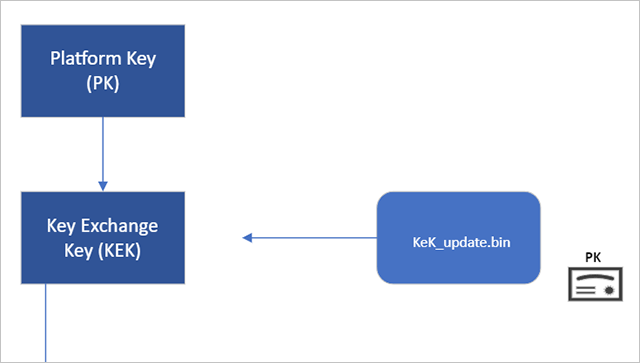
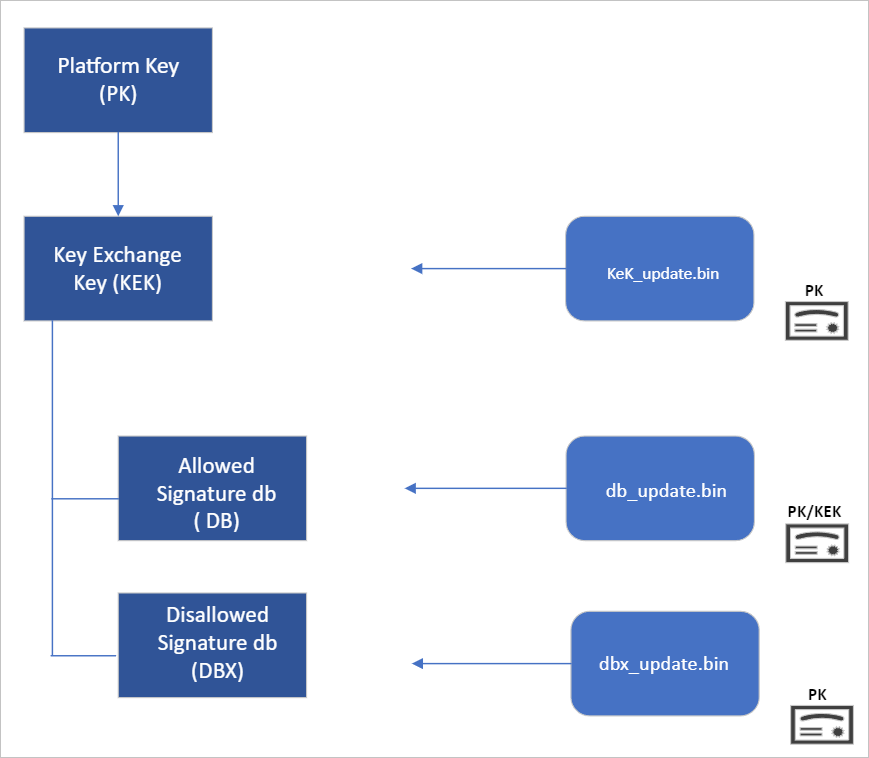
Secure Boot’s root of trust utilizes a hierarchical system, where the Platform Key (PK) is typically managed by the OEM and used to sign updates to the KEK database. The KEK in turn signs updates to both the Allowed Signature DB and the Forbidden Signature Database (DBX).

The Secure Boot Allowed Signature DB and the DBX are integral to the functionality of Secure Boot. Bootloader modules’ signing authority must be allowlisted by the Secure Boot DB, while the DBX is used for revoking previously trusted boot components. Updates to the DB and DBX must be signed by a KEK in the Secure Boot KEK database.

The configuration of Secure Boot DB and KEK for Windows devices has remained the same since Windows 8. Microsoft requires every OEM to include the same three certificates managed by Microsoft for Windows and in support of the third-party hardware and OS ecosystem. These include the Microsoft Corporation KEK CA 2011 stored in the KEK database, and two certificates stored in the DB called the Microsoft Windows Production PCA 2011, which signs the Windows bootloader, and the Microsoft UEFI CA 2011 (or third-party UEFI CA), which signs third-party OS and hardware driver components.

All three of these Microsoft certificates expire in 2026. So, in collaboration with our ecosystem partners, Microsoft is preparing to roll out replacement certificates that will set new UEFI CA trust anchors for the future. Microsoft will be rolling out Secure Boot database updates in phases to add trust for the new DB and KEK certificates. The first DB update will add the Microsoft Windows UEFI CA 2023 to the system DB. The new Microsoft Windows UEFI CA 2023 will be used to sign Windows boot components prior to the expiration of the Windows Production CA 2011. This DB update will be optional for the February 2024 servicing and preview updates, and can be manually applied to devices. Microsoft will slowly roll out this DB update as we validate devices and firmware compatibility globally. The full DB update’s controlled-rollout process to all Windows customers will begin during the 2024 April servicing and preview updates, ahead of the certificate expiration in 2026. Meanwhile, efforts to update the Microsoft UEFI CA 2011 (aka third-party UEFI CA) and Microsoft Corporation KEK CA 2011 will begin late 2024, and will follow a similar controlled rollout process as this DB update.

While Microsoft has frequently performed DBX updates globally since the inception of Secure Boot, this will be the first DB update performed on such a large scale. We’re actively collaborating with our OEM partners to identify and address bugs in firmware implementation that could result in unbootable systems or render a device unreceptive to the DB update. To ensure a successful rollout, devices with identified issues will be suspended from receiving the update until a fix is released.

Microsoft is taking a very deliberate and cautious approach to rolling out this update. With this DB update, Microsoft will sustain its ability to service all Windows devices’ boot components.

Guidance to manually apply DB update​

The DB update is available on February 13, 2024, along with manual steps to allow customers to test for firmware compatibility, especially for organizations with fleets of devices. If you would like to manually apply the DB update to validate that your system is compatible, please read the following instructions. These actions should be completed with non-critical hardware representing devices in your environment.

Pre-requisite checks​

Before attempting the DB update, please ensure to perform the necessary pre-requisite checks:
  1. If you intend to manually apply this update to a large group of devices, we advise that you begin by rolling out to individual devices with the same firmware and specifications first to minimize the risks in the case of firmware bugs in your devices.
  2. Please verify that your UEFI firmware version is the most recent available version by your firmware vendor or OEM.
  3. For data backup steps, please refer to this guide.
  4. If you use BitLocker or if your enterprise has deployed BitLocker on your machine, ensure to backup BitLocker Keys:

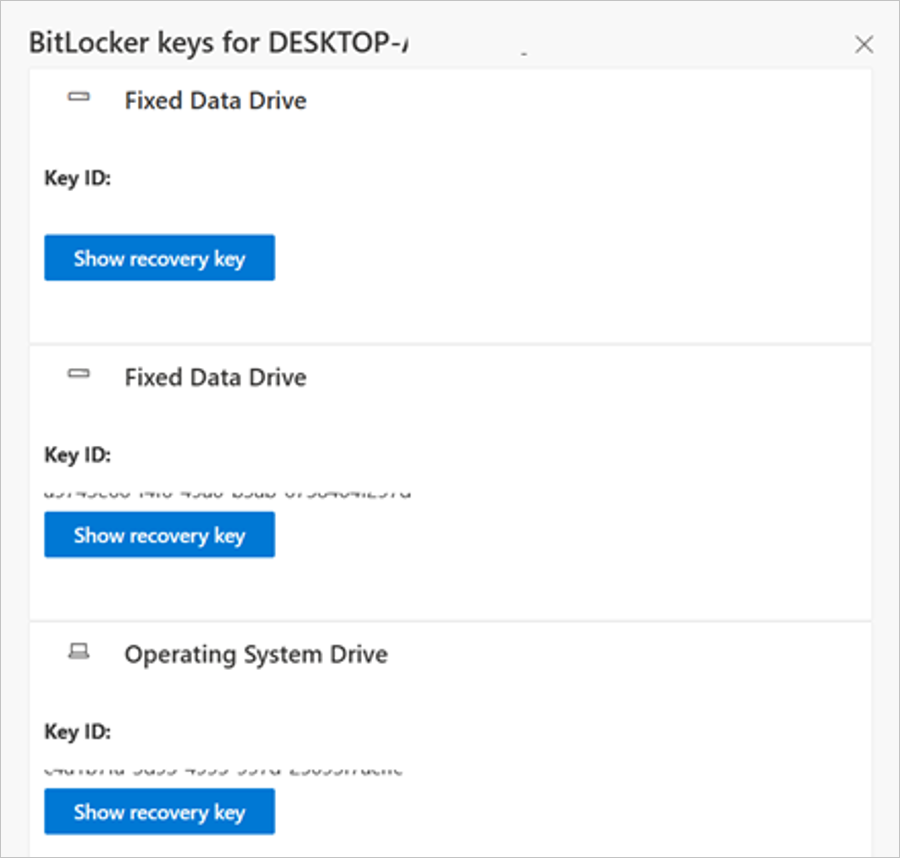
    A) See this portal to ensure your BitLocker keys are backed up before your next reboot for your selfhost device. In the unlikely event that device becomes inoperable after receiving the update, the hard drive can still be unlocked.

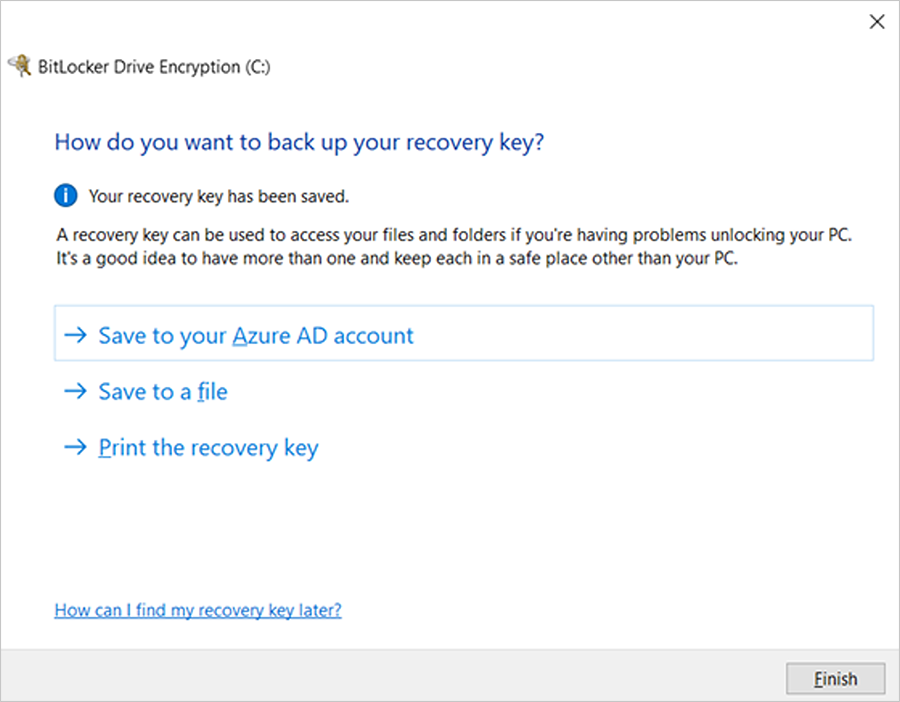
    B) If the keys are backed up, the UI should resemble the following:

    bS00MDU1MzI0LTU1MTA1MGk5NzY0QzRENjdBQkYwRkE2


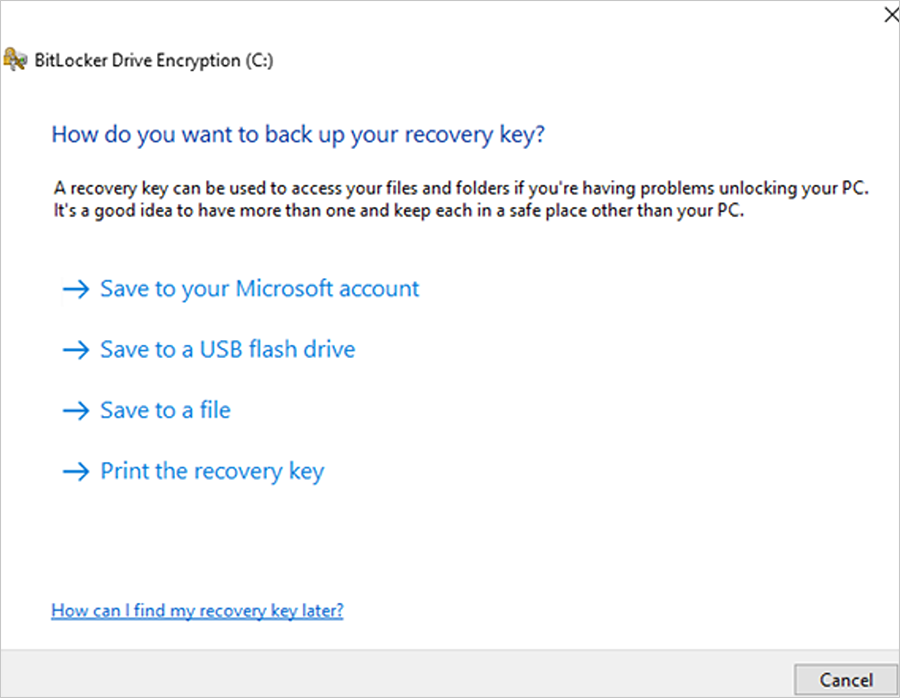
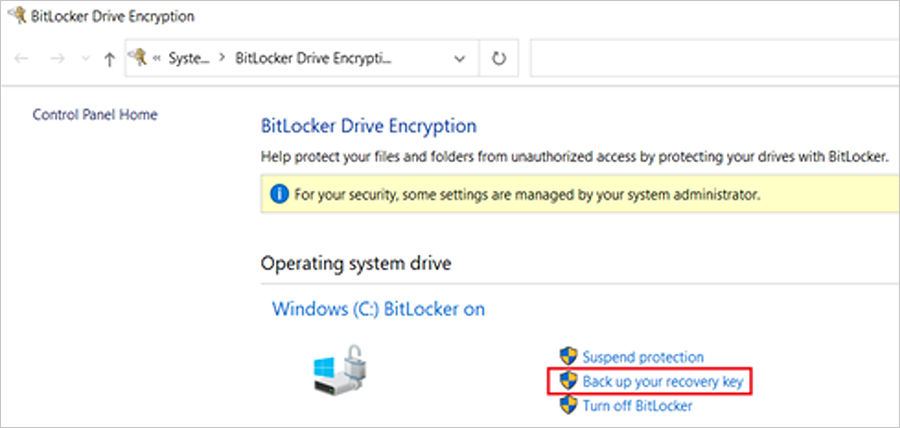
    C) If the keys are not backed up, please open Windows Search to search for “Manage BitLocker” and select Back up your recovery key followed by Save to your Azure AD or MSA account.
    bS00MDU1MzI0LTU1MTA1MWlEQkZDQTZDNDBDOEQwNzMy


    bS00MDU1MzI0LTU1MTA1Mmk5QjE2MDRBRTAyMUE1MDQ5


    bS00MDU1MzI0LTU1MTA1M2k2MzgxMUE1NEQ5NjEzREE4
For users that use a local account instead of an Azure Active Directory (AAD) or Microsoft account (MSA), you can print your recovery password, save to a file, and store it in a secure location.


 Formal DB update steps

  1. Apply the February 2024 (or later) security update.
  2. Open a PowerShell console and ensure that PowerShell is running as an administrator before running the following commands:
    1. Set the registry key to:

      Set-ItemProperty -Path "HKLM:\SYSTEM\CurrentControlSet\Control\SecureBoot" -Name "AvailableUpdates" -Value 0x40
    2. Run the following scheduled task as:

      Start-ScheduledTask -TaskName "\Microsoft\Windows\PI\Secure-Boot-Update"
  3. Reboot the machine twice after running these commands to confirm that the machine is booting with the updated DB.
  4. To verify that the Secure Boot DB update was successful, open a PowerShell console and ensure that PowerShell is running as an administrator before running the following command:

    [System.Text.Encoding]::ASCII.GetString((Get-SecureBootUEFI db).bytes) -match ‘Windows UEFI CA 2023’

    bS00MDU1MzI0LTU1MTA1NGlGNjJBRDlDRTNCRDJCQTIw
If the command returns “True”, the update was successful. In the case of errors while applying the DB update, please refer to the article, KB5016061: Addressing vulnerable and revoked Boot Managers.


 Source:


See also:
 
Last edited:
PowerShell didn't work for me either, maybe need to change locale or install newer version than what's bundled with Windows.

What worked was to get and use Windows Terminal from the Microsoft Store: Windows Terminal - Free download and install on Windows | Microsoft Store

Maybe @Brink can include alternative methods in opening post until someone knows how to get PowerShell to work for everyone.
 

My Computer

System One

  • OS
    Windows 11 25H2
    Computer type
    PC/Desktop
    CPU
    AMD 5700G
    Motherboard
    ASROCK B550 Steel Legend
    Memory
    G.Skill Flare X 32GB (2x16GB) 3200MHz CL14
    Graphics Card(s)
    CPU Integrated
    Monitor(s) Displays
    ASUS ProART HDR
    Screen Resolution
    2K
    Hard Drives
    SSD Samsung 860 240GB
    PSU
    CoolerMaster V550
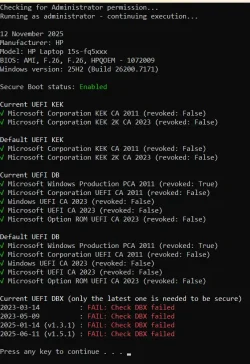
After updating the BIOS on my HP Laptop last week with version F.26 release A dated 25th September '25 it looks like my default certs are now all the 2023 ones as well as the older 2011 ones
 

Attachments

  • Screenshot 2025-11-12 202134.webp
    Screenshot 2025-11-12 202134.webp
    83.3 KB · Views: 10

My Computer

System One

  • OS
    Windows 11 Pro 25H2
    Computer type
    Laptop
    Manufacturer/Model
    HP 15s-fq5xxx
    CPU
    12th Gen Intel(R) Core(TM) i7-1255U (1.70 GHz
    Memory
    16.0 GB
    Graphics Card(s)
    Intel iRIS Xe
    Screen Resolution
    1920 x 1080
    Hard Drives
    Samsung SSD 512 GB
    Mouse
    Logitech Pebble
    Internet Speed
    500/50 Mb/sec
    Browser
    Chrome
    Antivirus
    Defender

My Computers

System One System Two

  • OS
    Windows 11 Pro for Workstations
    Computer type
    PC/Desktop
    Manufacturer/Model
    Custom self build
    CPU
    Intel i7-8700K 5 GHz
    Motherboard
    ASUS ROG Maximus XI Formula Z390
    Memory
    64 GB (4x16GB) G.SKILL TridentZ RGB DDR4 3600 MHz (F4-3600C18D-32GTZR)
    Graphics Card(s)
    ASUS ROG-STRIX-GTX1080TI-O11G-GAMING (11GB GDDR5X)
    Sound Card
    Integrated Digital Audio (S/PDIF)
    Monitor(s) Displays
    2 x Samsung Odyssey G75 27"
    Screen Resolution
    2560x1440
    Hard Drives
    1TB Samsung 990 PRO M.2,
    4TB Samsung 990 PRO M.2,
    TerraMaster F8 SSD Plus NAS
    PSU
    Seasonic Prime Titanium 850W
    Case
    Thermaltake Core P3 wall mounted
    Cooling
    Corsair Hydro H115i
    Keyboard
    Amazon Basics Wired Full Keyboard MD005
    Mouse
    Logitech MX Master 4
    Internet Speed
    2 Gbps Download and 100 Mbps Upload
    Browser
    Chrome and Edge
    Antivirus
    Microsoft Defender
    Other Info
    Logitech Z625 speaker system,
    Logitech BRIO 4K Pro webcam,
    HP Color LaserJet Pro MFP M477fdn,
    CyberPower CP1500PFCLCD
    Galaxy S23 Plus phone
  • Operating System
    Windows 11 Pro
    Computer type
    Laptop
    Manufacturer/Model
    Surface Laptop 7 Copilot+ PC
    CPU
    Snapdragon X Elite (12 core) 3.42 GHz
    Memory
    16 GB LPDDR5x-7467 MHz
    Monitor(s) Displays
    15" HDR
    Screen Resolution
    2496 x 1664
    Hard Drives
    1 TB SSD
    Internet Speed
    Wi-Fi 7 and Bluetooth 5.4
    Browser
    Chrome and Edge
    Antivirus
    Microsoft Defender
ok here
 

My Computer

System One

  • OS
    Windows 11
    Computer type
    PC/Desktop
    Manufacturer/Model
    ASUS
    CPU
    I7 12700 K
    Motherboard
    ASUS Z790-F
    Memory
    32 GB DDR 5 5600MHZ
    Graphics Card(s)
    ZOTAC 1060 8 GB
    Monitor(s) Displays
    Alienware G-SYNC
    Screen Resolution
    1920x1080
    Hard Drives
    XPG 1 TB NVME
    PSU
    ASUS 850
    Case
    CORSAIR 570x
    Cooling
    CORSAIR 360 MM
    Keyboard
    Logitech 815
    Mouse
    LOGITEH GPRO
    Internet Speed
    40/5
    Browser
    Edge
OK - I checked my certicates and got following but when I looked at certificate for EFI DBX, it said 2011 version.

Edit: Worked out how to change certificate. Looks fine now.


1764796633744.webp

Copyright (C) Microsoft Corporation. All rights reserved.

Install the latest PowerShell for new features and improvements! Install PowerShell on Windows - PowerShell

PS C:\Users\M> powershell -nop -ep bypass -f d:\Check_EFIBootFileUpdated.ps1
Secure Boot: ENABLED

EFI DB Certificates
-------------------
Microsoft UEFI CA 2023
Windows UEFI CA 2023
Microsoft Corporation UEFI CA 2011
Microsoft Windows Production PCA 2011
Microsoft Option ROM UEFI CA 2023

EFI KEK Certificates
--------------------
Microsoft Corporation KEK 2K CA 2023
Microsoft Corporation KEK CA 2011

EFI DBX Certificates
--------------------

AvailableUpdates: 0x4000
------------------------
Mount the EFI partition to label X:
The directory is not empty.
Validate that X:\EFI\Microsoft\Boot\bootmgfw.efi file is signed by the Windows UEFI CA 2023 certificate!
Unmount X: EFI partition!

EFI Files
---------
Boot Manager [Windows UEFI CA 2023] on Disk is allowed.
 
Last edited:

My Computer

System One

  • OS
    Windows 11 Pro + Win11 Canary VM.
    Computer type
    Laptop
    Manufacturer/Model
    ASUS Zenbook 14
    CPU
    I9 13th gen i9-13900H 2.60 GHZ
    Motherboard
    Yep, Laptop has one.
    Memory
    16 GB soldered
    Graphics Card(s)
    Integrated Intel Iris XE
    Sound Card
    Realtek built in
    Monitor(s) Displays
    laptop OLED screen
    Screen Resolution
    2880x1800 touchscreen
    Hard Drives
    1 TB NVME SSD (only weakness is only one slot)
    PSU
    Internal + 65W thunderbolt USB4 charger
    Case
    Yep, got one
    Cooling
    Stella Artois (UK pint cans - 568 ml) - extra cost.
    Keyboard
    Built in UK keybd
    Mouse
    Bluetooth , wireless dongled, wired
    Internet Speed
    900 mbs (ethernet), wifi 6 typical 350-450 mb/s both up and down
    Browser
    Edge
    Antivirus
    Defender
    Other Info
    TPM 2.0, 2xUSB4 thunderbolt, 1xUsb3 (usb a), 1xUsb-c, hdmi out, 3.5 mm audio out/in combo, ASUS backlit trackpad (inc. switchable number pad)

    Macrium Reflect Home V8
    Office 365 Family (6 users each 1TB onedrive space)
    Hyper-V (a vm runs almost as fast as my older laptop)
I'm sure MS will roll these updates out when needed. It seems risky for amateurs like me to do it now.
 

My Computers

System One System Two

  • OS
    Windows 11 Pro 25H2 26200.8524
    Computer type
    Laptop
    Manufacturer/Model
    Acemagic LX15PRO
    CPU
    AMD Ryzen 7 5825U with Radeon Graphics
    Memory
    16GB
    Screen Resolution
    1920 x 1080
    Hard Drives
    SSD 2TB
    Internet Speed
    30 Mbps
    Browser
    Brave
    Antivirus
    Webroot Secure Anywhere
    Other Info
    System 3

    Acer Swift SF114-34 laptop
    OS Windows 11 Pro 26200.8524
    CPU Pentium Silver N6000
    RAM 4GB
    SSD Samsung 970 EVO Plus SSD 2TB (an upgrade)
  • Operating System
    Windows 11 Pro 23H2 22631.2506
    Computer type
    Laptop
    Manufacturer/Model
    HP Mini 210-1090NR PC (bought in late 2009!)
    CPU
    Atom N450 1.66GHz
    Memory
    2GB
    Browser
    Brave
    Antivirus
    Webroot
I'm sure MS will roll these updates out when needed. It seems risky for amateurs like me to do it now.
It is , for sure ..........dont mess with your BIOS ! 🛠️
 

My Computer

System One

  • OS
    Windows11 Pro 25H2
    Computer type
    PC/Desktop
    Manufacturer/Model
    Asus
    CPU
    i7
    Motherboard
    z97k
    Memory
    32GB
    Graphics Card(s)
    nVidia
    Sound Card
    Realtek
    Hard Drives
    3
    Cooling
    air
    Browser
    Edge
    Antivirus
    ESET
Wish i found this post before all the other ones i did. So this updates the certificates in the DB, but i believe more steps are to be done to have the bootmanager changed to using the new certificates, update bootmanager SVN and to revoke the old ones to DBX if wanted?

like values 0x80 to revoke the 2011 certs, 0x100 to enable 2023cert bootmanager, 0x200 to apply the SVN update.

Those would complete the transition/remediation from vulnerabilities, but are not all necessary in case the system runs other OS?

Hard to find a complete and simple guide to do it all. It all works without a hassle or hitch IF you get the right steps explained.
 
Last edited:

My Computer

System One

  • OS
    Windows 11 25H2
    Computer type
    PC/Desktop
    Manufacturer/Model
    Custom
    CPU
    i7-11700K
    Motherboard
    MSI Z590 Tomahawk wifi
    Memory
    32 GB Corsair Vengeance 3600
    Graphics Card(s)
    Asrock RX 7900XTX Taichi
    Sound Card
    Realtek ALC4080
    Monitor(s) Displays
    LG / IIYAMA
    Screen Resolution
    3840*2160
    Hard Drives
    Nvme Samsung
    PSU
    HX1000 i Shift
    Case
    Fractal Define 7
    Cooling
    H100X AIO
    Keyboard
    K100
    Mouse
    M65 U
    Internet Speed
    2.5 Gbit
    Browser
    Edge
    Antivirus
    Defender
It is , for sure ..........dont mess with your BIOS ! 🛠️
Yup, always a risk of bricking the motherboard. Modern UEFI bios really are complex.
 

My Computers

System One System Two

  • OS
    Windows 11 Pro 25H2
    Computer type
    PC/Desktop
    Manufacturer/Model
    Homebuilt
    CPU
    Intel Core i9 13900K
    Motherboard
    Asus ProArt Z790 Creator WiFi - Bios 3107
    Memory
    Corsair Dominator Platinum 64gb 5600MT/s DDR5 Dual Channel
    Graphics Card(s)
    Sapphire NITRO+ AMD Radeon RX 7900 XTX Vapor-X 24GB
    Sound Card
    External DAC: Cambridge Audio DACMagic200M - Headphone Amp: Topping L50
    Monitor(s) Displays
    Panasonic MX950 Mini LED 55" TV 120hz
    Screen Resolution
    3840 x 2160 120hz
    Hard Drives
    Samsung 980 Pro 2TB (OS)
    Samsung 980 Pro 1TB (Files)
    Lexar NZ790 4TB
    LaCie d2 Professional 6TB external - USB 3.1
    Seagate Expansion 16TB external - USB 3.2
    Seagate One Touch 18TB external HD - USB 3.0
    PSU
    Corsair RM1200x Shift
    Case
    Corsair RGB Smart Case 5000x (white)
    Cooling
    Corsair iCue H150i Elite Capellix XT
    Keyboard
    Incase Ergonomic USB (Microsoft clone)
    Mouse
    Logitech MX Master 3S
    Internet Speed
    Fibre 900/500 Mbps
    Browser
    Microsoft Edge Chromium
    Antivirus
    Bitdefender Total Security
    Other Info
    AMD Radeon Software & Drivers 26.1.1
    Hasleo Backup Suite
    Dashlane password manager
    Kensington Verimark fingerprint reader
    Logitech Brio 4K webcam
    Orico 10-port powered USB 3.0 hub
  • Operating System
    Windows 11 Pro 25H2
    Computer type
    Laptop
    Manufacturer/Model
    Asus Vivobook X1605VA
    CPU
    Intel® Core™ i9-13900H
    Motherboard
    Asus X1605VA bios 309
    Memory
    32GB DDR4-3200 Dual channel
    Graphics card(s)
    *Intel Iris Xᵉ Graphics G7
    Sound Card
    Realtek | Intel SST Bluetooth & USB
    Monitor(s) Displays
    16.0-inch, WUXGA 16:10 aspect ratio, IPS-level Panel
    Screen Resolution
    1920 x 1200 60hz
    Hard Drives
    512GB M.2 NVMe™ PCIe® 3.0 SSD
    Mouse
    Logitech MX Ergo Trackball
    Antivirus
    Bitdefender Total Security
    Other Info
    720p Webcam
    WiFi & USB to ethernet
Yup, always a risk of bricking the motherboard. Modern UEFI bios really are complex.
Kind of a decade out of date really as bios updates are well protected so if you choose the wrong one, it will not upgrade bios and even if it fails for some reason, pc reverts back to original bios. Once bios is updated, you cannot normally revert to older bios.

The most important think is to make sure pc has mains power (or well charged battey and you do not switch off pc during update). Having said that, even then pc normally sorts itself. I have updated bioses loads of times and never bricked a pc in at least a decade (probably near 15+ years).

In fact many devices now update via windows update automatically now.

Sure there is a risk but it is really low nowadays - not like a crap shoot as back in Windows 7 days - the world has moved on.
 

My Computer

System One

  • OS
    Windows 11 Pro + Win11 Canary VM.
    Computer type
    Laptop
    Manufacturer/Model
    ASUS Zenbook 14
    CPU
    I9 13th gen i9-13900H 2.60 GHZ
    Motherboard
    Yep, Laptop has one.
    Memory
    16 GB soldered
    Graphics Card(s)
    Integrated Intel Iris XE
    Sound Card
    Realtek built in
    Monitor(s) Displays
    laptop OLED screen
    Screen Resolution
    2880x1800 touchscreen
    Hard Drives
    1 TB NVME SSD (only weakness is only one slot)
    PSU
    Internal + 65W thunderbolt USB4 charger
    Case
    Yep, got one
    Cooling
    Stella Artois (UK pint cans - 568 ml) - extra cost.
    Keyboard
    Built in UK keybd
    Mouse
    Bluetooth , wireless dongled, wired
    Internet Speed
    900 mbs (ethernet), wifi 6 typical 350-450 mb/s both up and down
    Browser
    Edge
    Antivirus
    Defender
    Other Info
    TPM 2.0, 2xUSB4 thunderbolt, 1xUsb3 (usb a), 1xUsb-c, hdmi out, 3.5 mm audio out/in combo, ASUS backlit trackpad (inc. switchable number pad)

    Macrium Reflect Home V8
    Office 365 Family (6 users each 1TB onedrive space)
    Hyper-V (a vm runs almost as fast as my older laptop)
Kind of a decade out of date really as bios updates are well protected so if you choose the wrong one, it will not upgrade bios and even if it fails for some reason, pc reverts back to original bios. Once bios is updated, you cannot normally revert to older bios.

The most important think is to make sure pc has mains power (or well charged battey and you do not switch off pc during update). Having said that, even then pc normally sorts itself. I have updated bioses loads of times and never bricked a pc in at least a decade (probably near 15+ years).

In fact many devices now update via windows update automatically now.

Sure there is a risk but it is really low nowadays - not like a crap shoot as back in Windows 7 days - the world has moved on.
I had issues completing a bios update on my Asus motherboard the other day when it hung on the first reboot.
 

My Computers

System One System Two

  • OS
    Windows 11 Pro 25H2
    Computer type
    PC/Desktop
    Manufacturer/Model
    Homebuilt
    CPU
    Intel Core i9 13900K
    Motherboard
    Asus ProArt Z790 Creator WiFi - Bios 3107
    Memory
    Corsair Dominator Platinum 64gb 5600MT/s DDR5 Dual Channel
    Graphics Card(s)
    Sapphire NITRO+ AMD Radeon RX 7900 XTX Vapor-X 24GB
    Sound Card
    External DAC: Cambridge Audio DACMagic200M - Headphone Amp: Topping L50
    Monitor(s) Displays
    Panasonic MX950 Mini LED 55" TV 120hz
    Screen Resolution
    3840 x 2160 120hz
    Hard Drives
    Samsung 980 Pro 2TB (OS)
    Samsung 980 Pro 1TB (Files)
    Lexar NZ790 4TB
    LaCie d2 Professional 6TB external - USB 3.1
    Seagate Expansion 16TB external - USB 3.2
    Seagate One Touch 18TB external HD - USB 3.0
    PSU
    Corsair RM1200x Shift
    Case
    Corsair RGB Smart Case 5000x (white)
    Cooling
    Corsair iCue H150i Elite Capellix XT
    Keyboard
    Incase Ergonomic USB (Microsoft clone)
    Mouse
    Logitech MX Master 3S
    Internet Speed
    Fibre 900/500 Mbps
    Browser
    Microsoft Edge Chromium
    Antivirus
    Bitdefender Total Security
    Other Info
    AMD Radeon Software & Drivers 26.1.1
    Hasleo Backup Suite
    Dashlane password manager
    Kensington Verimark fingerprint reader
    Logitech Brio 4K webcam
    Orico 10-port powered USB 3.0 hub
  • Operating System
    Windows 11 Pro 25H2
    Computer type
    Laptop
    Manufacturer/Model
    Asus Vivobook X1605VA
    CPU
    Intel® Core™ i9-13900H
    Motherboard
    Asus X1605VA bios 309
    Memory
    32GB DDR4-3200 Dual channel
    Graphics card(s)
    *Intel Iris Xᵉ Graphics G7
    Sound Card
    Realtek | Intel SST Bluetooth & USB
    Monitor(s) Displays
    16.0-inch, WUXGA 16:10 aspect ratio, IPS-level Panel
    Screen Resolution
    1920 x 1200 60hz
    Hard Drives
    512GB M.2 NVMe™ PCIe® 3.0 SSD
    Mouse
    Logitech MX Ergo Trackball
    Antivirus
    Bitdefender Total Security
    Other Info
    720p Webcam
    WiFi & USB to ethernet
I've updated at least several hundred BIOS versions in dozens of motherboards. I never bricked a computer, even in the bad old days when one false step could indeed render your MB as a doorstop. Nowadays with the shadow BIOS updates, it's actually pretty difficult to truly brick your MB.
 

My Computers

System One System Two

  • OS
    Win 11 Pro 25H2, Build 26200.8524
    Computer type
    PC/Desktop
    Manufacturer/Model
    Home Brew
    CPU
    Intel Core i5 14500
    Motherboard
    Gigabyte B760M G P WIFI
    Memory
    64GB DDR4
    Graphics Card(s)
    GeForce RTX 4060
    Sound Card
    Chipset Realtek
    Monitor(s) Displays
    LG 45" Ultragear, Acer 24" 1080p
    Screen Resolution
    5120x1440, 1920x1080
    Hard Drives
    Crucial P310 2TB 2280 PCIe Gen4 3D NAND NVMe M.2 SSD (O/S)
    Silicon Power 2TB US75 NVMe PCIe Gen4 M.2 2280 SSD (backup)
    Crucial BX500 2TB 3D NAND (2nd backup)
    Seagate 4TB Ironwolf, rotating HDD archive files
    External off-line backup Drives: 2 NVMe 4TB drives in external enclosures
    PSU
    Thermaltake Toughpower GF3 750W
    Case
    LIAN LI LANCOOL 216 E-ATX PC Case
    Cooling
    Lots of fans!
    Keyboard
    Microsoft Comfort Curve 2000
    Mouse
    Logitech G305
    Internet Speed
    Verizon FiOS 1GB
    Browser
    Firefox
    Antivirus
    Malware Bytes & Windows Defender Security
  • Operating System
    Win 11 Pro 25H2, Build 26200.8524
    Computer type
    PC/Desktop
    Manufacturer/Model
    Home Brew
    CPU
    Intel Core i5 14400
    Motherboard
    Gigabyte B760M DS3H AX
    Memory
    32GB DDR5
    Graphics card(s)
    Intel 700 Embedded GPU
    Sound Card
    Realtek Embedded
    Monitor(s) Displays
    27" HP 1080p
    Screen Resolution
    1920x1080
    Hard Drives
    Crucial P310 2TB 2280 PCIe Gen4 eD NAND PCIe SSD
    Samsung EVO 990 2TB NVMe Gen4 SSD
    Samsung 2TB SATA SSD
    PSU
    Thermaltake Smart BM3 650W
    Case
    Okinos Micro ATX Case
    Cooling
    Fans
    Keyboard
    Microsoft Comfort Curve 2000
    Mouse
    Logitech G305
    Internet Speed
    Verizon FiOS 1GB
    Browser
    Firefox
    Antivirus
    Malware Bytes & Windows Defender Security
I've updated at least several hundred BIOS versions in dozens of motherboards. I never bricked a computer, even in the bad old days when one false step could indeed render your MB as a doorstop. Nowadays with the shadow BIOS updates, it's actually pretty difficult to truly brick your MB.

Same. I also have BIOS flashback, which does.t require the CPU to flash the BIOS, so recovery is easy, though I never got a "bricked" BIOS.
 

My Computers

System One System Two

  • OS
    Windows 11 Pro x64
    Computer type
    PC/Desktop
    Manufacturer/Model
    📷🔈🎧 🪛 DIY Photoshop/Audio/Game/tinker
    CPU
    i9 14900K P/E 5.8/4.5 GHz, cache 5.0 GHz
    Motherboard
    Asus ROG Maximus Z790 Dark Hero
    Memory
    🐏 96GB (2x48) G.skill Ripjaws 6800 MT/s
    Graphics Card(s)
    Asus ROG Strix 4070 Ti OC
    Sound Card
    🔊Bowers & Wilkins 606 S3 speakers; Audiolabs 7000a integrated amp; RSL 10S Mk2 sub; Creative Pebble Pro Minimilist
    Monitor(s) Displays
    🖥️🖥️ Eizo CG2730 ColorEdge, ViewSonic VP2768
    Screen Resolution
    🖥️🖥️ 2560 x 1440p x 2
    Hard Drives
    💾 WDC SN850X 4TB nvme, SN850 1TB nvme, SK-Hynix 2 TB P41 nvme,. Sabrent USB-C DS-SC5B 5-bay docking station: 6TB WDC Black, 6TB Ironwolf Pro; 2x 2TB WDC Black HDD
    PSU
    ⚡️ 850W Seasonic Vertex PX-850 ATX 3.0/PCI-E 5.0
    Case
    Fractal Design North XL Mesh, Black Walnut
    Cooling
    ❄️ EK Nucleus black 360 AIO w/Phanteks T30-120 fans, 2 Noctua NF-A14 Chromax case fan, 1 T30-120 fan cooling memory
    Keyboard
    ⌨️ Keychron Q3 Max TKL with custom GMK Redsuns Red Samuri keycaps, TX Stabs
    Mouse
    🖱️ Logitech G305 wireless gaming
    Internet Speed
    ⬇️ 500 Mb/s ⬆️ 12 Mb/s
    Browser
    🔥🦊 Firefox
    Antivirus
    🦺 Defender, Macrium Reflect X 🏆
    Other Info
    Phangkey Amaterasu V2 Desk Mat
  • Computer type
    Laptop
    Manufacturer/Model
    💻 Apple 13" Macbook Pro 2020 (m1)
    CPU
    Apple M1
    Screen Resolution
    2560x1600
    Browser
    Firefox
Same. I also have BIOS flashback, which does.t require the CPU to flash the BIOS, so recovery is easy, though I never got a "bricked" BIOS.
One bonus of the really old computer BIOS upgrades, they were on a removable EPROM chip, and I had the equipment to program them! :D It's been a really long time since that was the case...
 

My Computers

System One System Two

  • OS
    Win 11 Pro 25H2, Build 26200.8524
    Computer type
    PC/Desktop
    Manufacturer/Model
    Home Brew
    CPU
    Intel Core i5 14500
    Motherboard
    Gigabyte B760M G P WIFI
    Memory
    64GB DDR4
    Graphics Card(s)
    GeForce RTX 4060
    Sound Card
    Chipset Realtek
    Monitor(s) Displays
    LG 45" Ultragear, Acer 24" 1080p
    Screen Resolution
    5120x1440, 1920x1080
    Hard Drives
    Crucial P310 2TB 2280 PCIe Gen4 3D NAND NVMe M.2 SSD (O/S)
    Silicon Power 2TB US75 NVMe PCIe Gen4 M.2 2280 SSD (backup)
    Crucial BX500 2TB 3D NAND (2nd backup)
    Seagate 4TB Ironwolf, rotating HDD archive files
    External off-line backup Drives: 2 NVMe 4TB drives in external enclosures
    PSU
    Thermaltake Toughpower GF3 750W
    Case
    LIAN LI LANCOOL 216 E-ATX PC Case
    Cooling
    Lots of fans!
    Keyboard
    Microsoft Comfort Curve 2000
    Mouse
    Logitech G305
    Internet Speed
    Verizon FiOS 1GB
    Browser
    Firefox
    Antivirus
    Malware Bytes & Windows Defender Security
  • Operating System
    Win 11 Pro 25H2, Build 26200.8524
    Computer type
    PC/Desktop
    Manufacturer/Model
    Home Brew
    CPU
    Intel Core i5 14400
    Motherboard
    Gigabyte B760M DS3H AX
    Memory
    32GB DDR5
    Graphics card(s)
    Intel 700 Embedded GPU
    Sound Card
    Realtek Embedded
    Monitor(s) Displays
    27" HP 1080p
    Screen Resolution
    1920x1080
    Hard Drives
    Crucial P310 2TB 2280 PCIe Gen4 eD NAND PCIe SSD
    Samsung EVO 990 2TB NVMe Gen4 SSD
    Samsung 2TB SATA SSD
    PSU
    Thermaltake Smart BM3 650W
    Case
    Okinos Micro ATX Case
    Cooling
    Fans
    Keyboard
    Microsoft Comfort Curve 2000
    Mouse
    Logitech G305
    Internet Speed
    Verizon FiOS 1GB
    Browser
    Firefox
    Antivirus
    Malware Bytes & Windows Defender Security
Wish i found this post before all the other ones i did. So this updates the certificates in the DB, but i believe more steps are to be done to have the bootmanager changed to using the new certificates, update bootmanager SVN and to revoke the old ones to DBX if wanted?

like values 0x80 to revoke the 2011 certs, 0x100 to enable 2023cert bootmanager, 0x200 to apply the SVN update.

Those would complete the transition/remediation from vulnerabilities, but are not all necessary in case the system runs other OS?

Hard to find a complete and simple guide to do it all. It all works without a hassle or hitch IF you get the right steps explained.
There is guide as you suggested it is the first post here "Secure Boot How to."
 

My Computers

System One System Two

  • OS
    Windows 11 Home, ver 25H2 build 26200.8246
    Computer type
    Laptop
    Manufacturer/Model
    Hewlett-Packard Spectre 13-4001 x360 convertable
    CPU
    Intel Core i5 5200U @ 2.20GH
    Motherboard
    Hewlett-Packard 802D
    Memory
    4 GB
    Graphics Card(s)
    Intel HD Graphics 5500 on board
    Sound Card
    Intel Smart Sound Technology (Intel SST)
    Hard Drives
    Micron 256GB M.2 2280 NGFF SSD MTFDDAV256TBN, (SATA 6.0 Gb/s)
    Keyboard
    Model # G01KB
    Antivirus
    Microsoft Defender
    Other Info
    born on date: 25 Feb 2016
  • Operating System
    Win 11 Home 25H2 build 26200.7922
    Computer type
    PC/Desktop
    Manufacturer/Model
    Asus Desktop model M32AD-US019S (DOM: 6/9/2014 )
    CPU
    Intel Core i7 4th Gen 4790 (3.60GHz), Haswell 22nm Technology, SOCKET 1150
    Motherboard
    H81M-E/M51AD/DP_MB
    Memory
    Samsung 16 GB DDR3 (8GB in 2 modules)
    Graphics card(s)
    NVIDIA GeForce GTX 760, 3GB, and on-board Intel HD Graphics 4600 Rev 6
    Monitor(s) Displays
    HP EliteDisplay E241i LED; HP EliteDisplay E243
    Hard Drives
    Samsung 500GB SSD, 870 EVO (SATA 6.0 )
    Micron 250GB SSD, CT250MX500
    Toshiba HDD, 3GB (original drive w/PC)
    Case
    ASUS
    Keyboard
    ASUS-------------------------
    Antivirus
    MS Defender
    Other Info
    Additional Laptops:

    HEWLETT PACKARD
    HP OmniBook X Flip NGAI (Next Gen AI),
    Model: 16-as0023dx
    PT# B5UH1UA#ABA Product #: B5UH1UA
    delivered and setup 7/25/25
    16" 2K Touch-Screen Laptop
    Intel Core Ultra 7 256V '24 Series 2 - CPU
    Boost Clock Frequency 4.8 gigahertz; Neural Processing Unit (NPU) Yes;
    16GB Memory, LPDDR5X
    1TB SSD PCIe 4.0
    Graphics: Intel Arc 140V
    1 x HDMI 2.1
    1 x Thunderbolt 4
    2K Touch-Screen display, LED, IPS; 1920 x 1200 (Full HD+)
    USB Ports: 1 x USB-C 3.1, 2 x USB-A 3.1
    Wi-Fi 6E
    weight 4.15 pounds

    DELL
    Model:I7591-7483BLK-PUS 2-in-1 (7000 Series)
    purchased 12/3/2019,
    15.6 inch 2-IN-1;
    4K Ultra HD Touch-Screen, 3840 x 2160,
    Intel Core i7 10510U CPU 1.80GHz,
    16GB RAM DDR4 SDRAM 2400 megahert (2 slots),
    dedicated graphics Nvidia GeForce MX250 2 GB Graphics,
    PCIe 512GB Intel SSD + 32GB Optane Memory (Intel Optane Memory H10 with solid-state storage),
    wireless-AX & Bluetooth
    Battery: 68wh, Type 4VGMP 4 cell
One bonus of the really old computer BIOS upgrades, they were on a removable EPROM chip, and I had the equipment to program them! :D It's been a really long time since that was the case...

When they were still a thing I always bought one just in case. But flashback (or dual BIOS) are good too.
 

My Computers

System One System Two

  • OS
    Windows 11 Pro x64
    Computer type
    PC/Desktop
    Manufacturer/Model
    📷🔈🎧 🪛 DIY Photoshop/Audio/Game/tinker
    CPU
    i9 14900K P/E 5.8/4.5 GHz, cache 5.0 GHz
    Motherboard
    Asus ROG Maximus Z790 Dark Hero
    Memory
    🐏 96GB (2x48) G.skill Ripjaws 6800 MT/s
    Graphics Card(s)
    Asus ROG Strix 4070 Ti OC
    Sound Card
    🔊Bowers & Wilkins 606 S3 speakers; Audiolabs 7000a integrated amp; RSL 10S Mk2 sub; Creative Pebble Pro Minimilist
    Monitor(s) Displays
    🖥️🖥️ Eizo CG2730 ColorEdge, ViewSonic VP2768
    Screen Resolution
    🖥️🖥️ 2560 x 1440p x 2
    Hard Drives
    💾 WDC SN850X 4TB nvme, SN850 1TB nvme, SK-Hynix 2 TB P41 nvme,. Sabrent USB-C DS-SC5B 5-bay docking station: 6TB WDC Black, 6TB Ironwolf Pro; 2x 2TB WDC Black HDD
    PSU
    ⚡️ 850W Seasonic Vertex PX-850 ATX 3.0/PCI-E 5.0
    Case
    Fractal Design North XL Mesh, Black Walnut
    Cooling
    ❄️ EK Nucleus black 360 AIO w/Phanteks T30-120 fans, 2 Noctua NF-A14 Chromax case fan, 1 T30-120 fan cooling memory
    Keyboard
    ⌨️ Keychron Q3 Max TKL with custom GMK Redsuns Red Samuri keycaps, TX Stabs
    Mouse
    🖱️ Logitech G305 wireless gaming
    Internet Speed
    ⬇️ 500 Mb/s ⬆️ 12 Mb/s
    Browser
    🔥🦊 Firefox
    Antivirus
    🦺 Defender, Macrium Reflect X 🏆
    Other Info
    Phangkey Amaterasu V2 Desk Mat
  • Computer type
    Laptop
    Manufacturer/Model
    💻 Apple 13" Macbook Pro 2020 (m1)
    CPU
    Apple M1
    Screen Resolution
    2560x1600
    Browser
    Firefox
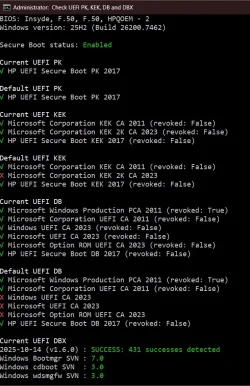
So dumb question then: What's wrong with this picture?
 

Attachments

  • Screenshot 2026-01-05 171546.webp
    Screenshot 2026-01-05 171546.webp
    99.1 KB · Views: 5

My Computer

System One

  • OS
    Windows 11 Pro 25H2
    Computer type
    Laptop
    Manufacturer/Model
    HP
    CPU
    Gen 11 Core i5
    Memory
    16GB
So dumb question then: What's wrong with this picture?
Nothing wrong, it simply says that your OEM (HP) needs to provide a new BIOS update that includes the updated certification by default but your UEFI Database already got the latest certification available but whenever you reset your secure boot keys (which is rarely happens if it ever happens) all those updated certification will disappear and you will lose your updated certification files.

Hence those [X] mark tells you your OEM needs to provide BIOS update that includes those updated 2023 certification keys to prevent those updated certification keys from disappearing on the event of resetting your secure boot keys.
 

My Computer

System One

  • OS
    Win11 Insider[Always the latest Dev/Beta releases]
    Computer type
    Laptop
    Manufacturer/Model
    Asus TUF Gaming FA506IU Laptop
    CPU
    AMD Ryzen 7 4800H with Radeon Graphics
    Motherboard
    AMD K17.6 FCH, AMD K17.6 IMC
    Memory
    G.SKILL [Samsung Die] DRR4 - 3200Mhz CL18 (18-19-19-36) - 32GB(16GBx2)
    Graphics Card(s)
    nVidia GTX 1660ti GDDR6 6GB(90W) 2.02Ghz Core & +548Mhz Mem-OC'ed [VBIOS Unlocked]
    Sound Card
    Realtek ALC256 @ AMD K17.6
    Monitor(s) Displays
    LM156LF-2F03 144HZ with Adaptive SYNC
    Screen Resolution
    1920x1080 - 144Hz
    Hard Drives
    WDC PC SN530 SDBPNPZ-256G-1002 + SHGP31-500GM-2 + ST1000LM035-1RK172 + Samsung SSD 870 QVO 1TB 1000.2 GB
    PSU
    ASUS Power Brick 180W
    Case
    Laptop Case with Dual Fan
    Cooling
    Dual Fans Design with Self-Cleaning Cooling
    Keyboard
    Asus Aura RGB with Overstroke technology
    Mouse
    ROG SICA Gaming Mouse
    Internet Speed
    100Mbps FiberOptic [100 Mbps Down - 50 Mbps Up]
    Browser
    Chrome/Firefox/Tor
    Antivirus
    Symantec Endpoint Protection with Windows Defender (Active Mode) + Custom DNS Server
    Other Info
    CPU with -15 Curve Optimizer all cores and -50 Cure optimizer on iGPU
    BCLK OC to 101.6Mhz
    Benchmark Scores:-
    CineBench R23 Single core:- 1290 points
    CineBench R23 Multi core:- 11111 points
So dumb question then: What's wrong with this picture?
Nothing wrong, missing the default certs is not a major issue. If required, you can reload the current certs, those are the ones that are being used. I've updated my BIOS several times on my machines and the current certs hang around just fine. They'll only disappear if you go in and reset the secure boot configuration in the BIOS.
 

My Computers

System One System Two

  • OS
    Win 11 Pro 25H2, Build 26200.8524
    Computer type
    PC/Desktop
    Manufacturer/Model
    Home Brew
    CPU
    Intel Core i5 14500
    Motherboard
    Gigabyte B760M G P WIFI
    Memory
    64GB DDR4
    Graphics Card(s)
    GeForce RTX 4060
    Sound Card
    Chipset Realtek
    Monitor(s) Displays
    LG 45" Ultragear, Acer 24" 1080p
    Screen Resolution
    5120x1440, 1920x1080
    Hard Drives
    Crucial P310 2TB 2280 PCIe Gen4 3D NAND NVMe M.2 SSD (O/S)
    Silicon Power 2TB US75 NVMe PCIe Gen4 M.2 2280 SSD (backup)
    Crucial BX500 2TB 3D NAND (2nd backup)
    Seagate 4TB Ironwolf, rotating HDD archive files
    External off-line backup Drives: 2 NVMe 4TB drives in external enclosures
    PSU
    Thermaltake Toughpower GF3 750W
    Case
    LIAN LI LANCOOL 216 E-ATX PC Case
    Cooling
    Lots of fans!
    Keyboard
    Microsoft Comfort Curve 2000
    Mouse
    Logitech G305
    Internet Speed
    Verizon FiOS 1GB
    Browser
    Firefox
    Antivirus
    Malware Bytes & Windows Defender Security
  • Operating System
    Win 11 Pro 25H2, Build 26200.8524
    Computer type
    PC/Desktop
    Manufacturer/Model
    Home Brew
    CPU
    Intel Core i5 14400
    Motherboard
    Gigabyte B760M DS3H AX
    Memory
    32GB DDR5
    Graphics card(s)
    Intel 700 Embedded GPU
    Sound Card
    Realtek Embedded
    Monitor(s) Displays
    27" HP 1080p
    Screen Resolution
    1920x1080
    Hard Drives
    Crucial P310 2TB 2280 PCIe Gen4 eD NAND PCIe SSD
    Samsung EVO 990 2TB NVMe Gen4 SSD
    Samsung 2TB SATA SSD
    PSU
    Thermaltake Smart BM3 650W
    Case
    Okinos Micro ATX Case
    Cooling
    Fans
    Keyboard
    Microsoft Comfort Curve 2000
    Mouse
    Logitech G305
    Internet Speed
    Verizon FiOS 1GB
    Browser
    Firefox
    Antivirus
    Malware Bytes & Windows Defender Security
I noticed last night that my PowerSpec B746 Desktop needed a restart to finish a update. When I checked to see what the update was, to my surprise I saw this.

Secure Boot.webp
 

My Computers

System One System Two

  • OS
    Windows 11 Pro 25H2
    Computer type
    PC/Desktop
    Manufacturer/Model
    PowerSpec B746
    CPU
    Intel Core i7-10700K
    Motherboard
    ASRock Z490 Phantom Gaming 4/ax
    Memory
    16GB (8GB PC4-19200 DDR4 SDRAM x2)
    Graphics Card(s)
    NVIDIA GeForce GTX 1050 TI
    Sound Card
    Realtek Audio
    Monitor(s) Displays
    #1. LG ULTRAWIDE 34" #2. AOC Q32G2WG3 32"
    Screen Resolution
    #1. 3440 X 1440 #2. 1920 x 1080
    Hard Drives
    NVMe WDC WDS100T2B0C-00PXH0 1TB
    Samsung SSD 860 EVO 1TB
    PSU
    750 Watts (62.5A)
    Case
    PowerSpec/Lian Li ATX 205
    Keyboard
    Logitech K270
    Mouse
    Logitech M185
    Browser
    Microsoft Edge and Firefox
    Antivirus
    Webroot SecureAnywhere CE 26.1
  • Operating System
    Windows 11 Canary Channel
    Computer type
    PC/Desktop
    Manufacturer/Model
    PowerSpec G156
    CPU
    Intel Core i5-8400 CPU @ 2.80GHz
    Motherboard
    AsusTeK Prime B360M-A
    Memory
    16 MB DDR 4-2666
    Monitor(s) Displays
    23" Speptre HDMI 75Hz
    Screen Resolution
    1920x1080
    Hard Drives
    Samsung 970 EVO 500GB NVMe
    Keyboard
    Logitek K270
    Mouse
    Logitek M185
    Browser
    Firefox, Edge and Edge Canary
    Antivirus
    Windows Defender
Back
Top Bottom