Virtualbox 7 and vm screen resolution


cereberus

Well-known member
Guru
VIP
Local time
5:15 AM
Posts
8,572
OS
Windows 11 Pro + Win11 Canary VM.
I have just set a W11 VM up in VB7, and it is unactivated - just testing.

It defaults to 1024x768 screen setting, and I cannot change it as unactivated.

When I do same in Hyper-V enhanced mode, I can set the screen resolution to 1920x1080 or 1366x768 as I wish, even though it is not activated.

So, I activated the vm, but still no ability to change setting.

In device manager, I only see

1666727515961.png


So I suspect it is a driver issue.

Does anybody know how to enable different screen settings?
 

My Computer

System One

  • OS
    Windows 11 Pro + Win11 Canary VM.
    Computer type
    Laptop
    Manufacturer/Model
    ASUS Zenbook 14
    CPU
    I9 13th gen i9-13900H 2.60 GHZ
    Motherboard
    Yep, Laptop has one.
    Memory
    16 GB soldered
    Graphics Card(s)
    Integrated Intel Iris XE
    Sound Card
    Realtek built in
    Monitor(s) Displays
    laptop OLED screen
    Screen Resolution
    2880x1800 touchscreen
    Hard Drives
    1 TB NVME SSD (only weakness is only one slot)
    PSU
    Internal + 65W thunderbolt USB4 charger
    Case
    Yep, got one
    Cooling
    Stella Artois (UK pint cans - 568 ml) - extra cost.
    Keyboard
    Built in UK keybd
    Mouse
    Bluetooth , wireless dongled, wired
    Internet Speed
    900 mbs (ethernet), wifi 6 typical 350-450 mb/s both up and down
    Browser
    Edge
    Antivirus
    Defender
    Other Info
    TPM 2.0, 2xUSB4 thunderbolt, 1xUsb3 (usb a), 1xUsb-c, hdmi out, 3.5 mm audio out/in combo, ASUS backlit trackpad (inc. switchable number pad)

    Macrium Reflect Home V8
    Office 365 Family (6 users each 1TB onedrive space)
    Hyper-V (a vm runs almost as fast as my older laptop)
On a VM, screen res is usually set before launching the VM itself.
If you exit the VM machine and launch VB (the app itself) and go to settings, can't you change it there?
I am a VMWare user so I can't help you much more than that.
 

My Computers

System One System Two

  • OS
    All Branches but Release
    Computer type
    Laptop
    Manufacturer/Model
    Acer Nitro ANV15-51
    CPU
    AMD Ryzen 7 7735HS 3200-4500 Mhz 8 cores x 2
    Motherboard
    Sportage_RBH
    Memory
    32 GB DDR5
    Graphics Card(s)
    Radeon Graphic / NVIDIA GeForce RTX 4060 8 GB GDDR6
    Sound Card
    AMD/Realtek(R) Audio
    Monitor(s) Displays
    Integrated Monitor (15.3"vis)
    Screen Resolution
    FHD 1920X1080 16:9 144Hz
    Hard Drives
    KINGSTON OM8SEP4512Q-AA 1TB
    Western Digital 256GB
    PSU
    19V DC 6.32 A 120 W
    Cooling
    Dual Fans
    Mouse
    MS Bluetooth
    Internet Speed
    Fiber 1GB Cox -us & 1GB Orange-fr
    Browser
    Edge Canary- Firefox Nightly-Chrome Dev-Chrome Dev
    Antivirus
    Windows Defender
  • Operating System
    Windows 11 Beta
    Computer type
    Laptop
    Manufacturer/Model
    Asus X751BP
    CPU
    AMD A9-9420
    Memory
    8 GB of DDR4
    Graphics card(s)
    AMD Radeon R5
    Screen Resolution
    1600x900
    Hard Drives
    Seagate 1 TB
@cereberus

I don't appear to have any similar problem in my test setup. Presumably, you have installed Guest Additions in the VM.
 

My Computers

System One System Two

  • OS
    macOS 14.x (plus Windows 11, Debian, FreeBSD for ARM64)
    Computer type
    Laptop
    Manufacturer/Model
    MacBook Pro M1 MAX
    CPU
    Apple M1 Max (T6001) - 8 performance 2 efficiency cores
    Memory
    32GB LPDDR5
    Graphics Card(s)
    Apple M1 Max (32-core)
    Hard Drives
    a) 1TB SSD + + 1TB SD Card + external SSD Drives
    Browser
    1. Safari 2. DuckDuckGo
    Antivirus
    -
  • Operating System
    Windows 11 Pro, plus VirtualBox VMs: various Windows & Linux
    Computer type
    Laptop
    Manufacturer/Model
    Microsoft Surface Laptop Studio
    CPU
    i7
    Memory
    32GB
    Hard Drives
    1TB SSD, plus external SSDs for Virtual Machines etc.
    Browser
    1. MS Edge 2. DuckDuckGo
    Antivirus
    Defender
For things like proper video resolution on vmware / vbox you need to install ON THE GUEST at first boot -- for vmware -- vmware-tools or vbox -- vbox additions. These will add the proper VM video paravirtualisation rather than the basic Ms video driver which should then allow you to select many more video modes.

Cheers
jimbo
 

My Computer

System One

  • OS
    Windows XP,11 Linux Fedora Rawhide pre-release 45
    Computer type
    PC/Desktop
    CPU
    2 X Intel i7
    Screen Resolution
    4KUHD X 2
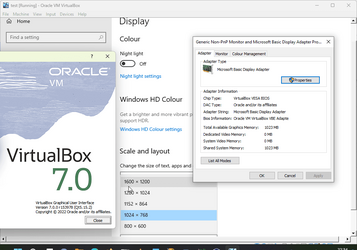
In device manager, I only see

1666727515961.png


So I suspect it is a driver issue.
Guest Additions should help. But even without it the Microsoft Basic Display Adapter has several resolutions I can choose from in this W10 Pro VM.

1666734204090.png

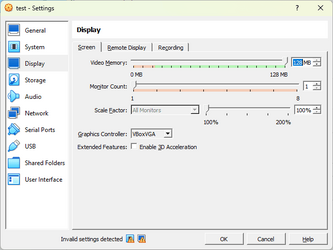
You may need to adjust the Video Memory setting to get other options. Mine is set to the maximum 128MB.

1666738851913.png
 
Last edited:

My Computers

System One System Two

  • OS
    Windows 11 Home
    Computer type
    Laptop
    Manufacturer/Model
    Acer Aspire 3 A315-23-R9VY
    CPU
    AMD Athlon Silver 3050U
    Memory
    8GB
    Graphics Card(s)
    Radeon Graphics
    Monitor(s) Displays
    laptop screen
    Screen Resolution
    1366x768 native resolution, up to 2560x1440 with Radeon Virtual Super Resolution
    Hard Drives
    1TB Samsung EVO 870 SSD (from April 2026: 250GB EVO 850)
    Internet Speed
    150 Mbps
    Browser
    Edge, Firefox
    Antivirus
    Defender
    Other Info
    fully 'Windows 11 ready' laptop. Windows 10 C: partition migrated from my old unsupported 'main machine' then upgraded to 11. A test migration ran Insider builds for 2 months. When 11 was released on 5th October 2021 it was re-imaged back to 10 and was offered the upgrade in Windows Update on 20th October. Windows Update offered the 22H2 Feature Update on 20th September 2022. It got the 23H2 Feature Update on 4th November 2023 through Windows Update, 24H2 on 3rd October 2024 through Windows Update by setting the Target Release Version for 24H2, and 25H2 on 30th September 2025 through Windows Update by setting the Target Release Version for 25H2.

    UPDATE - 11 April 2026: due to mechanical deterioration this PC has been retired from active duty. The OS with all software and files has been migrated to my System Seven below to carry on as my general purpose 'main machine'.

    My SYSTEM THREE is a Dell Latitude 5410, i7-10610U, 32GB RAM, 512GB NVMe ssd, supported device running Windows 11 Pro.

    My SYSTEM FOUR is a 2-in-1 convertible Lenovo Yoga 11e 20DA, Celeron N2930, 8GB RAM, 256GB ssd. Unsupported device: currently running Win10 Pro, plus Win11 Pro RTM and Insider Dev, Beta, and RP 24H2 as native boot vhdx.

    My SYSTEM FIVE is a Dell Latitude 3190 2-in-1, Pentium Silver N5030, 8GB RAM, 1TB NVMe ssd, supported device running Windows 11 Pro, plus Insider Beta, Dev, and Canary builds (and a few others) as a native boot .vhdx.

    My SYSTEM SIX is a Dell Latitude 5550, Core Ultra 7 165H, 64GB RAM, 1TB NVMe SSD, supported device, Windows 11 Pro 24H2, Hyper-V host machine. Updated to 25H2 on 30th September 2025.

    My SYSTEM SEVEN is a Lenovo Thinkpad T580, Intel Core i7-8650U, 16GB RAM, 512GB NVMe SSD + 2nd 512GB NVMe SSD, a supported device for Windows 11. This is my current general purpose 'main machine'. The installed Windows 11 Home from my System One has been migrated to this machine.
  • Operating System
    Windows 11 Pro
    Computer type
    Laptop
    Manufacturer/Model
    Dell Latitude E4310
    CPU
    Intel® Core™ i5-520M
    Motherboard
    0T6M8G
    Memory
    8GB
    Graphics card(s)
    (integrated graphics) Intel HD Graphics
    Screen Resolution
    1366x768
    Hard Drives
    500GB Crucial MX500 SSD
    Browser
    Firefox, Edge
    Antivirus
    Defender
    Other Info
    unsupported machine: Legacy bios, MBR, TPM 1.2, upgraded from W10 to W11 using W10/W11 hybrid install media workaround. In-place upgrade to 22H2 using ISO and a workaround. Feature Update to 23H2 by manually installing the Enablement Package. In-place upgrade to 24H2 using hybrid 23H2/24H2 install media. Upgraded to 25H2 by Enablement Package. Also running Insider Dev, and Canary builds and Windows 10 as native boot .vhdx.

    My SYSTEM THREE is a Dell Latitude 5410, i7-10610U, 32GB RAM, 512GB NVMe ssd, supported device running Windows 11 Pro.

    My SYSTEM FOUR is a 2-in-1 convertible Lenovo Yoga 11e 20DA, Celeron N2930, 8GB RAM, 256GB ssd. Unsupported device: currently running Win10 Pro, plus Win11 Pro RTM and Insider Dev, Beta, and RP 24H2 as native boot vhdx.

    My SYSTEM FIVE is a Dell Latitude 3190 2-in-1, Pentium Silver N5030, 8GB RAM, 1TB NVMe ssd, supported device running Windows 11 Pro, plus Insider Beta, Dev, and Canary builds (and a few others) as a native boot .vhdx.

    My SYSTEM SIX is a Dell Latitude 5550, Core Ultra 7 165H, 64GB RAM, 1TB NVMe SSD, supported device, Windows 11 Pro 24H2, Hyper-V host machine. Updated to 25H2 on 30th September 2025.

    My SYSTEM SEVEN is a Lenovo Thinkpad T580, Intel Core i7-8650U, 16GB RAM, 512GB NVMe SSD + 2nd 512GB NVMe SSD, a supported device for Windows 11. This is my current general purpose 'main machine'. The installed Windows 11 Home from my System One has been migrated to this machine.
It defaults to 1024x768 screen setting, and I cannot change it as unactivated.
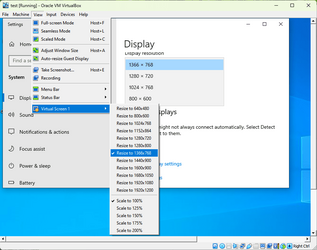
Activation has nothing to do with it. For complete flexibility you need to install Guest Additions as @LeLibran suggested and I have now tried.


Once installed you can choose the size of the virtual screen that your VM will use from the View menu. Without Guest Additions all are greyed out and 1024x768 is the only display it will allow the VM to use.

1666739111340.png
 
Last edited:

My Computers

System One System Two

  • OS
    Windows 11 Home
    Computer type
    Laptop
    Manufacturer/Model
    Acer Aspire 3 A315-23-R9VY
    CPU
    AMD Athlon Silver 3050U
    Memory
    8GB
    Graphics Card(s)
    Radeon Graphics
    Monitor(s) Displays
    laptop screen
    Screen Resolution
    1366x768 native resolution, up to 2560x1440 with Radeon Virtual Super Resolution
    Hard Drives
    1TB Samsung EVO 870 SSD (from April 2026: 250GB EVO 850)
    Internet Speed
    150 Mbps
    Browser
    Edge, Firefox
    Antivirus
    Defender
    Other Info
    fully 'Windows 11 ready' laptop. Windows 10 C: partition migrated from my old unsupported 'main machine' then upgraded to 11. A test migration ran Insider builds for 2 months. When 11 was released on 5th October 2021 it was re-imaged back to 10 and was offered the upgrade in Windows Update on 20th October. Windows Update offered the 22H2 Feature Update on 20th September 2022. It got the 23H2 Feature Update on 4th November 2023 through Windows Update, 24H2 on 3rd October 2024 through Windows Update by setting the Target Release Version for 24H2, and 25H2 on 30th September 2025 through Windows Update by setting the Target Release Version for 25H2.

    UPDATE - 11 April 2026: due to mechanical deterioration this PC has been retired from active duty. The OS with all software and files has been migrated to my System Seven below to carry on as my general purpose 'main machine'.

    My SYSTEM THREE is a Dell Latitude 5410, i7-10610U, 32GB RAM, 512GB NVMe ssd, supported device running Windows 11 Pro.

    My SYSTEM FOUR is a 2-in-1 convertible Lenovo Yoga 11e 20DA, Celeron N2930, 8GB RAM, 256GB ssd. Unsupported device: currently running Win10 Pro, plus Win11 Pro RTM and Insider Dev, Beta, and RP 24H2 as native boot vhdx.

    My SYSTEM FIVE is a Dell Latitude 3190 2-in-1, Pentium Silver N5030, 8GB RAM, 1TB NVMe ssd, supported device running Windows 11 Pro, plus Insider Beta, Dev, and Canary builds (and a few others) as a native boot .vhdx.

    My SYSTEM SIX is a Dell Latitude 5550, Core Ultra 7 165H, 64GB RAM, 1TB NVMe SSD, supported device, Windows 11 Pro 24H2, Hyper-V host machine. Updated to 25H2 on 30th September 2025.

    My SYSTEM SEVEN is a Lenovo Thinkpad T580, Intel Core i7-8650U, 16GB RAM, 512GB NVMe SSD + 2nd 512GB NVMe SSD, a supported device for Windows 11. This is my current general purpose 'main machine'. The installed Windows 11 Home from my System One has been migrated to this machine.
  • Operating System
    Windows 11 Pro
    Computer type
    Laptop
    Manufacturer/Model
    Dell Latitude E4310
    CPU
    Intel® Core™ i5-520M
    Motherboard
    0T6M8G
    Memory
    8GB
    Graphics card(s)
    (integrated graphics) Intel HD Graphics
    Screen Resolution
    1366x768
    Hard Drives
    500GB Crucial MX500 SSD
    Browser
    Firefox, Edge
    Antivirus
    Defender
    Other Info
    unsupported machine: Legacy bios, MBR, TPM 1.2, upgraded from W10 to W11 using W10/W11 hybrid install media workaround. In-place upgrade to 22H2 using ISO and a workaround. Feature Update to 23H2 by manually installing the Enablement Package. In-place upgrade to 24H2 using hybrid 23H2/24H2 install media. Upgraded to 25H2 by Enablement Package. Also running Insider Dev, and Canary builds and Windows 10 as native boot .vhdx.

    My SYSTEM THREE is a Dell Latitude 5410, i7-10610U, 32GB RAM, 512GB NVMe ssd, supported device running Windows 11 Pro.

    My SYSTEM FOUR is a 2-in-1 convertible Lenovo Yoga 11e 20DA, Celeron N2930, 8GB RAM, 256GB ssd. Unsupported device: currently running Win10 Pro, plus Win11 Pro RTM and Insider Dev, Beta, and RP 24H2 as native boot vhdx.

    My SYSTEM FIVE is a Dell Latitude 3190 2-in-1, Pentium Silver N5030, 8GB RAM, 1TB NVMe ssd, supported device running Windows 11 Pro, plus Insider Beta, Dev, and Canary builds (and a few others) as a native boot .vhdx.

    My SYSTEM SIX is a Dell Latitude 5550, Core Ultra 7 165H, 64GB RAM, 1TB NVMe SSD, supported device, Windows 11 Pro 24H2, Hyper-V host machine. Updated to 25H2 on 30th September 2025.

    My SYSTEM SEVEN is a Lenovo Thinkpad T580, Intel Core i7-8650U, 16GB RAM, 512GB NVMe SSD + 2nd 512GB NVMe SSD, a supported device for Windows 11. This is my current general purpose 'main machine'. The installed Windows 11 Home from my System One has been migrated to this machine.
Activation has nothing to do with it. For complete flexibility you need to install Guest Additions as @LeLibran suggested and I have now tried.


Once installed you can choose the size of the virtual screen that your VM will use from the View menu. Without Guest Additions all are greyed out and 1024x768 is the only display it will allow the VM to use.

View attachment 43347
I have thought I had guest additions installed but I do not get that menu. Reading link, it seems I have not properly installed that - many thanks and good luck on health matters.
 

My Computer

System One

  • OS
    Windows 11 Pro + Win11 Canary VM.
    Computer type
    Laptop
    Manufacturer/Model
    ASUS Zenbook 14
    CPU
    I9 13th gen i9-13900H 2.60 GHZ
    Motherboard
    Yep, Laptop has one.
    Memory
    16 GB soldered
    Graphics Card(s)
    Integrated Intel Iris XE
    Sound Card
    Realtek built in
    Monitor(s) Displays
    laptop OLED screen
    Screen Resolution
    2880x1800 touchscreen
    Hard Drives
    1 TB NVME SSD (only weakness is only one slot)
    PSU
    Internal + 65W thunderbolt USB4 charger
    Case
    Yep, got one
    Cooling
    Stella Artois (UK pint cans - 568 ml) - extra cost.
    Keyboard
    Built in UK keybd
    Mouse
    Bluetooth , wireless dongled, wired
    Internet Speed
    900 mbs (ethernet), wifi 6 typical 350-450 mb/s both up and down
    Browser
    Edge
    Antivirus
    Defender
    Other Info
    TPM 2.0, 2xUSB4 thunderbolt, 1xUsb3 (usb a), 1xUsb-c, hdmi out, 3.5 mm audio out/in combo, ASUS backlit trackpad (inc. switchable number pad)

    Macrium Reflect Home V8
    Office 365 Family (6 users each 1TB onedrive space)
    Hyper-V (a vm runs almost as fast as my older laptop)
Activation has nothing to do with it. For complete flexibility you need to install Guest Additions as @LeLibran suggested and I have now tried.


Once installed you can choose the size of the virtual screen that your VM will use from the View menu. Without Guest Additions all are greyed out and 1024x768 is the only display it will allow the VM to use.

View attachment 43347
I added guest additions and it now gives extra resolution from Windows but I do not have rhe View Menu option at all to select other options. Is VB7 different?
 

My Computer

System One

  • OS
    Windows 11 Pro + Win11 Canary VM.
    Computer type
    Laptop
    Manufacturer/Model
    ASUS Zenbook 14
    CPU
    I9 13th gen i9-13900H 2.60 GHZ
    Motherboard
    Yep, Laptop has one.
    Memory
    16 GB soldered
    Graphics Card(s)
    Integrated Intel Iris XE
    Sound Card
    Realtek built in
    Monitor(s) Displays
    laptop OLED screen
    Screen Resolution
    2880x1800 touchscreen
    Hard Drives
    1 TB NVME SSD (only weakness is only one slot)
    PSU
    Internal + 65W thunderbolt USB4 charger
    Case
    Yep, got one
    Cooling
    Stella Artois (UK pint cans - 568 ml) - extra cost.
    Keyboard
    Built in UK keybd
    Mouse
    Bluetooth , wireless dongled, wired
    Internet Speed
    900 mbs (ethernet), wifi 6 typical 350-450 mb/s both up and down
    Browser
    Edge
    Antivirus
    Defender
    Other Info
    TPM 2.0, 2xUSB4 thunderbolt, 1xUsb3 (usb a), 1xUsb-c, hdmi out, 3.5 mm audio out/in combo, ASUS backlit trackpad (inc. switchable number pad)

    Macrium Reflect Home V8
    Office 365 Family (6 users each 1TB onedrive space)
    Hyper-V (a vm runs almost as fast as my older laptop)
I added guest additions and it now gives extra resolution from Windows but I do not have rhe View Menu option at all to select other options. Is VB7 different?
No. Guest window -> View -> Virtual Screen 1 -> Resize to -> Resize to 1024x768 (for example).
 

My Computer

System One

  • OS
    Windows 7/10/11
    Computer type
    Laptop
    Manufacturer/Model
    Lenovo W530
    CPU
    i7-3720QM @ 2.60Ghz
    Memory
    32GB
    Graphics Card(s)
    Intel HD Graphics 4000, NVIDIA Quadro K2000M
    Hard Drives
    Samsung SSD 860 EVO 1TB
I do not have the View Menu option at all to select other options. Is VB7 different?
Sounds like you are running the VirtualBox VM in Scaled Mode. You need to switch it to Windowed Mode to see the View Menu at the top of the window. Press Host+C to switch (by default your Host key is the right Ctrl key).

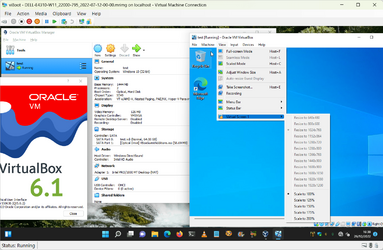
VB6 or VB7 makes no difference, I've just enabled nested virtualisation for this Hyper-V VM so I could use viBoot to run up a Macrium image of the host machine above before it got the VB7 upgrade (a VM running in a VM - that was fun :wink:). The menu options are the same. I couldn't install Guest Additions though (it gave a BSOD in the VM within a VM) so it's stuck with 1024x768 and the options are all greyed out - it does show that they're there though.


1666799677908.png
 
Last edited:

My Computers

System One System Two

  • OS
    Windows 11 Home
    Computer type
    Laptop
    Manufacturer/Model
    Acer Aspire 3 A315-23-R9VY
    CPU
    AMD Athlon Silver 3050U
    Memory
    8GB
    Graphics Card(s)
    Radeon Graphics
    Monitor(s) Displays
    laptop screen
    Screen Resolution
    1366x768 native resolution, up to 2560x1440 with Radeon Virtual Super Resolution
    Hard Drives
    1TB Samsung EVO 870 SSD (from April 2026: 250GB EVO 850)
    Internet Speed
    150 Mbps
    Browser
    Edge, Firefox
    Antivirus
    Defender
    Other Info
    fully 'Windows 11 ready' laptop. Windows 10 C: partition migrated from my old unsupported 'main machine' then upgraded to 11. A test migration ran Insider builds for 2 months. When 11 was released on 5th October 2021 it was re-imaged back to 10 and was offered the upgrade in Windows Update on 20th October. Windows Update offered the 22H2 Feature Update on 20th September 2022. It got the 23H2 Feature Update on 4th November 2023 through Windows Update, 24H2 on 3rd October 2024 through Windows Update by setting the Target Release Version for 24H2, and 25H2 on 30th September 2025 through Windows Update by setting the Target Release Version for 25H2.

    UPDATE - 11 April 2026: due to mechanical deterioration this PC has been retired from active duty. The OS with all software and files has been migrated to my System Seven below to carry on as my general purpose 'main machine'.

    My SYSTEM THREE is a Dell Latitude 5410, i7-10610U, 32GB RAM, 512GB NVMe ssd, supported device running Windows 11 Pro.

    My SYSTEM FOUR is a 2-in-1 convertible Lenovo Yoga 11e 20DA, Celeron N2930, 8GB RAM, 256GB ssd. Unsupported device: currently running Win10 Pro, plus Win11 Pro RTM and Insider Dev, Beta, and RP 24H2 as native boot vhdx.

    My SYSTEM FIVE is a Dell Latitude 3190 2-in-1, Pentium Silver N5030, 8GB RAM, 1TB NVMe ssd, supported device running Windows 11 Pro, plus Insider Beta, Dev, and Canary builds (and a few others) as a native boot .vhdx.

    My SYSTEM SIX is a Dell Latitude 5550, Core Ultra 7 165H, 64GB RAM, 1TB NVMe SSD, supported device, Windows 11 Pro 24H2, Hyper-V host machine. Updated to 25H2 on 30th September 2025.

    My SYSTEM SEVEN is a Lenovo Thinkpad T580, Intel Core i7-8650U, 16GB RAM, 512GB NVMe SSD + 2nd 512GB NVMe SSD, a supported device for Windows 11. This is my current general purpose 'main machine'. The installed Windows 11 Home from my System One has been migrated to this machine.
  • Operating System
    Windows 11 Pro
    Computer type
    Laptop
    Manufacturer/Model
    Dell Latitude E4310
    CPU
    Intel® Core™ i5-520M
    Motherboard
    0T6M8G
    Memory
    8GB
    Graphics card(s)
    (integrated graphics) Intel HD Graphics
    Screen Resolution
    1366x768
    Hard Drives
    500GB Crucial MX500 SSD
    Browser
    Firefox, Edge
    Antivirus
    Defender
    Other Info
    unsupported machine: Legacy bios, MBR, TPM 1.2, upgraded from W10 to W11 using W10/W11 hybrid install media workaround. In-place upgrade to 22H2 using ISO and a workaround. Feature Update to 23H2 by manually installing the Enablement Package. In-place upgrade to 24H2 using hybrid 23H2/24H2 install media. Upgraded to 25H2 by Enablement Package. Also running Insider Dev, and Canary builds and Windows 10 as native boot .vhdx.

    My SYSTEM THREE is a Dell Latitude 5410, i7-10610U, 32GB RAM, 512GB NVMe ssd, supported device running Windows 11 Pro.

    My SYSTEM FOUR is a 2-in-1 convertible Lenovo Yoga 11e 20DA, Celeron N2930, 8GB RAM, 256GB ssd. Unsupported device: currently running Win10 Pro, plus Win11 Pro RTM and Insider Dev, Beta, and RP 24H2 as native boot vhdx.

    My SYSTEM FIVE is a Dell Latitude 3190 2-in-1, Pentium Silver N5030, 8GB RAM, 1TB NVMe ssd, supported device running Windows 11 Pro, plus Insider Beta, Dev, and Canary builds (and a few others) as a native boot .vhdx.

    My SYSTEM SIX is a Dell Latitude 5550, Core Ultra 7 165H, 64GB RAM, 1TB NVMe SSD, supported device, Windows 11 Pro 24H2, Hyper-V host machine. Updated to 25H2 on 30th September 2025.

    My SYSTEM SEVEN is a Lenovo Thinkpad T580, Intel Core i7-8650U, 16GB RAM, 512GB NVMe SSD + 2nd 512GB NVMe SSD, a supported device for Windows 11. This is my current general purpose 'main machine'. The installed Windows 11 Home from my System One has been migrated to this machine.
Sounds like you are running the VirtualBox VM in Scaled Mode. You need to switch it to Windowed Mode to see the View Menu at the top of the window. Press Host+C to switch (by default your Host key is the right Ctrl key).

VB6 or VB7 makes no difference, I've just enabled nested virtualisation for this Hyper-V VM so I could use viBoot to run up a Macrium image of the host machine above before it got the VB7 upgrade (a VM running in a VM - that was fun :wink:). The menu options are the same. I couldn't install Guest Additions though (it gave a BSOD in the VM within a VM) so it's stuck with 1024x768 and the options are all greyed out - it does show that they're there though.


View attachment 43402
Yeah - thanks. I finally sussed it about scaled mode but ran into other issues i.e. the windows menus would hang and all I could do was shut down vm. So I have given up. I tested the thing I wanted though anyway i.e. performance of vb7 (hyper-v off) versus Hyper-V, and proved as always, Hyper-V outperforms VB7.

I also tried vmware, and it ran fine. I will wait until vb7 is more mature and try again.
 

My Computer

System One

  • OS
    Windows 11 Pro + Win11 Canary VM.
    Computer type
    Laptop
    Manufacturer/Model
    ASUS Zenbook 14
    CPU
    I9 13th gen i9-13900H 2.60 GHZ
    Motherboard
    Yep, Laptop has one.
    Memory
    16 GB soldered
    Graphics Card(s)
    Integrated Intel Iris XE
    Sound Card
    Realtek built in
    Monitor(s) Displays
    laptop OLED screen
    Screen Resolution
    2880x1800 touchscreen
    Hard Drives
    1 TB NVME SSD (only weakness is only one slot)
    PSU
    Internal + 65W thunderbolt USB4 charger
    Case
    Yep, got one
    Cooling
    Stella Artois (UK pint cans - 568 ml) - extra cost.
    Keyboard
    Built in UK keybd
    Mouse
    Bluetooth , wireless dongled, wired
    Internet Speed
    900 mbs (ethernet), wifi 6 typical 350-450 mb/s both up and down
    Browser
    Edge
    Antivirus
    Defender
    Other Info
    TPM 2.0, 2xUSB4 thunderbolt, 1xUsb3 (usb a), 1xUsb-c, hdmi out, 3.5 mm audio out/in combo, ASUS backlit trackpad (inc. switchable number pad)

    Macrium Reflect Home V8
    Office 365 Family (6 users each 1TB onedrive space)
    Hyper-V (a vm runs almost as fast as my older laptop)

Latest Support Threads

Back
Top Bottom