Microsoft Support:
Applies To:
Windows 11, Windows Server 2012, Windows Server 2012 R2, Windows Server 2016, Windows Server 2019, Windows Server version 23H2, Windows Server 2025
Original publish date: October 22, 2025
KB ID: 5070960
Summary
Starting with Windows security updates released on and after October 14, 2025, File Explorer automatically disables the preview feature for files downloaded from the internet. This change is designed to enhance security by preventing a vulnerability that could leak NTLM hashes when users preview potentially unsafe files. For more details, review the following frequently asked questions about this change.Frequently asked questions
Why is this change being introduced?
This change mitigates a vulnerability where NTLM hash leakage might occur if users preview files containing HTML tags (such as <link>, <src>, and so forth) referencing external paths. Attackers could exploit this preview feature to capture sensitive credentials.How does the new behavior work?
Preview functionality is disabled by default for files marked with Mark of the Web (MOTW), which indicates they originated from the internet Security Zone.What's the impact on users?
After the October 2025 or a later Windows security update is installed, File Explorer preview pane will display the following message:The file you are attempting to preview could harm your computer. If you trust the file and the source you received it from, open it to view its contents.
Note This change of behavior only applies to files downloaded from the internet with MOTW.
Are additional steps required?
No action is needed to benefit from this security enhancement. Existing workflows remain unaffected unless previewing files downloaded from the internet.How can I override or unblock this behavior?
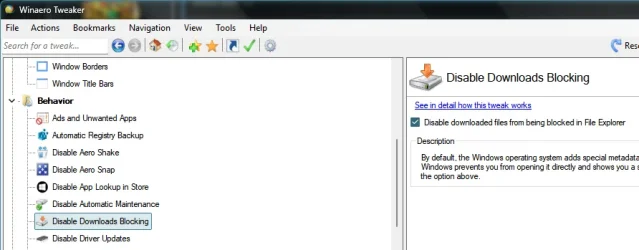
If you are confident in the safety of both the file and its source, you may remove the internet security block. To do this, right-click the file in File Explorer, click Properties, and then click Unblock.
Unblock File Downloaded from Internet in Windows 11
This tutorial will show you different ways on how to unblock files downloaded from the Internet depending on how they were blocked in Windows 11. When you download files from the Internet, Windows 11 shows you a security warning every time you try to open it by default. Some file types are...
 www.elevenforum.com

Add Unblock File Context Menu in Windows 11
This tutorial will show you how to add or remove an Unblock file context menu to files and folders for all users in Windows 10 and Windows 11. When you download files from the Internet, Windows 11 shows you a security warning every time you try to open it by default. Some file types are blocked...
www.elevenforum.com

Enable or Disable Block Files Downloaded from Internet in Windows 11
This tutorial will show you how to enable or disable blocking files downloaded from the Internet for all or specific users in Windows 10 and Windows 11. The Attachment Manager is included in Windows to help protect your PC from unsafe attachments that you might receive with an e-mail message...
www.elevenforum.com
Source:
File Explorer automatically disables the preview feature for files downloaded from the internet | Microsoft Support
File Explorer automatically disables the preview feature for files downloaded from the internet
 support.microsoft.com
Last edited:







 )
)