Windows Blogs:
Hey Windows Insiders,
One of the best parts of the work is hearing directly from the people using Windows every day. I was recently in Hyderabad and Taipei meeting with local Windows Insiders, and those conversations gave me a lot of energy heading into Build next week.
The feedback we’re hearing from you continues to reinforce that we’re focused on the right places.
For me, the theme this month is momentum.
Some of that momentum is in performance. We’re making steady progress across core areas like File Explorer, search, and broader system responsiveness, backed by architectural improvements that are starting to unlock more consistent gains across Windows.
Some of it is in craft: the small details that make Windows feel more polished, more predictable, and more personal. Address bar improvements in File Explorer. A modern Run experience. More taskbar positioning flexibility with app labels. These are the kinds of refinements we’re working through across Windows, and you’ll continue to see more of them in Insider builds throughout the coming year.
Let’s get into what started showing up this month, including new experiences beginning to roll out in today’s flights.
Making Taskbar and Start more personal
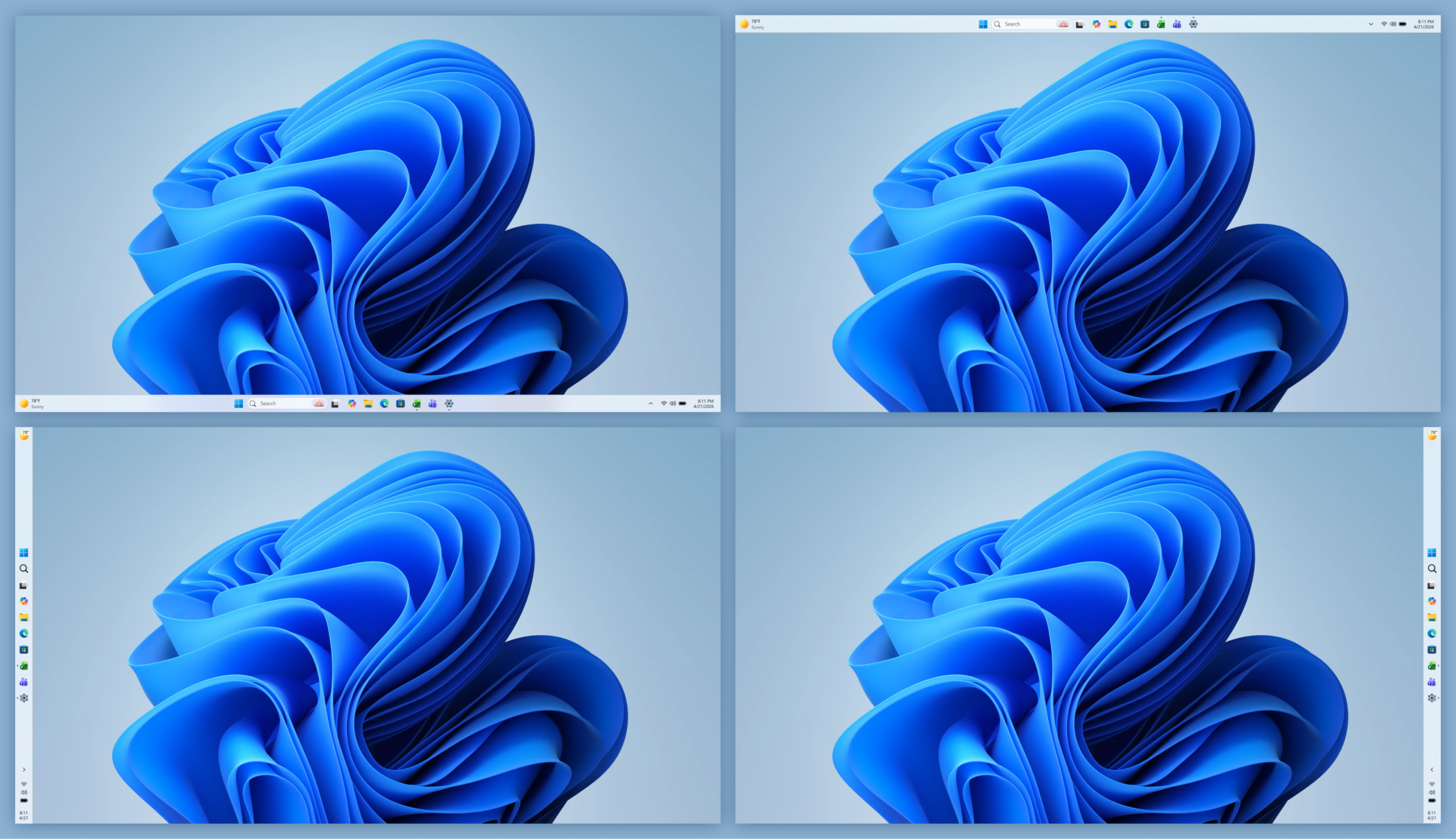
This month, we began rolling out more personalization for Taskbar and Start, two of the most use and most personal surfaces in Windows.
With these updates, you can move the taskbar to any edge of the screen, choose icon alignment based on its position, and use app labels across positions to make open windows easier to tell apart. There’s also a new smaller taskbar option to help reclaim screen space.
Change Taskbar Position on Screen in Windows 11
This tutorial will show you how to change the taskbar position to any edge of the screen for your account in Windows 11. Starting with Windows 11 build 26100.9278 (24H2), build 26200.9278 (25H2), and build 2800.3086 (26H1), you can now change the position of taskbar on your screen. You can...
 www.elevenforum.com
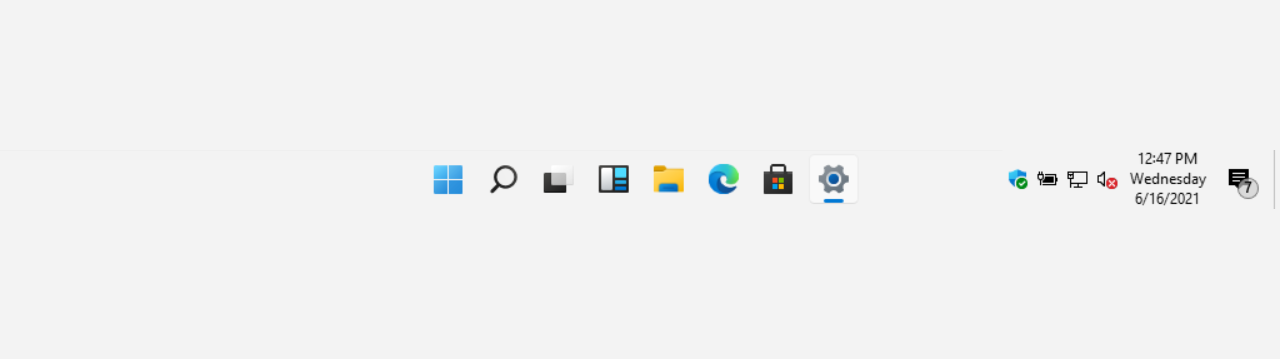
Change Size of Taskbar Icons in Windows 11
This tutorial will show you how to change when to show small icons on the taskbar for your account, all users, or specific users in Windows 11. Starting with Windows 11 build 26100.4484 (24H2), build 28120.2387 (Experimental 26H1), build 26220.9022 (Beta 25H2), and build 28020.2623 (Beta 26H1)...
www.elevenforum.com
We’re also making Start easier to shape around how you work. New controls let you independently show or hide sections like Pinned, Recommended, and All apps, adjust Start menu size, and hide your name and profile picture for more privacy. The Recommended section is also being updated to Recent, with better file relevancy, so surfaced content better reflects what you’re actually working on.
Add or Remove Pinned Section on Start Menu in Windows 11
This tutorial will show you how to add or remove the Pinned apps section on the Start menu for your account in Windows 11. The Start menu in Windows 11 is comprised of three sections: Pinned, Recent, and All apps. The section at the top of the Start menu is called the Pinned section. This...
www.elevenforum.com
Add or Remove Recommended Section on Start Menu in Windows 11
This tutorial will show you how to add or remove the Recommended (Recent) section from the Start Menu for your account, specific users, or all users in Windows 11. The Start menu in Windows 11 is comprised of three sections: Pinned, Recent, and All apps. The Recommended section on the Start...
www.elevenforum.com
Add or Remove All Apps Section on Start Menu in Windows 11
This tutorial will show you how to add or remove the All apps section on the Start menu for your account, specific users, or all users in Windows 11. The Start menu in Windows 11 is comprised of three sections: Pinned, Recent, and All apps. The All apps section on the Start menu shows all your...
www.elevenforum.com
These updates have started to roll out in the Experimental Channel. Read more about the considerations and improvements we’re bringing to taskbar and Start in the recent blog post from Diego Baca.
Improving driver quality, reliability, and security with the Driver Quality Initiative (DQI), and Cloud Initiated Driver Recovery
In March, we committed to delivering a smoother, more dependable Windows experience with our ecosystem of partners. Drivers are a critical part of that work.Drivers sit at the heart of Windows, connecting the OS to silicon, components, and peripherals. With thousands of partners contributing to tens of thousands of active driver families, improving driver quality is essential to making Windows more reliable over time.
At WinHEC 2026, we introduced the Driver Quality Initiative (DQI), a comprehensive effort designed to improve driver quality, reliability, and security across Windows.
We also rolled out new changes with Cloud Initiated Driver Recovery to improve how drivers are validated, delivered, and maintained. By catching issues earlier, targeting updates more precisely, and enabling automatic recovery when needed, devices can stay reliable over time with fewer disruptions and a better path back to a known-good state.
This is part of our ongoing work with partners to make Windows more dependable over time.
File Explorer improvements across reliability, readability and usability
Building on last month’s improvements, we made several updates to File Explorer across reliability, readability, and usability, including the Address Bar, file size formatting, keyboard navigation, and renaming.
The Address Bar now supports paths containing double backslashes and quotation marks, such as C:\Users\user or “C:\Users\user”, improving compatibility with more of the paths people paste or type into File Explorer. We also improved reliability of the Address Bar suggestion dropdown so it consistently closes after an item is selected.
In Details view, file sizes now use appropriate units like KB, MB, and GB instead of KB-only, making them easier to read at a glance. We also improved keyboard navigation in File Explorer context menu flyouts.
We also fixed multiple renaming issues, including one where text could be repeatedly selected while renaming items in folder views, and another where updated names with case-only changes were not immediately reflected in folder views across local and cloud storage.
These are small details, but they show up in places people use all day. The goal is fewer broken paths, clearer information, and File Explorer interactions that behave more predictably. These updates also began rolling out earlier this month in the Experimental Channel.
Making Windows easier to use with voice input, touch, and more personalization
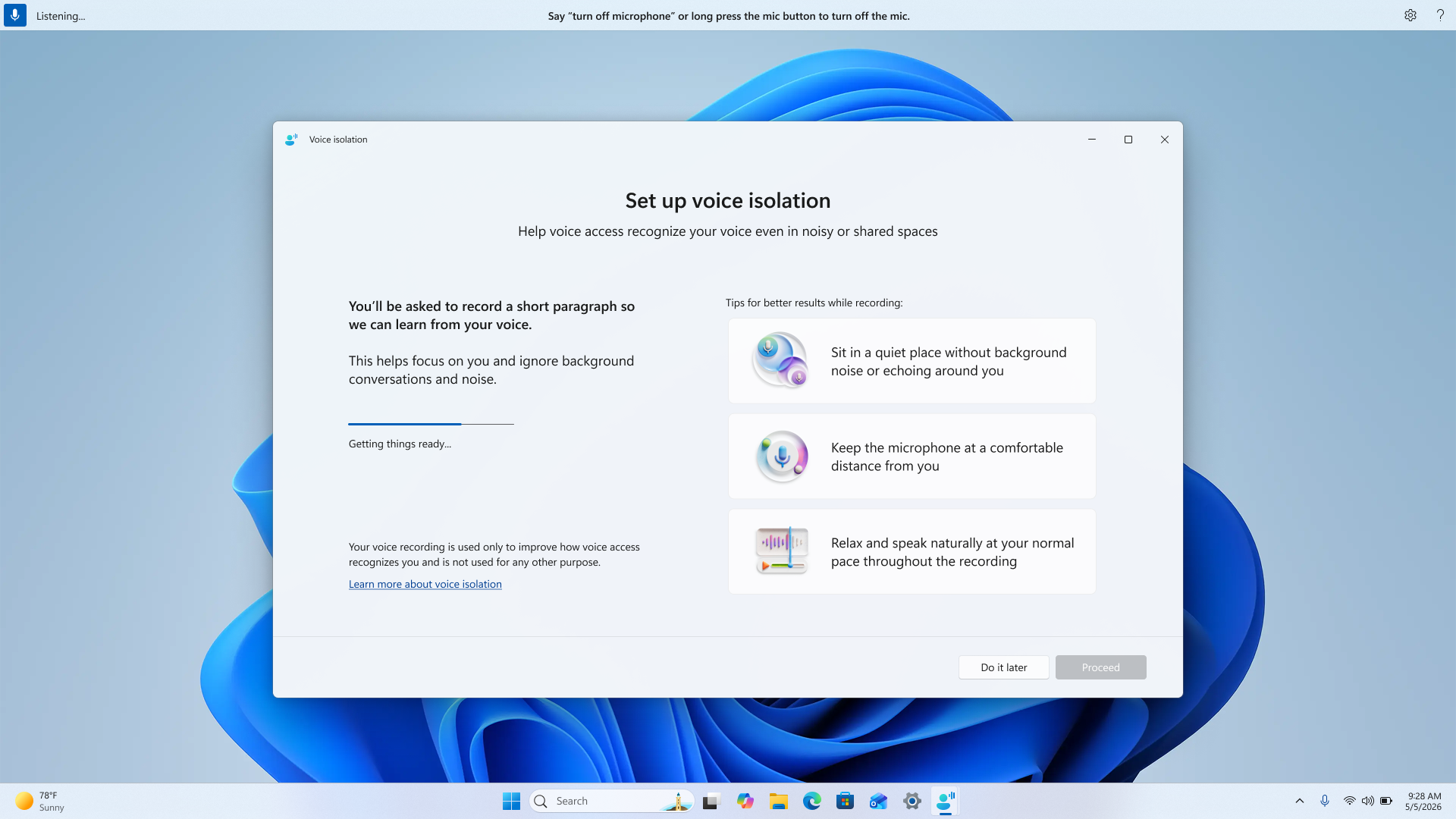
Screenshot showing setup of voice isolation.
Accessibility work in Windows often shows up across many different parts of the experience, because people use their PCs in different ways and in different environments.
For voice, one of the most common pieces of feedback we hear is sensitivity to background noise. With Voice Isolation in Voice Access, Windows can better focus on the speaker and reduce the impact of surrounding noise, helping commands come through more consistently without needing to change where or how you’re working.
We’re also adding more ways to personalize how Windows looks and feels. New options like screen tint make it easier to adjust color and opacity based on preference or lighting conditions, giving people more control during longer sessions.
We’re continuing to improve Magnifier as well, making it easier to set precise zoom levels and adjust zoom directly within the experience without needing to go into Settings.
Finally, we added new gesture-related controls for precision touchpads in Settings, including automatic scrolling, gesture speed controls, accelerated scrolling, and optional single-finger scrolling support.
These are areas we hear about regularly in feedback. The changes are gradual, but they help reduce friction and make Windows easier to use in more moments.
These updates began rolling out in the Experimental channel earlier this month.
Build next week!
Next week is Microsoft Build, where we’ll share more about what we’re doing to elevate the developer experience across the Windows platform. We’ve got a lot in store, so tune in for the keynote at 9:30am PT on Tuesday.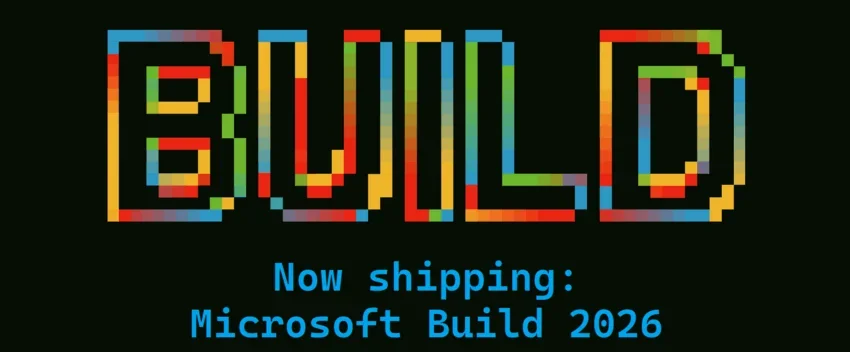
Watch Microsoft Build June 2–3, 2026
Microsoft Build: Microsoft Build will take place June 2–3, 2026, at Fort Mason Center in San Francisco, California. At Microsoft Build, you'll go deep on real code, real systems, and real workflows with the teams building and scaling AI. Two days. Hands-on sessions. No fluff. The keynote and...
www.elevenforum.com
Earlier today, we also shared the first episode of Inside Windows, a podcast where Pavan Davuluri, Executive Vice President, Windows & Devices, sits down with members of the team to share more insight into the work and people behind Windows. I was honored to be the first guest and talk through some of the work we’ve been focused on over the past several months.
For those attending our meetup next week in San Francisco, I look forward to meeting you and hearing how we can keep improving the Windows Insider experience, particularly for developers.
More to come next week!
Marcus
Source:
Windows quality update: May
Hey Windows Insiders, One of the best parts of the work is hearing directly from the people using Windows every day. I was recently in Hyderabad and Taipei meeting with local Windows Insiders, and those conversations gave me a lot of energy heading
 blogs.windows.com