Windows IT Pro Blog:
Editor’s note 9.29.2026: This feature is now generally available on eligible devices.
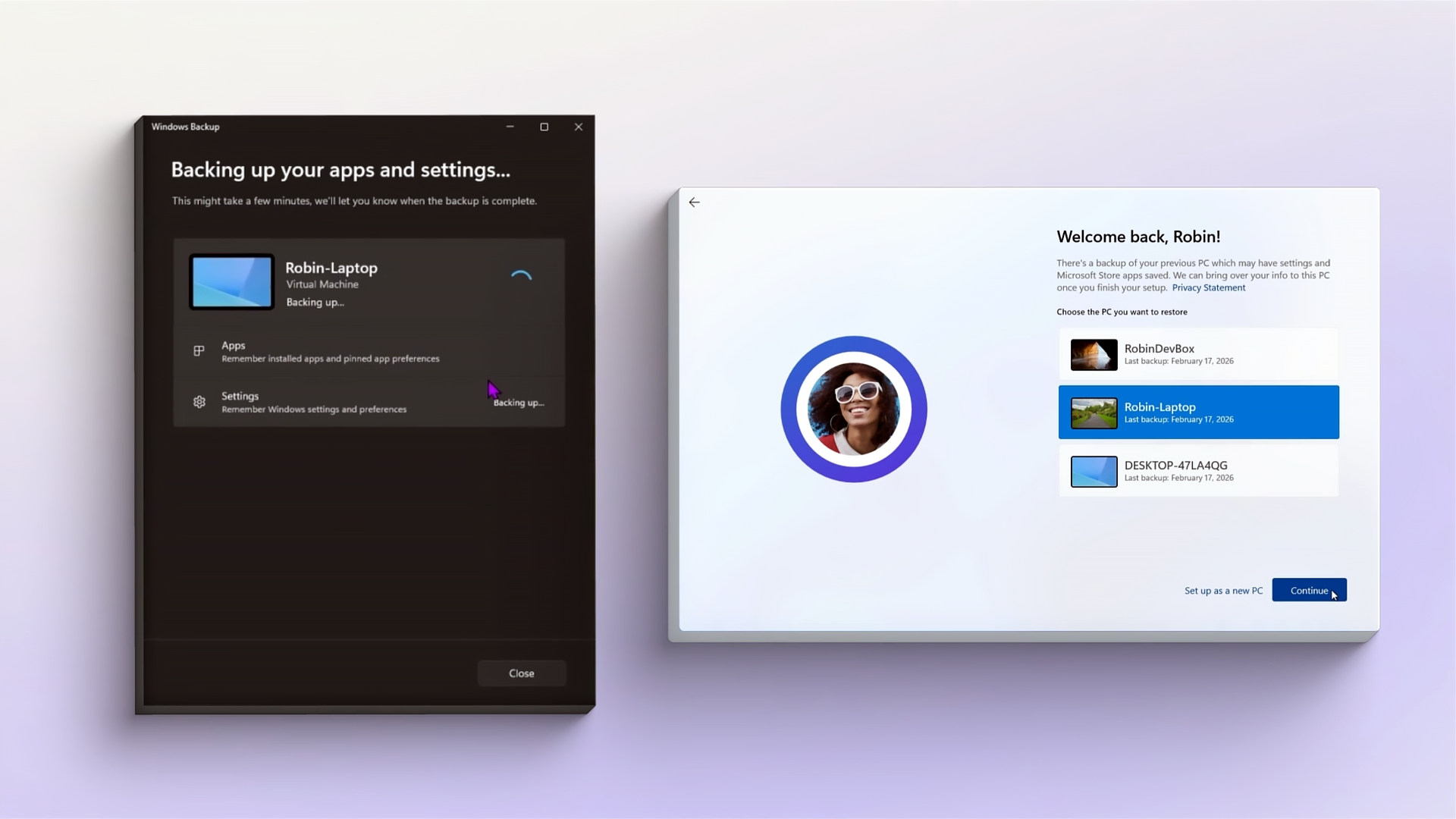
Resilience is about to get easier for the Windows devices you manage! Eligible devices will now have the backup function on by default with Windows settings backup and restore (previously called Windows Backup for Organizations). Today, it's available to Windows Insiders and will be generally available starting with Windows 11, version 26H2. A recoverable list of settings and Microsoft Store apps is becoming a baseline part of the Windows experience rather than an opt-in configuration step.

KB5095130 Windows 11 Insider Experimental (26H2) build 26300.8772 - July 6
UPDATE 7/20: https://www.elevenforum.com/t/windows-11-insider-experimental-26h2-build-26300-8935-july-20.48249/ Windows Insider Blog: [UPDATE 7/13/2026] – Today, we’re rolling out several improvements to Windows Search Box which are available to Windows Insiders who are on Experimental build...
 www.elevenforum.com
Note: Restore behavior is unchanged and isn't enabled by default. You still need explicit admin configuration to restore Windows devices
A baseline designed with IT admins in mind
Staying resilient today is no longer a nice-to-have for businesses. Resetting, replacing, and reimaging a PC is fundamental to onboarding and user experience. It's also a baseline for staying resilient.Imagine a lost laptop, a hardware refresh, or an unexpected reset. These are some of the moments when your users need backup most. And that's rarely when anyone wants to discover that backup was never turned on.
Making backup the baseline shifts it from a best-effort configuration step to a standard capability across your eligible fleet.
- Recovery without configuration: Eligible devices with the backup policy in a Not Configured state under Windows settings backup and restore[1] will back up automatically. Users' settings and Microsoft Store app list are captured out of the box. Note: Restore behavior still requires configuration to be enabled.
- Explicit policy always wins: If you have already enabled or disabled the policy, your setting is honored. The default applies only when policy state is Not Configured.
- Restore stays admin-managed: The default-on change applies to backup only. The restore function continues to require explicit admin configuration and is off by default.
- User choice preserved: End user settings are protected automatically, and they keep full flexibility — they can run a backup at any time from the Windows Backup app and choose which settings are included from the Windows Settings page, all in line with the admin's policy.
| "Windows Backup for Organizations[1] is changing how device refresh works. Pressure tested inside Microsoft on a global scale, it enables Microsoft Store apps and user settings to move seamlessly with our people and free IT teams from the heavy lifting of device reimaging. The result is a simpler, more resilient experience." - Brian Fielder, Vice President, Microsoft Digital |
The operational benefit is simple: When a device needs to be reset, replaced, or reimaged, you can move forward immediately. No need to rush checking whether backup was ever configured for the users. Their familiar setup is already captured and ready to come back with them.
The scope of the default-on Windows backup
The default-on behavior applies to devices that meet all these conditions:- Running Windows 11, version 26H2[2] or later
- In countries or regions not regulated by the EU Digital Markets Act (DMA) not in sovereign or restricted cloud environments
- Not in sovereign or restricted cloud environments
- With the backup policy in a Not Configured state under Windows settings backup and restore*
- Devices in privacy sensitive countries or regions remain off by default.
- Devices in sovereign or restricted cloud environments remain off by default.
- Devices with the backup policy explicitly enabled or disabled continue to honor that explicit setting.
- Devices running previous supported Windows 11 versions (except for version 26H1) remain off by default.
- Devices originally running Windows 11, version 26H1 will receive the same default-on treatment starting with the following feature update.
Getting started
If your environment is already in scope and in the state you want, you're ready. No action required. Otherwise, here's how to pick the behavior that fits your organization:- Keep backup on (recommended): No action required. Eligible devices with the backup policy in a Not Configured state under Windows settings backup and restore* will enable backup automatically at general availability of Windows 11, version 26H2.
- Opt out: Explicitly disable the backup policy through Microsoft Intune, Group Policy, or your MDM solution. Explicit disablement always takes precedence over the default.
- Make intent explicit: Set the backup policy to enabled today. This is functionally equivalent to the new default but provides an unambiguous, audit-friendly admin signal, and the ability for user-targeted enablement only.
- Control restore behavior separately: Configure the restore policy on its own. The default-on change applies to backup only.
Watch this video for a quick tour of the experience:
Ready for broader Windows resiliency
Thank you for your feedback that shaped this change. Making backup the baseline is one step in a broader Windows resiliency effort. We'll keep sharing what's coming next, so you can plan with confidence.Catch up and learn more:
- Windows settings backup and restore
- Configure backup and restore policies in Microsoft Intune
- Windows Insider Blog
- Windows Insider release notes
- Windows first sign-in restore experience now available
- Windows Backup for Organizations is now available
Source:
Windows settings backup becoming a new resilience baseline - Windows IT Pro Blog
A recoverable list of settings and Microsoft Store apps is becoming a baseline part of the Windows experience rather than an opt-in configuration step.
 techcommunity.microsoft.com
Last edited: