Microsoft 365 Insider Blog:
Hi, Insiders! I’m Ndeyanta Jallow, a Product Manager on the Excel team. I’m excited to announce a powerful new Python capability in Microsoft Excel for Windows: editable initialization.
Edit the default initialization for Python in Excel
By default, Python in Excel initializes with a predefined code that sets up your environment. But we know one size doesn’t fit all – maybe you prefer working with NumPy arrays instead of pandas DataFrames, or you want to preload custom functions or libraries every time you open your workbook.This feature gives you control over how Python initializes in your workbook, allowing you to tailor imports, defaults, and configurations to suit your specific needs. Whether you’re a data scientist, analyst, or developer, this unlocks a new level of flexibility and productivity in your Python workflows.
With the new initialization editor experience, you can now:
- View and edit the default initialization code
- Add your own imports, functions, or configuration logic
- Restore back to the default code at any time
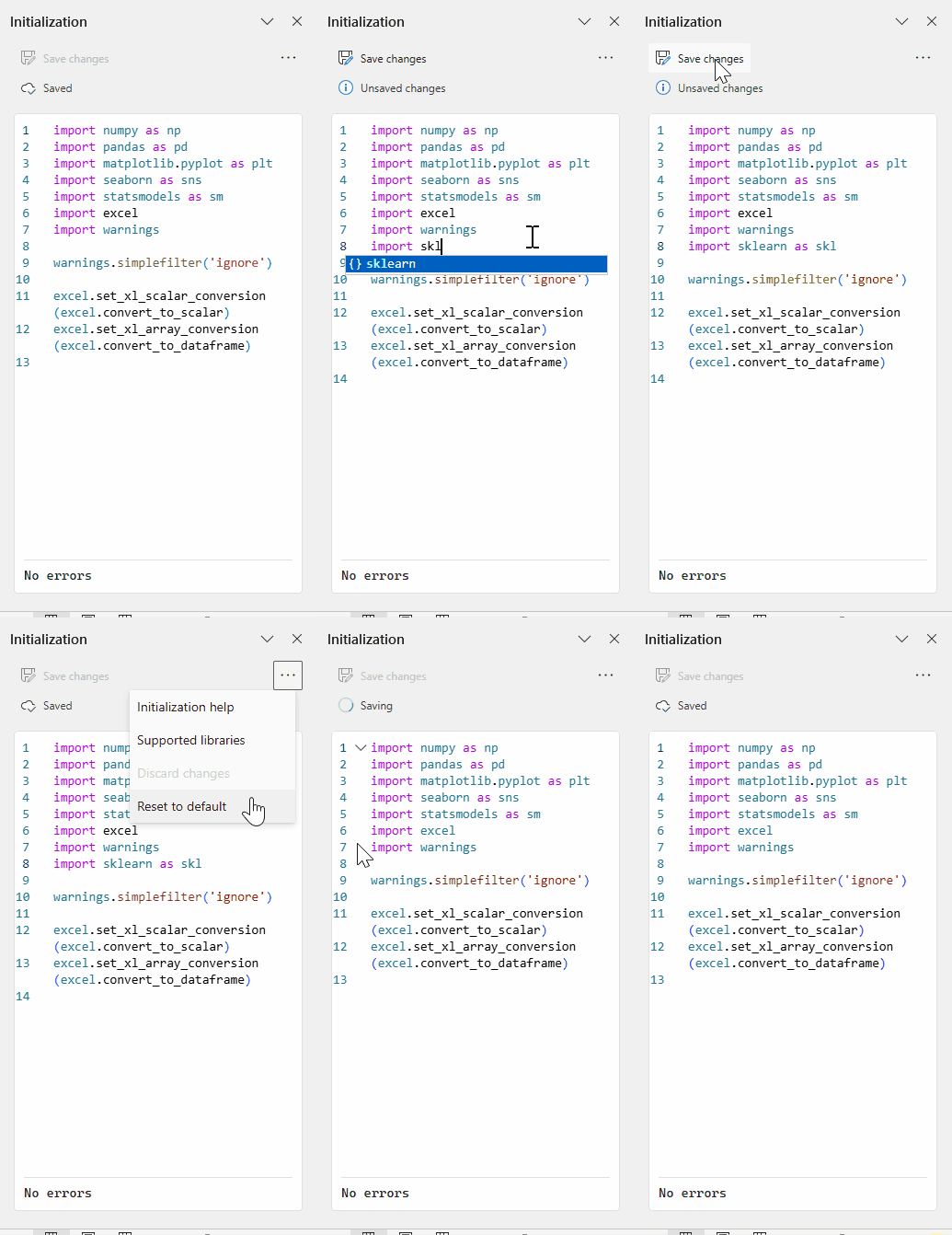
How it works
- Create or open an existing workbook on your Windows computer.
- Select Formulas > Initialization.
- This will open a task pane where you can:
- Edit: Modify the default initialization in a built-in code editor with syntax highlighting, line numbers, and error output.
- Save: Save your changes and automatically restart the Python runtime to apply them.
- Reset: Revert to the default code with a single click.
- Undo/Redo: Walk through your changes while the pane is open.

Tips and tricks
- Your custom initialization code is saved with the workbook, so your environment travels with your file once saved.
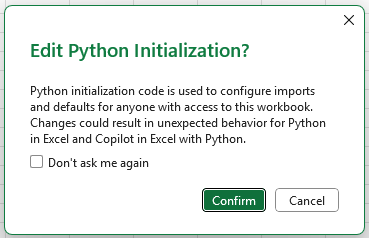
- Changing initialization affects how Python behaves in your workbook and can impact both Python in Excel and Copilot in Excel with Python. That’s why we’ve built in helpful prompts and error handling. You’ll see a confirmation dialog box the first time you apply changes.
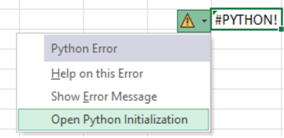
- If your initialization code has errors, Python cells in the grid will return “#PYTHON!” until the issue is resolved within the Initialization pane. Select the error symbol next to the cell, and then select Show Error Message from the menu to view the error details. To view the error from the code, select Open Python Initialization from the error symbol menu or from the Formulas tab.
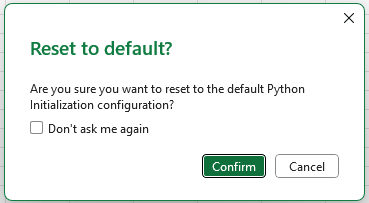
- You can always go back to the default script or discard changes by selecting Reset to default or undoing your changes.
- For more details, check out our initialization help article and supported libraries guide.
Availability
Editable initialization with Python in Excel is rolling out to users running Version 2509 (Build 19230.20002) or later on Excel for Windows.We’re working to bring this capability to more users and platforms soon, so stay tuned for updates!
Feedback
Your feedback helps shape the future of Excel! Please leave a comment below with thoughts or questions on content related to this blog post.Additionally, please let us know how you like a particular feature and what we can improve upon by selecting Help > Feedback and then either Give a compliment or Make a suggestion. You can also submit new ideas or vote for other ideas via Microsoft Feedback.
Source:

Edit the default initialization for Python in Excel
This feature gives you control over how Python initializes in your Microsoft Excel for Windows and for Mac workbook, allowing you to tailor imports,...
 techcommunity.microsoft.com