This tutorial will show you how to enable or disable Intel ("Intel VT" or "VT-x") or AMD ("AMD-V") CPU virtualization in UEFI/BIOS on Windows 10 and Windows 11 PC.
CPU virtualization is a hardware feature found in all current AMD and Intel CPUs that allows a single processor to act as if it was multiple individual CPUs. This allows Windows to more effectively and efficiently utilize the CPU power in the computer so that it runs faster. This feature is also a requirement for many virtual machine software (ex: "Hyper-V") and is required to be enabled in order for them to run properly or even at all.
CPU virtualization lets your PC emulate a different operating system, like Android or Linux. Enabling virtualization gives you access to a larger library of apps to use and install on your PC.
Reference:
Enable Virtualization on Windows | Microsoft Support
Learn how to enable virtualization through the UEFI (or BIOS) of your PC to run the Windows Subsystem for Android or Windows Subsystem for Linux.
 support.microsoft.com
CPU Virtualization is required for:
> Virtualization-based Security (VBS)
> Windows Sandbox
> Core Isolation Memory Integrity
> Hyper-V
> Windows Hypervisor Platform
> Virtual Machine Platform
> Windows Subsystem for Linux (WSL)
> Windows Subsystem for Android (WSA) (now deprecated)
You can confirm if CPU Virtualization is enabled in Task Manager (Ctrl+Shift+Esc).
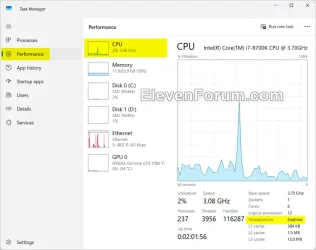
Here's How:
1 Boot to UEFI BIOS firmware settings.
2 Click/tap on the Advanced tab, and click/tap on CPU Configuration. (see screenshot below)
The actual settings may vary per manufacturer.
3 Perform one of the following steps depending on if this is for a Intel or AMD CPU: (see screenshots below)
- If Intel, enable or disable Intel (VMX) Virtualization Technology for what you want.
- If AMD, enable or disable SVM Mode for what you want.
4 Click/tap on the Exit tab, and click/tap on Save Changes & Reset. (see screenshot below)
5 Click/tap on OK to confirm and restart the computer. (see screenshot below)
That's it,
Shawn Brink
Related Tutorials
- Enable or Disable Virtual Machine Platform in Windows 11
- Enable or Disable Core Isolation Memory Integrity in Windows 11
- Enable or Disable Hyper-V in Windows 11
- Enable or Disable Windows Hypervisor Platform in Windows 11
- Enable or Disable Windows Sandbox in Windows 11
- Install Windows Subsystem for Linux (WSL) in Windows 11
Last edited: