This tutorial will show you how to find and save the Windows Spotlight images displayed on your desktop and/or lock screen background in Windows 11.
You can have Windows Spotlight as a theme and display different background images on your desktop and lock screen in Windows 11.
Windows Spotlight uses the Bing daily wallpaper for images, and stores them on your computer to reference and show on your desktop and/or lock screen background.
See also Bing Wallpaper Gallery:
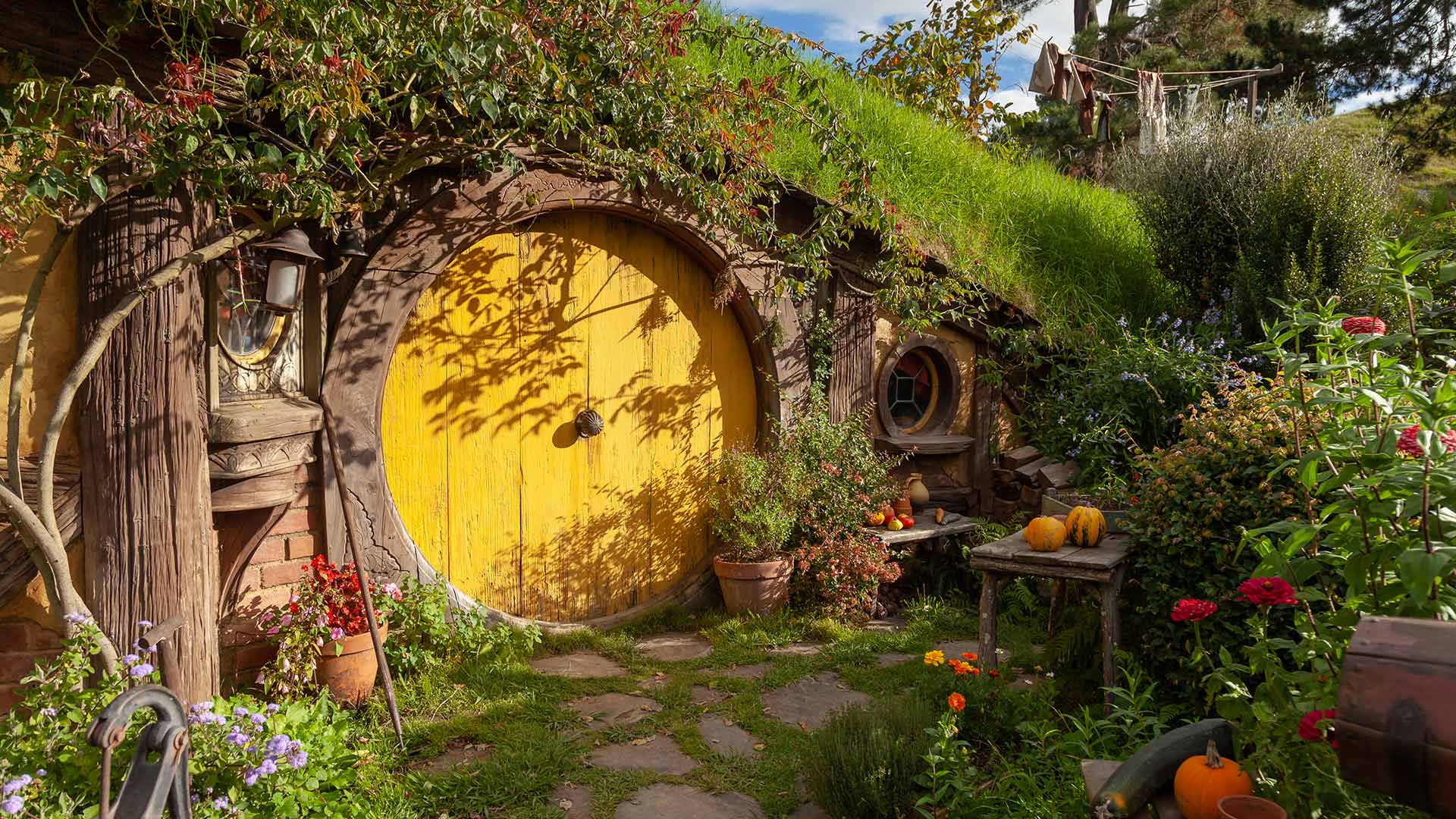
Tolkien Week
Most landmarks were built by history. This one was built for a story. Hobbiton Movie Set sits in Matamata, New Zealand, on a working sheep farm that caught the eye of filmmakers scouting locations for The Lord of the Rings in 1998. The hills already looked Shire-like; round doors, tidy gardens...
If wanted, you can find and save these cached Windows Spotlight images as JPG files to use as you like.
Here's How:
1 Click/tap on the Download button below to download the file below.
Find_and_save_Windows_Spotlight_images.zip
Download
(Contents of BAT file for reference)
Code:
@echo off
pushd %cd%

md "%UserProfile%\Desktop\WindowsSpotlightImages" 2>nul

setlocal enabledelayedexpansion

cd "%LocalAppData%\Packages\Microsoft.Windows.ContentDeliveryManager_cw5n1h2txyewy\LocalState\Assets\"
for /r %%f in (*) do (
  set dest="%UserProfile%\Desktop\WindowsSpotlightImages\%%~nxf.jpg"
  for %%A in ("%%f") do (
    if %%~zA GEQ 51200 (
      if not exist !dest! copy "%%f" !dest!
    )
  )
)

cd "C:\Windows\SystemApps\MicrosoftWindows.Client.CBS_cw5n1h2txyewy\DesktopSpotlight\Assets\Images\"
for /r %%f in (*.jpg) do (
  set dest="%UserProfile%\Desktop\WindowsSpotlightImages\%%~nxf"
  if not exist !dest! copy "%%f" !dest!
)

cd "%LocalAppData%\Packages\MicrosoftWindows.Client.CBS_cw5n1h2txyewy\LocalCache\Microsoft\IrisService\"
for /r %%f in (*) do (
  if "%%~xf"==".jpg" (
    set dest="%UserProfile%\Desktop\WindowsSpotlightImages\%%~nxf"
    if not exist !dest! copy "%%f" !dest!
  )
)

popd
2 Save the ZIP file to your desktop.
3 Unblock the ZIP file.
4 Extract the BAT file from the ZIP file.
4 Run the BAT file.
5 A WindowsSpotlightImages folder will be created on your desktop containing a copy of all cached Windows Spotlight images as JPG files. (see screenshot below)
You can hover over an image in the WindowsSpotlightImages folder to see its Dimensions (ex: "1920 x 1080").
You can rename these image files if wanted.
That's it,
Shawn Brink
Related Tutorials
- Change Desktop Background to Spotlight, Picture, Solid Color, or Slideshow in Windows 11
- Enable or Disable Windows Spotlight on Desktop Background in Windows 11
- Change Lock Screen Background to Windows Spotlight, Picture, or Slideshow in Windows 11
- Reset and Re-register Windows Spotlight in Windows 11
- Switch to Next Windows Spotlight Picture in Windows 11
- Add or Remove "Learn about this picture" Desktop icon in Windows 11
- Add Open Desktop Background File Location context menu in Windows 11
Attachments
Last edited: