
How to change hibernate delay?


xboxhaxorz

Well-known member
Member
Local time
8:29 AM
Posts
28
OS
Eleven
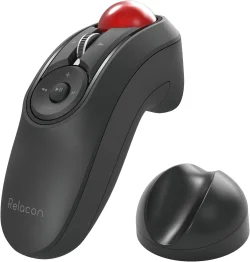
I am using this trackball and its quite sensitive, after i select hibernate/slep and use the slider switch to disable the trackball right away, the pc shuts down but it turns on again right away, when i flip the disable slider switch obviously the trackball moves slightly which the pc recognizes so it shuts down then powers on right away

While the pc is shutting itself the trackball is already disabled, so i have no idea why it turns on after it turns off
Regardless i am wondering if there is a solution for this

I am not using a keyboard, i basically use my trackball to launch the game and then use my controller to play, no real need for keyboard on my bed
 

Attachments
  • 61AwN9eG.webp
    61AwN9eG.webp
    53.9 KB · Views: 1

My Computer My Computer

At a glance

ElevenCore i5-12600K16GBRTX 3080
OS
Eleven
Computer type
PC/Desktop
CPU
Core i5-12600K
Motherboard
PRO Z690-A DDR4
Memory
16GB
Graphics Card(s)
RTX 3080
Monitor(s) Displays
LG CX
Screen Resolution
4k
Hard Drives
980 Pro
I am using this trackball and its quite sensitive, after i select hibernate/slep and use the slider switch to disable the trackball right away, the pc shuts down but it turns on again right away, when i flip the disable slider switch obviously the trackball moves slightly which the pc recognizes so it shuts down then powers on right away

While the pc is shutting itself the trackball is already disabled, so i have no idea why it turns on after it turns off
Regardless i am wondering if there is a solution for this

I am not using a keyboard, i basically use my trackball to launch the game and then use my controller to play, no real need for keyboard on my bed
Why are you disabling the trackball as I believe it has an auto-sleep function? I can simulate the issue on my PC if I slightly wiggle the mouse as the system is entering sleep. It will immediately resume. This is because the system detects the mouse movement or in your case track ball as a wake signal.
 

My Computer My Computer

At a glance

Windows 11 25H2Broadwell-e 6850K 4.5ghz @1.36v32GB Corsair LPM 3600 C16EVGA RTX 3080Ti FTW
OS
Windows 11 25H2
Computer type
PC/Desktop
Manufacturer/Model
EVGA home brew
CPU
Broadwell-e 6850K 4.5ghz @1.36v
Motherboard
EVGA X99 FTW K
Memory
32GB Corsair LPM 3600 C16
Graphics Card(s)
EVGA RTX 3080Ti FTW
Sound Card
Asus Centurion true 7.1 headset. (5 speakers in each earpeice)
Monitor(s) Displays
LG C4 55"
Screen Resolution
4K 144hz
Hard Drives
Various models of SSDs ~10TB No HDDs installed.
PSU
be quiet! BN516 Straight Power 12-1000w 80 Plus Platinum
Case
Corsair 780T modified to dual 200mm intake fans
Cooling
Corsair H110i
Keyboard
Corsair K95 Platinum
Mouse
Corsair M65 RGB Elite
Internet Speed
50Mbs
I disable it so that it doesnt cause the wake signal
But obviously that isnt work all the time

Is there a solution for this? I literally disable right after i click the button on my pc but it still remembers the slight wiggle
 

My Computer My Computer

At a glance

ElevenCore i5-12600K16GBRTX 3080
OS
Eleven
Computer type
PC/Desktop
CPU
Core i5-12600K
Motherboard
PRO Z690-A DDR4
Memory
16GB
Graphics Card(s)
RTX 3080
Monitor(s) Displays
LG CX
Screen Resolution
4k
Hard Drives
980 Pro
Turn off wake for the trackball so the movement from its slider switch can't bring the PC back up.

Open Terminal as administrator and list the devices that are allowed to wake the PC:

powercfg -devicequery wake_armed

Then disable wake for each entry that belongs to the trackball or its USB receiver, using the name exactly as the list shows it:

powercfg -devicedisablewake "HID-compliant mouse"

The same setting is in Device Manager, on the Power Management tab of the trackball's Properties, as "Allow this device to wake the computer". With no keyboard attached, you'd then wake the PC with the power button.

If it still turns back on, run powercfg -lastwake right after and check the `Friendly Name` line for the device that woke it.

Drafted with AI.
 

My Computer My Computer

At a glance

Windows 11
OS
Windows 11
Computer type
PC/Desktop
Manufacturer/Model
Asus
I use the trackball to wake the machine when i wake from bed, i just need a delay
 

My Computer My Computer

At a glance

ElevenCore i5-12600K16GBRTX 3080
OS
Eleven
Computer type
PC/Desktop
CPU
Core i5-12600K
Motherboard
PRO Z690-A DDR4
Memory
16GB
Graphics Card(s)
RTX 3080
Monitor(s) Displays
LG CX
Screen Resolution
4k
Hard Drives
980 Pro
Windows has no setting that ignores wake input for a set time after sleep starts, but a shortcut that waits before it puts the PC to sleep gives you that delay and keeps wake on for the trackball.

Right-click the desktop, choose New > Shortcut, and paste this as the location:

```
powershell -WindowStyle Hidden -Command "Start-Sleep 15; Add-Type -AssemblyName System.Windows.Forms; [System.Windows.Forms.Application]::SetSuspendState('Suspend', $false, $false)"
```

Click the shortcut, flip the trackball off, and the PC goes to sleep 15 seconds later. Change `15` if you need more time.

If you already ran `powercfg -devicedisablewake`, turn wake back on with `powercfg -deviceenablewake` and the same device name.

Drafted with AI.
 

My Computer My Computer

At a glance

Windows 11
OS
Windows 11
Computer type
PC/Desktop
Manufacturer/Model
Asus
here's an ahk that will block input and then sleep pc when launched. after you run it, immediately shut off that mouse via the switch on the left side of it to ensure you dont wake it back up by accident with the trackball. i attached the compiled ahk to exe here in the .zip.
You will still be able to resume your pc from sleep later by turning on the mouse or turning it on and pressing a button and/or moving the ball... and just so you know what the compiled script contains:

Code:
#Requires AutoHotkey v2.0

BlockInput("On")
DllCall("PowrProf\SetSuspendState", "Int", 0, "Int", 0, "Int", 0)
Sleep(1000)
BlockInput("Off")
 

Attachments

My Computer My Computer

At a glance

Windows 11 Pro
OS
Windows 11 Pro

Latest Support Threads

Latest Tutorials

Back
Top Bottom




