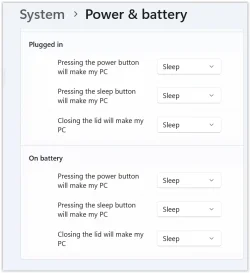
I might add that if it does go to sleep with power disconnected, after a while it goes into Hibernate, which I do not want.
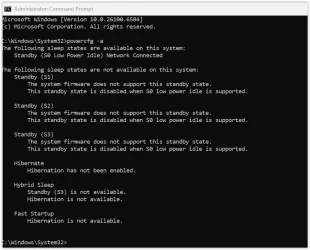
First, let's check if you are indeed using hibernate. .
Please open a command prompt as admin and type
powercfg -a
Post a screenshot of your current power configuration.
After we see your power configuration and verify your state here are things to try:
1.
Make sure you have latest UEFI bios installed.
2. Check Lenovo Vantage or BIOS Settings
Lenovo Vantage or BIOS may override Windows settings:
Open Lenovo Vantage (or install it from the Microsoft Store).
Go to Power or Thermal Settings and look for any “Smart Power” or “Always On USB” options that might prevent sleep.
Restart and test.
To check BIOS:
Restart your laptop and press F1 or Enter during boot to enter BIOS.
Look for Power or Config tabs.
Ensure “Lid Close” behavior is set to Sleep.
Save and exit.
3. Disable Wake Timers
Go to Power Options → Edit Plan Settings → Change advanced power settings.
Expand Sleep → Allow wake timers.
Set both On battery and Plugged in to Disable.
4. Run Power Troubleshooter
Open Settings → System → Troubleshoot → Other troubleshooters.
Run the Power troubleshooter to detect and fix issues.
5. Check for Background Apps or Devices
Some apps or connected devices (like USB peripherals) can prevent sleep.
Try disconnecting all external devices and closing background apps.
Use
powercfg /requests in Command Prompt as admin to see what processes or devices are preventing sleep.
What to look for:
Drivers or Processes listed under SYSTEM or DISPLAY are common culprits.
If you see something like chrome.exe, try closing Chrome and test again.
If it’s a device (e.g., USB Audio), unplug it and retest.
6. From command prompt as admin type:
powercfg /lastwake
This shows what last woke your system from sleep.
If it’s a device, you can disable its ability to wake the system:
Open Device Manager → find the device (e.g., USB controller).
Right-click → Properties → Power Management tab.
Uncheck “Allow this device to wake the computer.”
7. Test sleep while in a clean boot state. This eliminates some software conflict that is preventing sleep. If it doesn't happen in a clean boot, you have some software conflicting with Windows. You have to use process of elimination to find which one.
Perform a Clean Boot in Windows 11 to Troubleshoot Software Conflicts Tutorial
All that said. I believe your problem will end up being caused by Modern Standby. Most questions we get involving sleep/wake issues in laptops lead back to modern standby. Rather than using s3 sleep as what we are accustomed to, modern laptops use s0 sleep called modern standby. Some but not all laptop bios allow the user to enable s3 sleep which solves most sleep/wake issues. However other laptops will not. In those cases, using hibernate is a better option than s0 sleep.
To understand the different sleep states, refer to the explanation in this old thread. Once you have tried all the above suggestions, if you still have the problem you may want to try the suggestions in that thread to see if your device will let you enable s3 sleep.
When I wake my computer up from sleep mode, it boots up fairly quickly for the first 30-40 seconds it responds and I can open and run apps and the internet, but then it suddenly stalls and I can't click anything, everything is frozen for about 30 seconds. It unfreezes and does the same thing...

www.elevenforum.com