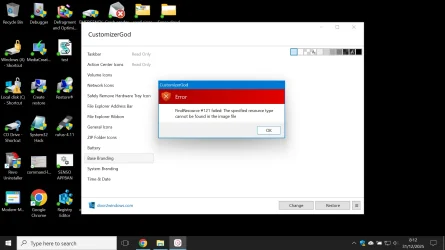
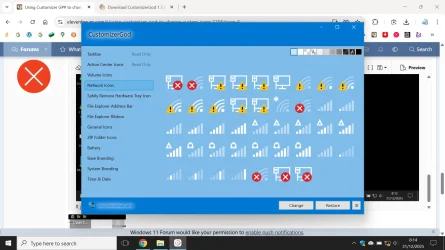
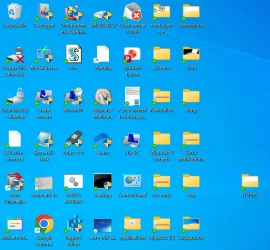
To get the Windows 10 icons, copy the following file from a Windows 10 system to another folder and extract the icons with Customizer God:
C:\Windows\SystemResources\imageres.dll.mun
In Windows 11 copy the respective file to another folder since it cannot be modified directly and replace the desired icons with those from Windows 10. If you want to replace them all, press
CTRL+
A to select all icons, then click replace and browse to the folder with the icons from Windows 10. To replace original file with the modified file you must first change owner of both the folder and the specific file to the Administrators group and give full access rights to both the folder and the specific file to the Administrators group. Then you must open a Command Prompt or third-party file manager, end task File Explorer, replace the file and then load File Explorer again. If the changes don't take effect immediately you might have to clear the icons cache.
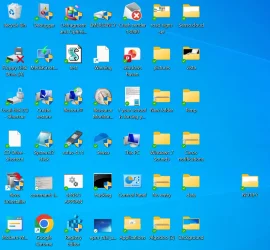
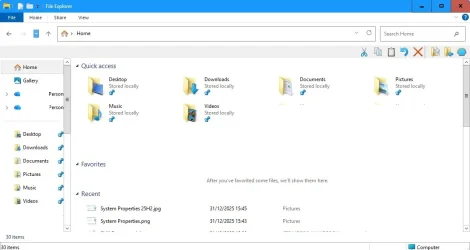
I prefer Windows 8.1 icons which are more 3D than the flat Windows 10/11 default icons:
View attachment 158469
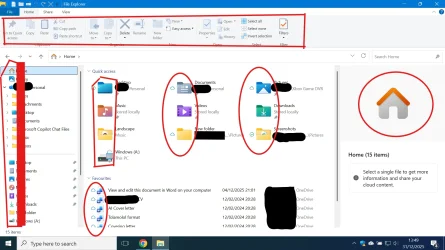
The red "Close" button is from the Aero Lite theme, available from within Winaero Tweaker. The old Windows 10 style File Explorer without the annoying tabs is courtesy of Explorer Patcher. The cut-copy-paste and other icons top right are from Open Shell. Install latest version to avoid some bugs with Explorer Patcher.