How to create install media for a completely automated unattended install of Windows 11
Originally Published by Kari "Kalsarikänni" Finn
***Updated by Andrew129260***
Category: Installation & Upgrade
Last Updated: May 2026
Information:
Installing Windows 11 25H2 is done in three phases:
1. Boot from install media, run Windows Setup
2. Configure hardware devices
3. Windows Welcome (OOBE)
Typically, in a normal installation, User interaction is required in phases 1 and 3, phase 2 being run automatically without any user interaction. In phase 1 you select the language and keyboard layout settings for system accounts, enters product key for specific edition or selects edition manually if product key is not entered at this stage, and selects disk and partition to install Windows. When phase 1 is done, Windows restarts to phase 2 which is done without user interaction and when ready automatically restarts to phase 3.
In phase 3 user selects region and language settings for user accounts, creates initial admin user account, chooses OneDrive and privacy settings and finally boots to desktop.
In this tutorial we will create two answer files to automate phases 1 and 3. An answer file is set of commands and instructions in XML format to tell Windows setup what to do and how to proceed. We will need two answer files:
SetupAnswer.xml to automate phase 1, Windows Setup. This file will be embedded into boot.wim and called explicitly with setup.exe /unattend.
unattend.xml to automate phase 3, OOBE
And some other tricks to make this work on newer versions of windows 11, since they like to "be funny" with autounattend.xml files and the like now.
When done we will create a custom USB flash drive install media for unattended install. To install Windows 11 25H2 using this USB will be totally unattended, "Hands Free"; we simply boot from the USB drive and forget it, take a break, come back to PC to find everything is done, Windows fully installed, with your programs and a decent amount of settings set, without a single key press or mouse click, and without any needed user interaction.
The process as described in tutorial requires two computers, one or both of them can be virtual machines:
Note: Windows 11 25H2 update
This update keeps Kari's original visual guide, screenshots, tips, and flow intact as much as possible. I have tried to clean up everything as best as I could and make improvements here and there. This new version adds a dedicated boot.wim patch part for Windows 11 25H2. The text, XML values, and commands have been patched for Windows 11 25H2, UEFI/GPT, Secure Boot, current ADK guidance, local-account-first OOBE, and an explicit Windows Setup /unattend launch path.
1.) A technician machine
o A computer or virtual machine with Windows 11 or another supported Windows installation. Technician machine will be used to prepare answer files and other assets for custom install image
o In this tutorial I will use my Windows 11 Pro 25H2 laptop as technician machine
2.) A reference machine
o A computer or virtual machine which has no operating system installed. Reference machine will be used to clean install Windows 11 25H2, customize it in Audit Mode, sysprep it and finally capture Windows install image (install.wim file) from it
o If reference machine you want to use already contains an installed OS, existing installation must be wiped and replaced with a fresh clean install, or alternatively Windows 11 25H2 clean installed on another partition or disk on that machine (dual boot)
o In this tutorial I will use a new Hyper-V virtual machine created specifically for this purpose as reference machine
The technician machine can be any supported Windows PC or VM. For Windows 11 25H2 target and reference machines, use UEFI/GPT with Secure Boot and TPM 2.0 available. This guide is UEFI/Secure Boot-only.
The tutorial is quite long, not because topic is complicated (it's not!) but rather because it is somewhat unfamiliar for most average users. I wanted to make this tutorial as easy to follow as possible for users who have never done anything like this, which requires quite a lot explaining and screenshots.
Want to jump to a certain Section? Use Control + F on this page and type Part 5 to jump to part 5.
Do not hesitate to post your questions and issues in this thread.
Tip:
To save some time: Part Six, installing Windows on reference machine takes some time. I suggest you start with it, and do Parts One through Five on technician machine (= another computer) while Windows is installing.
1.1) Windows System Image Manager (SIM) is part of Windows Assessment and Deployment Kit (ADK). On technician machine, download Windows ADK from Download and install the Windows ADK - Microsoft Learn
For Windows 11 25H2, use the Windows ADK 10.1.26100.2454 (December 2024) serviced with the latest ADK patch. Use an Insider Preview ADK only when you are validating against an Insider ISO: Download Windows Insider Preview ADK
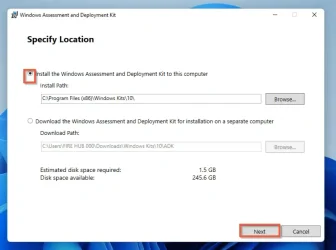
1.2) Run the installer on technician machine, select Install to this computer. Do not worry if the installer shows several GB; for this guide we only need the Deployment Tools component:
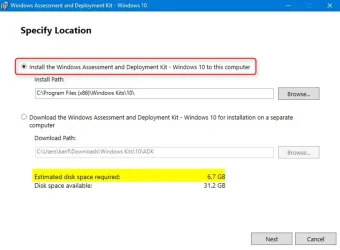
1.3) For purpose of this tutorial, we will only need Deployment Tools. You can unselect everything else:
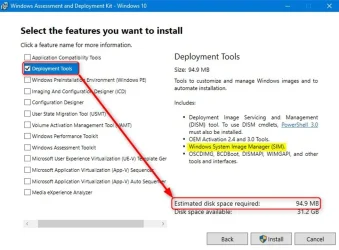
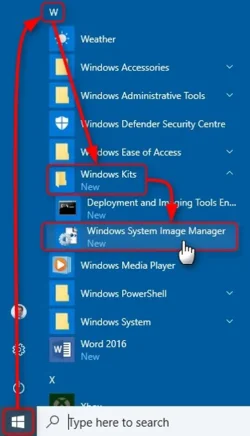
1.4) When installed, Windows SIM can be found and started from Start > Windows Kits > Windows System Image Manager:
Note:
The following steps require you are signed in on technician machine with an administrator account!
2.1) Mount Windows 11 25H2 ISO on technician machine (tutorial)
2.2) Copy ISO contents to a folder on hard disk (CTRL + A to select all in Explorer, CTRL + C to copy). I will use folder D:\ISO_Files for this and paste ISO content there (CTRL + V).
Also, Create a D:\BootWimAssets folder. This will be used later.
When copied and done, unmount the ISO (tutorial)
Note:
Please note: To continue we will need install.wim file. The best way to do this is to go to the download windows 11 website and download the ISO directly at the bottom of the page vs using the media creation tool.
If your Windows 11 25H2 ISO is ESD based (Media Creation Tool ISO), you must first convert install.esd to install.wim as told in this tutorial: Convert ESD file to WIM using DISM; the same DISM workflow applies to Windows 11 media
When done, delete install.esd file in your ISO_Files\Sources folder, replace it with converted install.wim file and continue from 2.3.
2.3) Start Windows SIM (see 1.4). To create an answer file, Windows SIM needs a so called catalog file which will be based on install.wim file for a specific edition of Windows 11 25H2
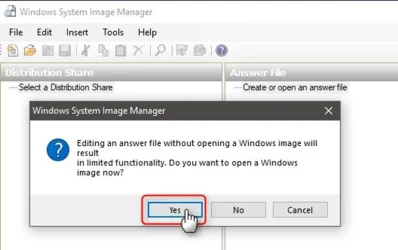
2.4) In Windows SIM, select File > New Answer File. You will be asked if you want to open a Windows image. Select Yes:
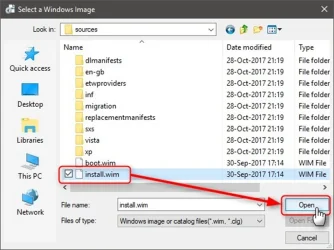
2.5) Browse to and select install.wim in ISO_Files\Sources folder (or any other folder you used to copy ISO content for instance I_Copied_ISO_files_Here\Sources)
Note:
Creating a catalog file will take quite some time. Luckily you only need to create catalog file once. It will be created in same folder where install.wim file used to create it is located, in this example case now in my D:\ISO_Files\Sources folder. The filename will be install_Windows 11 XXX.clg where XXX is edition in question.
Copy the catalog file to another folder to keep it for future needs:
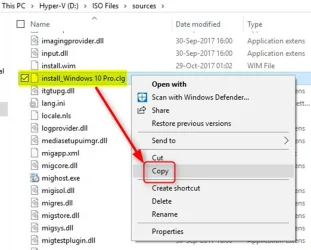
In the future you can open catalog file instead of creating a new one, Select a Windows Image dialog (see 2.5) accepts both WIM and CLG (catalog) files:
2.6) In case your ISO is a multi edition one, select correct edition:
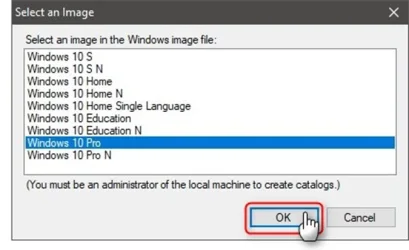
2.7) If creating a new catalog file, Windows SIM will tell it must create one. Click Yes:
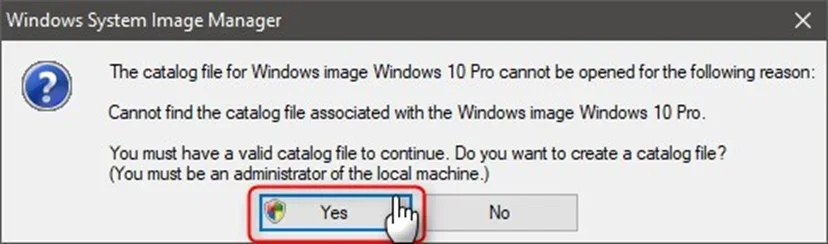
2.8) Catalog will be created:
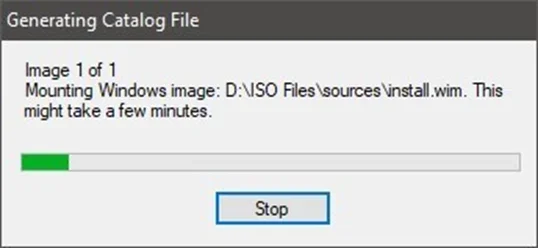
Note:
Notice that this part is only required if you want the complete Windows Setup process to be automatized, plugging in USB and boot to it then take a break and come back later to sign in to desktop.
If you prefer a standard installation, boot to Windows Setup region and keyboard selection and partitioning Windows system disk manually with Windows Setup, you can skip this part.
3.1) Windows installation and setup is done in so called configuration passes. More information about configuration passes on Microsoft TechNet: How Configuration Passes Work.
An answer file is made by adding components to various configuration passes, each component containing settings for that pass. There are seven different configuration passes, here shown in Answer File pane in Windows SIM:
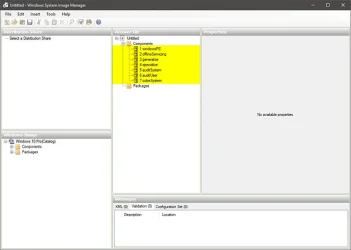
Configuration passes 5 auditSystem and 6 auditUser are not needed in normal Windows setup.
3.2) Answer file SetupAnswer.xml, first of two answer files we will prepare is the one that takes care of setup phase containing information about regional settings, accepting EULA, how to partition hard disk and in which partition Windows will be installed. It only contains components in pass 1 windowsPE
3.3) In Windows SIM, expand Components in Windows Image pane bottom left:
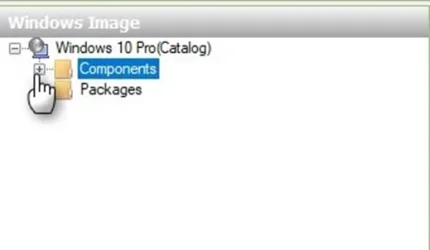
3.4) Component names start with ARM64_Microsoft-Windows if you are working with a catalog file for ARM based 64-bit Windows 11.
If you're using a Standard PC with Intel or AMD platform, you would then use amd64_Microsoft-Windows. This would be for windows 11 x64 bit.
They then end with the build number of the install.wim file used to create the catalog for the answer file. In this tutorial I will omit these two parts when telling about which components need to added.
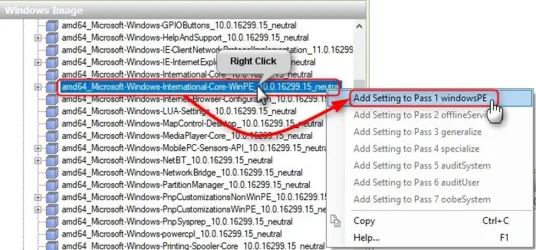
To add region and language settings to answer file, right click component International-Core-WinPE, select Add Setting to Pass 1 windowsPE:
Note:
For newer Windows 11 media, we do not rely on the older guide of using USB discovery behavior for phase 1. Instead, we create the same Windows Setup answer file in Windows SIM, but save it as SetupAnswer.xml. In Part Eight, this file is going to get injected into boot.wim and Windows Setup is launched with setup.exe /unattend:X:\SetupAnswer.xml. This uses the documented /unattend option instead of depending on removable-media root discovery.
Or said another way, This guide uses SetupAnswer.xml only as a guide-specific name for the phase-1 Windows Setup answer file. The important change is Part 8: boot.wim is patched so setup is launched from WinPE with a known /unattend path. This gives the guide control over the setup launch path for Windows 11 24H2/25H2, instead of relying only on automatic answer-file discovery.
Warning:
Be sure to add International-Core-WinPE component, the one just above it has almost the same name without WinPE part. Adding the wrong component makes the answer file invalid!
3.5) You will see that selected component was added to Answer File pane. Select it and enter required settings in Properties pane:
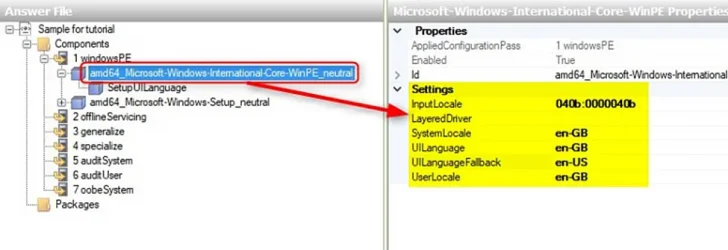
· InputLocale: Your preferred default keyboard layout
· SystemLocale: Your country or region
· UILanguage: Windows language
· UserLocale: PC location
Note:
UILanguageFallback is the language to be used for resources, notifications and system messages that are not localized (translated) to current Windows system language. US English (en-US) can and should be used for all partially localized languages. Arabic (ar-SA) and Chinese Hong Kong (zh-HK) are exceptions, in addition to en-US in Arabic fallback language can also be French (fr-FR) and in Chinese Hong Kong Chinese Taiwan (zh-TW).
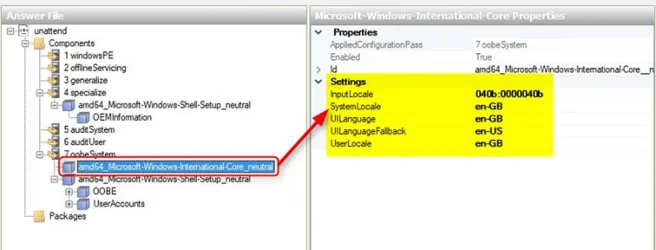
As I am using British English Windows 11 25H2 and Finnish keyboard layout, in my case I set location and language to en-GB (Great Britain), fallback to en-US and keyboard layout to Finnish (040b:0000040b).
Some other keyboard / region codes:
USA - English > 0409:00000409, en-US
· Brazil - Portuguese > 0416:00000416, pt-BR
· Canada - English > 1009:00000409, en-CA
· Canada - French > 0c0c:00011009, fr-CA
· France - French > 040c:0000040c, fr-FR
· Germany - German > 0407:00000407, de-DE
· UK - English > 0809:00000809, en-GB
Complete list: Default Input Profiles (Input Locales) in Windows | Microsoft Docs
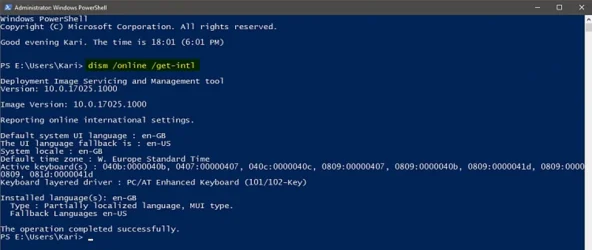
Tip: You can check current regional settings on the technician machine in an elevated PowerShell, with the following command:
dism /online /get-intl
Use them if the answer file and USB install media you are creating will be used to install Windows 11 25H2 with the same settings:
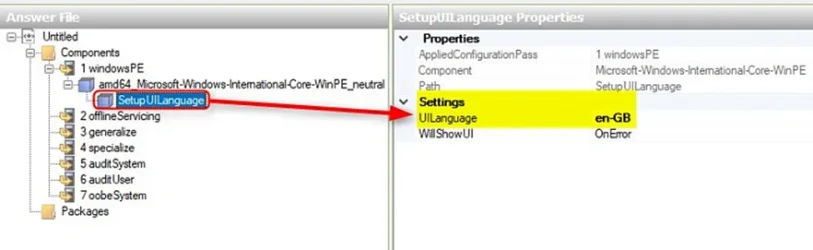
3.6) Expand component International-Core-WinPE in Answer File pane, select SetupUILanguage, enter the Windows language in Properties pane. In this example as the install media is British English I enter en-GB:
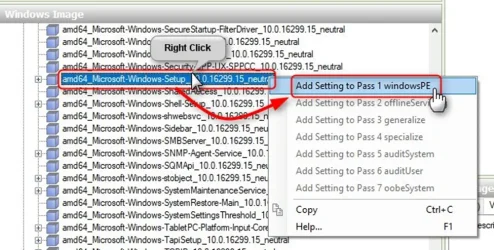
3.7) In Windows Image pane, browse to and select Setup, add it to Pass 1 winPE:
3.8) Expand Setup component, select UserData, set AcceptEula to true, add organization name (optional). Notice that in some settings which only accept preset values like AcceptEula here (it can only be true or false), selection is made from drop down list:
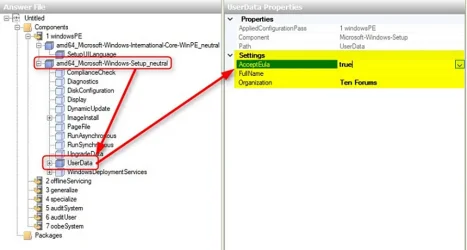
This is a good example about what we are doing: If AcceptEula was left empty or set to false, setup would stop waiting user to accept EULA. When the whole point is to automate the setup, it is important to set it to true.
3.9) Expand UserData, select ProductKey, add a generic product key:
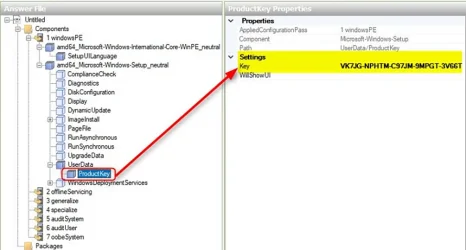
Generic install keys (use only to select the edition; they do not activate Windows):
· Windows 11 Home Single Language: BT79Q-G7N6G-PGBYW-4YWX6-6F4BT
· Windows 11 Home: YTMG3-N6DKC-DKB77-7M9GH-8HVX7
· Windows 11 Pro: VK7JG-NPHTM-C97JM-9MPGT-3V66T
For volume-licensed Education, Enterprise, and Server editions, use the applicable Microsoft Generic Volume License Key (GVLK) from Microsoft Learn: Appendix A: KMS Client Setup Keys
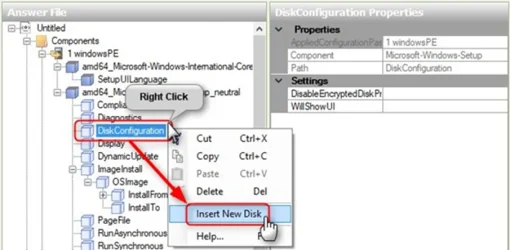
3.10) Time to configure and partition Windows system disk. In this example I will configure a single disk which will be partitioned to use all capacity after system partitions have been created for Windows partition C:.
Right click Setup > DiskConfiguration in Answer File pane, select Insert New Disk:
3.11) Select the disk you added in Answer File pane, set DiskID to be 0 and WillWipeDisk to true:
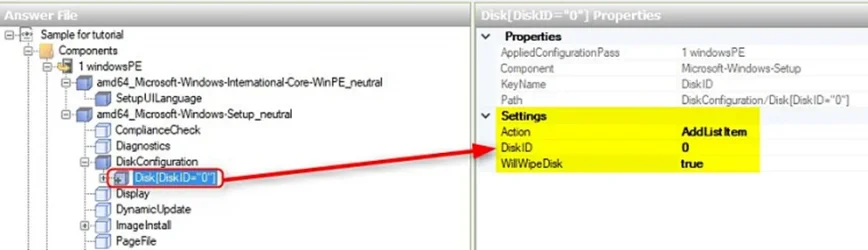
When setup is run, this will wipe primary HDD, doing the same than DISKPART > SELECT DISK 0 > CLEAN.
3.12) Expand disk in Answer File pane, right click Create Partitions and select Insert New CreatePartition to create first partition:
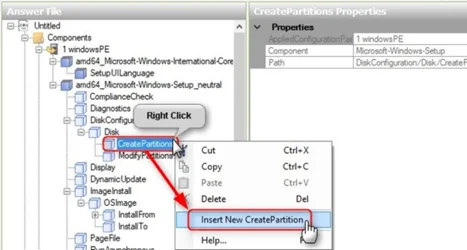
You are creating an answer file for UEFI / GPT based machines requiring at least four partitions (WinRE, EFI, MSR, Windows), repeat this step three more times. As I am preparing install media for UEFI / GPT, I need four partitions now:
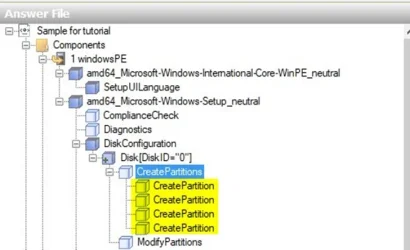
3.13) Select a partition (CreatePartition) in Answer File pane, set Order 1, Size 990, Type Primary:
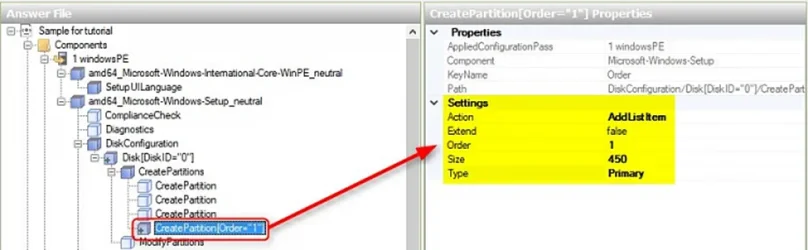
This creates the first partition, WinRE in GPT layout.
3.14) GPT disk: Repeat step 3.13 three more times to create EFI, MSR and Windows partitions. Set partition properties as shown in below table. All four partitions are required. The Windows 11 25H2 values below increase WinRE and EFI sizes compared with the original Windows 10-era screenshots:
Note: Windows 11 25H2 partition update:
The screenshots in this section are retained from the original guide. Where a screenshot still shows WinRE = 450 MB or EFI = 100 MB, use the updated Windows 11 25H2 text/table/XML values instead: WinRE = 990 MB, EFI = 300 MB, MSR = 16 MB, Windows = extend.
Microsoft’s current default UEFI layout places the Recovery partition after Windows. This guide intentionally keeps WinRE first so the Windows partition can be the last partition and use Extend=true in Windows SIM. This is not required for the old Setup/unattended bypass; the bypass is handled by the boot.wim launch changes in Part 8. The WinRE partition is set to 990 MB to reduce future WinRE servicing issues, but anyone who wants Microsoft’s current recommended layout should use a DiskPart-based layout that creates Windows, shrinks it, and then creates Recovery after Windows.
| PARTITION | EXTEND | ORDER | SIZE (MB) | TYPE |
| WinRE | False | 1 | 990 | Primary |
| EFI | False | 2 | 300 | EFI |
| MSR | False | 3 | 16 | MSR |
| Windows | True | 4 | Leave empty | Primary |
In both examples above, you will notice that we set the last partition (Windows in this case) to use all available space by setting Extend property to True instead of defining a size for the partition, leaving Size property empty (it must be left empty if Extend = True, do not enter any value!):
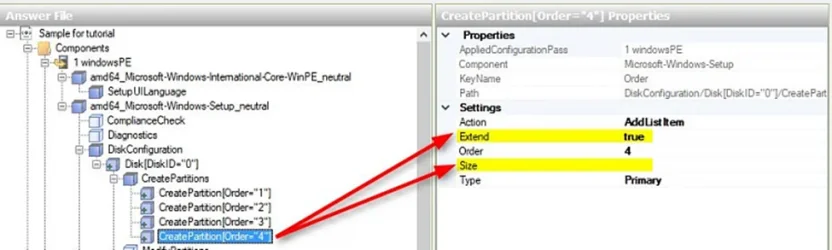
If we would like to create additional data partitions, we would set Extend property for Windows partition to False and set a Size property for it instead (size in MB), then add additional partitions setting their size as preferred, extending the last partition to use all available space. You can only use Extend True for the last partition on disk.
In the below table example, these are the properties for partitioning the SSD to have a 128 GB (131,072 MB) Windows partition, and a Data partition using the rest of the disk:
| PARTITION | EXTEND | ORDER | SIZE (MB) | TYPE |
| WinRE | False | 1 | 990 | Primary |
| EFI | False | 2 | 300 | EFI |
| MSR | False | 3 | 16 | MSR |
| Windows | False | 4 | 131072 | Primary |
| Data | True | 5 | Leave empty | Primary |
3.15) In steps 3.13 and 3.14 we only created raw partitions. Each of them needs to be modified. To do that, right click ModifyPartitions and select Insert New ModifyPartition:
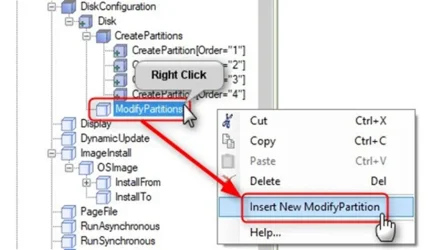
Repeat this to create a ModifyPartition setting for each partition you created in 3.13 and 3.14:
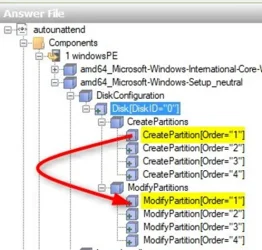
3.16) GPT disk (which we should be using): Set properties for each partition as shown below
Warning!
Only set a value for a setting when told so! Leave all other value fields empty.
First the WinRE partition. Set it as follows:
· Format = NTFS
· Label = WinRE
· Order = 1
· PartitionID = 1
· TypeID = DE94BBA4-06D1-4D40-A16A-BFD50179D6AC
The WinRE partition is the only one requiring a specific TypeID. The ID must be exactly as shown above!
Repeat the above three times, selecting a not yet modified ModifyPartition in Answer File pane and setting the properties for it. Below the properties for each of four GPT partitions:
· ModifyPartition 1 (WinRE):
o Format = NTFS
o Label = WinRE
o Order = 1
o PartitionID = 1
o TypeID = DE94BBA4-06D1-4D40-A16A-BFD50179D6AC
· ModifyPartition 2 (EFI):
o Format = FAT32
o Label = System
o Order = 2
o PartitionID = 2
· ModifyPartition 3 (MSR):
o Order = 3
o PartitionID = 3
· ModifyPartition 4 (Windows):
o Format = NTFS
o Label = Windows
o Letter = C
o Order = 4
o PartitionID = 4
Remember: only modify properties to settings as told above, leaving other fields empty! Notice that small 16 MB MSR partition will not be formatted nor does it get a label.
When done, you should have four CreatePartition components to create partitions, and four ModifyPartition components to configure them:
3.17) Expand ImageInstall > OSImage component in Answer File pane, select InstallTo, set DiskID = 0 and PartitionID = 4 to tell Windows setup to install Windows on partition 4:
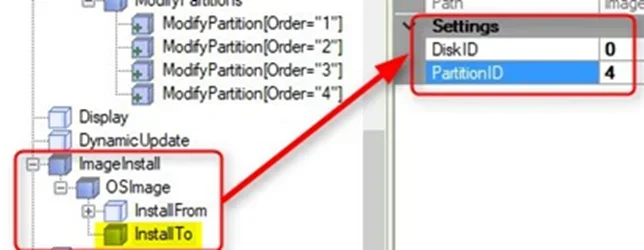
3.18) Take some time and read over the instructions again as these steps are crucial.
3.19) Answer file has now all components and settings it needs. It also contains something not needed; before proceeding, delete all unused components (light blue icon) in Answer File pane under Setup main component, only leaving the three we've modified (dark blue icon: DiskConfiguration, ImageInstall, UserData).
You can delete an unused component by selecting it and pressing DEL or right clicking it and selecting Delete:
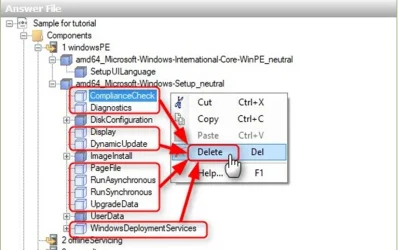
When done, your fully expanded Answer File pane should look like this:
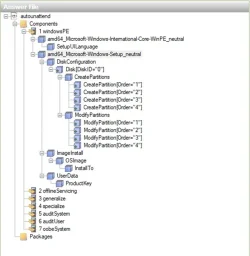
3.20) Validate answer file to check for possible errors (Tools > Validate Answer File):
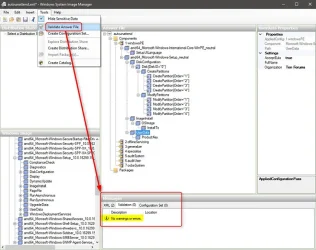
3.21) Save the answer file as SetupAnswer.xml in D:\BootWimAssets
(the separate boot.wim asset folder created in step 2.2, not the ISO_Files folder).
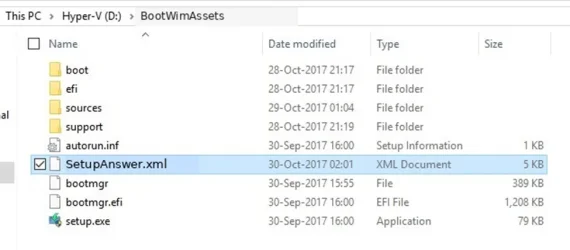
3.22) The SetupAnswer.xml answer file we created:
Important: SetupAnswer.xml is not placed at the root of the ISO/USB in this updated workflow. It is copied into boot.wim in Part Eight and passed to Windows Setup with /unattend.
<?xml version="1.0" encoding="utf-8"?>


<unattend xmlns="urn:schemas-microsoft-com:unattend">


    <settings pass="windowsPE">


        <component name="Microsoft-Windows-International-Core-WinPE" processorArchitecture="amd64" publicKeyToken="31bf3856ad364e35" language="neutral" versionScope="nonSxS" xmlns:wcm="http://schemas.microsoft.com/WMIConfig/2002/State" xmlns:xsi="http://www.w3.org/2001/XMLSchema-instance">


            <SetupUILanguage>


                <UILanguage>en-GB</UILanguage>


            </SetupUILanguage>


            <InputLocale>040b:0000040b</InputLocale>


            <SystemLocale>en-GB</SystemLocale>


            <UILanguage>en-GB</UILanguage>


            <UILanguageFallback>en-US</UILanguageFallback>


            <UserLocale>en-GB</UserLocale>


        </component>


<component name="Microsoft-Windows-Setup" processorArchitecture="amd64" publicKeyToken="31bf3856ad364e35" language="neutral" versionScope="nonSxS" xmlns:wcm="http://schemas.microsoft.com/WMIConfig/2002/State" xmlns:xsi="http://www.w3.org/2001/XMLSchema-instance">
    <DiskConfiguration>
        <Disk wcm:action="add">
            <CreatePartitions>
                <CreatePartition wcm:action="add">
                    <Order>1</Order>
                    <Size>990</Size>
                    <Type>Primary</Type>
                </CreatePartition>

                <CreatePartition wcm:action="add">
                    <Order>2</Order>
                    <Size>300</Size>
                    <Type>EFI</Type>
                </CreatePartition>

                <CreatePartition wcm:action="add">
                    <Order>3</Order>
                    <Size>16</Size>
                    <Type>MSR</Type>
                </CreatePartition>

                <CreatePartition wcm:action="add">
                    <Order>4</Order>
                    <Extend>true</Extend>
                    <Type>Primary</Type>
                </CreatePartition>
            </CreatePartitions>

            <ModifyPartitions>
                <ModifyPartition wcm:action="add">
                    <Order>1</Order>
                    <PartitionID>1</PartitionID>
                    <Format>NTFS</Format>
                    <Label>WinRE</Label>
                    <TypeID>DE94BBA4-06D1-4D40-A16A-BFD50179D6AC</TypeID>
                </ModifyPartition>

                <ModifyPartition wcm:action="add">
                    <Order>2</Order>
                    <PartitionID>2</PartitionID>
                    <Format>FAT32</Format>
                    <Label>System</Label>
                </ModifyPartition>

                <ModifyPartition wcm:action="add">
                    <Order>3</Order>
                    <PartitionID>3</PartitionID>
                </ModifyPartition>

                <ModifyPartition wcm:action="add">
                    <Order>4</Order>
                    <PartitionID>4</PartitionID>
                    <Format>NTFS</Format>
                    <Label>Windows</Label>
                    <Letter>C</Letter>
                </ModifyPartition>
            </ModifyPartitions>

            <DiskID>0</DiskID>
            <WillWipeDisk>true</WillWipeDisk>
        </Disk>
    </DiskConfiguration>

    <UserData>
        <ProductKey>
            <Key>VK7JG-NPHTM-C97JM-9MPGT-3V66T</Key>
        </ProductKey>
        <AcceptEula>true</AcceptEula>
        <Organization>Ten Forums</Organization>
    </UserData>

    <ImageInstall>
        <OSImage>
            <InstallTo>
                <DiskID>0</DiskID>
                <PartitionID>4</PartitionID>
            </InstallTo>
        </OSImage>
    </ImageInstall>
</component>


    </settings>


    <cpi:offlineImage cpi:source="catalog://agm-w10pro02/hyper-v/iso_files/sources/install_windows 11 pro.clg" xmlns:cpi="urn:schemas-microsoft-com:cpi" />


</unattend>
Note:
The sample answer file above is for a GPT disk on a UEFI/Secure Boot-capable Windows 11 machine. This is what you should be using on windows 11.
Notice that this answer file is for installing x64 Windows 11 25H2 because the catalog file was based on an x64 install.wim file.
For Windows 11 on ARM64, validate against the ARM64 image and use ARM64 architecture settings where Windows SIM requires them.
4.1) The second answer file is to take care of OOBE, to automate it bypassing region and keyboard selection and creating the required local accounts automatically. To start, open Windows SIM and create a new answer file as you did in steps 2.3 through 2.5. Because the catalog file is already created, use it instead of install.wim to speed up process
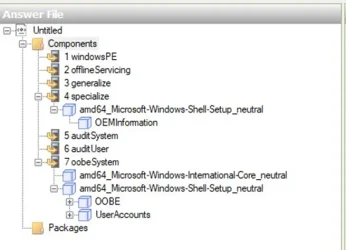
4.2) In step 3.4 you saw how to add components to answer file. Add required components now from Windows Image pane bottom left in Windows SIM to answer file as you did making the first answer file. First, add component International-Core to Pass 7 oobeSystem:
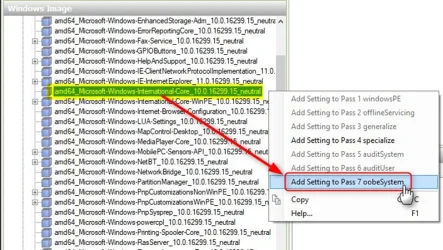
In Windows Image pane, expand component Shell-Setup and add components as told below:
- Add OEMInformation to Pass 4 Specialize
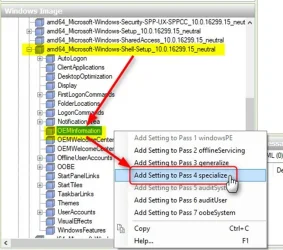
- Add Shell-Setup > OOBE to Pass 7 oobeSystem
- Add Shell-Setup > UserAccounts to Pass 7 oobeSystem
Answer File pane should look like this after you have added necessary components:
4.3) In Answer File pane, select Shell-Setup in pass 4 specialize. Set CopyProfile = true, OEMName as you wish, RegisteredOrganization as you wish, RegisteredOwner as you wish, and TimeZone if required (see explanation below screenshot). Leave all other property value fields empty:
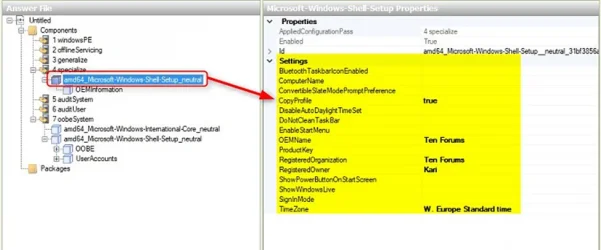
About TimeZone value: If no value given, Windows defaults to time zone according to language of the install media. US English Windows defaults to Pacific time, Finnish Windows to time in Finland, UK English Windows to UK time, Japanese Windows to time in Japan. In my case as I use UK English Windows which would default to UK time but I live in Germany, I want to set time zone accordingly to CET or as Windows understands it, to W. Europe Standard Time.
In same way, if answer file and USB install media we are preparing would be used in East Coast USA, it would be a good idea to set time zone to EST / EDST setting TimeZone value Eastern Standard Time.
Full list of valid time zone names: Microsoft Time Zone Index Values
4.4) Select Shell-Setup > OEMInformation in Answer file pane, add Manufacturer, SupportHours, SupportPhone and SupportURL as you wish. If you want to add an OEM logo later (see step 5.1) when we prepare assets and install Windows on reference machine, add logo path and filename as C:\Windows\System32\oemlogo.bmp:
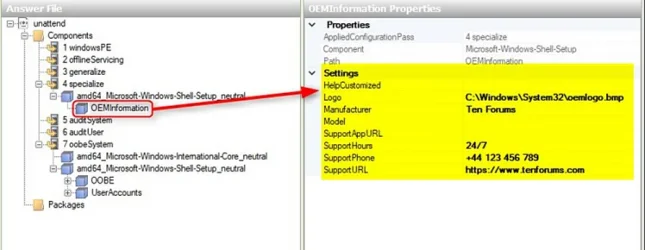
Notice that OEMInformation is optional, not required. When added, if set the OEM logo image will be shown in Control Panel > System, and OEM info + link to given support URL in both Control Panel > System and Settings > System > About:
4.5) Select International-Core in Answer File pane, set all values exactly as we did for the first answer file in step 3.5:
4.6) Select Shell-Setup in Answer File pane in pass 7 oobeSystem, set the same RegisteredOrganization, RegisteredOwner and TimeZone as in step 4.3:
4.7) Select OOBE in Answer File pane, set HideEULAPage = True, set HideOEMRegistrationScreen = True, set HideOnlineAccountScreens = True, set HideWirelessSetupInOOBE = True, set ProtectYourPC = 1, set UnattendEnableRetailDemo = False:
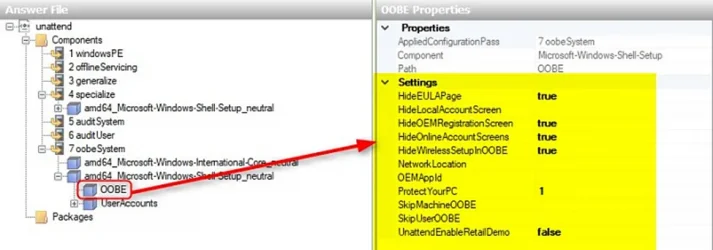
ProtectYourPC (read more) value can be 1, 2 or 3:
· 1 = Recommended (default) level of protection
· 2 = Only updates are installed.
· 3 = Automatic protection is disabled.
4.8) Expand UserAccounts, right click LocalAccounts, select Insert New LocalAccount:
Windows 11 25H2 local account note
Create at least one local administrator account under Shell-Setup > UserAccounts > LocalAccounts. HideOnlineAccountScreens hides the online-account sign-in page, but the local account is what lets OOBE finish without asking who will use the PC.
Do not add SkipMachineOOBE or SkipUserOOBE as a Windows 11 workaround; Microsoft Learn warns not to use SkipMachineOOBE to automate OOBE. HideLocalAccountScreen is documented for Windows Server only.
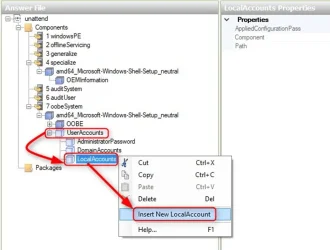
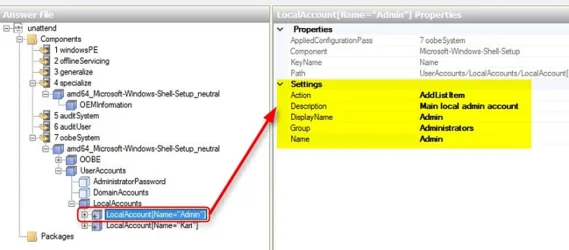
Fill in Description, DisplayName (as shown in login screen, Start etc.), Group (Administrators for admin accounts, Users for standard accounts), and Name (user profile folder name). I will first setup an admin account, I want all my machines to have a local admin account simply named as Admin:
When done, I'll expand new account in Answer File pane and set password (optional):
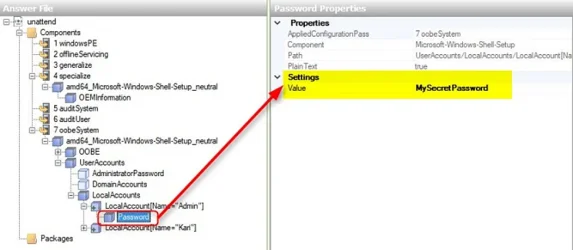
Don't worry; although shown in Windows SIM, when we save answer file the password will be encoded/obfuscated, not shown as plain text. This is not strong encryption, so protect answer files and do not publish real production passwords. Be sure to remember the password if you set one here!
I will repeat the above steps once because I also want to make a standard account for myself. Creating both accounts now they already exists on each machine on which I will install my custom Windows image:
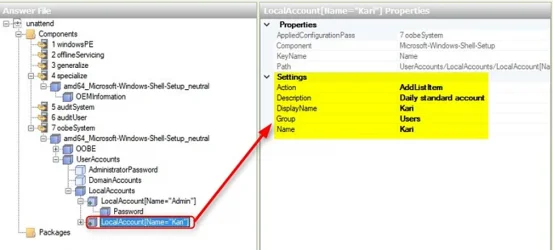
I will not set a password for this standard account. When not set, a user (myself in this case) can create a new password when signing in first time.
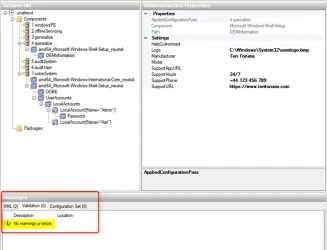
4.9) Validating my answer file (see step 3.20) shows no errors: (If you see any, make sure to remove any light blue entries as done before.)
4.10) Create a new folder on technician machine to store assets for reference machine. I use folder Users\Kari\OneDrive\Assets to allow easy transfer using OneDrive. Save this answer file to your Assets folder as unattend.xml:
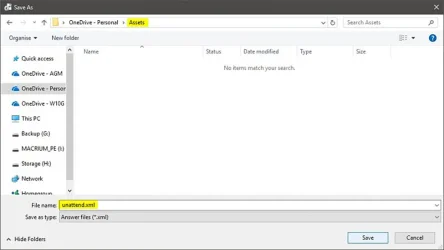
If you will use a physical PC as reference machine, you can save your assets on a USB flash drive instead
Close Windows SIM
4.11) The unattend.xml answer file we created:
<?xml version="1.0" encoding="utf-8"?>

<unattend xmlns="urn:schemas-microsoft-com:unattend">

    <settings pass="oobeSystem">

        <component name="Microsoft-Windows-Shell-Setup" processorArchitecture="amd64" publicKeyToken="31bf3856ad364e35" language="neutral" versionScope="nonSxS" xmlns:wcm="http://schemas.microsoft.com/WMIConfig/2002/State" xmlns:xsi="http://www.w3.org/2001/XMLSchema-instance">

            <OOBE>

                <HideEULAPage>true</HideEULAPage>

                <HideOEMRegistrationScreen>true</HideOEMRegistrationScreen>

                <HideOnlineAccountScreens>true</HideOnlineAccountScreens>

                <HideWirelessSetupInOOBE>true</HideWirelessSetupInOOBE>

                <ProtectYourPC>1</ProtectYourPC>

                <UnattendEnableRetailDemo>false</UnattendEnableRetailDemo>

            </OOBE>

            <UserAccounts>

                <LocalAccounts>

                    <LocalAccount wcm:action="add">

                        <Password>

                            <Value>TQB5AFMAZQBjAHIAZQB0AFAAYQBzAHMAdwBvAHIAZABQAGEAcwBzAHcAbwByAGQA</Value>

                            <PlainText>false</PlainText>

                        </Password>

                        <Description>Main local admin account</Description>

                        <DisplayName>Admin</DisplayName>

                        <Group>Administrators</Group>

                        <Name>Admin</Name>

                    </LocalAccount>

                    <LocalAccount wcm:action="add">

                        <Description>Daily standard account</Description>

                        <DisplayName>Kari</DisplayName>

                        <Group>Users</Group>

                        <Name>Kari</Name>

                    </LocalAccount>

                </LocalAccounts>

            </UserAccounts>

            <RegisteredOrganization>Ten Forums</RegisteredOrganization>

            <RegisteredOwner>Kari</RegisteredOwner>

            <TimeZone>W. Europe Standard Time</TimeZone>

        </component>

        <component name="Microsoft-Windows-International-Core" processorArchitecture="amd64" publicKeyToken="31bf3856ad364e35" language="neutral" versionScope="nonSxS" xmlns:wcm="http://schemas.microsoft.com/WMIConfig/2002/State" xmlns:xsi="http://www.w3.org/2001/XMLSchema-instance">

            <InputLocale>040b:0000040b</InputLocale>

            <SystemLocale>en-GB</SystemLocale>

            <UILanguage>en-GB</UILanguage>

            <UILanguageFallback>en-US</UILanguageFallback>

            <UserLocale>en-GB</UserLocale>

        </component>

    </settings>

    <settings pass="specialize">

        <component name="Microsoft-Windows-Shell-Setup" processorArchitecture="amd64" publicKeyToken="31bf3856ad364e35" language="neutral" versionScope="nonSxS" xmlns:wcm="http://schemas.microsoft.com/WMIConfig/2002/State" xmlns:xsi="http://www.w3.org/2001/XMLSchema-instance">

            <OEMInformation>

                <Logo>C:\Windows\System32\oemlogo.bmp</Logo>

                <Manufacturer>Ten Forums</Manufacturer>

                <SupportHours>24/7</SupportHours>

                <SupportPhone>+44 123 456 789</SupportPhone>

                <SupportProvider>Ten Forums</SupportProvider>

                <SupportURL>https://www.tenforums.com/</SupportURL>


            </OEMInformation>

            <CopyProfile>true</CopyProfile>

            <OEMName>Ten Forums</OEMName>

            <RegisteredOrganization>Ten Forums</RegisteredOrganization>

            <RegisteredOwner>Kari</RegisteredOwner>

            <TimeZone>W. Europe Standard Time</TimeZone>

        </component>

    </settings>

    <cpi:offlineImage cpi:source="catalog://agm-w10pro02/hyper-v/iso_files/sources/install_windows 11 pro.clg" xmlns:cpi="urn:schemas-microsoft-com:cpi" />

</unattend>5.1) Save optional OEM logo image to Assets folder. It must be a 120 * 120 pixels bitmap image (.bmp). Prepare and save custom Windows theme files to same folder, when we will customize reference machine in Audit Mode you can't use Personalize options to change colors and wallpaper but you can apply a theme pack file to do it for you.
5.2) On technician machine, open Notepad, copy following code and paste in Notepad, save in Assets folder as RunOnce.bat:
@echo off
del /q "%APPDATA%\Microsoft\Windows\Recent\AutomaticDestinations\*"
del "%~f0"This file will be copied to default user profile on reference machine, and from there to every user profile. It runs itself every time any user signs in first time clearing This PC, Quick Access and Recent files views, then deletes itself. Without it, some leftovers from reference machine's built-in administrator account would be shown in Quick Access.
5.3) If you have installers for software you would like to include in your custom Windows image, save them, too, in Assets folder.
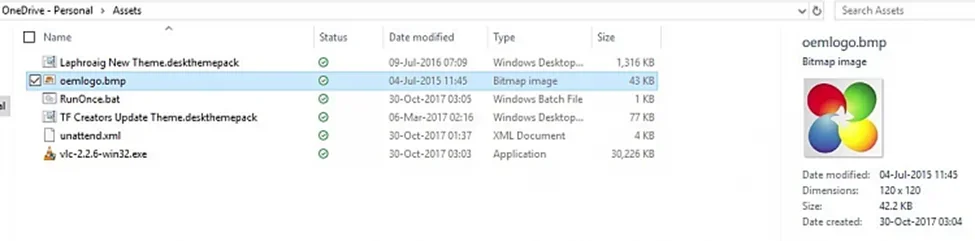
5.4) In this example my Assets folder contains the unattend.xml answer file, an OEM logo image, RunOnce.bat from step 5.2, two themepack files and as an example of software installers, installer for VLC Player:
Windows 11 25H2 boot.wim setup-launch coming up
5.5) Keep a copy of the Windows Setup answer file from Part Three as D:\BootWimAssets\SetupAnswer.xml. Do not place it at the USB or ISO root for this workflow. Later, in Part Eight (8), you will mount boot.wim, copy SetupAnswer.xml into the WinPE image, and add a small startup script so Windows Setup is launched with setup.exe /unattend:X:\SetupAnswer.xml.
This is the key Windows 11 24H2/25H2 compatibility change: the answer file is still created with Windows SIM, but Windows Setup is given the file explicitly instead of relying on removable-media root answer-file discovery.
6.1) Any PC or virtual machine can be used as reference machine. In this example I created a Generation 2 Hyper-V virtual machine with an 80 GB virtual hard disk, 4 GB or more RAM, two virtual processors, Secure Boot, and a virtual TPM enabled
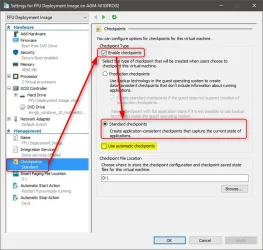
6.2) If using a Hyper-V VM as reference machine, open its settings before booting and disable (unselect) automatic checkpoints (yellow highlight in screenshot). Be sure you are using Standard checkpoints:
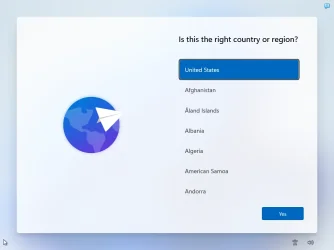
6.3) Install Windows 11 25H2 normally until OOBE starts and region settings screen is shown. Do not select anything, just press CTRL + SHIFT + F3 to restart to Audit Mode (press and hold down both CTRL and SHIFT keys, press F3, release all three keys):
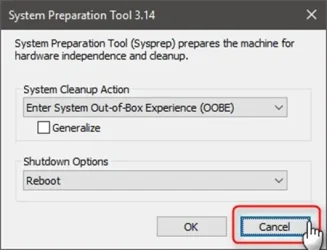
6.4) Windows will restart and sign you in to Audit Mode with built-in administrator account. Sysprep Prompt will be shown on screen. Click Cancel to close it:
6.5) Connect reference machine to network
In this example case I am using OneDrive to transfer assets from technician machine to reference machine. You can of course transfer assets in any way you want to, for instance if your reference machine is a physical PC, you can save assets to a USB flash drive and use it for transfer.
While Network access works in Audit Mode, Windows file sharing/network discovery may not be enabled by default. OneDrive, USB storage, or another simple transfer method is usually going to be easier for moving assets.....
7.1) If you saved the assets to OneDrive as I did, open Microsoft Edge (WIN + R > type msedge > press Enter), go to onedrive.live.com and open the Assets folder:
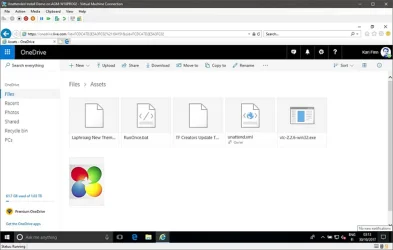
7.2) Save the Answer file unattend.xml in C:\Windows\System32\Sysprep folder:
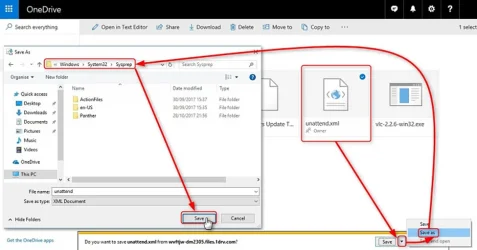
7.3) Save the oemlogo.bmp in C:\Windows\System32 folder
7.4) Save the RunOnce.bat in the Startup folder. Launch it with the run command, then enter shell:startup
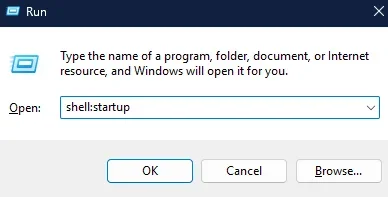
OR: %APPDATA%\Microsoft\Windows\Start Menu\Programs\StartUp
The AppData folder is hidden. A practical way to open it in Save as dialog is to type %appdata% in address field and press Enter. This opens the AppData\Roaming folder and you can now click yourself deeper to target folder:
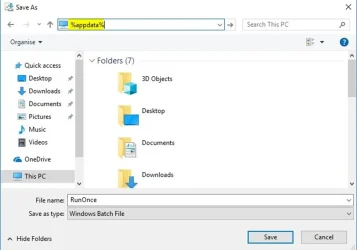
7.5) Theme files do not have to be saved, just open them to apply. If you want to install multiple themes to your custom image, open the one you want to be default theme for all user accounts last (you can't change themes in Audit Mode, just apply them):
7.6) Run possible software installers without saving them:
7.7) Create two new folders on root of C: drive, name them C:\Image and C:\Scratch. These folders will be needed when we capture the image
If you are using a Hyper-V VM as reference machine, create a checkpoint now. It allows you to return to this point in few seconds if something goes wrong with image capture or to make changes in image before it's captured.
7.8) When done, press WIN + R to open Run prompt, type following command and press Enter:
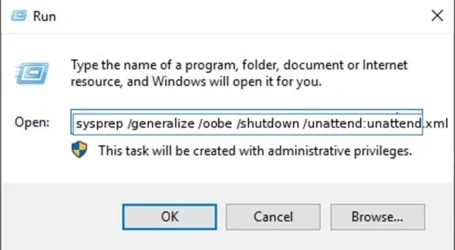
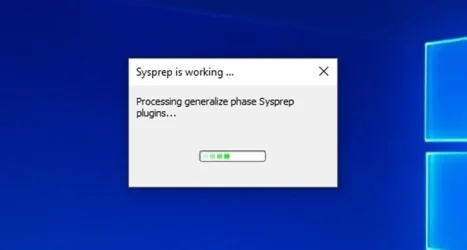
C:\Windows\System32\Sysprep\sysprep.exe /generalize /oobe /shutdown /unattend:C:\Windows\System32\Sysprep\unattend.xml7.9) Sysprep will run, generalize the Windows image, explicitly apply unattend.xml, and shut down when ready:
7.10) Boot the reference machine from WinPE or Windows install media.
In any case do not let it boot from hard disk!
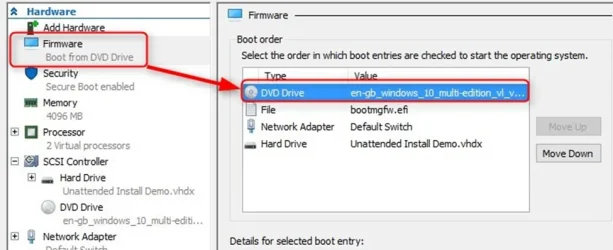
In my case now, as I am using Generation 2 Hyper-V VM, I first changed the boot order in VM settings:
Windows 11 25H2 update:
Use the explicit /unattend switch shown above. It avoids relying on cached or implicit answer-file behavior and has proven more reliable with Windows 11 24H2/25H2 OOBE changes. Make sure to keep the unattend.xml in C:\Windows\System32\Sysprep and validate it in Windows SIM before sysprep.
Hyper-V can be a bit tricky, you have to press a key to boot from install media or WinPE but the VM window opens slowly. If you miss the key press, reset VM as soon as it starts booting from VHD (Action menu > Reset) and try again.
I repeat: do not let reference machine boot from HDD or in case of VM, from VHD!
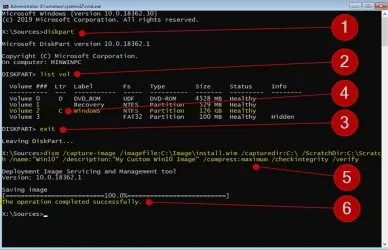
7.11) When booted from install media, press SHIFT + F10 to open Command Prompt. Type diskpart and press Enter (#1 in screenshot below), type list vol and press Enter (#2), type exit and press Enter (#3)
Check drive letter for Windows partition (#4), all drives are listed under list vol command. In most cases it will be C: but occasionally, depending on hardware and connected disks, booting to WinPE or install media changes drive letters.
Enter the following command and press Enter to capture Windows image (#5). Replace drive letter C: if necessary in /imagefile, /capturedir and /ScratchDir switches:
dism /capture-image /imagefile:C:\Image\install.wim /capturedir:C:\ /ScratchDir:C:\Scratch /name:"Win11_25H2" /description:"My Custom Win11_25H2 Image" /compress:maximum /checkintegrity /verifyName is required, it must be in quotes and can be anything you'd prefer. Description is optional but recommended, also in quotes.
Dism will capture the image. Wait until it's done (#6), restart reference machine and let it boot normally from hard disk. Notice that boot will take quite some time because reference machine goes through automated OOBE.
7.12) When reference machine has booted to desktop, sign in to your administrator account using password you set in answer file in step 4.8
7.13) On technician machine, delete ISO_Files\Sources\install.wim file
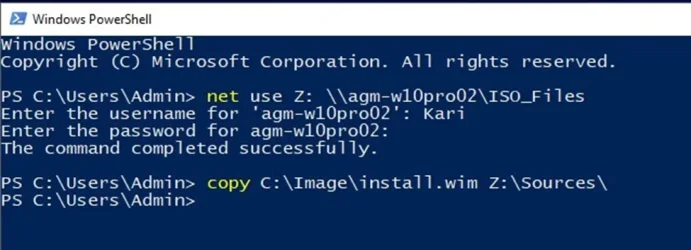
7.14) When reference machine has booted to desktop, copy newly captured Windows image (install.wim file) from C:\Image folder to technician machine to ISO_Files\Sources folder, same folder from where you deleted the original install.wim in previous step. In my case now I shared ISO_FIles folder on technician machine and mapped it on reference machine, copying new install.wim directly to target folder:
You can of course copy the file in any way you prefer. Shut down reference machine when file has been copied
8.1) The ISO_Files folder on technician machine now contains the Windows 11 25H2 install files copied from the original ISO and the custom install.wim captured in Part Seven. Before creating the final ISO, patch boot.wim so the Windows Setup answer file is built into WinPE and passed to Windows Setup explicitly.
· Windows 11 25H2 install files copied from original ISO (step 2.2)
· Original install.wim in Sources folder replaced with custom one (step 7.14)
Custom SetupAnswer.xml Windows Setup answer file saved in D:\BootWimAssets for the boot.wim patch in step 8.2
8.2) Patch boot.wim so Windows Setup is launched with the answer file explicitly. This keeps the install unattended on Windows 11 24H2 / 25H2 media without depending on older USB drive answer file discovery.
Important:
Run as Admin!
The word classic here refers to the Windows Setup program launched from WinPE, not BIOS/CSM boot. Keep the ISO UEFI-only and Secure Boot-compatible.
Create the mount and asset folders:
Copy the Windows Setup answer file from Part Three into D:\BootWimAssets, then mount the Windows Setup image in boot.wim. On standard Windows installation media, index 2 is the Windows Setup image:
md D:\BootWimMount 2>nul
md D:\BootWimAssets 2>nul

dism /Mount-Image /ImageFile:D:\ISO_Files\sources\boot.wim /Index:2 /MountDir:D:\BootWimMount
copy /y D:\BootWimAssets\SetupAnswer.xml D:\BootWimMount\SetupAnswer.xml
Create D:\BootWimMount\Windows\System32\LaunchSetup.cmd with the following contents:
@echo off
wpeinit

if exist X:\setup.exe (
    X:\setup.exe /unattend:X:\SetupAnswer.xml
) else (
    X:\sources\setup.exe /unattend:X:\SetupAnswer.xml
)
Next, Create D:\BootWimMount\Windows\System32\winpeshl.ini with the following contents:
[LaunchApps]
%SYSTEMROOT%\System32\cmd.exe, /c %SYSTEMROOT%\System32\LaunchSetup.cmd
Commit the modified boot.wim:
dism /Unmount-Image /MountDir:D:\BootWimMount /Commit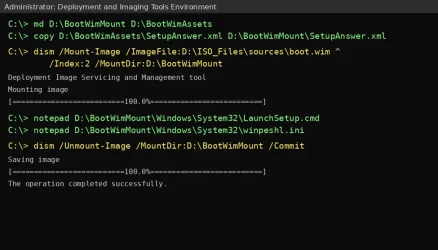
9.1) Now we are going to run the deployment tool.
Before proceeding: Check to see if your custom install.wim is larger than 4 GB. If so, and you are manually creating a FAT32 USB drive, split the WIM:
dism /Split-Image /ImageFile:D:\ISO_Files\sources\install.wim /SWMFile:D:\ISO_Files\sources\install.swm /FileSize:4000 After splitting install.wim, move or delete the original install.wim from sources. Then keep all of the generated .swm files together in the sources folder.
For very large custom ISOs, test booting on target hardware. Documentation shows that a boot order file requirement is needed for images larger than 4.5 GB.
Once that is done, we need to start creating the install media. We need to start it elevated.
Right click > Run as administrator on Deployment and Imaging Tools interface:
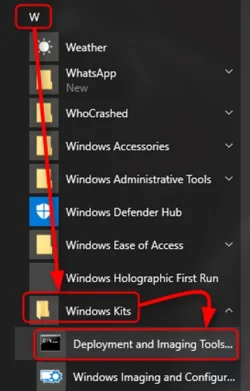
9.2) The path shown in prompt is annoyingly long. To shorten it and jump to root of drive C:, type cd\ and hit Enter. The cd command (abbreviation from Change Directory) changes the current working folder (directory), in this case to root of current drive (backslash \ = root, two dots .. = up one level).
Enter the following command:
oscdimg.exe -m -o -u2 -udfver102 -bD:\ISO_Files\efi\microsoft\boot\efisys.bin -pEF D:\ISO_Files D:\Win11_25H2_Custom_x64.isoIn case copying the code from above CODE box is difficult, here's the command also in QUOTE box for easier copy & paste:
oscdimg.exe -m -o -u2 -udfver102 -bd:\ISO_Files\efi\microsoft\boot\efisys.bin -pEF d:\ISO_Files d:\Win11_25H2_Custom_x64.iso
Example Terminal:
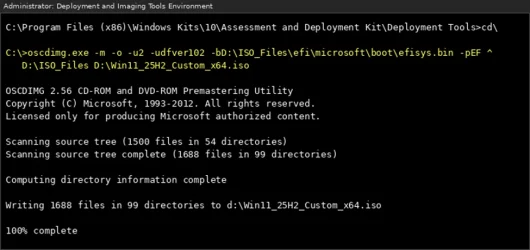
9.3) Replace the two D:\ISO_Files paths with the drive and folder where you copied Windows installation files. The -b switch points to efisys.bin and -pEF sets the El Torito platform ID for UEFI. Replace D:\Win11_25H2_Custom_x64.iso with the path and file name you want for the finished ISO. Although the command seems a bit complicated, everything in it is needed. See more about oscdimg command line options: Oscdimg Command-Line Options
9.4) The ISO_Files folder on technician machine now contains everything we needed to create a fully unattended ISO:
- Windows 11 25H2 install files copied from original ISO (step 2.2)
- Original install.wim in Sources folder replaced with custom one (step 7.14)
9.5) Use Rufus or your preferred imaging tool to create the bootable flash drive from the ISO


10.) Common Windows 11 24H2/25H2 issues:
> Setup keeps asking me for the language/keyboard:
- Make sure that boot.wim index 2 was mounted and committed.
- Does X:\SetupAnswer.xml exists inside boot.wim?
- Confirm winpeshl.ini exists in Windows\System32 inside boot.wim.
- Check that LaunchSetup.cmd calls setup.exe /unattend:X:\SetupAnswer.xml.
> Setup asks where to install Windows:
- Validate your SetupAnswer.xml answer file in Windows SIM and confirm that the saved file is the one copied into boot.wim.
- Confirm that the DiskID and PartitionID match the XML.
- Verify that the section WillWipeDisk=true is present.
- Confirm the target disk is actually disk 0.
> Setup asks for edition:
Make sure that your SetupAnswer.xml contains a generic install key for the Windows edition you want to install. The key must match an edition that exists in your install.wim. Generic install keys select the edition during setup; they do not activate Windows.
On OEM PCs, (Dell, HP, ASUS, etc) Windows Setup may automatically use an embedded UEFI/BIOS product key and select the matching edition, often Windows Home, which can bypass the edition-selection screen. If you want to force Pro on a PC that has an embedded Home key, include the generic Pro install key in SetupAnswer.xml.
Activation still requires a valid Pro license or digital entitlement.
> USB creation fails because install.wim is too large:
- Make sure to follow the split install.wim directions in step 9.1
- Move or delete the original install.wim from sources.
> OOBE still asks for Microsoft account:
- Check and Confirm unattend.xml is actually copied to C:\Windows\System32\Sysprep before Sysprep.
- Verify that Sysprep is run with /unattend:C:\Windows\System32\Sysprep\unattend.xml.
- Confirm HideOnlineAccountScreens and LocalAccount settings validate in Windows SIM.
> Sources used for Windows 11:
Original guide: TenForums tutorial “Create media for automated unattended install of Windows 10” by Kari Finn, last updated 20 Nov 2023.
Microsoft Learn: Download and install the Windows ADK; Windows ADK 10.1.26100.2454 with current patch supports Windows 11 versions 25H2 and 24H2.
Microsoft Learn: Answer files (unattend.xml), Automate Windows Setup, Automate OOBE, LocalAccount, HideOnlineAccountScreens, and Sysprep command-line options.
Microsoft Learn: UEFI/GPT-based hard drive partitions, Windows 11 requirements, and Oscdimg command-line options. These are the basis for the UEFI/GPT, Secure Boot, TPM, Hyper-V Generation 2, EFI, MSR, WinRE, and UEFI-only ISO updates in this version.
> Acknowledgements:
Thank you Kari for all of your work and your tutorials. I learned a lot from you over the last couple of decades. I hope you are in a better place. ♥