Let's install Windows 11 on incompatible hardware


I was talking about a Legacy BIOS installation, not a standard UEFI mode installation. To do a Legacy BIOS installation you must create an MBR USB flash drive. I will check with a virtual machine using the 25H2 ISO and the 26H2 ISO and report back.

I previously tried a BIOS/MBR installation using the method you described (see the image below).
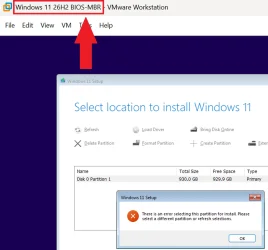
Windows 11 26H2 BIOS-MBR - 2.webp

In the virtual machine, I used a Windows 11 26H2 ISO created using the Media Creation Tool. The installation media supports both UEFI and Legacy BIOS boot. I bypassed the Windows 11 system requirements using a .reg file.


By the way, VMware Workstation Pro also allows booting from a physical USB flash drive in UEFI mode, although doing so is not as straightforward as booting from an ISO file.

How to perform a clean install of Windows 11 in VMware Workstation Pro using a physical USB flash drive as the boot device
  1. VM > Power > Power On to Firmware
  2. VM > Removable Devices > the name of your USB > Connect (Disconnet from Host)
  3. Boot Manager > Enter setup > Boot from a file
  4. Select the correct entry:
    • USB created using the Media Creation Tool: ESD-USB
    • Rufus: RUFUS_BOOT
    • Ventoy (Secure Boot must be disabled): VTOYEFI
  5. Navigate to the /EFI/BOOT directory.
  6. Select the BOOTX64.EFI file.
Note that the USB flash drive takes longer than usual to boot.
 
Last edited:

My Computers My Computers

  • At a glance

    Windows 11 ProAMD Ryzen 9 9950X3DKingston FURY Beast 64GB (2x32GB) DDR5 6000MT/sASUS TUF Gaming Radeon RX 9070 OC Edition 16G...
    OS
    Windows 11 Pro
    Computer type
    PC/Desktop
    CPU
    AMD Ryzen 9 9950X3D
    Motherboard
    ASRock B650E Taichi Lite
    Memory
    Kingston FURY Beast 64GB (2x32GB) DDR5 6000MT/s
    Graphics Card(s)
    ASUS TUF Gaming Radeon RX 9070 OC Edition 16GB GDDR6
    Hard Drives
    Solidigm P44 Pro 2TB M.2 NVMe SSD
  • At a glance

    Windows 11 HomeIntel Core Ultra 9 275HX64GB (2x 32GB) DDR5-6400NVIDIA GeForce RTX 5080 16GB GDDR7 Laptop GPU
    Operating System
    Windows 11 Home
    Computer type
    Laptop
    Manufacturer/Model
    Lenovo Legion Pro 7i Gen 10 16"
    CPU
    Intel Core Ultra 9 275HX
    Memory
    64GB (2x 32GB) DDR5-6400
    Graphics card(s)
    NVIDIA GeForce RTX 5080 16GB GDDR7 Laptop GPU
    Hard Drives
    2x 1TB M.2 NVMe SSD (SK Hynix)
I was talking about a Legacy BIOS installation, not a standard UEFI mode installation. To do a Legacy BIOS installation you must create an MBR USB flash drive. I will check with a virtual machine using the 25H2 ISO and the 26H2 ISO and report back.
I wanted to confirm if I can do a Legacy BIOS mode (MBR disk) of Windows 11 26H2 with a single NTFS partition. So I created a new virtual machine in VMWare Workstation Pro 17.5 for which I selected Windows 7 64-bit as the Guest OS, so it would allow me to choose BIOS over UEFI firmware. I selected BIOS, then out the Windows 11 26H2 ISO in the virtual DVD drive and booted it. I then pressed SHIFT+F10 to run diskpart and create the single NTFS partition using this code:

Code:
diskpart
list disk
select disk 0
clean
convert mbr
create partition primary
list partition
select partition 1
format fs=NTFS quick
active
exit
exit

The convert mbr command converts the disk to MBR if it is GPT, otherwise does nothing. The active command makes the partition bootable, but Setup should do that anyway.

I then proceeded with Setup. I got an error that the CPU was not compliant, I had no TPM or Secure Boot. I pressed SHIFT+F10 once again and executed regedit to open Registry Editor and apple the Registry patch to bypass compatibility check. This time Setup proceeded and then got me to the disk selection screen. I just clicked on the single NTFS partition of the virtual hard disk and clicked Next to begin. Setup started installing without any complain, so it DOES work for a Legacy BIOS mode installation on an old unsupported computer without UEFI firmware. I will post screenshots once finished. I also confirmed that the good old Registry hack from 2021 for Windows 11 21H2 still works in all versions up to 26H2.

For anyone interested here it is:

- When the Registry Editor shows up, find this key:
HKEY_LOCAL_MACHINE\SYSTEM\Setup
- Create new key LabConfig inside the Setup.
- Create DWORD (32 Bit) BypassTPMCheck and set to 1
- Create DWORD (32 Bit) BypassSecureBootCheck and set to 1
- Create DWORD (32 Bit) BypassRAMCheck and set to 1
- Create DWORD (32 Bit) BypassCPUCheck and set to 1
- Continue the installation until it finished.

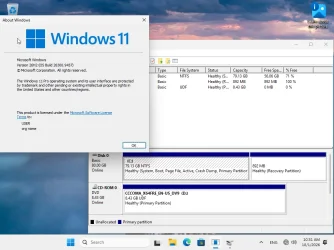
EDIT: Legacy BIOS mode Installation of Windows 11 26H2 completed successfully. I made sure the virtual network adapter was disabled and at network screen I pressed SHIFT+F10 to open a Command Prompt. Then I tried the command oobe\bypassnro which worked! After making changes to the system, it restarted back to OOBE stage and this time at the network screen there was the blue text "I don't have an internet connection". I clicked on that and I was allowed to create a local Administrator account! After I was at the desktop, I opened Disk Management to check, it seems like Setup created the recovery partition, but not the small system partition. I can just delete the recovery partition and make the Windows partition take the whole disk, but I will lose the recovery options. I would only do that for a very small disk, less than 64GB.

Windows 11 26H2 Legacy Boot.webp


Conclusions:
- The Registry hack to bypass compatibility check to clean install Windows 11 on an unsupported computer still works on version 26H2.
- Windows 11 26H2 can also be installed on an unsupported computer with Legacy BIOS without UEFI firmware, without TPM, without Secure Boot. Only requirement a CPU with at least two cores and SSE4.2 instructions support. All physical CPUs with SSE4.2 instructions have at least 2 cores, but when creating a virtual machine make sure it has at least 2 cores or you will get a CPU compatibility warning.
- The oobe\bypassnro command didn't work on the original 25H2 ISO from October 2025 because the respective file was removed, but it DOES work on 26H2, probably the file isn't removed.
 
Last edited:

My Computers My Computers

  • At a glance

    Windows 11 Pro 23H2 (7582), 25H2 (9457)Mobile DualCore Intel Core 2 Duo T7250, 2000 MHz4GBMobile Intel(R) GMA 4500M (Mobile 4 series)
    OS
    Windows 11 Pro 23H2 (7582), 25H2 (9457)
    Computer type
    Laptop
    Manufacturer/Model
    Acer Extensa 5630EZ
    CPU
    Mobile DualCore Intel Core 2 Duo T7250, 2000 MHz
    Motherboard
    Acer Extensa 5630
    Memory
    4GB
    Graphics Card(s)
    Mobile Intel(R) GMA 4500M (Mobile 4 series)
    Sound Card
    Realtek ALC268 @ Intel 82801IB ICH9 - High Definition Audio Controller
    Monitor(s) Displays
    1
    Screen Resolution
    1280x800
    Hard Drives
    Samsung SSD 850 EVO 250GB SATA Device (250 GB, SATA-III)
    Internet Speed
    802.11g wireless 54 Mbps
    Browser
    MICROSOFT EDGE
    Antivirus
    WINDOWS DEFENDER
    Other Info
    Legacy MBR installation, no TPM, no Secure Boot, no WDDM 2.0 graphics drivers, no SSE4.2, cannot get more unsupported ;) This is only my test laptop. I had installed Windows 11 here before upgrading my main PC. For my main PC I use everyday see my 2nd system specs.
  • At a glance

    Windows 11 Pro 25H2 (build 26200.9457)Intel Core-i7 3770 3.40GHz s1155 (3rd generat...2x Kingston Hyper-X Blu 8GB DDR3-1600GIGABYTE GeForce RTX 3050 WINDFORCE OC V2 6GB...
    Operating System
    Windows 11 Pro 25H2 (build 26200.9457)
    Computer type
    PC/Desktop
    Manufacturer/Model
    Custom-built PC
    CPU
    Intel Core-i7 3770 3.40GHz s1155 (3rd generation)
    Motherboard
    Asus P8H61 s1155 ATX
    Memory
    2x Kingston Hyper-X Blu 8GB DDR3-1600
    Graphics card(s)
    GIGABYTE GeForce RTX 3050 WINDFORCE OC V2 6GB (GV-N3050WF2OCV2-6GD)
    Sound Card
    Realtek HD audio (ALC887)
    Monitor(s) Displays
    Sony Bravia KDL-19L4000 19" LCD TV via VGA
    Screen Resolution
    1440x900 32-bit 60Hz
    Hard Drives
    WD Blue SA510 2.5 1000GB SSD as system disk, Western Digital Caviar Purple 4TB SATA III (WD40PURZ) as second
    PSU
    Thermaltake Litepower RGB 550W Full Wired
    Case
    SUPERCASE MIDI-TOWER
    Cooling
    Deepcool Gamma Archer CPU cooler, 1x 8cm fan at the back
    Keyboard
    Mitsumi 101-key PS/2
    Mouse
    Microsoft Compact Optical Mouse
    Internet Speed
    802.11ac 5GHz wireless 260Mpbs
    Browser
    Microsoft Edge, Mozilla Firefox
    Antivirus
    Microsoft Windows Defender
    Other Info
    Legacy BIOS (MBR) installation, no TPM, no Secure Boot, WDDM 3.0 graphics drivers, WEI score 7.4
I previously tried a BIOS/MBR installation using the method you described (see the image below).

View attachment 184823

In the virtual machine, I used a Windows 11 26H2 ISO created using the Media Creation Tool. The installation media supports both UEFI and Legacy BIOS boot. I bypassed the Windows 11 system requirements using a .reg file.


By the way, VMware Workstation Pro also allows booting from a physical USB flash drive in UEFI mode, although doing so is not as straightforward as booting from an ISO file.

How to perform a clean install of Windows 11 in VMware Workstation Pro using a physical USB flash drive as the boot device
  1. VM > Power > Power On to Firmware
  2. VM > Removable Devices > the name of your USB > Connect (Disconnet from Host)
  3. Boot Manager > Enter setup > Boot from a file
  4. Select the correct entry:
    • Windows (USB created using the Media Creation Tool): ESD-USB
    • Rufus: RUFUS_BOOT
    • Ventoy (Secure Boot must be disabled): VTOYEFI
  5. Navigate to the /EFI/BOOT directory.
  6. Select the BOOTX64.EFI file.
Note that the USB flash drive takes longer than usual to boot.
Try creating the USB flash drive again, this time use Rufus and make sure you switch to MBR (default is GPT).
 

My Computers My Computers

  • At a glance

    Windows 11 Pro 23H2 (7582), 25H2 (9457)Mobile DualCore Intel Core 2 Duo T7250, 2000 MHz4GBMobile Intel(R) GMA 4500M (Mobile 4 series)
    OS
    Windows 11 Pro 23H2 (7582), 25H2 (9457)
    Computer type
    Laptop
    Manufacturer/Model
    Acer Extensa 5630EZ
    CPU
    Mobile DualCore Intel Core 2 Duo T7250, 2000 MHz
    Motherboard
    Acer Extensa 5630
    Memory
    4GB
    Graphics Card(s)
    Mobile Intel(R) GMA 4500M (Mobile 4 series)
    Sound Card
    Realtek ALC268 @ Intel 82801IB ICH9 - High Definition Audio Controller
    Monitor(s) Displays
    1
    Screen Resolution
    1280x800
    Hard Drives
    Samsung SSD 850 EVO 250GB SATA Device (250 GB, SATA-III)
    Internet Speed
    802.11g wireless 54 Mbps
    Browser
    MICROSOFT EDGE
    Antivirus
    WINDOWS DEFENDER
    Other Info
    Legacy MBR installation, no TPM, no Secure Boot, no WDDM 2.0 graphics drivers, no SSE4.2, cannot get more unsupported ;) This is only my test laptop. I had installed Windows 11 here before upgrading my main PC. For my main PC I use everyday see my 2nd system specs.
  • At a glance

    Windows 11 Pro 25H2 (build 26200.9457)Intel Core-i7 3770 3.40GHz s1155 (3rd generat...2x Kingston Hyper-X Blu 8GB DDR3-1600GIGABYTE GeForce RTX 3050 WINDFORCE OC V2 6GB...
    Operating System
    Windows 11 Pro 25H2 (build 26200.9457)
    Computer type
    PC/Desktop
    Manufacturer/Model
    Custom-built PC
    CPU
    Intel Core-i7 3770 3.40GHz s1155 (3rd generation)
    Motherboard
    Asus P8H61 s1155 ATX
    Memory
    2x Kingston Hyper-X Blu 8GB DDR3-1600
    Graphics card(s)
    GIGABYTE GeForce RTX 3050 WINDFORCE OC V2 6GB (GV-N3050WF2OCV2-6GD)
    Sound Card
    Realtek HD audio (ALC887)
    Monitor(s) Displays
    Sony Bravia KDL-19L4000 19" LCD TV via VGA
    Screen Resolution
    1440x900 32-bit 60Hz
    Hard Drives
    WD Blue SA510 2.5 1000GB SSD as system disk, Western Digital Caviar Purple 4TB SATA III (WD40PURZ) as second
    PSU
    Thermaltake Litepower RGB 550W Full Wired
    Case
    SUPERCASE MIDI-TOWER
    Cooling
    Deepcool Gamma Archer CPU cooler, 1x 8cm fan at the back
    Keyboard
    Mitsumi 101-key PS/2
    Mouse
    Microsoft Compact Optical Mouse
    Internet Speed
    802.11ac 5GHz wireless 260Mpbs
    Browser
    Microsoft Edge, Mozilla Firefox
    Antivirus
    Microsoft Windows Defender
    Other Info
    Legacy BIOS (MBR) installation, no TPM, no Secure Boot, WDDM 3.0 graphics drivers, WEI score 7.4
Back
Top Bottom