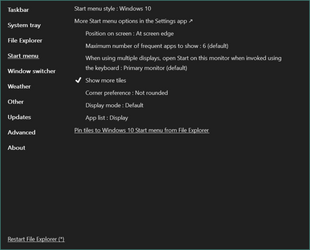
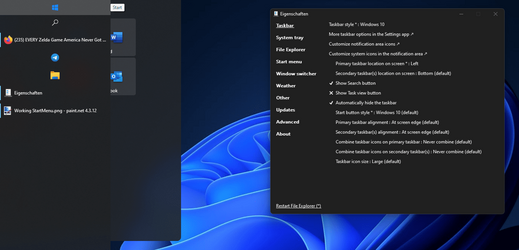
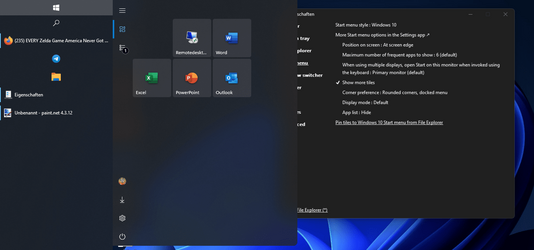
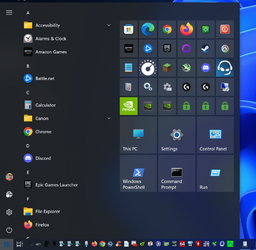
Using 'Pin to Start' on the Settings App doesn't put it into the Windows 10 tiles even.
If you want as a quick fix:
Right click on your desktop/New/shortcut
put in target: ms-settings:system
next, replace New Internet Shortcut name with Settings
Now you have your shortcut, you need an icon you want.
Right click on your shortcut, properties, change Icon
Scroll all the way to the right and you will find the icon you want.
Hit OK twice.
Now Winkey+R & paste with the quotes "%APPDATA%\Microsoft\Windows\Start Menu\Programs"
Move that shortcut in the folder window that you just opened up. Close the window.
Now Go to your menu and the shortcut with Settings will be there.
Now right click and Pin To start , From Start Menu you can pin to Taskbar.
My Computers
-
At a glance
All Branches but StableAMD Ryzen 7 7735HS 3200-4500 Mhz 8 cores x 232 GB DDR5Radeon Graphic / NVIDIA GeForce RTX 4060 8 GB...- OS
- All Branches but Stable
- Computer type
- Laptop
- Manufacturer/Model
- Acer Nitro ANV15-51
- CPU
- AMD Ryzen 7 7735HS 3200-4500 Mhz 8 cores x 2
- Motherboard
- Sportage_RBH
- Memory
- 32 GB DDR5
- Graphics Card(s)
- Radeon Graphic / NVIDIA GeForce RTX 4060 8 GB GDDR6
- Sound Card
- AMD/Realtek(R) Audio
- Monitor(s) Displays
- Integrated Monitor (15.3"vis)
- Screen Resolution
- FHD 1920X1080 16:9 144Hz
- Hard Drives
- KINGSTON OM8SEP4512Q-AA 1TB
Western Digital 256GB
- PSU
- 19V DC 6.32 A 120 W
- Cooling
- Dual Fans
- Mouse
- MS Bluetooth
- Internet Speed
- Fiber 1GB Cox -us & 1GB Orange-fr
- Browser
- Edge Canary- Firefox Nightly-Chrome Dev-Chrome Dev
- Antivirus
- Windows Defender
-
At a glance
Windows 11 BetaAMD A9-94208 GB of DDR4AMD Radeon R5- Operating System
- Windows 11 Beta
- Computer type
- Laptop
- Manufacturer/Model
- Asus X751BP
- CPU
- AMD A9-9420
- Memory
- 8 GB of DDR4
- Graphics card(s)
- AMD Radeon R5
- Screen Resolution
- 1600x900
- Hard Drives
- Seagate 1 TB