Reclaiming Administrator rights in Windows 11


gigglby

Member
Local time
2:12 PM
Posts
21
OS
Windows 11
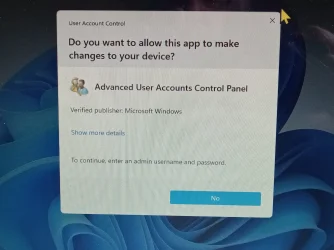
I had a Local User account before re-installing HP Laptop Windows 11 Home Edition. I thought I could go back and create a Local User account after setting it up, but Microsoft has ALL the rights. The User Account Window doesn't even have a 'yes' button on it, only a no button. I didn't know this was a thing. Is there a way to regain Administrator Rights again on this computer? I even tried to buy the upgrade to Pro but I don't have any Administrator rights, and that's crazy!!!
 
Windows Build/Version
Version 25H2 Windows 11 Home Edition
Last edited:

My Computer

System One

  • OS
    Windows 11
    Computer type
    Laptop
    Manufacturer/Model
    HP Laptop
    CPU
    12th Gen Intel(R) Core i3-1215u (1.20 GHz)
    Memory
    32 RAM
Everything should be covered in this tutorial:
If you're still stuck, please show a screenshot of the problem.
 

My Computer

System One

  • OS
    Windows 10/11
    Computer type
    Laptop
    Manufacturer/Model
    Acer
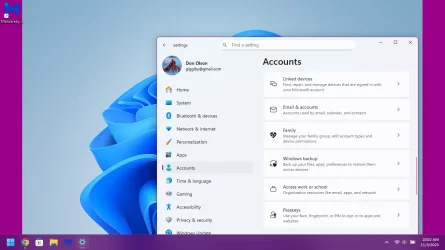
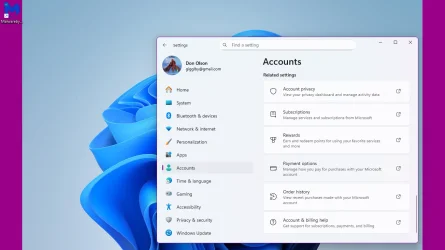
Thank you, Brink, for your prompt reply. A lot of information to go through here and it's clear your efforts are very helpful, however, this problem seems to be like ransomware with Microsoft being the hijacker. Options 1 through 3 are easy peasy because each one requires administrative rights and I have no rights on this computer now. Here are screen shots of the attempts I made on those options and the results.

1. For the first option I have two screen shots of the Account tab. I slid the related settings down and took a second shot so you can see their is no option for other users.
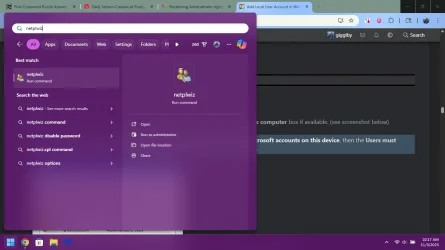
2. The netplwiz option requires administrator rights. When I click on run I get the User Accounts Control window which, as you can see has no 'yes' button.
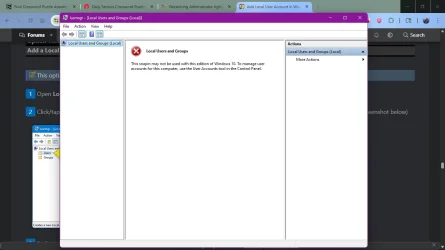
3. The third option requires Windows Pro but I took a screen shot of how this computer now has no Local User & Groups tab. I thought I could get around my problem by simply upgrading from Windows 11 to Windows 11 Pro. But that requires administrator rights, which I don't have. I get the Yes-less User Account Control window. Before I found this forum I followed a youtube tech's instructions that would add the yes button back. Everything was fine until I arrived at the point of change. His video had Local User & Groups to manipulate, mine had no such tab.
4. Your fourth option is deep, dark and spooky and above my pay grade (lol) but I'm sifting through it and trying to figure it out.
Let me me add... this computer's window screen is active but I even need administrator rights to change that! Thanks for your help, Brink, but nothing is working so far.
 

Attachments

  • Screenshot 2025-11-03 100213.webp
    Screenshot 2025-11-03 100213.webp
    48.4 KB · Views: 5
  • Screenshot 2025-11-03 100253.webp
    Screenshot 2025-11-03 100253.webp
    47.7 KB · Views: 3
  • Screenshot 2025-11-03 101737.webp
    Screenshot 2025-11-03 101737.webp
    42.6 KB · Views: 4
  • 20251103_101616.webp
    20251103_101616.webp
    1.3 MB · Views: 4
  • Screenshot 2025-11-03 102307.webp
    Screenshot 2025-11-03 102307.webp
    37 KB · Views: 2

My Computer

System One

  • OS
    Windows 11
    Computer type
    Laptop
    Manufacturer/Model
    HP Laptop
    CPU
    12th Gen Intel(R) Core i3-1215u (1.20 GHz)
    Memory
    32 RAM
each one requires administrative rights
If you do not have Admin authority, you cannot add a user account.
Why don't you have Admin authority? Is it somebody else's computer?


All the best,
Denis
 

My Computer

System One

  • OS
    Windows 11 Home x64 Version 25H2 Build 26200.8037

My Computer

System One

  • OS
    Windows 11 Home x64 Version 25H2 Build 26200.8037
If you do not have Admin authority, you cannot add a user account.
Why don't you have Admin authority? Is it somebody else's computer?


All the best,
Denis
No Denis. This is my computer. I purchased it from HP and still have the box it came in. Everything was fine. I originally set it up with a local acct and lived Microsoft free with no problems until I I started having trouble getting updates. They would upload, install, and then a red notice would show up that said "Retry". I dealt with that for a couple of months and figured a good solution will be to re-install Windows. My mistake was when I reinstalled it I didn't go through the steps to create the Local User account. I figured I could go back and do it, but this is a windows 11 Home Edition and it turns out that with this edition of Windows 11 if you DON'T install a local User account at the very beginning you are S-O-L. You have no rights. It blew me outta the water when I found I couldn't even cough up a Benjamin for Windows Pro because I have no administrator rights. So it seems like Microsoft Ransomware to me.
 

My Computer

System One

  • OS
    Windows 11
    Computer type
    Laptop
    Manufacturer/Model
    HP Laptop
    CPU
    12th Gen Intel(R) Core i3-1215u (1.20 GHz)
    Memory
    32 RAM
Now I understand.
The user account created during installation has Admin rights but yours seems to be corrupt.
Fix UAC prompt has greyed out or missing Yes button - TenForumsTutorials
The Windows 10 fix applies to Windows 11 as well but I've never before seen the problem reported in ElevenForum so have never felt the need to adjust the article to cope with OS differences.


Denis
I followed a Youtube tech's instructions to fix the no Yes button problem. As I stated earlier, everything was going fine until we got to the tabs to change. His had Local Users & Groups, mine did not have that option. So it was a dead end.
 

My Computer

System One

  • OS
    Windows 11
    Computer type
    Laptop
    Manufacturer/Model
    HP Laptop
    CPU
    12th Gen Intel(R) Core i3-1215u (1.20 GHz)
    Memory
    32 RAM

My Computer

System One

  • OS
    Windows 11 Home x64 Version 25H2 Build 26200.8037
thats because you're running Home and not Pro. you can easily create a user account via Command Prompt:
Run Command Prompt as Admin and run these commands (replace USER with the username you want and PASSWORD with the password you want)

Code:
net user USER PASSWORD /add
Code:
net localgroup Administrators USER /add

if you really want to use LUSRMGR to create it via GUI, you can use this for Home builds:
 

My Computer

System One

  • OS
    Windows 11 Pro
The Group Policy Editor and Local User and Groups page are not available in Home Edition of Windows 11.
Press the Windows key +I In Settings/Accounts/Your Info
This list your account and tell you if it is an Admin account or not.
If you are a standard user, you will not be able to make changes, You will need to login as an Admin.
You can disable UAC for testing purposes by going to Search and type UAC
Pull the slider all the way down. After making user name changes, you can move the slider up if you want.
 

My Computer

System One

  • OS
    Windows 11 Pro Insider 64 bit 25H2 26200.5742
    Computer type
    PC/Desktop
    Manufacturer/Model
    Gigabyte Z390 UD
    CPU
    Intel Core i7 9700K 3.60
    Motherboard
    Gigabyte Z390 UD
    Memory
    16 GB
    Graphics Card(s)
    nVidia GEForce RTX 2060 Super
    Sound Card
    onboard
    Monitor(s) Displays
    Two 27" Dell 4K monitors
    Screen Resolution
    3840 x 2160
    Hard Drives
    M.2 NVME SSD, 500 GB; Two 2TB Mechanical HDD's
    PSU
    850w PSU
    Case
    Cyberpower PC
    Cooling
    Water cooled
    Keyboard
    Backlit Cyberpower gaming keyboard
    Mouse
    Backlit Cyberpower gaming mouse
    Internet Speed
    1 GB mbps
    Browser
    Brave
    Antivirus
    Windows Security
thats because you're running Home and not Pro. you can easily create a user account via Command Prompt:
Run Command Prompt as Admin and run these commands (replace USER with the username you want and PASSWORD with the password you want)

Code:
net user USER PASSWORD /add
Code:
net localgroup Administrators USER /add

if you really want to use LUSRMGR to create it via GUI, you can use this for Home builds:
Thanks for your help, but the first option after command Prompt is the User Account Control window. I have no yes button that would allow me to continue..
The Group Policy Editor and Local User and Groups page are not available in Home Edition of Windows 11.
Press the Windows key +I In Settings/Accounts/Your Info
This list your account and tell you if it is an Admin account or not.
If you are a standard user, you will not be able to make changes, You will need to login as an Admin.
You can disable UAC for testing purposes by going to Search and type UAC
Pull the slider all the way down. After making user name changes, you can move the slider up if you want.
Okay... this worked. I was able to add a user, however, it does not bypass or solve the problem of no administrator rights.
 

My Computer

System One

  • OS
    Windows 11
    Computer type
    Laptop
    Manufacturer/Model
    HP Laptop
    CPU
    12th Gen Intel(R) Core i3-1215u (1.20 GHz)
    Memory
    32 RAM
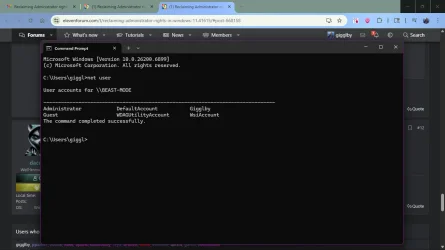
if you cant pass UAC, you don't have admin rights. open command prompt (not admin) and type "net user". what is listed?
 

My Computer

System One

  • OS
    Windows 11 Pro
if you cant pass UAC, you don't have admin rights. open command prompt (not admin) and type "net user". what is listed?
 

Attachments

  • Screenshot 2025-11-03 122246.webp
    Screenshot 2025-11-03 122246.webp
    44.1 KB · Views: 3

My Computer

System One

  • OS
    Windows 11
    Computer type
    Laptop
    Manufacturer/Model
    HP Laptop
    CPU
    12th Gen Intel(R) Core i3-1215u (1.20 GHz)
    Memory
    32 RAM
and you're the only user of this PC? its very odd that you reinstalled/reset windows without admin rights
 

My Computer

System One

  • OS
    Windows 11 Pro

My Computers

System One System Two

  • OS
    Windows 11 Pro
    Computer type
    PC/Desktop
    Manufacturer/Model
    Beelink SEI8
    CPU
    Intel Core i5-8279u
    Motherboard
    AZW SEI
    Memory
    32GB DDR4 2666Mhz
    Graphics Card(s)
    Intel Iris Plus 655
    Sound Card
    Intel SST
    Monitor(s) Displays
    Asus ProArt PA278QV
    Screen Resolution
    2560x1440
    Hard Drives
    512GB NVMe
    PSU
    NA
    Case
    NA
    Cooling
    NA
    Keyboard
    NA
    Mouse
    NA
    Internet Speed
    500/50
    Browser
    Edge
    Antivirus
    Defender
    Other Info
    Mini PC used for testing Windows 11.
  • Operating System
    Windows 10 Pro
    Computer type
    PC/Desktop
    Manufacturer/Model
    Custom
    CPU
    Ryzen 9 5900x
    Motherboard
    Asus Rog Strix X570-E Gaming
    Memory
    64GB DDR4-3600
    Graphics card(s)
    EVGA GeForce 3080 FT3 Ultra
    Sound Card
    Onboard
    Monitor(s) Displays
    ASUS TUF Gaming VG27AQ. ASUS ProArt Display PA278QV 27” WQHD
    Screen Resolution
    2560x1440
    Hard Drives
    2TB WD SN850 PCI-E Gen 4 NVMe
    2TB Sandisk Ultra 2.5" SATA SSD
    PSU
    Seasonic Focus 850
    Case
    Fractal Meshify S2 in White
    Cooling
    Dark Rock Pro CPU cooler, 3 x 140mm case fans
    Keyboard
    Corsiar K65 RGB Lux
    Mouse
    Logitech G9 Laser Mouse
    Internet Speed
    500/50
    Browser
    Chrome
    Antivirus
    Defender.

My Computer

System One

  • OS
    Windows 11 Pro Insider 64 bit 25H2 26200.5742
    Computer type
    PC/Desktop
    Manufacturer/Model
    Gigabyte Z390 UD
    CPU
    Intel Core i7 9700K 3.60
    Motherboard
    Gigabyte Z390 UD
    Memory
    16 GB
    Graphics Card(s)
    nVidia GEForce RTX 2060 Super
    Sound Card
    onboard
    Monitor(s) Displays
    Two 27" Dell 4K monitors
    Screen Resolution
    3840 x 2160
    Hard Drives
    M.2 NVME SSD, 500 GB; Two 2TB Mechanical HDD's
    PSU
    850w PSU
    Case
    Cyberpower PC
    Cooling
    Water cooled
    Keyboard
    Backlit Cyberpower gaming keyboard
    Mouse
    Backlit Cyberpower gaming mouse
    Internet Speed
    1 GB mbps
    Browser
    Brave
    Antivirus
    Windows Security
and you're the only user of this PC? its very odd that you reinstalled/reset windows without admin rights
I have always been able to go back and change Admin rights. I had no idea Microsoft was squeezing out the options of over-riding Microsoft or Windows, I'm not stupid but I'm not a tech and I'm 73 y/o. I just didn't know what I was getting myself into by simply reinstalling Windows.
 

My Computer

System One

  • OS
    Windows 11
    Computer type
    Laptop
    Manufacturer/Model
    HP Laptop
    CPU
    12th Gen Intel(R) Core i3-1215u (1.20 GHz)
    Memory
    32 RAM
do you have a usb and the windows iso available?
I have always been able to go back and change Admin rights. I had no idea Microsoft was squeezing out the options of over-riding Microsoft or Windows, I'm not stupid but I'm not a tech and I'm 73 y/o. I just didn't know what I was getting myself into by simply reinstalling Windows.
i ask because if you make a bootable windows installation usb, you can unlock and bypass the password to the Administrator account using it to enable a system level command prompt (a lot easier than it sounds)
 

My Computer

System One

  • OS
    Windows 11 Pro
do you have a usb and the windows iso available?
No I don't. I did see somewhere that I could download a copy of Windows ISO to a USB, but when I saw info that said I have a home version of Windows I that it would be futile. That's when I tried to give Microsoft a hundred dollars to upgrade to pro but that requires administrator rights which I have been locked out of.
 

My Computer

System One

  • OS
    Windows 11
    Computer type
    Laptop
    Manufacturer/Model
    HP Laptop
    CPU
    12th Gen Intel(R) Core i3-1215u (1.20 GHz)
    Memory
    32 RAM
Back
Top Bottom