Personalization Reset and Re-register Windows Spotlight in Windows 11


Windows_Spotlight-new_header.webp

This tutorial will show you how to reset and re-register Windows Spotlight for your account in Windows 11.

In Windows 11, you can have Windows Spotlight as a theme and display different background images on your desktop and lock screen, and occasionally offers suggestions on the lock screen.

If Windows Spotlights stops working and/or stops changing the background image, you can reset and re-register Windows Spotlight to fix it.


Windows Spotlight will not work while connected to a metered network (ethernet or wireless), or in Battery Saver mode.

Windows Spotlight requires Background Apps to be turned on.

Country or region and Device setup region must be the same for Spotlight to work.
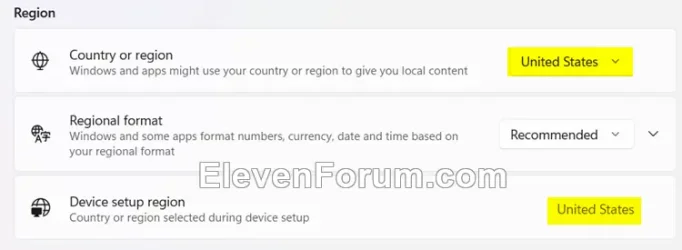
Region.webp


Sometimes it may take 24 to 48 hours after resetting for Windows Spotlight to sync again.


Another option is to use the Windows spotlight, dynamic images theme.

OR:


EXAMPLE: Windows Spotlight on Desktop and Lock screen

Windows_Spotlight_desktop_background.jpg
Windows_Spotlight_lock_screen.jpg


Here's How:

1 Change your desktop background to something other than Windows Spotlight. (see screenshot below)

This step is only available in Windows 11 build 22557 and higher.


Windows_Spotlight_desktop_background-1.png

2 Change your lock screen background to something other than Windows Spotlight. (see screenshot below)


Windows_Spotlight_lock_screen_background-1.png

3 Click/tap on the download button below to download the file below.

Reset_and_re-register_Windows_Spotlight.zip


(Contents of BAT file for reference)
Code:
:: Turn on background apps
reg delete "HKEY_CURRENT_USER\Software\Microsoft\Windows\CurrentVersion\BackgroundAccessApplications" /v GlobalUserDisabled /f
reg delete "HKEY_CURRENT_USER\Software\Microsoft\Windows\CurrentVersion\Search" /v BackgroundAppGlobalToggle /f

:: Reset Windows Spotlight
DEL /F /S /Q /A "%USERPROFILE%/AppData\Local\Packages\MicrosoftWindows.Client.CBS_cw5n1h2txyewy\LocalCache\Microsoft\IrisService"
DEL /F /S /Q /A "%USERPROFILE%/AppData\Local\Packages\Microsoft.Windows.ContentDeliveryManager_cw5n1h2txyewy\LocalCache\Microsoft\IrisService"
DEL /F /S /Q /A "%USERPROFILE%/AppData\Local\Packages\Microsoft.Windows.ContentDeliveryManager_cw5n1h2txyewy\LocalState\Assets"
DEL /F /S /Q /A "%USERPROFILE%/AppData\Local\Packages\Microsoft.Windows.ContentDeliveryManager_cw5n1h2txyewy\Settings"

:: Re-register Windows Spotlight
PowerShell -ExecutionPolicy Unrestricted -Command "& {$manifest = (Get-AppxPackage *ContentDeliveryManager*).InstallLocation + '\AppxManifest.xml' ; Add-AppxPackage -DisableDevelopmentMode -Register $manifest}"
PowerShell -ExecutionPolicy Unrestricted -Command "& {$manifest = (Get-AppxPackage *MicrosoftWindows.Client.CBS*).InstallLocation + '\AppxManifest.xml' ; Add-AppxPackage -DisableDevelopmentMode -Register $manifest}"

4 Save the ZIP file to your desktop.

5 Unblock the ZIP file.

6 Extract the BAT file from the ZIP file.

7 Run the BAT file.

8 Restart the computer to apply.

9 After you sign in, you can change your desktop background back to Windows Spotlight if wanted. (see screenshot below)


Windows_Spotlight_desktop_background-2.png

10 Change your lock screen background back to Windows Spotlight if wanted. (see screenshot below)


Windows_Spotlight_lock_screen_background-2.png


That's it,
Shawn Brink


Attachments

Last edited:
Thank you for your feedback. :shawn:

Another option may be to boot into Safe Mode, then perform the steps in the tutorial to not have to worry about anything interfering with the BAT.

Good afternoon,
I bought a new laptop about a month ago, the Spotlight on the lock screen has never worked.
I tried two solutions: the first was to run the batch file as administrator, and the second was to run it in batch mode within the command prompt as administrator.
The most I managed to do, was get the first image to appear, and the next day it reverts to the blue Windows image.
I've already tried an in-place upgrade to fix some installation problem twice, and I also ran the sfc and dism commands, but sfc doesn't find any errors.
I have the Home version of Windows 11 on a laptop.
I tried running the batch file in safe mode, but I was completely stuck because I lost my keyboard and mouse, so I had difficulty returning to normal boot.
I have my administrator profile and the Admin profile, and in Admin profile, a Spotlight image appears, but the image doesn't change.
Any other ideas to solve this?
Thank you very much.
 

My Computer

System One

  • OS
    Windows 11
    Computer type
    Laptop
    Manufacturer/Model
    Lenovo
    CPU
    Intel Core Ultra 7 255H
    Motherboard
    LENOVO LNVNB161216
    Memory
    32 GB
    Graphics Card(s)
    Intel Arc 140T
Good afternoon,
I bought a new laptop about a month ago, the Spotlight on the lock screen has never worked.
I tried two solutions: the first was to run the batch file as administrator, and the second was to run it in batch mode within the command prompt as administrator.
The most I managed to do, was get the first image to appear, and the next day it reverts to the blue Windows image.
I've already tried an in-place upgrade to fix some installation problem twice, and I also ran the sfc and dism commands, but sfc doesn't find any errors.
I have the Home version of Windows 11 on a laptop.
I tried running the batch file in safe mode, but I was completely stuck because I lost my keyboard and mouse, so I had difficulty returning to normal boot.
I have my administrator profile and the Admin profile, and in Admin profile, a Spotlight image appears, but the image doesn't change.
Any other ideas to solve this?
Thank you very much.

Hello, :alien:

Another option is to use the Windows spotlight, dynamic images theme.

OR


My Computers

System One System Two

  • OS
    Windows 11 Pro for Workstations
    Computer type
    PC/Desktop
    Manufacturer/Model
    Custom self build
    CPU
    Intel i7-8700K 5 GHz
    Motherboard
    ASUS ROG Maximus XI Formula Z390
    Memory
    64 GB (4x16GB) G.SKILL TridentZ RGB DDR4 3600 MHz (F4-3600C18D-32GTZR)
    Graphics Card(s)
    ASUS ROG-STRIX-GTX1080TI-O11G-GAMING (11GB GDDR5X)
    Sound Card
    Integrated Digital Audio (S/PDIF)
    Monitor(s) Displays
    2 x Samsung Odyssey G75 27"
    Screen Resolution
    2560x1440
    Hard Drives
    1TB Samsung 990 PRO M.2,
    4TB Samsung 990 PRO M.2,
    TerraMaster F8 SSD Plus NAS
    PSU
    Seasonic Prime Titanium 850W
    Case
    Thermaltake Core P3 wall mounted
    Cooling
    Corsair Hydro H115i
    Keyboard
    Amazon Basics Wired Full Keyboard MD005
    Mouse
    Logitech MX Master 4
    Internet Speed
    2 Gbps Download and 100 Mbps Upload
    Browser
    Chrome and Edge
    Antivirus
    Microsoft Defender
    Other Info
    Logitech Z625 speaker system,
    Logitech BRIO 4K Pro webcam,
    HP Color LaserJet Pro MFP M477fdn,
    CyberPower CP1500PFCLCD
    Galaxy S23 Plus phone
  • Operating System
    Windows 11 Pro
    Computer type
    Laptop
    Manufacturer/Model
    Surface Laptop 7 Copilot+ PC
    CPU
    Snapdragon X Elite (12 core) 3.42 GHz
    Memory
    16 GB LPDDR5x-7467 MHz
    Monitor(s) Displays
    15" HDR
    Screen Resolution
    2496 x 1664
    Hard Drives
    1 TB SSD
    Internet Speed
    Wi-Fi 7 and Bluetooth 5.4
    Browser
    Chrome and Edge
    Antivirus
    Microsoft Defender
After a month of not-working Windows Spotlight feature on Lock Screen, trying all methods from this forum and other I found on internet, I reached this interesting possible solution of one of user on Microsoft forums. He said:

I discovered that the problem is related to logging into OneDrive. If you delete your Microsoft account credentials from the Credential Manager, and also delete all the cache files in this path "%localappdata%\Microsoft\TokenBroker\Cache", Spotlight starts working again, but OneDrive, if it is still connected, will work for a few hours after which it will ask you to re-enter your credentials, creating the block again. The alternative is to enter the credentials into the Windows account, since the problem only occurs if the Windows user is a local account. Has Microsoft decided to block the functionality for those who do not use a Microsoft account in Windows? They have been pushing for a long time to prevent the use of local accounts.

This is very interesting and my experience so far confirms some of this story. I use Windows 11 at my work which is connected through Microsoft account and at my home I have Local account, but from time to time I use OneDrive to finish some of my work at home. Both computers, business and home one, give me completely the same pictures change in Windows Spotlight. It started a month ago and I assume it could be related with some of recent Windows updates. Pictures downloaded are the same on both computers, their changes is completely the same and the only link between my business Microsoft account and home Local account computer is use of OneDrive.

The problem here is my laptop, which is not connected on OneDrive, I do not use it at all, I have Local account only and there is no Windows Spotlight feature on it for more than a months. I tried every solution I could find.

It is eventuality that Microsoft decided to connect Windows Spotlight feature with Microsoft account or way around through OneDrive connection which I find as wrong since the proper solution is connecting with computer does not matter if it uses Microsoft or Local account. If one buy Windows 11 licence, it has to work regardless of Microsoft or Local account since Windows Spotlight feature is part of Windows 11 package. It should not be restricted at all.

The only thing we could do is to wait another update with a hope that Microsoft will change the way of delivering of Windows Spotlight pictures making it available for all users regardless of their using of Microsoft or Local account. In this very moment, we all do the correct thing using this script from page 1, but on other side Microsoft blocks delivering of new pictures to certain number of users, probably due to use of Local account. That is the situation why some of us cannot make Windows Spotlight working again although it worked in the past.
 

My Computer

System One

  • OS
    Windows 11 Pro
    Computer type
    PC/Desktop
    CPU
    AMD Ryzen 9 5900XT
    Motherboard
    Gigabyate B550 Aorus Elite V2
    Memory
    32Gb
    Graphics Card(s)
    AMD Radeon R9 280
    Sound Card
    SoundBlaster Z
After a month of not-working Windows Spotlight feature on Lock Screen, trying all methods from this forum and other I found on internet, I reached this interesting possible solution of one of user on Microsoft forums. He said:

I discovered that the problem is related to logging into OneDrive. If you delete your Microsoft account credentials from the Credential Manager, and also delete all the cache files in this path "%localappdata%\Microsoft\TokenBroker\Cache", Spotlight starts working again, but OneDrive, if it is still connected, will work for a few hours after which it will ask you to re-enter your credentials, creating the block again. The alternative is to enter the credentials into the Windows account, since the problem only occurs if the Windows user is a local account. Has Microsoft decided to block the functionality for those who do not use a Microsoft account in Windows? They have been pushing for a long time to prevent the use of local accounts.

This is very interesting and my experience so far confirms some of this story. I use Windows 11 at my work which is connected through Microsoft account and at my home I have Local account, but from time to time I use OneDrive to finish some of my work at home. Both computers, business and home one, give me completely the same pictures change in Windows Spotlight. It started a month ago and I assume it could be related with some of recent Windows updates. Pictures downloaded are the same on both computers, their changes is completely the same and the only link between my business Microsoft account and home Local account computer is use of OneDrive.

The problem here is my laptop, which is not connected on OneDrive, I do not use it at all, I have Local account only and there is no Windows Spotlight feature on it for more than a months. I tried every solution I could find.

It is eventuality that Microsoft decided to connect Windows Spotlight feature with Microsoft account or way around through OneDrive connection which I find as wrong since the proper solution is connecting with computer does not matter if it uses Microsoft or Local account. If one buy Windows 11 licence, it has to work regardless of Microsoft or Local account since Windows Spotlight feature is part of Windows 11 package. It should not be restricted at all.

The only thing we could do is to wait another update with a hope that Microsoft will change the way of delivering of Windows Spotlight pictures making it available for all users regardless of their using of Microsoft or Local account. In this very moment, we all do the correct thing using this script from page 1, but on other side Microsoft blocks delivering of new pictures to certain number of users, probably due to use of Local account. That is the situation why some of us cannot make Windows Spotlight working again although it worked in the past.
Good afternoon,
Interesting, I use two Onedrive accounts, the personal one and the professional one (Microsoft 365) and in Credential Manager, Windows Credentials, Generic Credentials, I only find one, the professional one, related to Onedrive. The only credential with my personal email, wich I tried to remove, removes the link to my phone in windows.
So, removing this and deleting all the files at the Cache directory didn't work for me.
Any idea?
Thank you very much
 
Last edited:

My Computer

System One

  • OS
    Windows 11
    Computer type
    Laptop
    Manufacturer/Model
    Lenovo
    CPU
    Intel Core Ultra 7 255H
    Motherboard
    LENOVO LNVNB161216
    Memory
    32 GB
    Graphics Card(s)
    Intel Arc 140T
Hi. I'm experiencing the same issue.
Spotlight works on my desktop, but not on the Lockscreen. I've tried the .bat file, and I've tried clearing %localappdata%\Microsoft\TokenBroker\Cache, but to no avail.

25h2, I don't use Microsoft-Cloud; I have a local account.
 

My Computer

System One

  • OS
    Windows 11 Pro
Hi. I'm experiencing the same issue.
Spotlight works on my desktop, but not on the Lockscreen. I've tried the .bat file, and I've tried clearing %localappdata%\Microsoft\TokenBroker\Cache, but to no avail.

25h2, I don't use Microsoft-Cloud; I have a local account.

Hello, :alien:

Another option is to use the Windows spotlight, dynamic images theme.

OR


My Computers

System One System Two

  • OS
    Windows 11 Pro for Workstations
    Computer type
    PC/Desktop
    Manufacturer/Model
    Custom self build
    CPU
    Intel i7-8700K 5 GHz
    Motherboard
    ASUS ROG Maximus XI Formula Z390
    Memory
    64 GB (4x16GB) G.SKILL TridentZ RGB DDR4 3600 MHz (F4-3600C18D-32GTZR)
    Graphics Card(s)
    ASUS ROG-STRIX-GTX1080TI-O11G-GAMING (11GB GDDR5X)
    Sound Card
    Integrated Digital Audio (S/PDIF)
    Monitor(s) Displays
    2 x Samsung Odyssey G75 27"
    Screen Resolution
    2560x1440
    Hard Drives
    1TB Samsung 990 PRO M.2,
    4TB Samsung 990 PRO M.2,
    TerraMaster F8 SSD Plus NAS
    PSU
    Seasonic Prime Titanium 850W
    Case
    Thermaltake Core P3 wall mounted
    Cooling
    Corsair Hydro H115i
    Keyboard
    Amazon Basics Wired Full Keyboard MD005
    Mouse
    Logitech MX Master 4
    Internet Speed
    2 Gbps Download and 100 Mbps Upload
    Browser
    Chrome and Edge
    Antivirus
    Microsoft Defender
    Other Info
    Logitech Z625 speaker system,
    Logitech BRIO 4K Pro webcam,
    HP Color LaserJet Pro MFP M477fdn,
    CyberPower CP1500PFCLCD
    Galaxy S23 Plus phone
  • Operating System
    Windows 11 Pro
    Computer type
    Laptop
    Manufacturer/Model
    Surface Laptop 7 Copilot+ PC
    CPU
    Snapdragon X Elite (12 core) 3.42 GHz
    Memory
    16 GB LPDDR5x-7467 MHz
    Monitor(s) Displays
    15" HDR
    Screen Resolution
    2496 x 1664
    Hard Drives
    1 TB SSD
    Internet Speed
    Wi-Fi 7 and Bluetooth 5.4
    Browser
    Chrome and Edge
    Antivirus
    Microsoft Defender
I did the fix by renaming the Settings folder to *.BAK as per this:
%USERPROFILE%\AppData\Local\Packages\Microsoft.Windows.ContentDeliveryManager_cw5n1h2txyewy\Settings

The Assets folder was already empty.

Then ran:
Get-AppxPackage -allusers ContentDeliveryManager | foreach {Add-AppxPackage "$($_.InstallLocation)\appxmanifest.xml" -DisableDevelopmentMode -register }

Lockscreen Spotlight took about 24 hours to start working. It’s been 4 days & I get only 1 new image per day. The Assets folder only has 2 pictures at a time. I‘m counting the landscape & portrait versions as one. As a new one shows up an old one is removed.

I used to get 3 new images every day. Any idea why only 1 new picture a day now?

Thanks.
 

My Computer

System One

  • OS
    Windows 11 Pro 25H2
    Computer type
    PC/Desktop
    Manufacturer/Model
    ASRock B760M Pro RS/D4 motherboard
    CPU
    Intel i5-14500
    Motherboard
    ASRock
    Memory
    16 GB
    Graphics Card(s)
    Intel
    Hard Drives
    1 TB Samsung M.2 SSD
    1 TB WD HDD
I got it working properly. I went back used the original Settings folder but this gave me a black screen because it automatically emptied whatever was in the Assets folder. The I re-did the fix process & now it works. I have no idea why that didn’t work the first time.
 

My Computer

System One

  • OS
    Windows 11 Pro 25H2
    Computer type
    PC/Desktop
    Manufacturer/Model
    ASRock B760M Pro RS/D4 motherboard
    CPU
    Intel i5-14500
    Motherboard
    ASRock
    Memory
    16 GB
    Graphics Card(s)
    Intel
    Hard Drives
    1 TB Samsung M.2 SSD
    1 TB WD HDD
I got it working properly. I went back used the original Settings folder but this gave me a black screen because it automatically emptied whatever was in the Assets folder. The I re-did the fix process & now it works. I have no idea why that didn’t work the first time.

Glad you got it sorted. Thank you for posting your findings and results. :shawn:
 

My Computers

System One System Two

  • OS
    Windows 11 Pro for Workstations
    Computer type
    PC/Desktop
    Manufacturer/Model
    Custom self build
    CPU
    Intel i7-8700K 5 GHz
    Motherboard
    ASUS ROG Maximus XI Formula Z390
    Memory
    64 GB (4x16GB) G.SKILL TridentZ RGB DDR4 3600 MHz (F4-3600C18D-32GTZR)
    Graphics Card(s)
    ASUS ROG-STRIX-GTX1080TI-O11G-GAMING (11GB GDDR5X)
    Sound Card
    Integrated Digital Audio (S/PDIF)
    Monitor(s) Displays
    2 x Samsung Odyssey G75 27"
    Screen Resolution
    2560x1440
    Hard Drives
    1TB Samsung 990 PRO M.2,
    4TB Samsung 990 PRO M.2,
    TerraMaster F8 SSD Plus NAS
    PSU
    Seasonic Prime Titanium 850W
    Case
    Thermaltake Core P3 wall mounted
    Cooling
    Corsair Hydro H115i
    Keyboard
    Amazon Basics Wired Full Keyboard MD005
    Mouse
    Logitech MX Master 4
    Internet Speed
    2 Gbps Download and 100 Mbps Upload
    Browser
    Chrome and Edge
    Antivirus
    Microsoft Defender
    Other Info
    Logitech Z625 speaker system,
    Logitech BRIO 4K Pro webcam,
    HP Color LaserJet Pro MFP M477fdn,
    CyberPower CP1500PFCLCD
    Galaxy S23 Plus phone
  • Operating System
    Windows 11 Pro
    Computer type
    Laptop
    Manufacturer/Model
    Surface Laptop 7 Copilot+ PC
    CPU
    Snapdragon X Elite (12 core) 3.42 GHz
    Memory
    16 GB LPDDR5x-7467 MHz
    Monitor(s) Displays
    15" HDR
    Screen Resolution
    2496 x 1664
    Hard Drives
    1 TB SSD
    Internet Speed
    Wi-Fi 7 and Bluetooth 5.4
    Browser
    Chrome and Edge
    Antivirus
    Microsoft Defender
Glad you got it sorted. Thank you for posting your findings and results. :shawn:
The first time “fixed”, the pictures in the Assets folder were small square icons in a singe row. If that makes sense.

After the second fix the photos in the Assets folder were in the usual format of each one being a single long line of characters.

Also, when I got the black screen the previous picture’s description still showed.
IOW no photo available so there was nothing to display. However a description was being loaded & displayed from some where.
 

My Computer

System One

  • OS
    Windows 11 Pro 25H2
    Computer type
    PC/Desktop
    Manufacturer/Model
    ASRock B760M Pro RS/D4 motherboard
    CPU
    Intel i5-14500
    Motherboard
    ASRock
    Memory
    16 GB
    Graphics Card(s)
    Intel
    Hard Drives
    1 TB Samsung M.2 SSD
    1 TB WD HDD
There are now 6 different photos in the Assets folder, 3 from yesterday morning & 3 from late yesterday night.

But the only the first picture listed has displayed every time I used the computer yesterday & so far today. IOW it's stuck.

In the lock screen settings I toggled to Picture & back to Windows spotlight. That changed the picture. With luck that will get the pictures showing in rotation.
 
Last edited:

My Computer

System One

  • OS
    Windows 11 Pro 25H2
    Computer type
    PC/Desktop
    Manufacturer/Model
    ASRock B760M Pro RS/D4 motherboard
    CPU
    Intel i5-14500
    Motherboard
    ASRock
    Memory
    16 GB
    Graphics Card(s)
    Intel
    Hard Drives
    1 TB Samsung M.2 SSD
    1 TB WD HDD
There are now 6 different photos in the Assets folder, 3 from yesterday morning & 3 from late yesterday night.

But the only the first picture listed has displayed every time I used the computer yesterday & so far today. IOW it's stuck.

In the lock screen settings I toggled to Picture & back to Windows spotlight. That changed the picture. With luck that will get the pictures showing in rotation.

Hopefully. If not, then another option is to use the Windows spotlight, dynamic images theme.

OR


My Computers

System One System Two

  • OS
    Windows 11 Pro for Workstations
    Computer type
    PC/Desktop
    Manufacturer/Model
    Custom self build
    CPU
    Intel i7-8700K 5 GHz
    Motherboard
    ASUS ROG Maximus XI Formula Z390
    Memory
    64 GB (4x16GB) G.SKILL TridentZ RGB DDR4 3600 MHz (F4-3600C18D-32GTZR)
    Graphics Card(s)
    ASUS ROG-STRIX-GTX1080TI-O11G-GAMING (11GB GDDR5X)
    Sound Card
    Integrated Digital Audio (S/PDIF)
    Monitor(s) Displays
    2 x Samsung Odyssey G75 27"
    Screen Resolution
    2560x1440
    Hard Drives
    1TB Samsung 990 PRO M.2,
    4TB Samsung 990 PRO M.2,
    TerraMaster F8 SSD Plus NAS
    PSU
    Seasonic Prime Titanium 850W
    Case
    Thermaltake Core P3 wall mounted
    Cooling
    Corsair Hydro H115i
    Keyboard
    Amazon Basics Wired Full Keyboard MD005
    Mouse
    Logitech MX Master 4
    Internet Speed
    2 Gbps Download and 100 Mbps Upload
    Browser
    Chrome and Edge
    Antivirus
    Microsoft Defender
    Other Info
    Logitech Z625 speaker system,
    Logitech BRIO 4K Pro webcam,
    HP Color LaserJet Pro MFP M477fdn,
    CyberPower CP1500PFCLCD
    Galaxy S23 Plus phone
  • Operating System
    Windows 11 Pro
    Computer type
    Laptop
    Manufacturer/Model
    Surface Laptop 7 Copilot+ PC
    CPU
    Snapdragon X Elite (12 core) 3.42 GHz
    Memory
    16 GB LPDDR5x-7467 MHz
    Monitor(s) Displays
    15" HDR
    Screen Resolution
    2496 x 1664
    Hard Drives
    1 TB SSD
    Internet Speed
    Wi-Fi 7 and Bluetooth 5.4
    Browser
    Chrome and Edge
    Antivirus
    Microsoft Defender
But the only the first picture listed has displayed every time I used the computer yesterday & so far today. IOW it's stuck.

To load a new image to the lock screen, look at the top right corner. There you will see a description of the image currently displayed, and below that you will see; "Do you like what you see".

Put your mouse cursor over that wording, now a new dialog box will open, and you will now see: "It's Interesting" and below that you will see: "It's not for me", mouse click, "It's not for me". A new image will load.
 

My Computers

System One System Two

  • OS
    Windows 11 Pro 25H2 26200.8457
    Computer type
    PC/Desktop
    Manufacturer/Model
    Dell Tower Plus EBT2250, DOB: 06/15/2025
    CPU
    Intel® Core™ Ultra 7 265 1.8GHz to 5.3GHz (Arrow Lake)
    Motherboard
    Dell Inc. 02D3NT A00 (U3E1)
    Memory
    SK Hynix 32GB DDR5 5600 Desktop RAM UDIMM Non-ECC PC5-5600B
    Graphics Card(s)
    Dell NVIDIA® GeForce RTX™ 4060 8GB GDDR6 & (iGPU) Integrated Intel® UHD Graphics
    Sound Card
    Chipset Realtek High-Definition Audio with Dolby Atmos
    Monitor(s) Displays
    Dell Ultra Sharp U2515H 25-Inch Screen LED-Lit
    Screen Resolution
    2560 X 1440
    Hard Drives
    Samsung (NVMe PM9C1a 1024GB) M.2 PCIe NVMe Solid State Drive (OS), with Samsung Piccolo (S4LY022) 6-Core 4 Channel Controller.

    Samsung T7 500GB SSD, USB-C External Drive
    PSU
    Dell 460W
    Case
    Dell Tower Plus EBT 2250
    Cooling
    Fan
    Keyboard
    Dell Wired Keyboard - KB216
    Mouse
    Logitech M510
    Internet Speed
    Intel Killer E3100G 2.5 Gigabit Ethernet Controller
    Browser
    Microsoft Edge
    Antivirus
    Microsoft Windows Security
    Other Info
    The Samsung NVMe PM9C1a 1024GB SSD does not use a Phison NAND controller. Instead, it uses Samsung's in-house developed Piccolo (S4LY022) 6-Core 4 Channel Controller. The PM9C1a utilizes a controller built using Samsung's 5-nanometer process and seventh-generation V-NAND technology. 🤔
  • Operating System
    Windows 11 Pro 25H2 26200.8457
    Computer type
    Laptop
    Manufacturer/Model
    Dell Inspiron 15 7000 (7591) 2-in-1, DOB: 11/30/2019
    CPU
    10th Generation Intel Core i7-10510U Processor (8MB Cache, up to 4.9 GHz) Comet Lake
    Motherboard
    Dell 0NNW5N
    Memory
    16GB DDR4 RAM
    Graphics card(s)
    NVIDIA® GeForce® MX250 with 2GB GDDR5 graphics memory
    Sound Card
    Chipset Realtek ALC3254 🤔🤣
    Monitor(s) Displays
    Dell 15.6-inch UHD Truelife Touch Narrow Border WVA Display with Active Pen support
    Screen Resolution
    3840 x 2160
    Hard Drives
    Intel NVME 512GB SSD with 32GB Intel Optane Memory, M.2 80mm PCIe 3.0 RAID

    SanDisk 256GB Extreme microSDXC UHS-I Memory Card
    PSU
    Dell 4-Cell Battery, 68 Whr (Integrated), 90 Watt AC Adapter
    Case
    Dell Inspiron 15 7000 2-in-1 (7591)
    Cooling
    Standard Dell Case Fan & Havit HV-F2056 USB Powered (3 Fans) Laptop Cooling Pad.
    Keyboard
    Dell
    Mouse
    Logitech Wireless Mouse M650L
    Internet Speed
    Wireless/Wired connectivity (WiFi 6 - 802.11 ax)
    Browser
    Microsoft Edge
    Antivirus
    Microsoft Windows Security
    Other Info
    From Dell: 512GB NVME Solid State Drive accelerated by 32GB Intel Optane Memory are the fastest as compared to NAND SSDs. Intel Optane H10 with SSD offers speedy storage and accelerates opening your programs.
To load a new image to the lock screen, look at the top right corner. There you will see a description of the image currently displayed, and below that you will see; "Do you like what you see".

Put your mouse cursor over that wording, now a new dialog box will open, and you will now see: "It's Interesting" and below that you will see: "It's not for me", mouse click, "It's not for me". A new image will load.

Funny thing -

I’d sit down at the PC several times a day & frequently there would be a different Lock Screen picture so I presumed they automatically changed. I know you can click on if you like it or not but did this rarely.

Today my wife says the picture doesn’t change automatically. It changes because she clicks on No, she doesn’t like it.

All this time I thought it was automatic. :oops:
 

My Computer

System One

  • OS
    Windows 11 Pro 25H2
    Computer type
    PC/Desktop
    Manufacturer/Model
    ASRock B760M Pro RS/D4 motherboard
    CPU
    Intel i5-14500
    Motherboard
    ASRock
    Memory
    16 GB
    Graphics Card(s)
    Intel
    Hard Drives
    1 TB Samsung M.2 SSD
    1 TB WD HDD
Funny thing -

I’d sit down at the PC several times a day & frequently there would be a different Lock Screen picture so I presumed they automatically changed. I know you can click on if you like it or not but did this rarely.

Today my wife says the picture doesn’t change automatically. It changes because she clicks on No, she doesn’t like it.

All this time I thought it was automatic. :oops:
Well, it is supposed to be automatic, and if working as coded, it will change the image automatically every few days or so, (I don't know the exact time it takes to switch to a new image).

I was just letting you know you can force the issue if you want. Also, my hope is that it will hopefully trip something to help your system get back on schedule. That part is just a guess/hope, I don't know if it will help or not. let us know in a few days if it helps.

EDIT: Sometimes I will get a new image, if after a system startup, I let the computer just set there in lock screen for a few moments. Sometimes after a while, just sitting in lock screen, it will switch to a new image.
 

My Computers

System One System Two

  • OS
    Windows 11 Pro 25H2 26200.8457
    Computer type
    PC/Desktop
    Manufacturer/Model
    Dell Tower Plus EBT2250, DOB: 06/15/2025
    CPU
    Intel® Core™ Ultra 7 265 1.8GHz to 5.3GHz (Arrow Lake)
    Motherboard
    Dell Inc. 02D3NT A00 (U3E1)
    Memory
    SK Hynix 32GB DDR5 5600 Desktop RAM UDIMM Non-ECC PC5-5600B
    Graphics Card(s)
    Dell NVIDIA® GeForce RTX™ 4060 8GB GDDR6 & (iGPU) Integrated Intel® UHD Graphics
    Sound Card
    Chipset Realtek High-Definition Audio with Dolby Atmos
    Monitor(s) Displays
    Dell Ultra Sharp U2515H 25-Inch Screen LED-Lit
    Screen Resolution
    2560 X 1440
    Hard Drives
    Samsung (NVMe PM9C1a 1024GB) M.2 PCIe NVMe Solid State Drive (OS), with Samsung Piccolo (S4LY022) 6-Core 4 Channel Controller.

    Samsung T7 500GB SSD, USB-C External Drive
    PSU
    Dell 460W
    Case
    Dell Tower Plus EBT 2250
    Cooling
    Fan
    Keyboard
    Dell Wired Keyboard - KB216
    Mouse
    Logitech M510
    Internet Speed
    Intel Killer E3100G 2.5 Gigabit Ethernet Controller
    Browser
    Microsoft Edge
    Antivirus
    Microsoft Windows Security
    Other Info
    The Samsung NVMe PM9C1a 1024GB SSD does not use a Phison NAND controller. Instead, it uses Samsung's in-house developed Piccolo (S4LY022) 6-Core 4 Channel Controller. The PM9C1a utilizes a controller built using Samsung's 5-nanometer process and seventh-generation V-NAND technology. 🤔
  • Operating System
    Windows 11 Pro 25H2 26200.8457
    Computer type
    Laptop
    Manufacturer/Model
    Dell Inspiron 15 7000 (7591) 2-in-1, DOB: 11/30/2019
    CPU
    10th Generation Intel Core i7-10510U Processor (8MB Cache, up to 4.9 GHz) Comet Lake
    Motherboard
    Dell 0NNW5N
    Memory
    16GB DDR4 RAM
    Graphics card(s)
    NVIDIA® GeForce® MX250 with 2GB GDDR5 graphics memory
    Sound Card
    Chipset Realtek ALC3254 🤔🤣
    Monitor(s) Displays
    Dell 15.6-inch UHD Truelife Touch Narrow Border WVA Display with Active Pen support
    Screen Resolution
    3840 x 2160
    Hard Drives
    Intel NVME 512GB SSD with 32GB Intel Optane Memory, M.2 80mm PCIe 3.0 RAID

    SanDisk 256GB Extreme microSDXC UHS-I Memory Card
    PSU
    Dell 4-Cell Battery, 68 Whr (Integrated), 90 Watt AC Adapter
    Case
    Dell Inspiron 15 7000 2-in-1 (7591)
    Cooling
    Standard Dell Case Fan & Havit HV-F2056 USB Powered (3 Fans) Laptop Cooling Pad.
    Keyboard
    Dell
    Mouse
    Logitech Wireless Mouse M650L
    Internet Speed
    Wireless/Wired connectivity (WiFi 6 - 802.11 ax)
    Browser
    Microsoft Edge
    Antivirus
    Microsoft Windows Security
    Other Info
    From Dell: 512GB NVME Solid State Drive accelerated by 32GB Intel Optane Memory are the fastest as compared to NAND SSDs. Intel Optane H10 with SSD offers speedy storage and accelerates opening your programs.
Well, it is supposed to be automatic, and if working as coded, it will change the image automatically every few days or so, (I don't know the exact time it takes to switch to a new image).

I was just letting you know you can force the issue if you want. Also, my hope is that it will hopefully trip something to help your system get back on schedule. That part is just a guess/hope, I don't know if it will help or not. let us know in a few days if it helps.

EDIT: Sometimes I will get a new image, if after a system startup, I let the computer just set there in lock screen for a few moments. Sometimes after a while, just sitting in lock screen, it will switch to a new image.

Thanks -

Currently I'm getting the generic blue bloom picture. Not sure if it's something I did or not.

That said, I never got any new pictures yesterday, 3-13-2026. The Assets folder only has them from 3-12-2026. Will wait & see if new ones show up today, 3-14-2026.
 

My Computer

System One

  • OS
    Windows 11 Pro 25H2
    Computer type
    PC/Desktop
    Manufacturer/Model
    ASRock B760M Pro RS/D4 motherboard
    CPU
    Intel i5-14500
    Motherboard
    ASRock
    Memory
    16 GB
    Graphics Card(s)
    Intel
    Hard Drives
    1 TB Samsung M.2 SSD
    1 TB WD HDD
Thanks -

Currently I'm getting the generic blue bloom picture. Not sure if it's something I did or not.

That said, I never got any new pictures yesterday, 3-13-2026. The Assets folder only has them from 3-12-2026. Will wait & see if new ones show up today, 3-14-2026.
Okay, the blue bloom image is problematic if your lock screen is set to Windows Spotlight. I have had that happen to me before. You need to go back into settings and change lock screen to "Picture" and select one. Shutdown and restart. Work for part of today in that setting, then go back into settings and put it back on Windows Spotlight. When you are through for the day power off he computer.

Tomorrow when you power on the computer, and it boots to lock screen, if it's the bloom image, leave on lock screen for at least 15 minutes and see if you get a spotlight new image. If after a while a new image appears, (and that could be immediately) hit enter and logon, or you try to change the image as I explained before.

This Spotlight thing is a little buggy sometimes...
 
Last edited:

My Computers

System One System Two

  • OS
    Windows 11 Pro 25H2 26200.8457
    Computer type
    PC/Desktop
    Manufacturer/Model
    Dell Tower Plus EBT2250, DOB: 06/15/2025
    CPU
    Intel® Core™ Ultra 7 265 1.8GHz to 5.3GHz (Arrow Lake)
    Motherboard
    Dell Inc. 02D3NT A00 (U3E1)
    Memory
    SK Hynix 32GB DDR5 5600 Desktop RAM UDIMM Non-ECC PC5-5600B
    Graphics Card(s)
    Dell NVIDIA® GeForce RTX™ 4060 8GB GDDR6 & (iGPU) Integrated Intel® UHD Graphics
    Sound Card
    Chipset Realtek High-Definition Audio with Dolby Atmos
    Monitor(s) Displays
    Dell Ultra Sharp U2515H 25-Inch Screen LED-Lit
    Screen Resolution
    2560 X 1440
    Hard Drives
    Samsung (NVMe PM9C1a 1024GB) M.2 PCIe NVMe Solid State Drive (OS), with Samsung Piccolo (S4LY022) 6-Core 4 Channel Controller.

    Samsung T7 500GB SSD, USB-C External Drive
    PSU
    Dell 460W
    Case
    Dell Tower Plus EBT 2250
    Cooling
    Fan
    Keyboard
    Dell Wired Keyboard - KB216
    Mouse
    Logitech M510
    Internet Speed
    Intel Killer E3100G 2.5 Gigabit Ethernet Controller
    Browser
    Microsoft Edge
    Antivirus
    Microsoft Windows Security
    Other Info
    The Samsung NVMe PM9C1a 1024GB SSD does not use a Phison NAND controller. Instead, it uses Samsung's in-house developed Piccolo (S4LY022) 6-Core 4 Channel Controller. The PM9C1a utilizes a controller built using Samsung's 5-nanometer process and seventh-generation V-NAND technology. 🤔
  • Operating System
    Windows 11 Pro 25H2 26200.8457
    Computer type
    Laptop
    Manufacturer/Model
    Dell Inspiron 15 7000 (7591) 2-in-1, DOB: 11/30/2019
    CPU
    10th Generation Intel Core i7-10510U Processor (8MB Cache, up to 4.9 GHz) Comet Lake
    Motherboard
    Dell 0NNW5N
    Memory
    16GB DDR4 RAM
    Graphics card(s)
    NVIDIA® GeForce® MX250 with 2GB GDDR5 graphics memory
    Sound Card
    Chipset Realtek ALC3254 🤔🤣
    Monitor(s) Displays
    Dell 15.6-inch UHD Truelife Touch Narrow Border WVA Display with Active Pen support
    Screen Resolution
    3840 x 2160
    Hard Drives
    Intel NVME 512GB SSD with 32GB Intel Optane Memory, M.2 80mm PCIe 3.0 RAID

    SanDisk 256GB Extreme microSDXC UHS-I Memory Card
    PSU
    Dell 4-Cell Battery, 68 Whr (Integrated), 90 Watt AC Adapter
    Case
    Dell Inspiron 15 7000 2-in-1 (7591)
    Cooling
    Standard Dell Case Fan & Havit HV-F2056 USB Powered (3 Fans) Laptop Cooling Pad.
    Keyboard
    Dell
    Mouse
    Logitech Wireless Mouse M650L
    Internet Speed
    Wireless/Wired connectivity (WiFi 6 - 802.11 ax)
    Browser
    Microsoft Edge
    Antivirus
    Microsoft Windows Security
    Other Info
    From Dell: 512GB NVME Solid State Drive accelerated by 32GB Intel Optane Memory are the fastest as compared to NAND SSDs. Intel Optane H10 with SSD offers speedy storage and accelerates opening your programs.
Okay, the blue bloom image is problematic if your lock screen is set to Windows Spotlight. I have had that happen to me before. You need to go back into settings and change lock screen to "Picture" and select one. Shutdown and restart. Work for part of today in that setting, then go back into settings and put it back on Windows Spotlight. When you are through for the day power off he computer.

Tomorrow when you power on the computer, and it boots to lock screen, if it's the bloom image, leave on lock screen for at least 15 minutes and see if you get a spotlight new image. If after a while a new image appears, (and that could be immediately) hit enter and logon, or you try to change the image as I explained before.

This Spotlight thing is a little buggy sometimes...

Thanks -
I followed your instructions & now have a picture for a Lock Screen. The Assets folder does contain the usual 6 files. I haven't looked at them but presume it's the normal 3 landscape & 3 portrait ones.

FWIW my computer boots to the Windows Desktop & not the Lock Screen & has always done that.

I'll see if the Lock Screen pictures automatically change throughout the day & will I'll let you know.
 

My Computer

System One

  • OS
    Windows 11 Pro 25H2
    Computer type
    PC/Desktop
    Manufacturer/Model
    ASRock B760M Pro RS/D4 motherboard
    CPU
    Intel i5-14500
    Motherboard
    ASRock
    Memory
    16 GB
    Graphics Card(s)
    Intel
    Hard Drives
    1 TB Samsung M.2 SSD
    1 TB WD HDD
FWIW my computer boots to the Windows Desktop & not the Lock Screen & has always done that.

When Windows boots up, the screen you see is the Lock Screen. It displays a Spotlight image if you have it setup that way, or you can select an image from your computer to display. Windows desktop is what you see after you sign in.

Screenshot 2026-03-15 135026.webp
 

My Computers

System One System Two

  • OS
    Windows 11 Pro 25H2 26200.8457
    Computer type
    PC/Desktop
    Manufacturer/Model
    Dell Tower Plus EBT2250, DOB: 06/15/2025
    CPU
    Intel® Core™ Ultra 7 265 1.8GHz to 5.3GHz (Arrow Lake)
    Motherboard
    Dell Inc. 02D3NT A00 (U3E1)
    Memory
    SK Hynix 32GB DDR5 5600 Desktop RAM UDIMM Non-ECC PC5-5600B
    Graphics Card(s)
    Dell NVIDIA® GeForce RTX™ 4060 8GB GDDR6 & (iGPU) Integrated Intel® UHD Graphics
    Sound Card
    Chipset Realtek High-Definition Audio with Dolby Atmos
    Monitor(s) Displays
    Dell Ultra Sharp U2515H 25-Inch Screen LED-Lit
    Screen Resolution
    2560 X 1440
    Hard Drives
    Samsung (NVMe PM9C1a 1024GB) M.2 PCIe NVMe Solid State Drive (OS), with Samsung Piccolo (S4LY022) 6-Core 4 Channel Controller.

    Samsung T7 500GB SSD, USB-C External Drive
    PSU
    Dell 460W
    Case
    Dell Tower Plus EBT 2250
    Cooling
    Fan
    Keyboard
    Dell Wired Keyboard - KB216
    Mouse
    Logitech M510
    Internet Speed
    Intel Killer E3100G 2.5 Gigabit Ethernet Controller
    Browser
    Microsoft Edge
    Antivirus
    Microsoft Windows Security
    Other Info
    The Samsung NVMe PM9C1a 1024GB SSD does not use a Phison NAND controller. Instead, it uses Samsung's in-house developed Piccolo (S4LY022) 6-Core 4 Channel Controller. The PM9C1a utilizes a controller built using Samsung's 5-nanometer process and seventh-generation V-NAND technology. 🤔
  • Operating System
    Windows 11 Pro 25H2 26200.8457
    Computer type
    Laptop
    Manufacturer/Model
    Dell Inspiron 15 7000 (7591) 2-in-1, DOB: 11/30/2019
    CPU
    10th Generation Intel Core i7-10510U Processor (8MB Cache, up to 4.9 GHz) Comet Lake
    Motherboard
    Dell 0NNW5N
    Memory
    16GB DDR4 RAM
    Graphics card(s)
    NVIDIA® GeForce® MX250 with 2GB GDDR5 graphics memory
    Sound Card
    Chipset Realtek ALC3254 🤔🤣
    Monitor(s) Displays
    Dell 15.6-inch UHD Truelife Touch Narrow Border WVA Display with Active Pen support
    Screen Resolution
    3840 x 2160
    Hard Drives
    Intel NVME 512GB SSD with 32GB Intel Optane Memory, M.2 80mm PCIe 3.0 RAID

    SanDisk 256GB Extreme microSDXC UHS-I Memory Card
    PSU
    Dell 4-Cell Battery, 68 Whr (Integrated), 90 Watt AC Adapter
    Case
    Dell Inspiron 15 7000 2-in-1 (7591)
    Cooling
    Standard Dell Case Fan & Havit HV-F2056 USB Powered (3 Fans) Laptop Cooling Pad.
    Keyboard
    Dell
    Mouse
    Logitech Wireless Mouse M650L
    Internet Speed
    Wireless/Wired connectivity (WiFi 6 - 802.11 ax)
    Browser
    Microsoft Edge
    Antivirus
    Microsoft Windows Security
    Other Info
    From Dell: 512GB NVME Solid State Drive accelerated by 32GB Intel Optane Memory are the fastest as compared to NAND SSDs. Intel Optane H10 with SSD offers speedy storage and accelerates opening your programs.
When Windows boots up, the screen you see is the Lock Screen. It displays a Spotlight image if you have it setup that way, or you can select an image from your computer to display. Windows desktop is what you see after you sign in.

View attachment 165979
I don't sign in.

When my PC powers up, the first screen is black with the ASRock name, then the lock screen briefly flashes & then the Desktop appears. It was also this way with Windows 10. I'm presuming it works this way because I'm not using a sign in password.

If waken from the sleep mode the Lock Screen displays & pressing any key opens the Desktop.

FWIW the first Lock Screen picture is still being displayed & has not changed.
 

My Computer

System One

  • OS
    Windows 11 Pro 25H2
    Computer type
    PC/Desktop
    Manufacturer/Model
    ASRock B760M Pro RS/D4 motherboard
    CPU
    Intel i5-14500
    Motherboard
    ASRock
    Memory
    16 GB
    Graphics Card(s)
    Intel
    Hard Drives
    1 TB Samsung M.2 SSD
    1 TB WD HDD
Back
Top Bottom