Antonio Herrera
Member
- Local time
- 3:54 AM
- Posts
- 4
- OS
- Windows 11 Pro
Hi everyone,
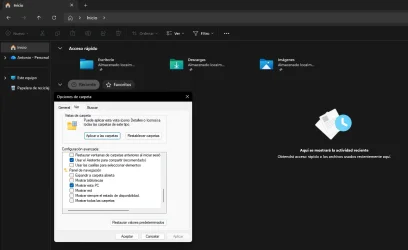
I am having a frustrating issue with File Explorer on Windows 11 after a clean installation and some system optimization tweaks. My navigation pane seems completely broken/restricted.
Here are the two specific problems I am facing:
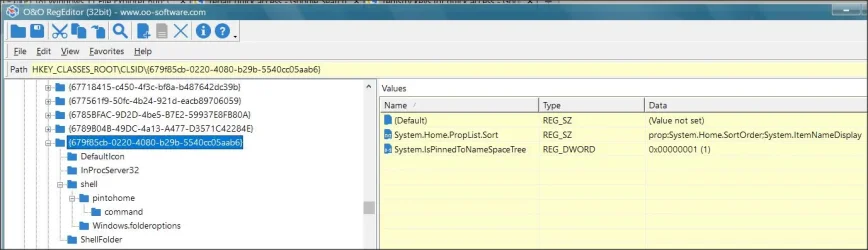
I suspect some registry keys regarding the shell extensions or user folders might have been corrupted or disabled by optimization software.
Has anyone encountered this specific state before? Any registry fixes (.reg), commands, or steps to restore both the ability to pin folders and bring back the Gallery section would be highly appreciated.
Thanks in advance for the help!
I am having a frustrating issue with File Explorer on Windows 11 after a clean installation and some system optimization tweaks. My navigation pane seems completely broken/restricted.
Here are the two specific problems I am facing:
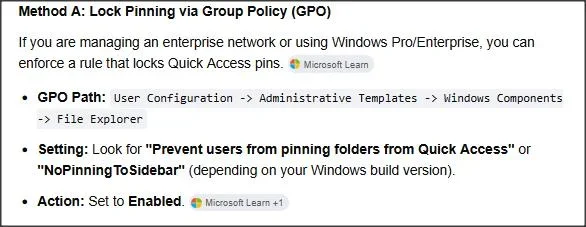
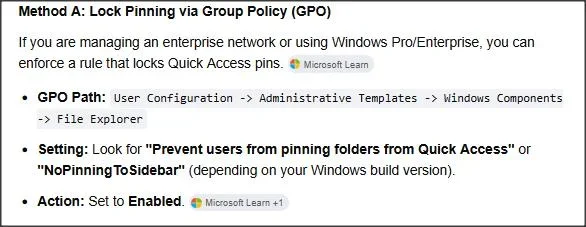
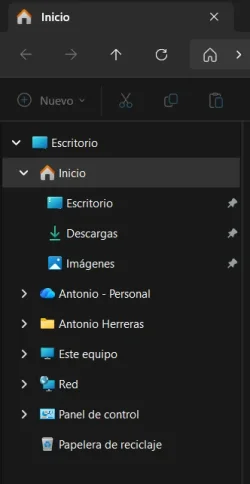
- Cannot Pin Folders: I am completely unable to pin any folders to the left navigation pane (Quick Access / Home section). Trying to drag and drop or select "Pin to Quick Access" does absolutely nothing.
- Missing "Gallery" Section: The "Gallery" (Galería) node is completely gone from the navigation pane. Furthermore, when I open Folder Options > View > Navigation pane, there is no checkbox or option to re-enable it.
I suspect some registry keys regarding the shell extensions or user folders might have been corrupted or disabled by optimization software.
Has anyone encountered this specific state before? Any registry fixes (.reg), commands, or steps to restore both the ability to pin folders and bring back the Gallery section would be highly appreciated.
Thanks in advance for the help!
- Windows Build/Version
- 25H2
Attachments
My Computer
At a glance
Windows 11 ProAMD Ryzen 9 5900X (12 Cores / 24 Threads, 3.7...32 GB (2x16 GB) Kingston FURY Beast Black DDR...Gigabyte GeForce RTX 4070 Ti EAGLE OC 12GB
- OS
- Windows 11 Pro
- Computer type
- PC/Desktop
- Manufacturer/Model
- Vizzio (Custom PC)
- CPU
- AMD Ryzen 9 5900X (12 Cores / 24 Threads, 3.7 GHz - 4.8
- Motherboard
- Gigabyte B550 GAMING X V2
- Memory
- 32 GB (2x16 GB) Kingston FURY Beast Black DDR4-3200 MHz
- Graphics Card(s)
- Gigabyte GeForce RTX 4070 Ti EAGLE OC 12GB
- Sound Card
- Realtek Integrated Audio (Sound Blaster Creative T60 / Razer BlackShark V2 X)
- Monitor(s) Displays
- Principal: Yeyian Avance 27” (180 Hz) | Secundario: HP 27f (75 Hz)
- Screen Resolution
- Principal: 2560x1440 (QHD) | Secundario: 1920x1080 (FHD)
- Hard Drives
- SSD Kingston NV2 1TB NVMe PCIe 4.0 + HDD Seagate BarraCuda 3TB 7200 RPM
- PSU
- MSI MPG A750GF 750W
- Cooling
- RL Thermaltake TH240 V2 Ultra ARGB Sync
- Keyboard
- Royal Kludge RKR98 Pro ISO-ES RGB Hot-Swappable Switch Cream Phantom
- Mouse
- Logitech G G502 X 25600 Dpi Negro
- Browser
- Brave