Windows 11 File Explorer Bug: Cannot pin folders to Navigation Pane and "Gallery" is completely missing


Local time
10:49 PM
Posts
2
OS
Windows 11 Pro
Hi everyone,

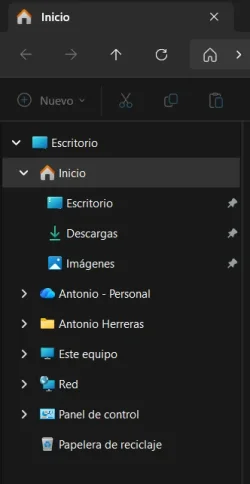
I am having a frustrating issue with File Explorer on Windows 11 after a clean installation and some system optimization tweaks. My navigation pane seems completely broken/restricted.

Here are the two specific problems I am facing:

  1. Cannot Pin Folders: I am completely unable to pin any folders to the left navigation pane (Quick Access / Home section). Trying to drag and drop or select "Pin to Quick Access" does absolutely nothing.
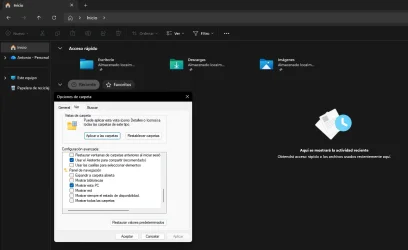
  2. Missing "Gallery" Section: The "Gallery" (Galería) node is completely gone from the navigation pane. Furthermore, when I open Folder Options > View > Navigation pane, there is no checkbox or option to re-enable it.
I have attached a screenshot showing my current File Explorer layout and my advanced folder settings. As you can see, the navigation pane is stripped down to the bare minimum.

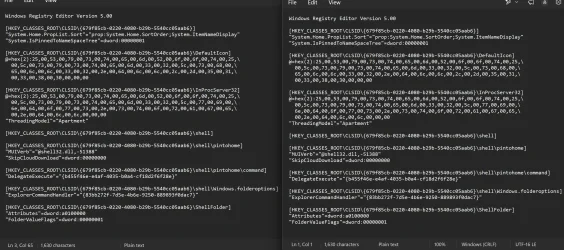
I suspect some registry keys regarding the shell extensions or user folders might have been corrupted or disabled by optimization software.

Has anyone encountered this specific state before? Any registry fixes (.reg), commands, or steps to restore both the ability to pin folders and bring back the Gallery section would be highly appreciated.

Thanks in advance for the help!
 
Windows Build/Version
25H2

Attachments

  • Captura de pantalla 2026-06-05 112642.webp
    Captura de pantalla 2026-06-05 112642.webp
    42.8 KB · Views: 1

My Computer

System One

  • OS
    Windows 11 Pro
    Computer type
    PC/Desktop
    Manufacturer/Model
    Vizzio (Custom PC)
    CPU
    AMD Ryzen 9 5900X (12 Cores / 24 Threads, 3.7 GHz - 4.8
    Motherboard
    Gigabyte B550 GAMING X V2
    Memory
    32 GB (2x16 GB) Kingston FURY Beast Black DDR4-3200 MHz
    Graphics Card(s)
    Gigabyte GeForce RTX 4070 Ti EAGLE OC 12GB
    Sound Card
    Realtek Integrated Audio (Sound Blaster Creative T60 / Razer BlackShark V2 X)
    Monitor(s) Displays
    Principal: Yeyian Avance 27” (180 Hz) | Secundario: HP 27f (75 Hz)
    Screen Resolution
    Principal: 2560x1440 (QHD) | Secundario: 1920x1080 (FHD)
    Hard Drives
    SSD Kingston NV2 1TB NVMe PCIe 4.0 + HDD Seagate BarraCuda 3TB 7200 RPM
    PSU
    MSI MPG A750GF 750W
    Cooling
    RL Thermaltake TH240 V2 Ultra ARGB Sync
    Keyboard
    Royal Kludge RKR98 Pro ISO-ES RGB Hot-Swappable Switch Cream Phantom
    Mouse
    Logitech G G502 X 25600 Dpi Negro
    Browser
    Brave
Considering Gallery, whilst there is this - and you might find more in comments following that helps- it is possible for Gallery to vanish and not be restored, apparently.

some system optimization tweaks

As you mention a clean install, I'll assume this was recent.
Did you do these manually or with a tool of some sort?

If the latter, it may allow you to revert them or maybe you or it - or even Windows at some point- created a System Restore point beforehand which you could use.

Did you at any point during this sequence start creating 3rd party disk images which you could use to restore your system?

The way I do this is to create my first disk image early on, set up a daily System restore point creation schedule, keep simple notes on changes, and at intervals create a further disk image. Then if something goes wrong I don't have far to go back.

But I also avoid intrusive tweaks which would be affected by an in-place upgrade repair install.

If you've come across Winaero's free tweaker, you'll note it offers a means of reverting changes and an explanation.
It includes some means of changing the Nav. pane.
 

My Computer

System One

  • OS
    Windows 11 Pro
    Computer type
    Laptop
    Manufacturer/Model
    Lenovo t480s
    CPU
    i7-8650U
    Memory
    16GB
    Graphics Card(s)
    Intel UHD 620
    Screen Resolution
    1920x1080
    Hard Drives
    C SN810 SDCPNRY-512G-1006
    Browser
    Edge, Firefox
    Antivirus
    Defender
I'll tag on here. I have a nice list of folders pinned in the Quick Access area of File Explorer. I just tried to add a new folder, but nothing happens either by dragging it to Quick Access or by right-clicking the folder and choosing Pin to Quick Access.

It has been a while (several months?) since I've tried pinning to Quick Access, so not sure when this bug appeared.

[Edited to add:] FWIW, I can't delete any items from the Quick Access area, either.
 
Last edited:

My Computers

System One System Two

  • OS
    Windows 11 Pro 25H2 (OS Build 26200.8524)
    Computer type
    Laptop
    Manufacturer/Model
    ASUS - ProArt PX13
    CPU
    AMD Ryzen AI 9 HX 370 w/Radeon 890M
    Motherboard
    AMI HN7306WU
    Memory
    32GB
    Graphics Card(s)
    NVIDIA GeForce RTX 4050 (and IGP Radeon 890M)
    Monitor(s) Displays
    external 24" Dell P2415Q
    Screen Resolution
    3840 x 2160 on external Dell, 2880 x 1800 on laptop screen
    Hard Drives
    1TB WD SSD
    Browser
    Vivaldi, Brave, Edge
    Antivirus
    Avast (free version)
  • Operating System
    Windows 11 Pro, 21H2 (Build 22000.376)
    Computer type
    Tablet
    Manufacturer/Model
    Surface Pro 6
    CPU
    i7-8650U
    Memory
    16 GB
    Graphics card(s)
    iGPU (Intel® UHD Graphics 620)
    Monitor(s) Displays
    Dell P2415Q
    Screen Resolution
    3840 x 2160 on external Dell, 2736 x 1824 on SP6 screen
    Hard Drives
    512GB PCIe Gen 3 x2 SSD
    Browser
    Vivaldi, Comodo Dragon, Edge
    Antivirus
    Avast (free edition)
I guess you did something like this:


Note too post #6 under that tutorial.

The Tutorials section is huge and well worth becoming familar with

Also
Clear File Explorer History via Folder Options
Under Folder Options, General
Uncheck both Show recently used files in Quick Access and Show frequently used folders in Quick Access.
Click Apply.
Click the Clear button next to Clear File Explorer history, then click OK
 
Last edited:

My Computer

System One

  • OS
    Windows 11 Pro
    Computer type
    Laptop
    Manufacturer/Model
    Lenovo t480s
    CPU
    i7-8650U
    Memory
    16GB
    Graphics Card(s)
    Intel UHD 620
    Screen Resolution
    1920x1080
    Hard Drives
    C SN810 SDCPNRY-512G-1006
    Browser
    Edge, Firefox
    Antivirus
    Defender
I guess you did something like this:


Note too post #6 under that tutorial.

The Tutorials section is huge and well worth becoming familar with

Also
Clear File Explorer History via Folder Options
Under Folder Options, General
Uncheck both Show recently used files in Quick Access and Show frequently used folders in Quick Access.
Click Apply.
Click the Clear button next to Clear File Explorer history, then click OK
I'll tag on here. I have a nice list of folders pinned in the Quick Access area of File Explorer. I just tried to add a new folder, but nothing happens either by dragging it to Quick Access or by right-clicking the folder and choosing Pin to Quick Access.

It has been a while (several months?) since I've tried pinning to Quick Access, so not sure when this bug appeared.

[Edited to add:] FWIW, I can't delete any items from the Quick Access area, either.
Thank you so much for the quick replies and the warm welcome!! I really appreciate the help.

Unfortunately, the initial fixes didn't work:

  • Quick Access Reset: I tried clearing the AutomaticDestinations and CustomDestinations caches via CMD and resetting the File Explorer history via Folder Options. The Quick Access area remains completely frozen—I still cannot pin or unpin any folders, and dragging them does nothing.
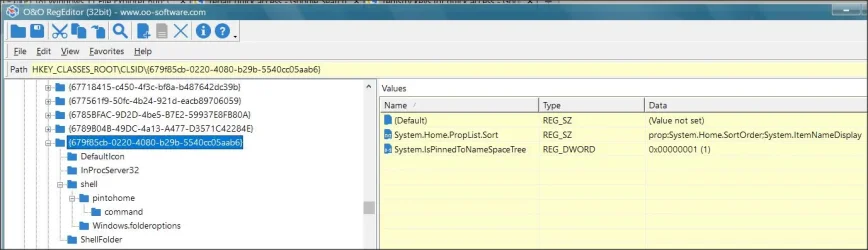
  • Gallery Restore: I checked the registry keys associated with the Gallery CLSID, but the node is still completely missing from both the left navigation pane and the Folder Options > View checkboxes.
To clarify what happened, this issue wasn't actually caused by an optimization tool. Right before this broke, I executed an incorrect/broken PowerShell command that was supposed to remove the native "Get Started" (Introducción) app. The command was faulty and it seems to have accidentally stripped or corrupted critical registry entries and shell extensions tied to the File Explorer navigation pane architecture.

Given that resetting the caches and basic CLSID keys failed, do you think an in-place upgrade repair install is my best shot to rebuild the broken shell components, or is there another registry hierarchy I should audit first?

Thanks again for your time and guidance!
 

My Computer

System One

  • OS
    Windows 11 Pro
    Computer type
    PC/Desktop
    Manufacturer/Model
    Vizzio (Custom PC)
    CPU
    AMD Ryzen 9 5900X (12 Cores / 24 Threads, 3.7 GHz - 4.8
    Motherboard
    Gigabyte B550 GAMING X V2
    Memory
    32 GB (2x16 GB) Kingston FURY Beast Black DDR4-3200 MHz
    Graphics Card(s)
    Gigabyte GeForce RTX 4070 Ti EAGLE OC 12GB
    Sound Card
    Realtek Integrated Audio (Sound Blaster Creative T60 / Razer BlackShark V2 X)
    Monitor(s) Displays
    Principal: Yeyian Avance 27” (180 Hz) | Secundario: HP 27f (75 Hz)
    Screen Resolution
    Principal: 2560x1440 (QHD) | Secundario: 1920x1080 (FHD)
    Hard Drives
    SSD Kingston NV2 1TB NVMe PCIe 4.0 + HDD Seagate BarraCuda 3TB 7200 RPM
    PSU
    MSI MPG A750GF 750W
    Cooling
    RL Thermaltake TH240 V2 Ultra ARGB Sync
    Keyboard
    Royal Kludge RKR98 Pro ISO-ES RGB Hot-Swappable Switch Cream Phantom
    Mouse
    Logitech G G502 X 25600 Dpi Negro
    Browser
    Brave
Thanks for the clarification.

Forgive the obvious- before applying tweaks - most especially from random places on the internet but in principle from anywhere of course, you should ensure you have an appropriate means of recovery.

First port of call would be System Restore, assuming this happened recently. Do you have an appropriate restore point?

Then you may have a recent 3rd party disk image (Macrium Reflect, Aomei Backupper, Hasleo Backup etc) - but that of course may affect recent personal data on the partition restored.

If, when you create a new user for test purposes, you find the SAME problem, then an in-place upgrade repair install is worth trying. If not, the problem lies with your user profile.
 

My Computer

System One

  • OS
    Windows 11 Pro
    Computer type
    Laptop
    Manufacturer/Model
    Lenovo t480s
    CPU
    i7-8650U
    Memory
    16GB
    Graphics Card(s)
    Intel UHD 620
    Screen Resolution
    1920x1080
    Hard Drives
    C SN810 SDCPNRY-512G-1006
    Browser
    Edge, Firefox
    Antivirus
    Defender
@dalchina :

My experience regarding the Quick Access issue is parallel to @Antonio Herrera 's experience in Post #5. Here's a summary of my history:

- I did a clean install of Windows 11 on 25-Jan-2026
- I recreated my personalized Quick Access area of File Explorer by dragging/dropping folders at that time
- probably as late as March or April, I dragged more folders to Quick Access
- no other tweaking to File Explorer after that
- yesterday (05-Jun-2026) I was no longer able to drag/drop things into QA (nor right-click and click on "Pin to Quick Access")
- I , too, cleared the AutomaticDestinations and CustomDestinations folders via Command Prompt which reset the QA to Windows default
- still wasn't able to pin items to Quick Access
- I restored AutomaticDestinations and CustomDestinations from a backup and regained my previous Quick Access list

This morning I used System Restore to back-date my system to the earliest available restore point (26-May-2026) and I was still unable to pin items to QA. I since reverted that System Restore action.

JOOC, can you still pin things to your Quick Access area of File Explorer? My assumption has been that something changed during a Windows Update, but of course, I cannot verify that.

... create a new user for test purposes, you find the SAME problem, then an in-place upgrade repair install is worth trying. If not, the problem lies with your user profile.

That is in my future. Once I try that I'll report back.
 

My Computers

System One System Two

  • OS
    Windows 11 Pro 25H2 (OS Build 26200.8524)
    Computer type
    Laptop
    Manufacturer/Model
    ASUS - ProArt PX13
    CPU
    AMD Ryzen AI 9 HX 370 w/Radeon 890M
    Motherboard
    AMI HN7306WU
    Memory
    32GB
    Graphics Card(s)
    NVIDIA GeForce RTX 4050 (and IGP Radeon 890M)
    Monitor(s) Displays
    external 24" Dell P2415Q
    Screen Resolution
    3840 x 2160 on external Dell, 2880 x 1800 on laptop screen
    Hard Drives
    1TB WD SSD
    Browser
    Vivaldi, Brave, Edge
    Antivirus
    Avast (free version)
  • Operating System
    Windows 11 Pro, 21H2 (Build 22000.376)
    Computer type
    Tablet
    Manufacturer/Model
    Surface Pro 6
    CPU
    i7-8650U
    Memory
    16 GB
    Graphics card(s)
    iGPU (Intel® UHD Graphics 620)
    Monitor(s) Displays
    Dell P2415Q
    Screen Resolution
    3840 x 2160 on external Dell, 2736 x 1824 on SP6 screen
    Hard Drives
    512GB PCIe Gen 3 x2 SSD
    Browser
    Vivaldi, Comodo Dragon, Edge
    Antivirus
    Avast (free edition)
Have you tried the f. explorer history idea I found - in my #4?

Also came across this where people are struggling with pinned folders disappearing from QA:
Right click an empty spot in the left Navigation pane, on the resulting context menu, turn off 'Show All Folders', can you then see your pinned folders in the left Navigation pane?
- but although it helped the person in that case, it's not likely to be relevant for most. Might just try toggling it though to see what happens.
 
Last edited:

My Computer

System One

  • OS
    Windows 11 Pro
    Computer type
    Laptop
    Manufacturer/Model
    Lenovo t480s
    CPU
    i7-8650U
    Memory
    16GB
    Graphics Card(s)
    Intel UHD 620
    Screen Resolution
    1920x1080
    Hard Drives
    C SN810 SDCPNRY-512G-1006
    Browser
    Edge, Firefox
    Antivirus
    Defender
Have you tried the f. explorer history idea I found - in my #4?

Also came across this where people are struggling with pinned folders disappearing from QA:

- but although it helped the person in that case, it's not likely to be relevant for most. Might just try toggling it though to see what happens.
Yes, I did these:

Also
Clear File Explorer History via Folder Options
Under Folder Options, General
Uncheck both Show recently used files in Quick Access and Show frequently used folders in Quick Access.
Click Apply.
Click the Clear button next to Clear File Explorer history, then click OK
I just now backed up all my data files – just in case – and now am going to see if doing an in-place upgrade helps. I did create a new user, and in File Explore for that new user I could pin things to Quick Access.
 

My Computers

System One System Two

  • OS
    Windows 11 Pro 25H2 (OS Build 26200.8524)
    Computer type
    Laptop
    Manufacturer/Model
    ASUS - ProArt PX13
    CPU
    AMD Ryzen AI 9 HX 370 w/Radeon 890M
    Motherboard
    AMI HN7306WU
    Memory
    32GB
    Graphics Card(s)
    NVIDIA GeForce RTX 4050 (and IGP Radeon 890M)
    Monitor(s) Displays
    external 24" Dell P2415Q
    Screen Resolution
    3840 x 2160 on external Dell, 2880 x 1800 on laptop screen
    Hard Drives
    1TB WD SSD
    Browser
    Vivaldi, Brave, Edge
    Antivirus
    Avast (free version)
  • Operating System
    Windows 11 Pro, 21H2 (Build 22000.376)
    Computer type
    Tablet
    Manufacturer/Model
    Surface Pro 6
    CPU
    i7-8650U
    Memory
    16 GB
    Graphics card(s)
    iGPU (Intel® UHD Graphics 620)
    Monitor(s) Displays
    Dell P2415Q
    Screen Resolution
    3840 x 2160 on external Dell, 2736 x 1824 on SP6 screen
    Hard Drives
    512GB PCIe Gen 3 x2 SSD
    Browser
    Vivaldi, Comodo Dragon, Edge
    Antivirus
    Avast (free edition)
Back to square one: Did an in-place upgrade, but still cannot pin anything to Quick Access in File Explorer.

Any other ideas, other than wiping the drive and doing a fresh Windows installation?
 

My Computers

System One System Two

  • OS
    Windows 11 Pro 25H2 (OS Build 26200.8524)
    Computer type
    Laptop
    Manufacturer/Model
    ASUS - ProArt PX13
    CPU
    AMD Ryzen AI 9 HX 370 w/Radeon 890M
    Motherboard
    AMI HN7306WU
    Memory
    32GB
    Graphics Card(s)
    NVIDIA GeForce RTX 4050 (and IGP Radeon 890M)
    Monitor(s) Displays
    external 24" Dell P2415Q
    Screen Resolution
    3840 x 2160 on external Dell, 2880 x 1800 on laptop screen
    Hard Drives
    1TB WD SSD
    Browser
    Vivaldi, Brave, Edge
    Antivirus
    Avast (free version)
  • Operating System
    Windows 11 Pro, 21H2 (Build 22000.376)
    Computer type
    Tablet
    Manufacturer/Model
    Surface Pro 6
    CPU
    i7-8650U
    Memory
    16 GB
    Graphics card(s)
    iGPU (Intel® UHD Graphics 620)
    Monitor(s) Displays
    Dell P2415Q
    Screen Resolution
    3840 x 2160 on external Dell, 2736 x 1824 on SP6 screen
    Hard Drives
    512GB PCIe Gen 3 x2 SSD
    Browser
    Vivaldi, Comodo Dragon, Edge
    Antivirus
    Avast (free edition)
Back
Top Bottom